Garage Settings
The Settings page is where you configure how your garage runs. The tabs are grouped down the left into six sections. Garage admins see every tab; front of house see only Operating Hours, Set-up check, Messages (What your customers receive read-only, and Templates), Job Types, Specialisations and Scan Uploads. On Operating Hours the front desk sees the weekly hours read-only and can add or remove a closure or reduced hours for a day; the weekly hours, bays out of service and the Capacity tab are the owner's.
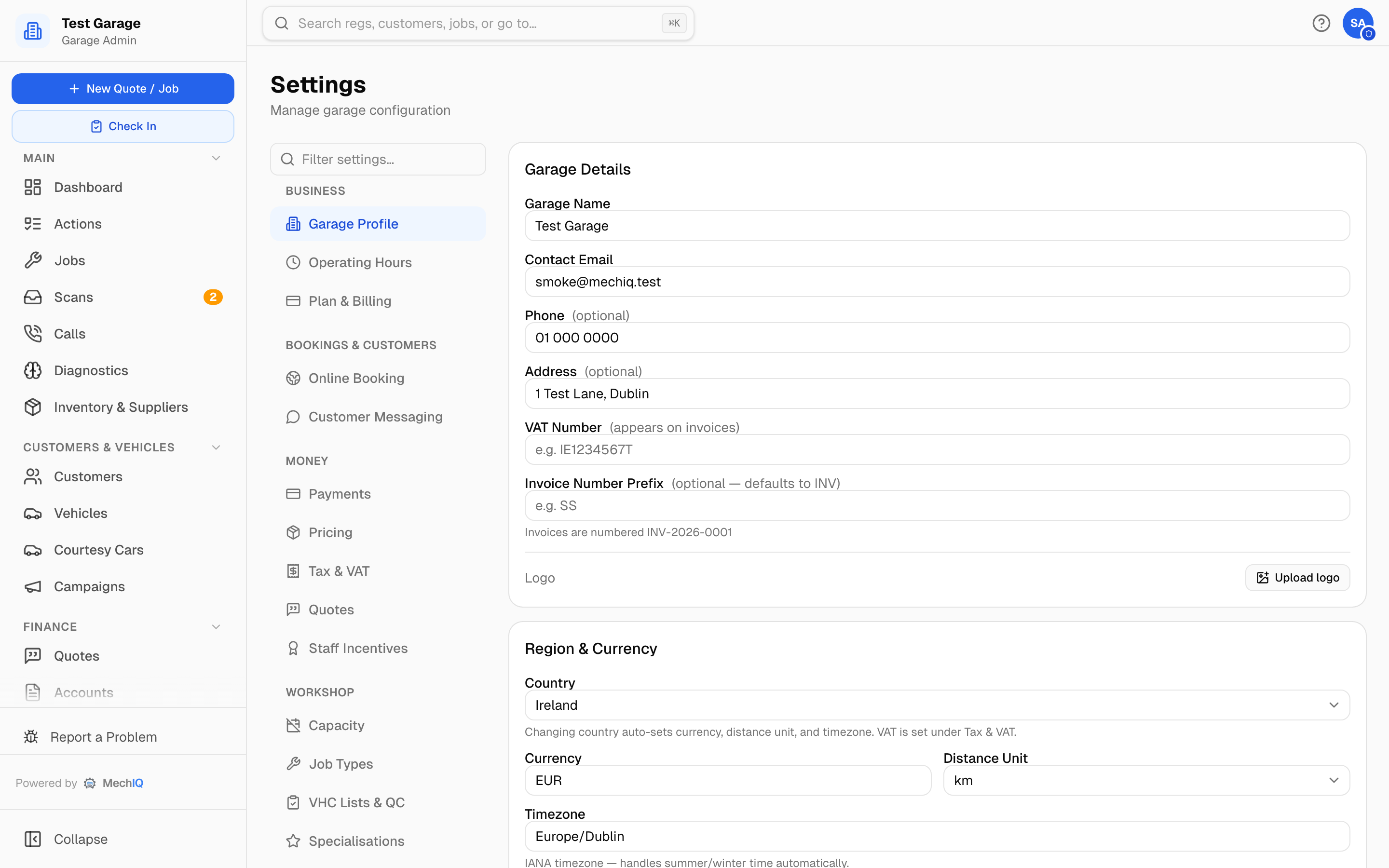 The Settings page: the tab list down the left (type in the filter box to jump to a tab) and the tab's cards on the right.
How saving works
Most tabs are a draft: edit what you like and nothing changes until you click Save changes in the sticky bar at the bottom of the page; Discard puts everything back. Anything that behaves differently is called out in the tab's article — logo uploads, VAT rate rows and wall-display links are records with their own button or dialog. Every garage setting (the SMS sender name, the Actions queue settings and Require a VHC on every job included) is saved by the bar. A list — job types, VHC templates, specialisations, job categories — saves each item on its own button, and says so at the top of the list.
One place per setting. Each setting has one home; other places link to it. The deposit for online bookings is in Payments (beside the account it is paid on) — Online Booking shows whether it is on and links there. The consumables charge is in Inventory → Charges.
Week one. While your Finish setting up list is still open, the tabs a new garage sets up first carry a Week one marker: Garage Profile, Messages, Payments, Job Types, Accounting and Data Import. Type "week" in the filter box to list just those.
The tabs
Business
- Garage Profile — name, contact details, VAT number, invoice prefix, logo, country/currency/timezone, login session length.
- Operating Hours — open/close times and break per weekday, whether each day takes online bookings, and whether it's staffed as usual or by rota, plus Closures & Overrides for bank holidays, reduced hours and bays out of service.
- Plan & Billing — your MechIQ subscription, technician seats, changing plan, cancelling.
- Set-up check — anything in your set-up that will stop payments, messages, online booking or your accounts working, why, and a button to each fix.
Bookings & Customers
- Online Booking — share of capacity released online, tyre bookings, deposit at booking, and your booking link, Google button and website embeds.
- Messages — What your customers receive (opens first): every customer message, what starts it, its channel, and the on/off and timing of the automatic ones (booking confirmation, appointment and NCT/MOT reminders, payment reminder). Templates (front desk too): your own message templates and the wording of the automatic messages. Messaging settings (admin): AI message tone, job tracking link, declined-work follow-ups. Sender name & email (admin): SMS sender name, and sending email from your own domain or your own mailbox.
Money
- Payments — card payment method and link, cash, bank transfer details for invoices, pay-later reminders, and your connected Stripe/Revolut account for deposits.
- Pricing — labour rate (with optional overtime and weekend rates), how a part's price is worked out, parts markup matrix and default markup, repair uplift and minimum labour, call-outs, labour costing, tyre markup, target profit margin. The consumables charge and your charges & levies are in Inventory → Charges.
- Tax & VAT — statutory VAT rates, your default rate, and the default per line category.
- Quotes — validity period, follow-up rules, auto-approval for account customers.
- Staff Incentives — the optional target-tracking scheme for FOH and technicians.
Workshop
- Capacity — bays, technician productivity, rebooking escalation window.
- Job Types — the services on your menu, how each is priced, colour categories, the Standard Jobs wizard.
- VHC & QC checklists — vehicle health check templates, VHC on every job, and the quality-check checklist.
- Finishing checks — what a technician ticks when they finish a job (by default Tools cleared… and Vehicle is clean…). Search "finishing checks" to go there.
- Specialisations — the skill tags you can give technicians.
- Time Clock — staff clock-in/out per role and the timesheet.
- Workshop Options — the optional switches: damage waiver, work authorisation, pre-order parts, paper job cards, DDTSB bulletins, wall display, courtesy cars. (partslink24 is used from Inventory → Suppliers → Online suppliers, not here.)
Dashboard
- Dashboard — whether FOH see money figures (the Money tab and daily banner), the daily profit target, bay-view staleness flags, and bringing back the Finish setting up checklist.
- Notifications — Actions-queue sound, parts hand-off location and escalation times, the weekly summary email, plus the garage-wide switch for every notification type.
Integrations & data
- Accounting — connect Sage, Xero or QuickBooks, or use CSV export. See How MechIQ handles VAT and accounts.
- Scan Uploads — your diagnostic-scan email address.
- Calendar Import/Export — bookings out as CSV, bookings in from another system.
- Data Import — bring your data across from Garage Hive, Autowork Online or any other system.
- Data Export — everything out as Excel or CSV, and the data-retention archive.
- Privacy & Access — the log of MechIQ support access to your garage.
Not in Settings
People — accounts, roles, passwords, leave and working patterns — live on the Team page. Supplier price lists live under Inventory & Suppliers.
Tips
- Something not happening that should? Run Set-up check first — it usually names the setting.
- The filter box above the tab list matches tab names and group names — type "vat" or "money" to jump straight there.
- Review your hourly rate and target margin periodically; review the walk-in reservation on Online Booking against how much walk-in traffic you actually get.