Send Emails From Your Own Domain
By default, customer emails MechIQ sends on your behalf come from an @mechiq.ie address. You can instead send them from your own garage domain (for example noreply@yourgarage.ie) so messages look like they come straight from you.
You set this up in Settings -> Messages -> Sender name & email, in the Send from your own domain section (admin only).
Prefer zero technical setup? If your garage has its own mailbox (e.g.
info@yourgarage.ie), you can instead send through it directly — no DNS records needed. See Send Emails Through Your Own Email Account. If both are configured, the email account is used.
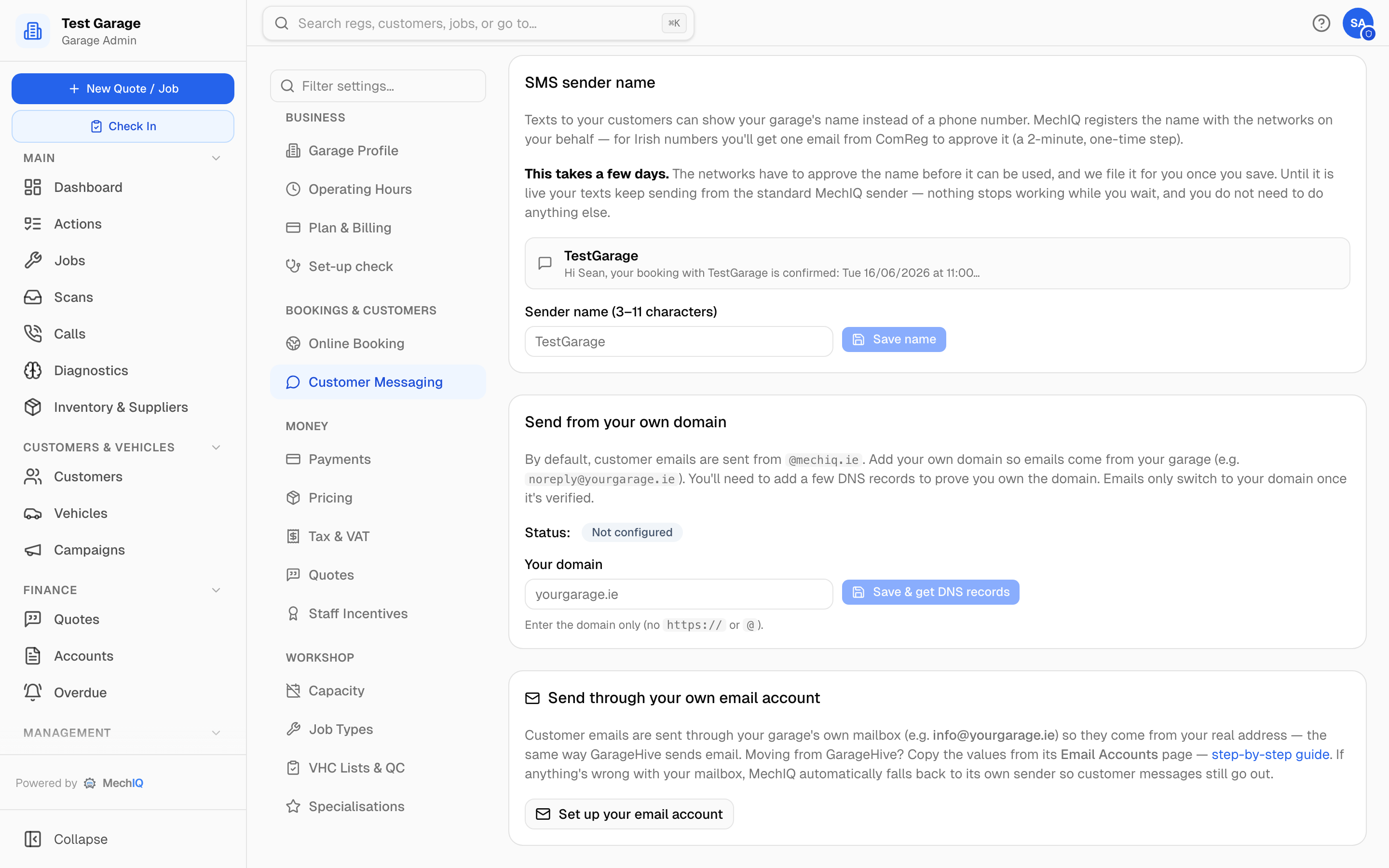 The Send from your own domain card is on the Sender name & email tab of Settings → Messages.
Adding Your Domain
- Go to Settings -> Messages -> Sender name & email and find Send from your own domain.
- In Your domain, type the domain only -- no
https://and no@(e.g.yourgarage.ie). - Click Save & get DNS records.
The status changes to Pending verification and a list of DNS records to add appears.
Adding the DNS Records
To prove you own the domain, you add the DNS records MechIQ shows you at your domain registrar (wherever you bought/manage the domain).
- For each record shown, note its type (e.g. TXT/CNAME), its Name / Host and its Value. Use the Copy buttons to copy each value exactly.
- Log in to your domain registrar's DNS settings and add each record as shown.
- Save the records at your registrar. DNS changes can take a little while to propagate.
Back in MechIQ, click Check verification to re-check. While it is still confirming, the status stays Pending verification.
Verification Status
The section shows a status badge:
- Not configured -- no domain added yet.
- Pending verification -- domain added, waiting on the DNS records to be found and confirmed.
- Verified -- the domain is confirmed and customer emails now send from your domain (it shows the new From address).
- Verification failed -- the records couldn't be confirmed; check they match exactly and try Check verification again.
Important: emails only switch to your domain once the status is Verified. Until then, they keep sending from the default
@mechiq.ieaddress, so nothing breaks while you wait.
Removing Your Domain
Click Remove domain to clear it and go back to sending from the default address.
Tips
- Copy the Name / Host and Value with the copy buttons -- a single mistyped character means verification won't pass.
- If verification doesn't pass after a while, double-check you added every record and that there are no duplicate/conflicting records at your registrar, then Check verification again.