Dark Mode
Dark mode is switched off for now. Every screen shows in the light theme, the Dark Mode button is not offered, and a dark setting saved earlier is ignored. It will come back once every screen reads well in it.
When it returns: MechIQ supports a dark mode theme. This is a per-user setting -- enabling it for yourself does not affect other users at your garage.
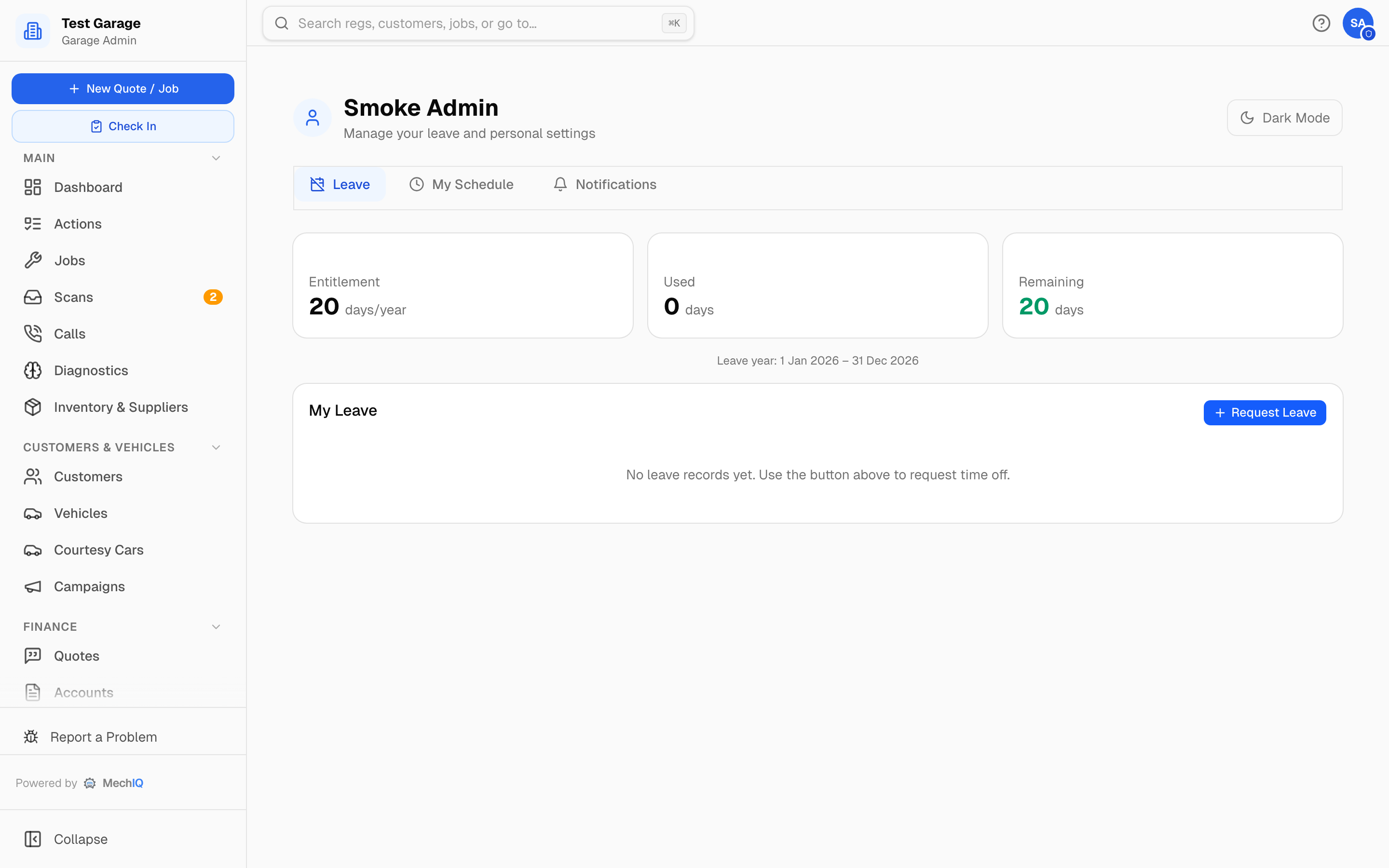 My Profile, with the Dark Mode / Light Mode button at the top right.
How to Toggle Dark Mode
- Click your avatar at the top right and choose My Profile.
- Click the Dark Mode / Light Mode toggle at the top of the page to switch themes.
- The change takes effect immediately.
How It Works
Dark mode applies a dark colour scheme to all pages, reducing eye strain in low-light environments. The setting is stored locally per user (via your browser) and persists across sessions.
On the native app there's no browser, so the app follows your phone's light/dark setting rather than this in-app toggle -- switch your device to dark mode and the app comes with it.
Tips
- Workshop environments with bright overhead lighting may be easier to read in light mode.
- If you use MechIQ on a tablet in the workshop, try dark mode to reduce screen glare.
- Dark mode does not affect printed invoices or exported documents.