Target Profit Margin
Set a target margin and MechIQ measures you against it: each quote shows whether it reaches the target, and the dashboard and reports show whether you're on target.
What gross profit means in MechIQ
Everywhere in MechIQ, gross profit = parts profit + labour sales, all ex VAT.
- Parts profit is what you charged for parts minus what they cost you.
- Labour sales is what you billed for labour. Labour cost only comes off where the garage tracks technician cost rates -- Settings → Pricing → Labour Cost → Cost my labour (show net margin), which needs an hourly cost on every technician. Until then, labour margin is gross.
- VAT is never profit. Every figure here is ex VAT.
Margin is gross profit as a share of sales ex VAT.
Setting the target
- Go to Settings → Pricing.
- In Margins & Consumables, enter Target Profit Margin (%) -- for example 35.
- Save changes.
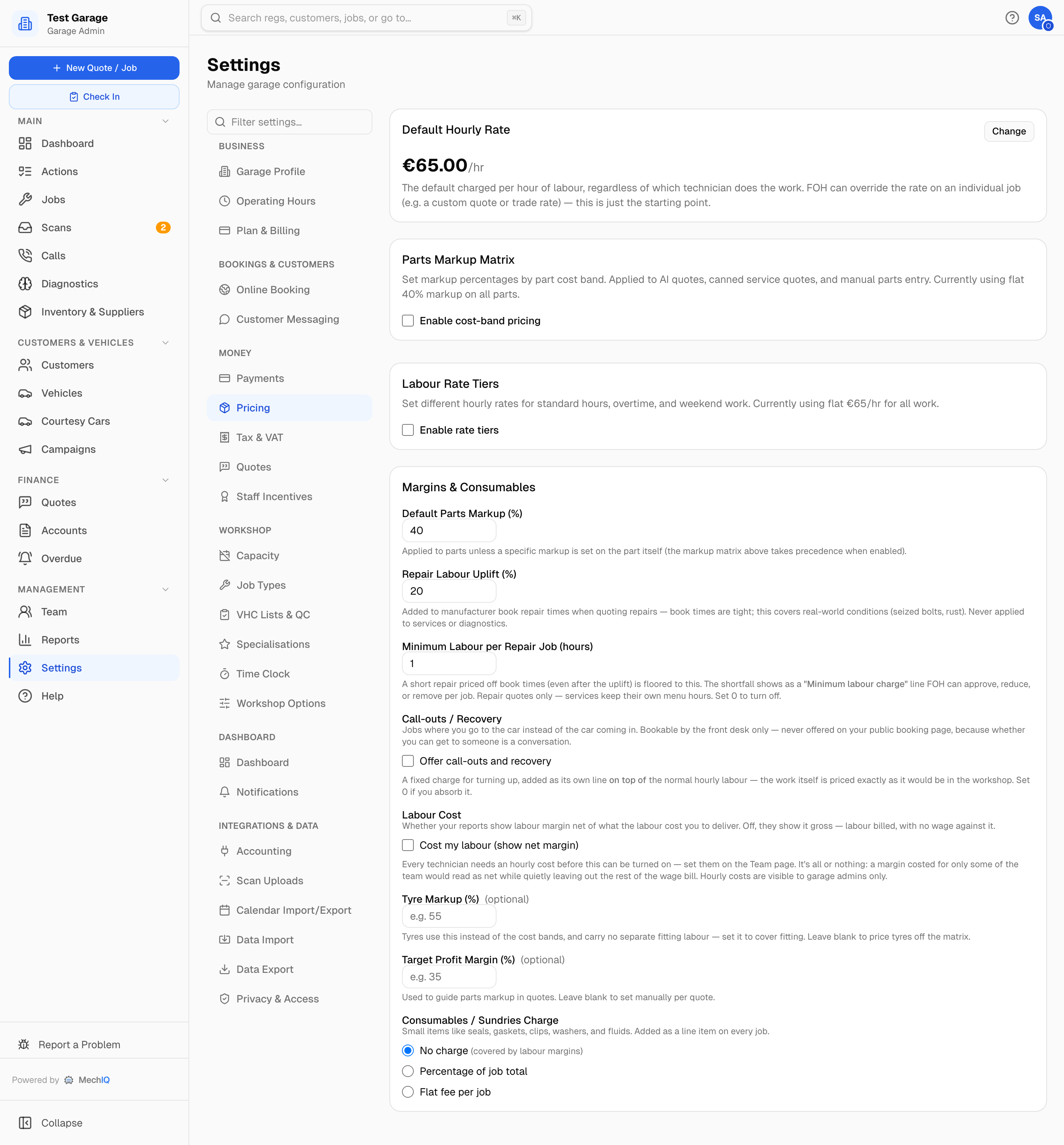
Leave it blank to set markup by hand per quote.
How quotes use it
Quotes are priced at your parts markup (the default, or your markup matrix) on whichever cost MechIQ has for each part -- your inventory cost, a supplier catalogue price, your uploaded price list, or an estimate flagged for checking. The target never changes those prices.
What it does is tell you where the quote lands. Under the total, the quote shows Margin ~58% · target 70% -- green on or above target, amber below. When it's below, it adds the parts markup that would reach the target (~133% parts markup would reach it), so front of house can raise a price by hand if they decide to. A labour-heavy job usually clears the target easily; a parts-heavy one (a clutch, a set of tyres) often won't, and that's normal -- the garage's markup policy decides the price, not the target.
Seeing how you're tracking
- Dashboard (owner strip) -- the Revenue, Gross Profit and Margin cards. The Margin card is green when today's margin is on or above your target (on target (35%)) and amber below (below 35% target). With no target set, the colour falls back to a 30% line.
- Dashboard → Money -- Gross profit vs target against the daily profit target from Settings → Dashboard, Gross margin, and tiles for total sales, gross profit, labour sales, parts sales, parts profit and the rest. See Owner dashboard.
- Reports → Financial -- the Gross Profit card shows the margin for the period. When it's below your target an amber banner says by how much and links to Settings → Pricing. No banner means you're on target, or no target is set.
Tips
- A typical independent garage targets 40–50% on parts.
- Trade account discounts reduce your effective margin. Factor them in when setting the target.
- The target is a guide, not a rule. If quotes are routinely below it, look at your parts markup (Settings → Pricing) rather than raising prices one quote at a time.