Your Owner Dashboard
When you sign in as a garage admin, your dashboard leads with the business, not the day's job queue. The front desk gets the operational control tower; you get a management overview, with the workshop board one click away.
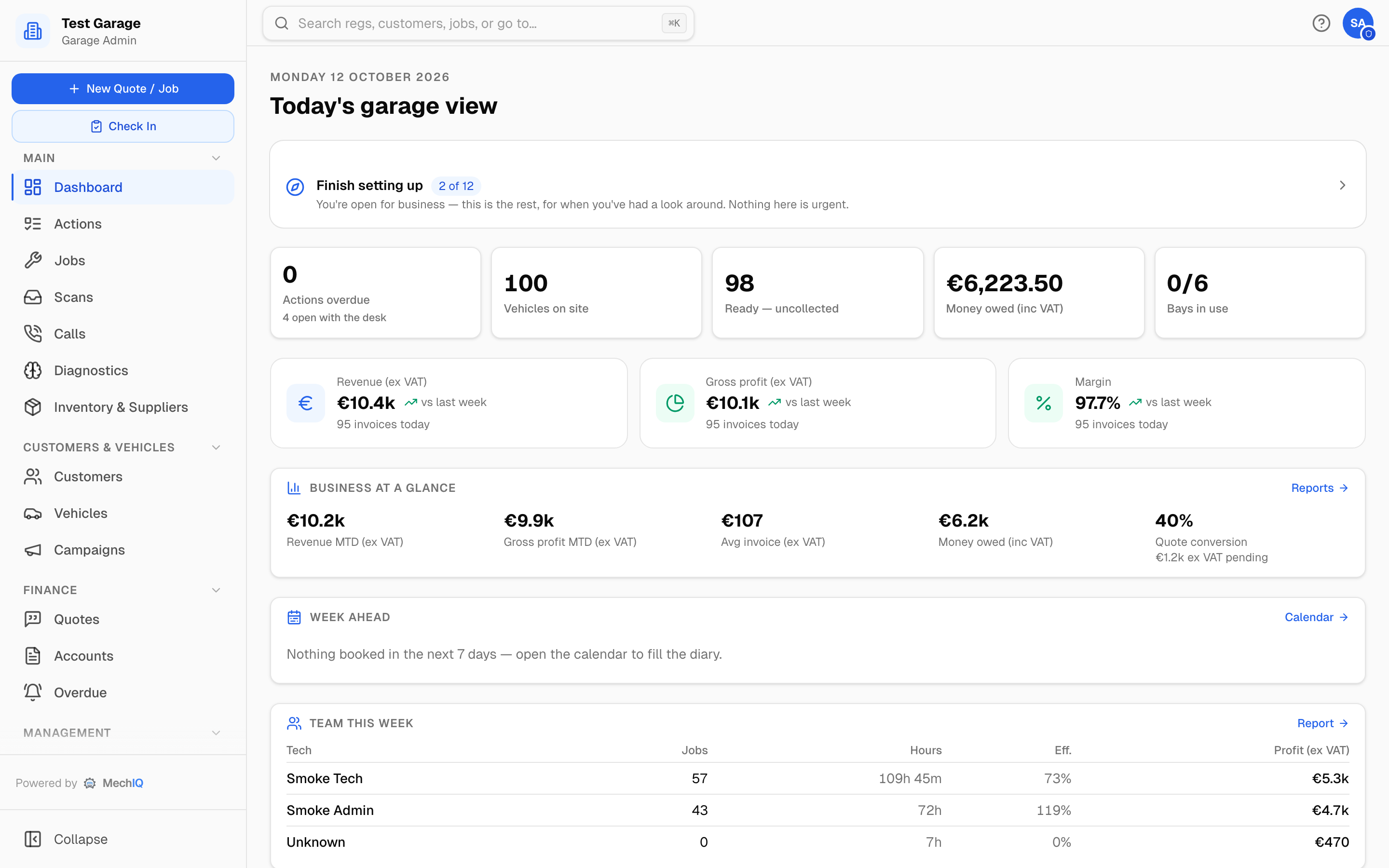 The owner dashboard, top to bottom.
What's on it
The page runs in the order you'd ask the questions. Every money figure says whether it's ex VAT (sales, profit, average invoice) or inc VAT (money owed):
- Finish setting up — a collapsed card with the rest of the setup ("3 of 12"), until it's done or hidden. See Setup wizard. Open it for Run the set-up check, which checks that what you've set up actually works — see Set-up check.
- The today strip (tiles, no heading of its own) — is today under control? Actions overdue (with how many are open with the desk), Vehicles on site (and how many have been here 3+ days), Ready — uncollected, Money owed, and Bays in use. Each clicks through to the work; amber tiles need attention.
- Today's trading — three cards (again no heading): today's Revenue, Gross Profit and Margin from the invoices raised today. Each is compared with yesterday when yesterday raised invoices, and with the same day last week when it didn't; the card says which it used.
- Daily profit target (only if you set one under Settings → Dashboard) — today's gross profit against the target, judged Ahead or Behind a typical same-weekday by this time, so a quiet morning doesn't read as "behind". The tick on the bar is the typical pace; hit the target and it turns green.
- Business at a glance — revenue and gross profit month-to-date (each vs the same point last month), average invoice, money owed, and quote conversion with the value still pending. Reports → opens the full picture.
- Week ahead — how booked each of the next few days is versus capacity, so you spot a quiet day early. Links to the Calendar.
- Team this week — each technician's jobs finished this week, the hours sold on them, efficiency (hover it for the hours that make it) and labour profit (with Cost my labour off, the last column is Labour billed instead: no wage cost is taken off, so it isn't profit), and beside it FOH upselling this week — the value of extra work each front-desk person got approved.
- Customer pulse — new customers this week and your recent review score.
- Your value this month — what MechIQ delivered: the value of quotes won, extra work upsold through online approvals, front-desk and technician hours saved, and the number of AI actions run. View value report opens Reports → Value.
The workshop view and the Money tab
Everything the front desk works from sits behind the Workshop view button. Click it and the board opens with its tabs — Garage Floor (the live bay board), Tech Board (the day's plan per technician), Calendar, Follow-ups (everything to chase, with a count) and Money. The badge on the button shows how much the desk has open and turns red when items are past their escalation time. Make this my default pins the tab the dashboard opens on; your choice is remembered.
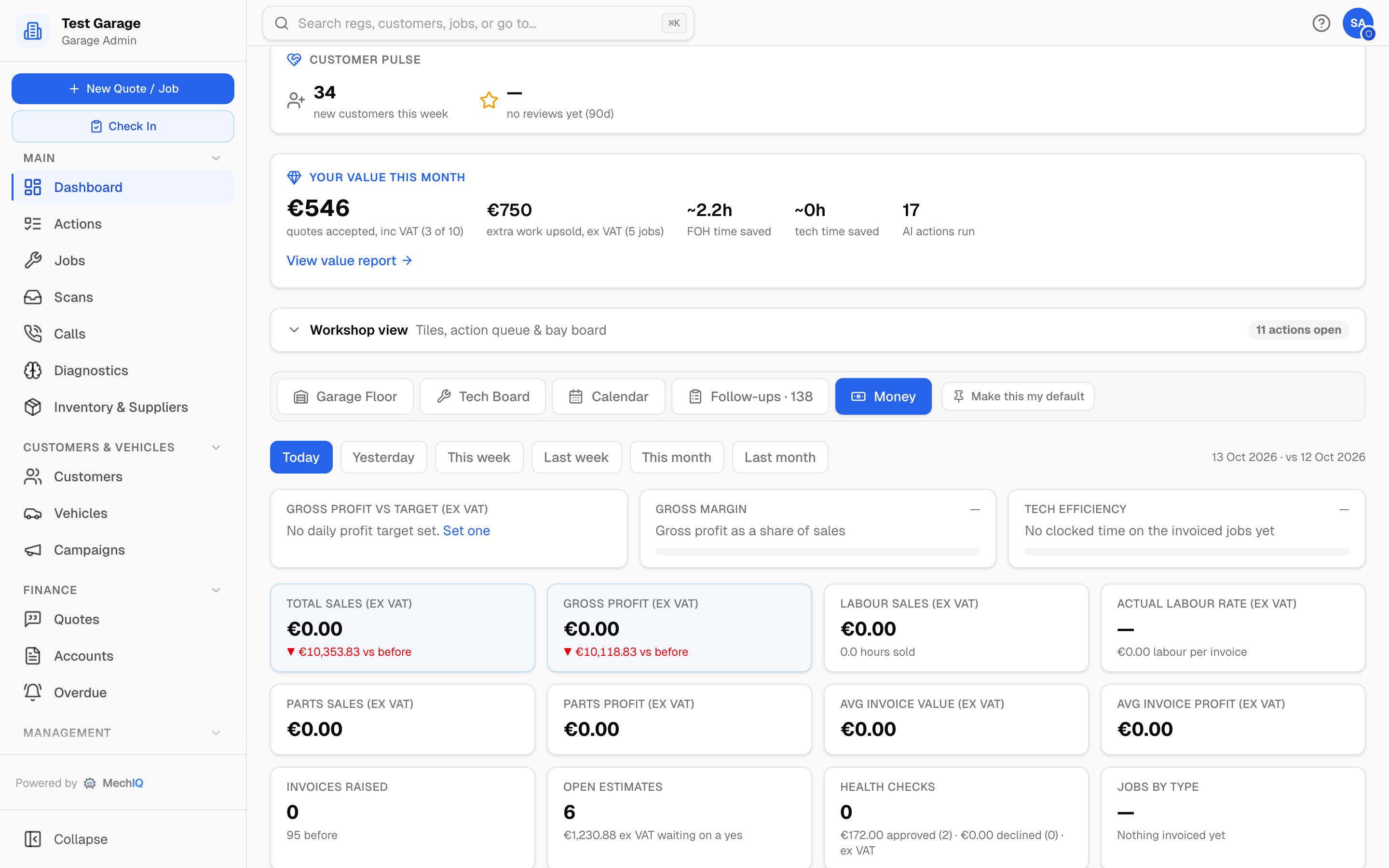 The Money tab — the desk's summary page, for today, yesterday, this week, last week, this month or last month.
The Money tab is the day-to-day money view (what a GarageHive user knows as the Summary page): sales, gross profit and margin, labour and parts, actual labour rate, average invoice, open estimates, health-check work approved and declined, jobs by type, and labour sold by technician with hours sold, hours clocked and efficiency. All ex VAT, and the same numbers as Reports → Financial. The gross-profit bar runs against your daily target scaled to the open days the period has had so far -- on a Wednesday, "This week" is three open days' worth of target, not five.
Owners always have the Money tab. Front-of-house staff have it too — plus a Today's money banner at the top of their dashboard — while Show front-desk (FOH) staff the Money tab is ticked under Settings → Dashboard (it is on by default). Untick it to keep money figures off the desk.
On the native app
As a garage admin you can carry the business in your pocket with the native MechIQ app. Its home screen shows a money glance — today's revenue and gross profit — which taps through to Reports, and a "How's the garage doing this week?" button for the weekly picture when you're away. An AI diagnostic lookup is a technician-portal tab on the app, not an admin one -- switch yourself to technician in the app if you want one on the move, or use Diagnostics in the web sidebar. The full operational and settings work still lives on the desktop.
Tips
- Set a daily profit target so you and the team can see at a glance whether the day is on track.
- The value figures and the AI-hours-saved estimates build through the month — check View value report before a renewal to see the cumulative picture.