FOH Dashboard
The dashboard is your home screen. Under the Today's garage view heading it splits into tabs:
- Garage Floor -- what is in the workshop right now.
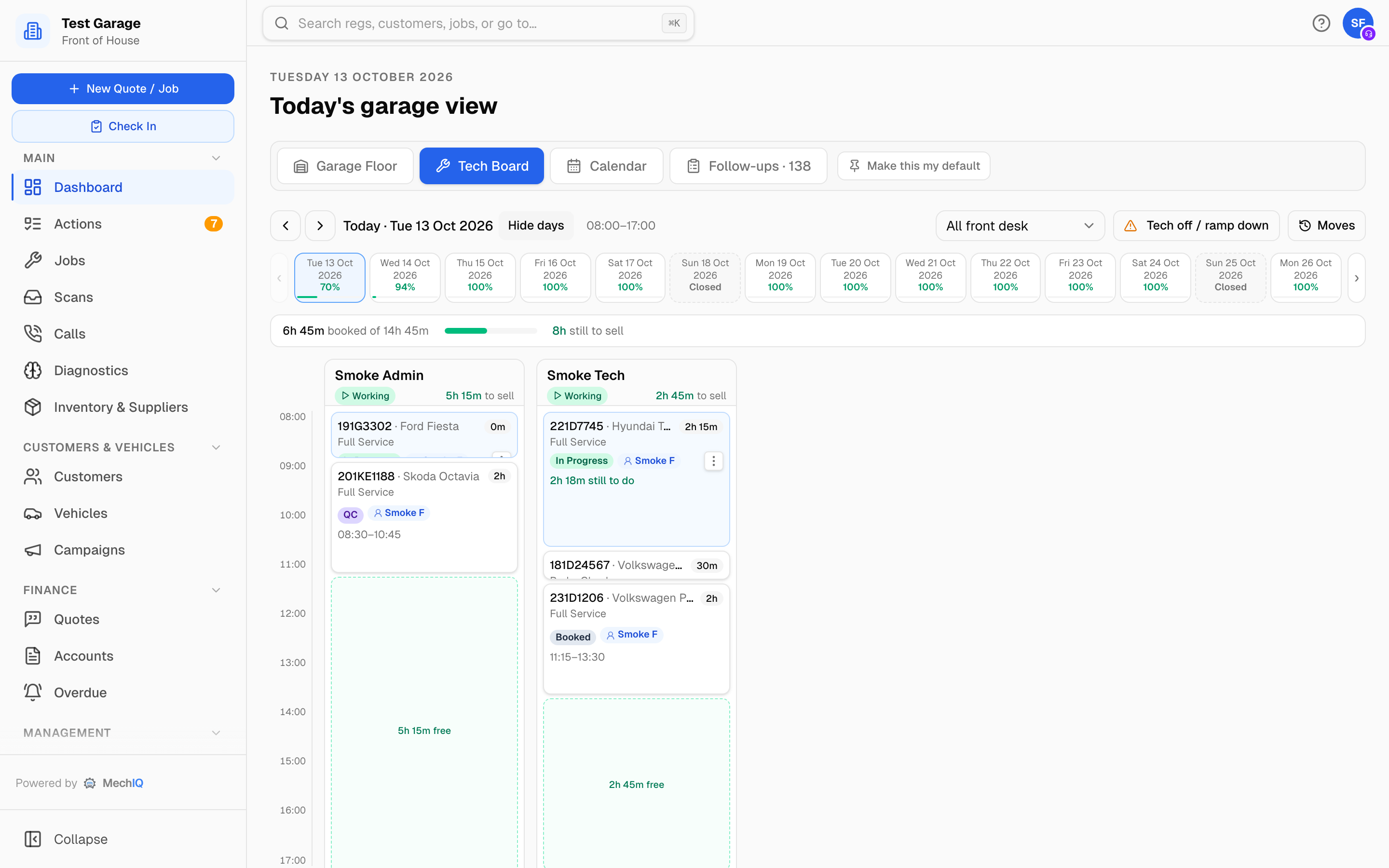
- Tech Board -- the day's plan, one column per technician.
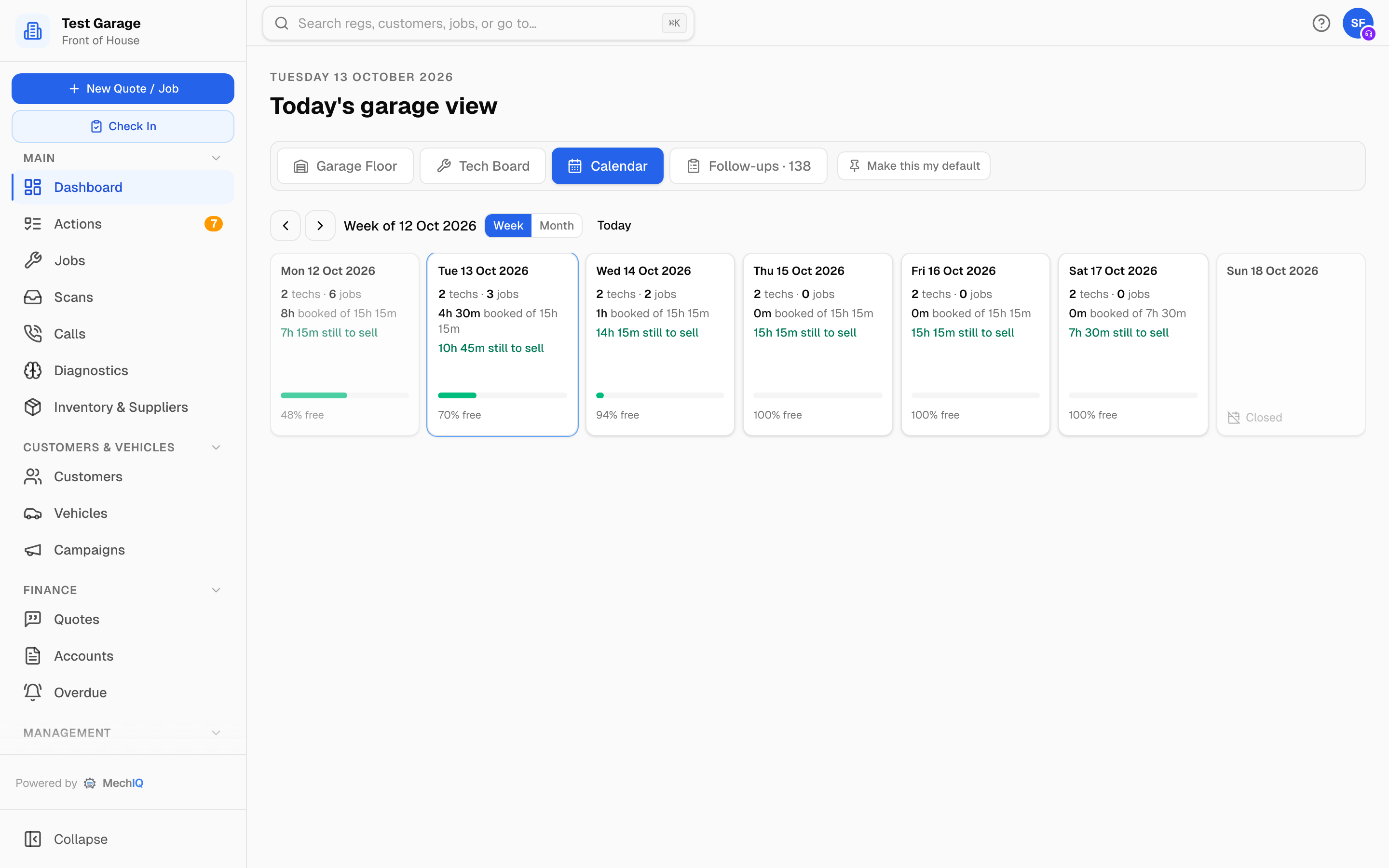
- Calendar -- the week and month overview.
- Follow-ups -- everything waiting on a phone call or a chase. The label carries a count.
- Money -- how the day, week or month is going. Owners always have it; front desk staff see it only when the garage has switched financials on for them (Settings → Dashboard → Financials on the dashboard).
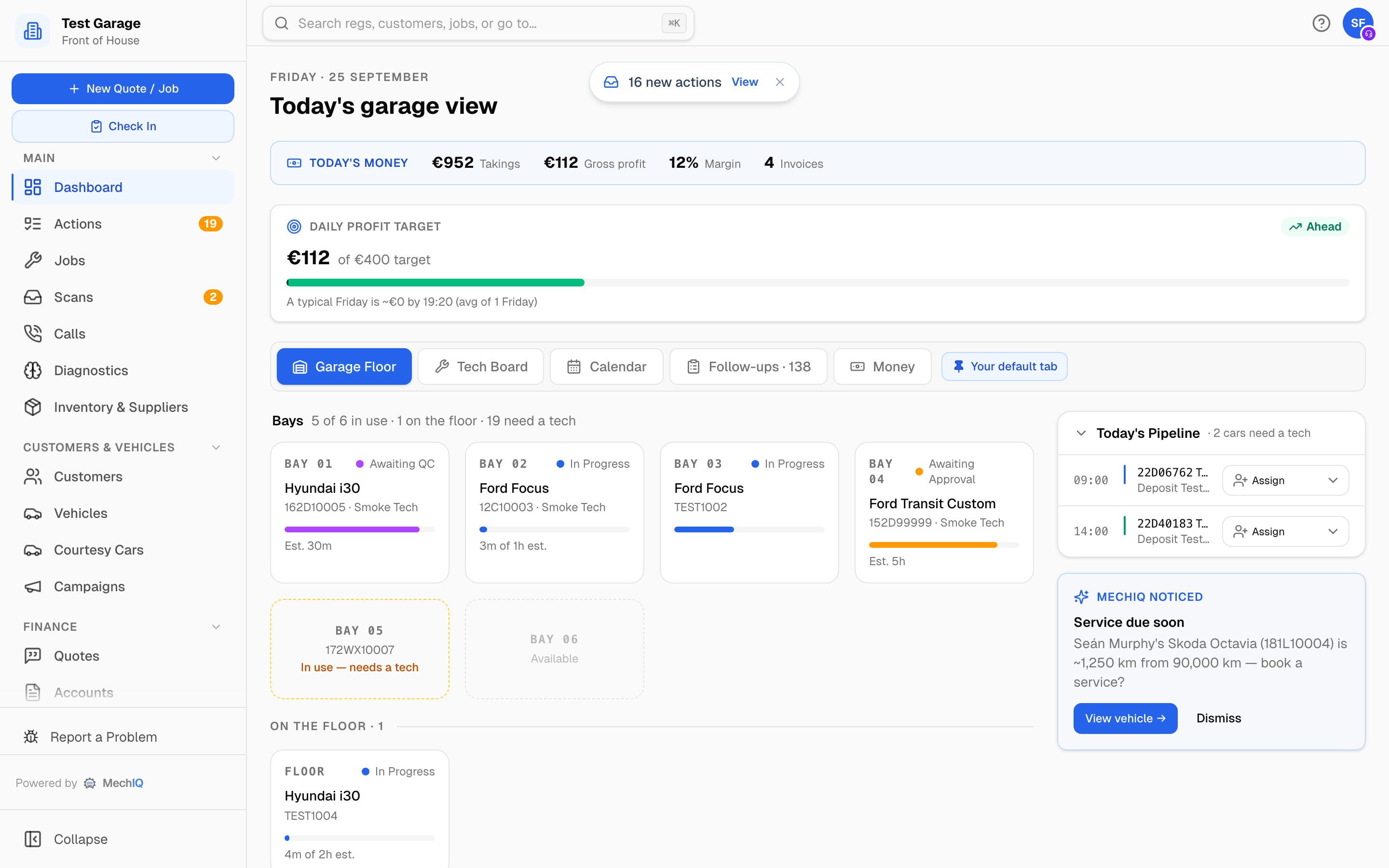 The Garage Floor tab: bay tiles on the left, Today's Pipeline and MechIQ Noticed on the right.
The tab you are on is kept in the address bar, so Back and a refresh keep your place. To open the dashboard on the tab you use most, click Make this my default beside the tabs. It then reads Your default tab on that browser.
Work that needs a decision -- approvals, hand-offs, quality checks, messages to send -- lives on the Actions page in the sidebar, not on the dashboard. On a desktop browser the most urgent items also pop up as a red pill near the top of whatever page you are on -- it is part of the desktop shell, so it is not there on a phone or tablet layout. See The Actions board.
The money banner and daily target
When financials are on for the front desk, two strips sit above the tabs:
- Today's money -- Sales (ex VAT), Gross profit, Margin and Invoices for today. Before the first invoice it reads no invoices raised yet today. Sales are the invoices raised today less the credit notes raised today -- the same figure Reports → Financial shows for the day, so today never reads more than the month it is in. A credit note is not counted as an invoice, and its job's costs aren't counted again. Money actually received today is Takings today on the Accounts board -- see Which money figure is which.
- Daily profit target -- today's gross profit against the target the owner set (Settings → Dashboard → Daily profit target). The pill reads Ahead or Behind compared with a typical day of the same weekday by this time, and Target hit! once you pass it.
If financials are off, a small Sales today card (today's invoiced total, with yesterday and the same weekday last week) sits in the right-hand column of the Garage Floor instead. Sales are visible to everyone; profit and margin are not.
If you have a personal sales target, Your sales target shows your own progress at the top of the page.
Garage Floor
The Bays heading tells you how many bays are in use, how many started cars are on the floor without a bay, and how many cars still need a technician.
Each bay tile shows the vehicle, its job number and registration, the technician and a status dot:
- In workshop, Arrived, Waiting for QC and With the desk are the statuses you will see (the same words as every other screen). A tile also says what the car waits on, from the same answer as the job page.
- The last line compares the job clock (working time on the job) with the estimate, for example Job clock 3m of 1h est. When the clock passes the estimate it turns amber and reads over estimate. MechIQ Noticed says the same figure in the same words.
- When the car has another open job (for example a finished job still waiting to be collected), the tile says so in amber: Also J-0021 · Ready to collect. The same note shows on the Ready for collection and Never arrived lists, so one car in two lists is always two jobs you can tell apart.
- An empty bay reads Available.
Below the bays:
- On the floor -- started work that has no bay (cars worked on outside, or garages that do not use bays).
- Needs a tech -- every car on site that is waiting on a technician: checked in but not started, or Handed back by a technician. A car already parked in a bay shows a BAY badge here, and its bay tile reads In use — needs a tech. A car assigned but not started reads Waiting on the technician's name.
Click any tile to open the job. Finished cars are not on the grid -- chase them from Follow-ups → Ready for collection.
Down the right (on wider screens):
- Today's Pipeline -- cars booked in today that have nobody to work on them, in time order (a clock time, AM or PM). Each row shows the registration plate, the job type and vehicle, and the job number and customer. Each row has an Assign control so you can give it a technician without opening the job. The panel opens itself when arrivals are due and remembers if you collapse it.
- MechIQ Noticed -- one proactive prompt when MechIQ spots something worth acting on: a service coming due, a job running over, an advisory never rebooked, a quiet day with an open quote. It is checked when you open the dashboard: a job running over shows its job clock now, and a prompt that no longer applies (the job finished, or the car is already booked in or on site) does not show. A car with an open job never gets a "service due" prompt. Dismiss clears it; the action button is named for where it goes -- View vehicle, View job, Contact customer or View quote.
Tech Board
One column per technician, drawn against the hours of the day. Drag a card to reassign or reorder it, drop it on a day in the strip to move it, Rebalance day to let MechIQ propose a tidier plan, and Tech off / ramp down to take capacity out of the day. Full detail: The Tech Board.
Calendar
The Week and Month overviews: technicians in, jobs booked, hours booked and hours still to sell for each day. Click a day to open it on the Tech Board. Full detail: Calendar and Scheduling.
Follow-ups
Everything that needs chasing rather than doing. Each section only appears when it has something in it.
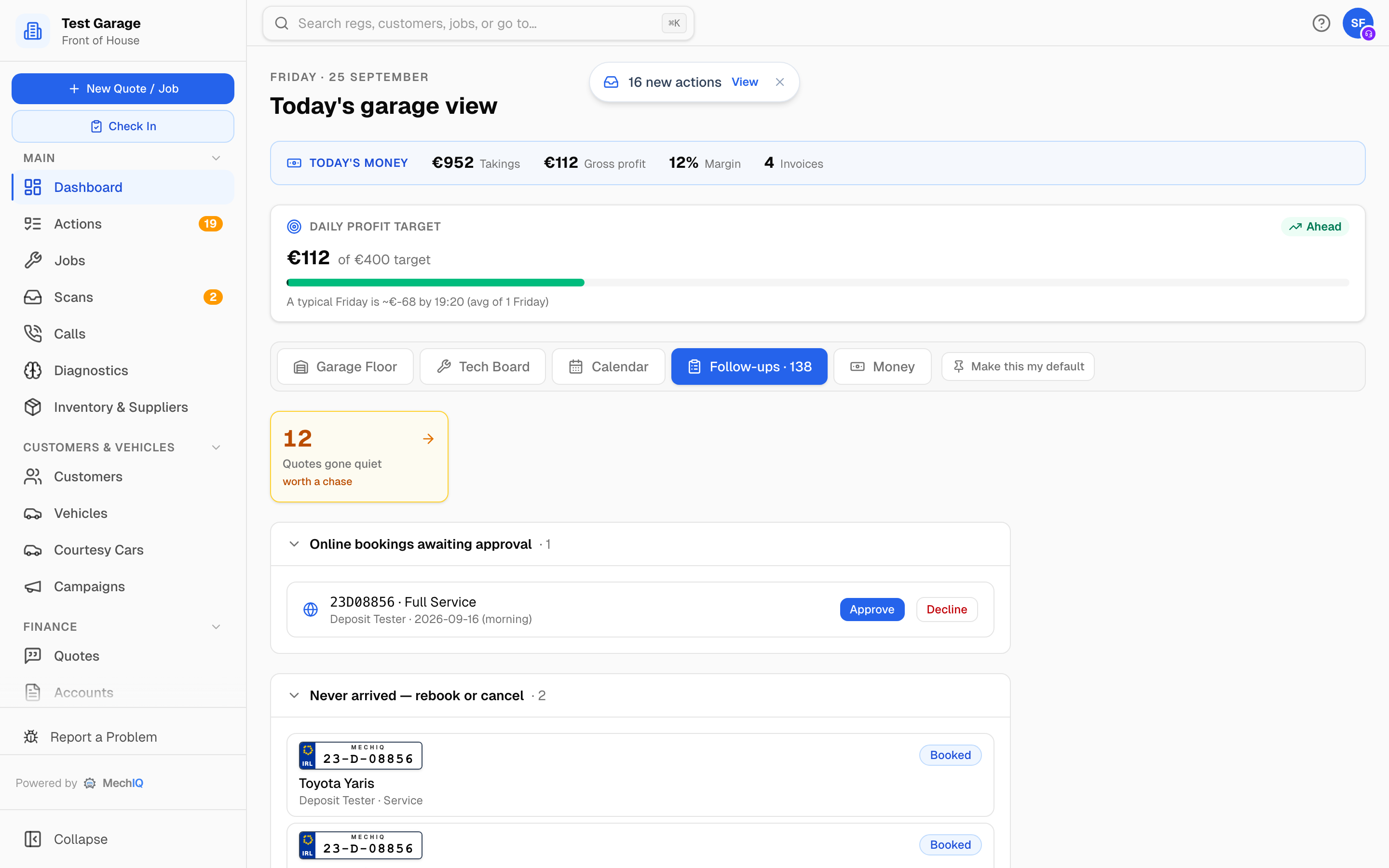
- Missed calls (only when your phone line is connected to MechIQ) and Quotes gone quiet -- the two chase tiles at the top. Click one to open Calls or Quotes.
- Cars due a test — call -- the cars whose MOT, NCT or CVRT is coming due that the desk should ring: MechIQ could not text them, or texted them a week ago and they have not booked. Each row says which. Book them in opens the car; Called asks what happened and takes it off the list. The Actions board has ONE row for the whole list (N cars due a test to call -- M more texted automatically), which opens here.
- Requests -- to confirm -- each row shows the day and drop-off window (Thu 15 Oct 2026 · Morning drop-off) and, when the customer hasn't paid their deposit, Deposit not paid. Confirm booking and Decline -- Decline asks for an optional reason; the customer is notified either way. You can approve without the deposit; an approved booking stays booked. A request for a day that has already passed can't be approved -- move it to a new day from the job, or decline it.
- Bookings moved for a capacity change -- bookings moved because a technician was off, a ramp went down or the garage closed, with the reason in words (Technician off), the new day and window, and an Open link.
- Never arrived — no-show or rebook -- booked days that passed without a check-in. Each row has two buttons: No-show records that the customer didn't come (the job closes as a no-show and it counts on the customer's record), and Rebook books it again on a new day. Online requests nobody confirmed are not listed here; they are in Requests -- to confirm.
- Ready for collection -- finished cars still on site. Cars past your stale threshold are flagged.
- Awaiting customer approval and Vehicles off road.
- The accounting card -- N invoices ready to export to your accounting package, and N exports failed with a Retry all button.
- On Hold -- parked cars with the reason and the date parts are expected. The badge turns amber and reads Parts due once that date arrives.
- Deferred Payments -- invoices left to Pay later, aged in days. Take payment opens the payment screen on that invoice -- choose how they paid and how much, then confirm. See Taking a payment.
Nothing to chase appears once the counted chase work is clear: invoices to export, cars on hold, deferred payments, missed calls, quiet quotes, cars due a test to call, ready for collection, awaiting approval and vehicles off road. Requests to confirm and auto-rebooking rows are not in that count, so those two panels can still be sitting above the all-clear.
Money tab
The desk's money view. Everything here is ex VAT -- VAT is not the garage's money.
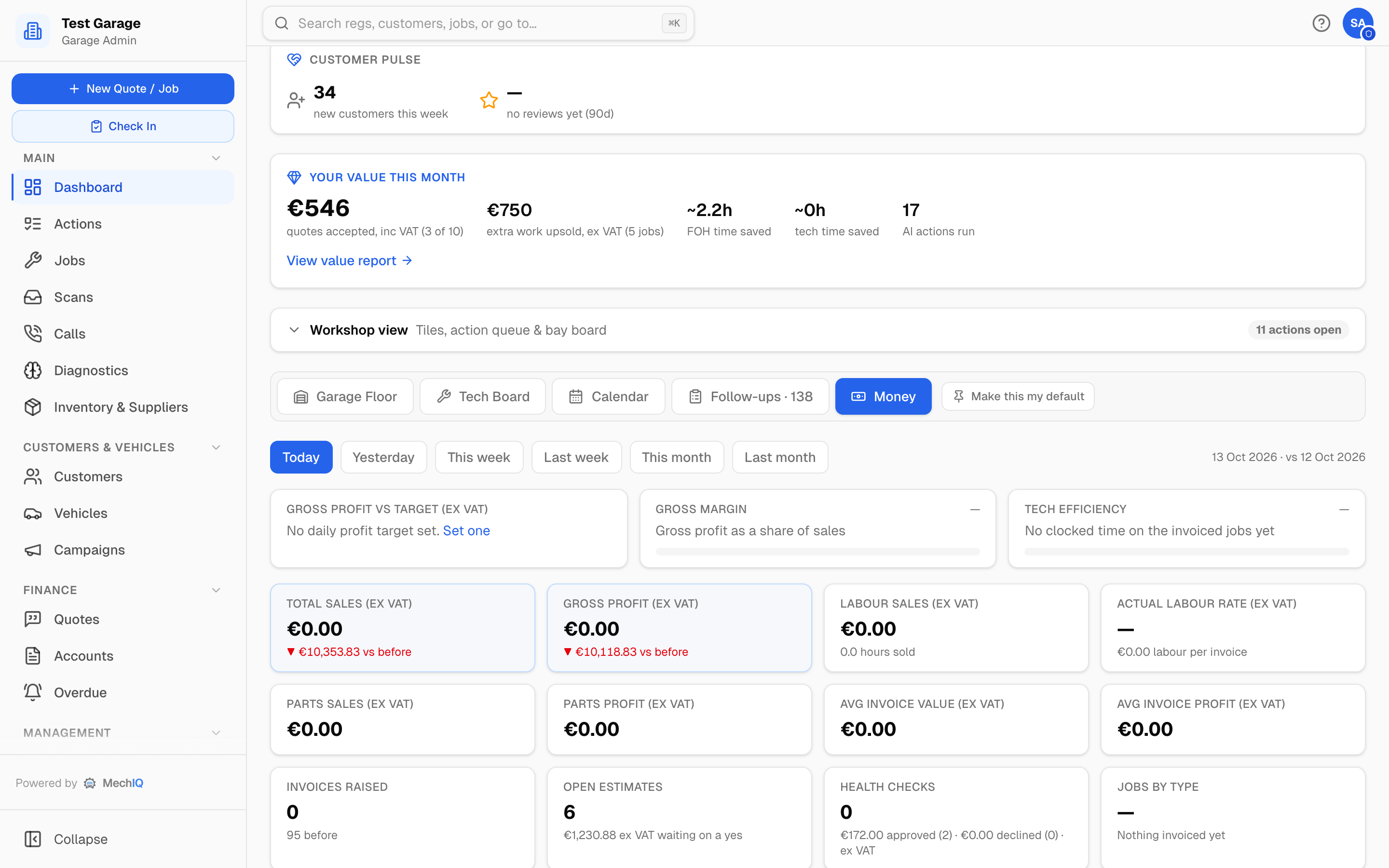
Pick a period: Today, Yesterday, This week, Last week, This month or Last month. The dates on the right show the period and the same-length period it is compared with. Your choice is remembered on this browser.
Three progress bars:
- Gross profit vs target -- gross profit against the daily profit target multiplied by the open days in the period. If no target is set it says so; only the owner can set one.
- Gross margin -- gross profit as a share of sales.
- Tech efficiency -- hours sold divided by hours clocked, on the invoiced jobs each technician clocked, added up over the technicians in the Labour sold by technician table. Reports → Team uses the same measure. It is the same sum as the table's rows, so it always sits between the highest and lowest technician. A technician with under 1 hour clocked on those jobs has no efficiency: the table shows a dash (hover it for the reason) and leaves them out of the total. A few minutes of clock against a whole job reads thousands of %.
The tiles: Total sales (ex VAT), Gross profit (with margin), Labour sales (with hours sold), Actual labour rate (with labour per invoice), Parts sales, Parts profit, Avg invoice value, Avg invoice profit, Invoices raised, Open estimates (count and value waiting on a yes), Health checks (done, with the value of VHC work approved and declined) and Jobs by type. The green or red arrow under a tile is the change against the previous period.
Labour sold by technician at the bottom lists labour sales, hours sold, hours clocked, efficiency and jobs per technician.
Everything counts on the day the invoice is raised. A credit note comes off the sales and the gross profit of the day it is dated, and has its own Credit notes tile and its own line in what Total sales is made of, so the tiles add up to the total; it is not counted as an invoice. Written-off invoices are left out. How this compares with takings, the cash-up and the owner reports: Which money figure is which. Gross profit is sales ex VAT minus parts cost, minus technician wage cost only where the garage has turned on Cost my labour (show net margin) under Settings → Pricing -- so with labour costing off it is parts profit plus labour sales. The Today's money banner above the tabs is the same arithmetic on the same basis, so its gross profit for today and the Money tab's Today figure agree.
Owners
A garage admin lands on a management view (today's strip, profit, business at a glance, the week ahead, team and customer widgets). The operational tabs sit under a Workshop view toggle, which stays open once you open it.
Tips
- Pin the tab you live on as your default. Most front desks pick Garage Floor or Tech Board.
- Work Follow-ups top to bottom once in the morning and once before you close.
- Use Today's Pipeline to place arriving cars before they are on the floor.