The Tech Board
The Tech Board is the day's plan: one column per technician, drawn against the hours of the day. It answers one question: where does today's work sit, and what needs moving?
Open it from the dashboard's Tech Board tab.
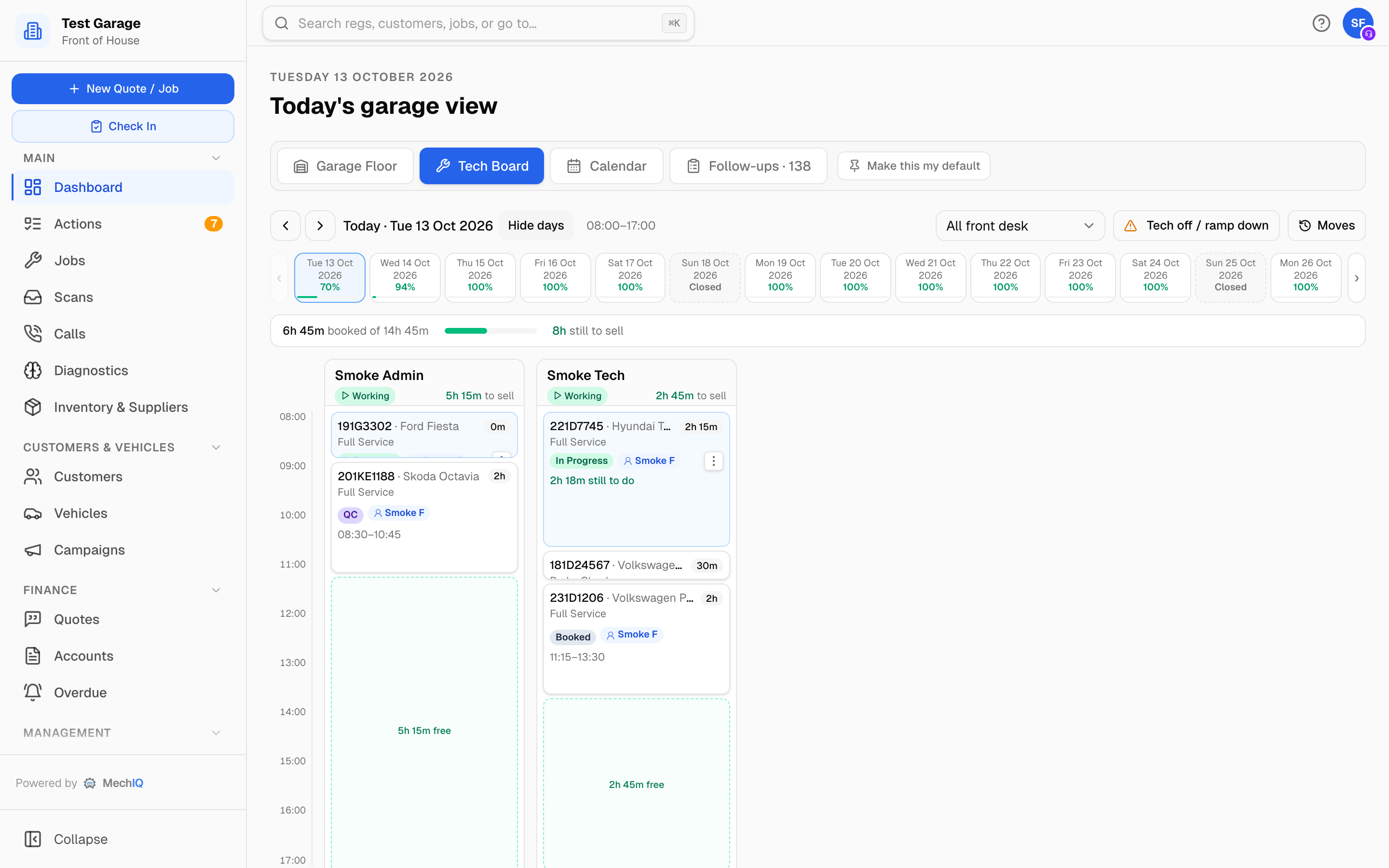 A Monday on the Tech Board. Free time shows as green gaps; the car in the amber tray still needs a technician. Moves lists everything moved that day.
The toolbar
- The arrows step a day back or forward. Today returns you to now. The garage's opening hours for the day sit beside the date.
- Pick a day opens the two-week strip; Hide days closes it. The strip pages forward with the › button, so you can look months ahead.
- All front desk filters the board by front-desk owner: My jobs, Unowned, or a named colleague. Other cards are dimmed rather than hidden, so the columns keep telling the truth about capacity. If nothing matches, the board says why.
- Tech off / ramp down records something that takes capacity out of the day (see below).
- Rebalance day appears on today's board when a job is unassigned or a column overflows. It turns amber when work is spilling over. A later day has nothing to rebalance -- its bookings get a technician when the cars arrive.
The day strip
Each day in the strip shows the hours still free -- 3h free; hover a day for 3h free of 22h 30m. A day that is over reads Done. Closed days are shown, not hidden: a Sunday reads Closed; a bank holiday reads whatever you called the closure. You can open a closed day on the board to look at it -- the board reads Garage is closed on this day. Booking a car onto a closed day asks first: the booking screens say the garage is closed and offer Book anyway, for the day you open specially. Closures live under Settings → Operating Hours.
The capacity line
Under the strip: hours booked, and hours free of the day's total -- 14h booked · 8h 30m free of 22h 30m. The total is the hours of every technician planned in the diary that day, less anyone off, at your garage's productivity. It is the same figure the calendar, the booking screens and the online booking page use. Leave counts only for technicians: a front-desk person on holiday changes nothing.
When the day is over it reads Day finished. If online booking has paused for the day because it is past the garage's limit, the line says so (a finished day is finished, not "over the limit").
The tray
A booking has no technician. The technician is chosen when the car is checked in -- you drag it onto a column, or a technician takes it with Get next job. So the technician columns are today's plan (or, once today has closed, the next open day's).
- Today: cars with no technician sit in an amber tray above the columns, counted: N jobs need a tech — drag onto a column. When the tray is empty it disappears; it reappears as a drop target while you drag.
- A later day: its bookings sit in the tray as To plan -- To plan — 4 bookings for this day · 8h 30m free of 22h 30m. The technician is chosen when the car is checked in. The columns show who is in and who is off, but take no cards; dropping a booking on a technician is refused. Nobody gets a "New job assigned" message from a booking.
Cars that carry over
A car that's still here at the end of the day -- checked in and not started, being worked (its clock pauses outside working hours), or handed back to the desk -- carries over to the next open day with the technician who had it, at the top of their column, ahead of that day's bookings. Get next job gives it to them first. It rolls once the day is over, so an evening look at tomorrow's board already shows it. Checking a car in never changes its booked date: a car you check in after closing time -- a walk-in too -- is checked in today, and carries over from tomorrow like any other car still here.
If that technician isn't in on the next day (a day off on their work pattern, or leave), the car waits in the tray instead, with a Moved badge saying who isn't in. Drag it to whoever is taking it. Anything you move yourself stays where you put it.
Reading a column
Technicians who are working that day come first; anyone off sits at the right, so the working day reads left to right without gaps. Only people with Works on jobs and Put them in the diary switched on in Team get a column. An owner who works on cars is not in the diary unless they choose it. The header shows the technician's name and the hours they still have to sell. On today's board it also shows their live state: Working, Paused or Free, and, where the garage runs the attendance clock, Clocked in or Not clocked in. An Appr. badge means an apprentice, so auto-planning avoids giving them complex jobs; Off (Off today on today's board) means they are not rostered in that day, or are on leave. Hover either badge for the full wording.
Cards are drawn to scale against the time ruler, so a 30-minute job is a thin card. Free time shows as a green gap reading 1h free; click a gap to book a job into it. A red line marks the current time on today's board. At the bottom, Day finished appears once the day is over, and Full once there is nothing left to sell -- reading Full — work carries over when a card actually runs past the end of the day.
Reading a card
Every card carries the same things in the same places:
| Where | What |
|---|---|
| Top left | The registration, with the make and model beside it |
| Top right | How long the job is |
| Second line | The job type |
| Third line | The status pill and the owner pill (a first name, or FOH) |
| Bottom | The planned time window, or for the live job how much is still to do |
Short cards do not have the height to show all of that, so hover a card and it lifts out of its slot to show the rest. A card that runs past the end of the day reads Carries over to next day. A job on hold reads on hold — resumes here when parts land. A card with an amber ⚠ badge no longer fits its technician's day -- hover it to see why (see When a job runs over). A blue Moved badge is on a car MechIQ put back in the tray because its technician is out -- hover it to see why.
When a job runs over
The live card counts the time spent against the time sold. Once a job goes past its sold time it reads, for example, 40m over · expected finish ~14:30: MechIQ assumes it needs at least another half hour, rolling forward while the technician is still on it, and that technician's later jobs slide back behind it. If that pushes their work past the end of their day, those cards turn amber -- Carries over to next day.
MechIQ never moves a job by itself -- overlapping work can be deliberate, and you can see where you put each car. Instead, a card that no longer fits shows an amber ⚠ badge. Hover it to see the problem, for example: Alex's day ends at 17:30 — this job doesn't fit before then, so it carries over to the next working day. Alex's current job (181D61092) is 10h over its sold time, so everything behind it is later. Move it to someone with room, or leave it if that is the plan. Drag the card to another technician, another day, or leave it where it is -- Rebalance day (below) proposes moves if you want them.
When a job finishes early
Nothing needs moving, so nothing is moved. The board re-plans every minute from the live clock: when a technician finishes early, the rest of their queue slides earlier on its own, and the freed time shows as a green gap.
A technician with nothing left to do taps Get next job. MechIQ gives them, in order: the next job in their own queue, then a job from the tray (one they handed back first), then the job furthest down a colleague's queue -- the one that colleague would reach last. So early finishes are used up by the technicians themselves rather than by MechIQ moving cards.
Get next job does not offer a car that waits for its parts (a part to order, on order or short). The technician sees it under Waiting for parts, with no take button. If the car must start now, drag it onto a technician's column -- you can assign it by hand as usual. When you book the parts in (Deliveries, goods-in or Mark arrived), the car shows Parts in -- ready to continue. Get next job then gives it after the technician's own queue and before all other cars in the tray. If the car is still on a technician (paused), it goes to the top of their queue.
Get next job offers today's cars and cars carried over only. A car checked in early for a later day is listed separately, under Early — booked for Tue 20 Oct, after today's work; a technician takes it only by choosing it there.
A busy day is left as it is -- that's how the front desk planned it. To even it out, use Rebalance day below.
Seeing what moved
Moves at the top of the board lists every move that day -- the ones the front desk made by dragging a card to another technician or day, and a car MechIQ put back in the tray because its technician is out -- newest first, with the time, the car, from where to where, who moved it and why. Click a car to open the job. If a car isn't where you expected, look here first.
The pills are controls
Status offers the states the job can legally move to next, and genuinely changes the job. Some transitions are not offered here on purpose: checking in, completing and collecting carry real work behind them (mileage and condition photos, the quality check, the road test, the checkout), so they stay in the screens that do that work. Cancelling is not offered from a card either.
A job on hold says what it is waiting for -- Waiting on Parts, Waiting on Customer, Waiting on Insurance -- because that decides who chases it.
The owner pill shows who owns the customer for that job -- their first name, or FOH when nobody has it (hover for Front desk: ...). It is advisory: it routes nothing and blocks nothing. It is set when the booking is taken and overridden at check-in by whoever took the car in. Click the pill to change it; No owner clears it.
The live job at the top of a column has a ⋮ menu: Pause work, Resume work, Hand back to desk, Mark complete (or Work finished — send to QC where QC is on), Put on hold — parts, customer…, and Open job. A paused approval or hold card offers Back to in progress.
Moving work
On today's board, drag a card onto another technician's column to reassign it, or up and down a column to change the order. Drop a card onto a day in the strip to move it to another day: it goes into that day's To plan list, with no technician. A past day is refused; so is a day the garage is closed (use Reschedule on the job page to book a closed day anyway). Every move shows a toast with Undo. Moving a confirmed booking to another day also prepares ONE Booking moved message for the customer (the new day and the drop-off window, never a clock time): the toast's Open takes you to the job's Messages, where you send it. Nothing is sent by itself; a second move replaces the unsent message.
A job that is being worked can be moved too. The clock keeps running and the time already spent stays with the technician who did it.
Rebalance day
Rebalance day proposes the smallest set of moves that fixes the day and lists exactly which jobs move and where. Nothing changes until you press Apply plan; Dismiss leaves the day as it is. Jobs that fit nobody are listed rather than shuffled quietly -- that is a triage decision for you.
Tech off / ramp down
When something takes capacity out of the day -- someone rings in sick, a ramp goes out of service, you close unexpectedly -- use Tech off / ramp down.
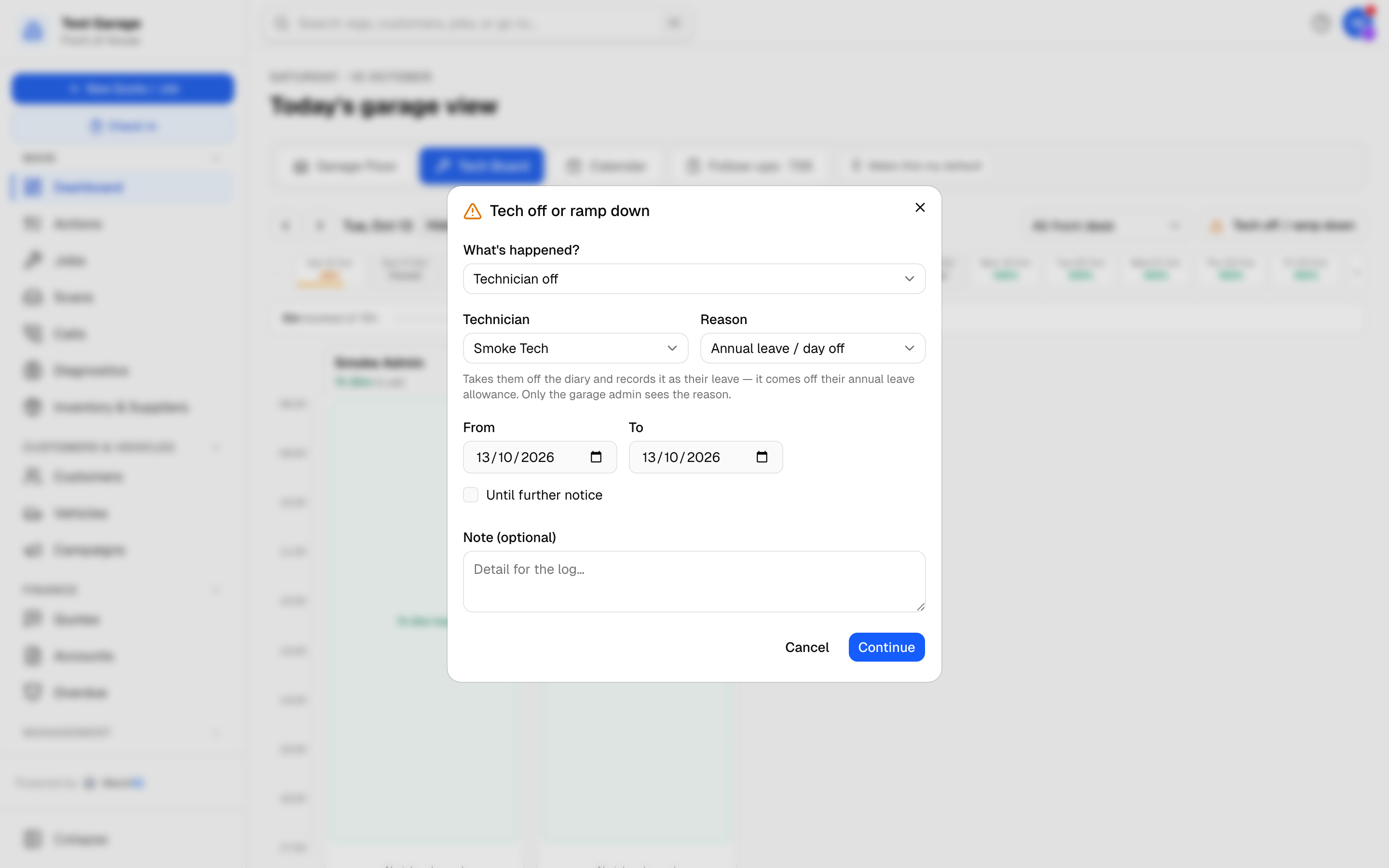
- Choose What's happened? -- Technician off, a Ramp / lift out of action, or a Garage closure. Every choice takes capacity away.
- For a technician, pick the Technician and the Reason: Off sick, Family emergency, Annual leave / day off, Training or Other (say briefly why). Whichever you pick, it takes them off the diary for those days and is recorded as their leave -- annual leave comes off their allowance. Only the garage admin sees the reason; the front desk sees that they're off.
- Set From and To, or tick Until further notice. Off from now handles the mid-shift case: it hands back the job they were on and records the rest of the day.
- Add a Note if you want it in the log and press Continue.
MechIQ then shows the jobs affected and offers to move them. The review counts the whole day -- every booking on it against the hours of every technician still in -- so 2h 30m over capacity that day means exactly that. A booking you choose to move goes to the next open day that has room for it, keeps the customer's drop-off window (morning, afternoon or any time -- never a made-up clock time) and is listed under Moves. Customer messages about moved bookings are drafted for you to review; nothing sends automatically. If no day has room, you get a rebook with the customer action; it closes itself when you move or cancel the booking.
A car already at the garage that was on the technician who is now off goes back to the tray -- MechIQ never puts it on someone else by itself. Its card says Suggested: and the technician MechIQ suggests (whoever is in and has room); press Give to … to accept, or drag it to anyone else. One action -- 2 cars at the garage need a tech -- lists them, and closes itself once each car has a technician.
To change the dates or reason afterwards, the garage admin edits the entry on Team → Leave (the pencil beside it) -- see Leave Management.
Related
- Calendar and Scheduling -- the week and month overviews.
- The workshop wall board -- the same board on a TV.