Diagnostic enquiry form
A customer rings about a fault. Rather than take it all down on the phone, send them the diagnostic enquiry form: a two-minute page on their phone asking what the fault is, when it started, what makes it worse, whether a warning light comes on (with a photo of the dashboard), and a few questions about service history and modifications. Someone who fills it in is serious about booking; someone who wanted free advice usually does not.
The form is tied to one vehicle. A customer with three cars gets a separate link per car, and the answers land on the right car without them telling you which one.
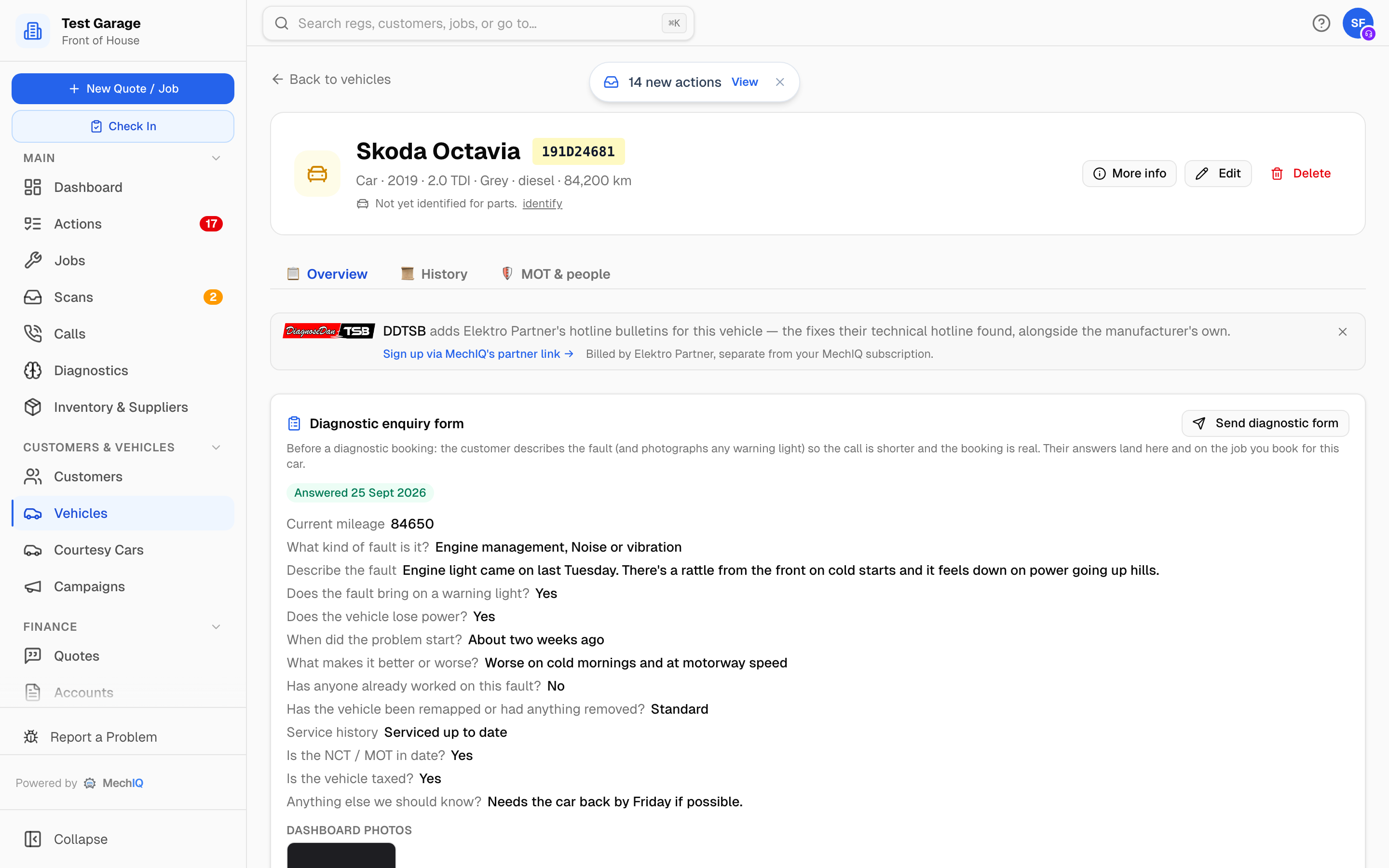 An answered form on the vehicle's Overview tab.
Send it
- Open the vehicle (from the customer's record or by searching the reg).
- On the Overview tab, find the Diagnostic enquiry form card and click Send diagnostic form.
- Choose Text message or Email. Each option shows the number or address it will go to from the customer's record; an option with nothing on file is greyed out.
- Click Send.
The customer gets: Hi Aoife, before we book 231D7987 in, please tell us about the fault here so we can plan the right checks: -- Test Garage.
Each send makes a fresh link. An old link that was already answered keeps showing its thank-you page; it never reopens the form.
While you wait
The card shows Waiting -- sent by SMS to 087 123 4567 (or emailed to ...) with the date. Two buttons are available:
- Copy link -- to send it another way, for example on WhatsApp.
- Withdraw -- closes the link. The customer then sees Test Garage have withdrawn this form. Give them a call if you still need to book in.
When the customer answers
- The card shows Answered with the date, every question beside its answer, and any Dashboard photos as thumbnails (click to open full size).
- Diagnostic form back: 231D7987 appears on the Actions board with a Book it in button that opens the vehicle. It is a queue item with a four-hour target; it clears itself when you book the car.
 The action raised when the customer answers.
- When you book a job for that vehicle, the newest answered form that is not yet on a job is attached to it. The job's Customer symptoms block is headed from the diagnostic form sent before booking and is filled from the answers -- the fault description, when it started, warning lights, and the rest -- so the AI diagnosis starts from what the customer said. A Full answers and dashboard photos on the vehicle link takes you back to the card. If you had already filled in the symptom questionnaire yourself, your answers are kept.
- Once attached, the card shows Attached to the booked job.
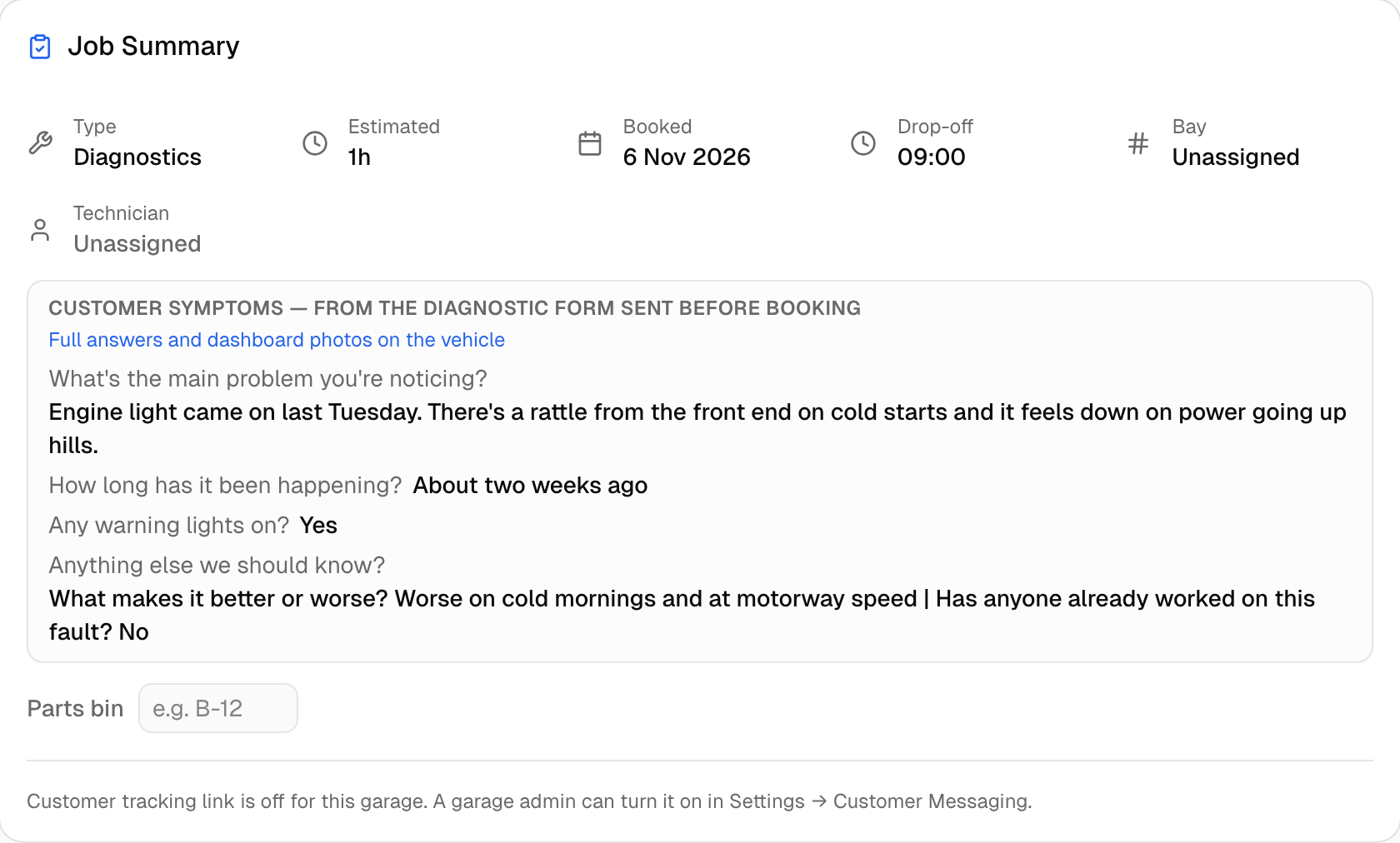 The answers on the booked job.
Earlier forms collapse to a single line under the latest one.
What the form asks
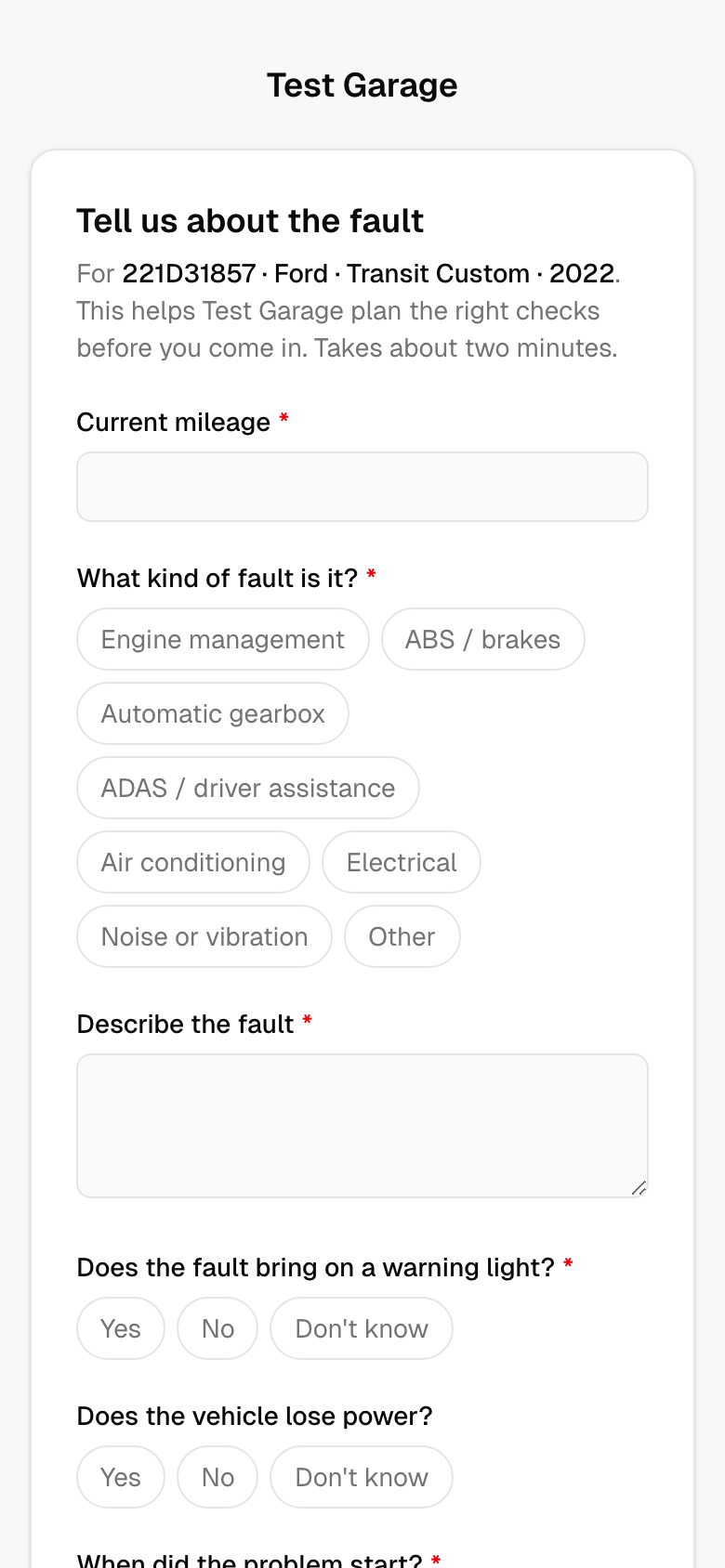 What the customer sees.
Current mileage · what kind of fault it is (engine management, ABS / brakes, automatic gearbox, ADAS / driver assistance, air conditioning, electrical, noise or vibration, other) · a description · whether it brings on a warning light (yes / no / don't know -- with a photo of the dashboard if yes, up to five photos) · whether the vehicle loses power · air-conditioning symptoms (only if air conditioning was ticked) · when it started · what makes it better or worse · whether anyone has already worked on it · remaps or removals (standard, remapped, DPF removed, AdBlue removed, other) · service history · NCT / MOT in date · taxed · anything else.
Mileage, fault type, description, warning light, when it started and what makes it worse are required. Name, contact details, registration, make, model, year and engine are not asked: the link was sent for a vehicle you already have on file.
Tips
- Send the form during the call. Most customers answer while it is fresh, and you can book them in from the action the same day.
- A form is for a fault. For a routine service or an NCT prep there is nothing to ask -- just book it.