Email Diagnostic Scans
Every garage has its own email address for diagnostic scans. Email a report to it and MechIQ matches it to the right vehicle's job, attaches the file and runs the AI diagnosis. Nothing to log in for -- a technician or the scan tool itself can send it straight from the workshop.
Find your scan email address
Open Settings -> Scan Uploads. Under Your scan email address you see something like:
uploads@yourgarage.mechiq.ie
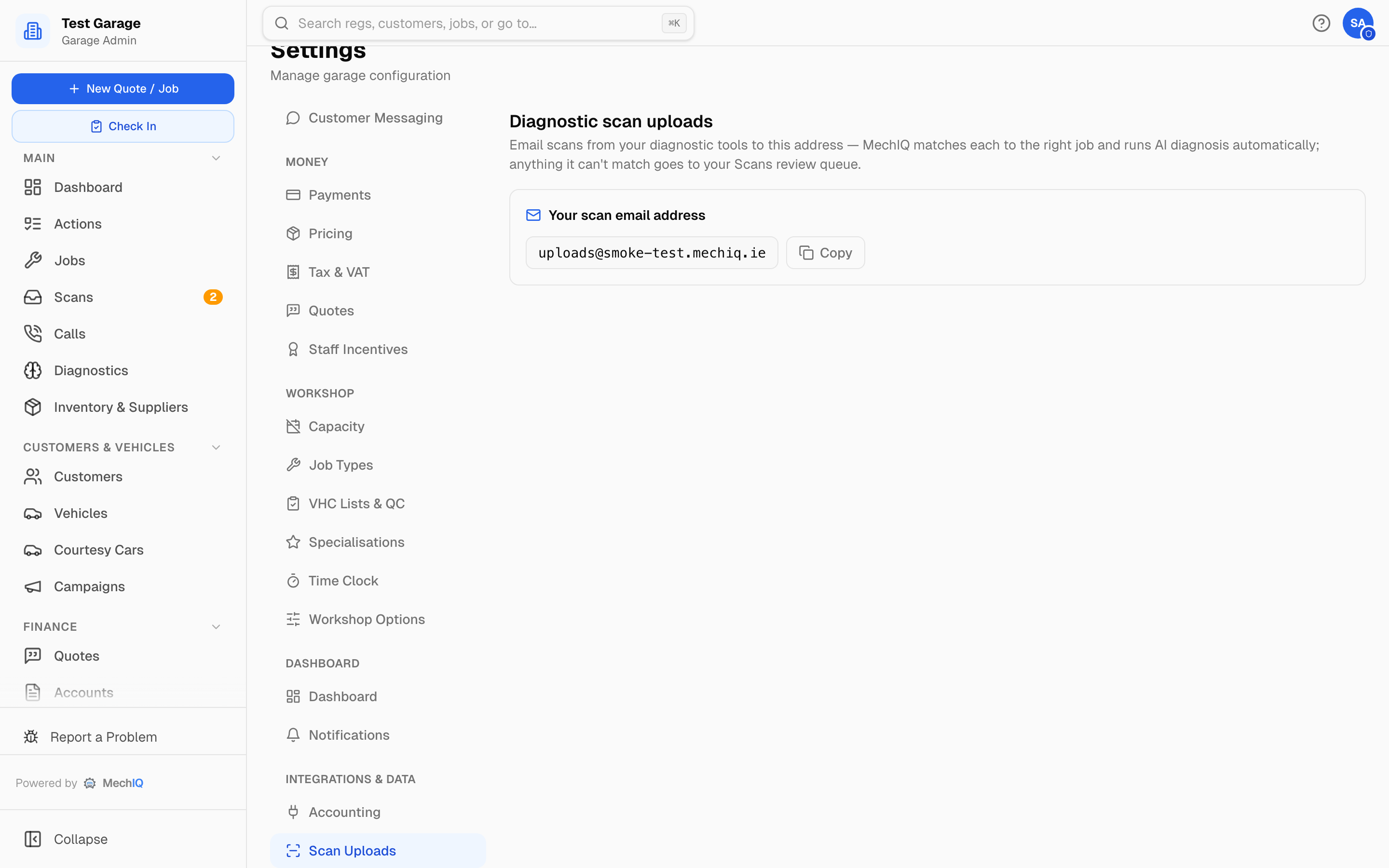 Your scan email address in Settings -> Scan Uploads.
Click Copy. Save the address as a contact on the diagnostic tools and phones in the workshop so a scan can be sent in one tap. FOH and admins can both see this tab.
What you can send
- A PDF attachment -- the normal case.
- A photo of the scan screen. JPG, PNG, WebP and GIF are read by the AI the same as a PDF is. HEIC (the iPhone default) is attached to the job but cannot be analysed -- set the phone to "Most Compatible", or send the PDF. Either way the full PDF beats a photo of a screen, because the AI can only read what the camera caught.
- A text attachment, or the codes pasted in the body of the email.
- An email containing a link to the PDF. Tools that email a "VIEW REPORT" link instead of the file (ThinkCar and similar) work -- MechIQ follows the link and fetches the PDF.
If the email contains nothing readable it goes to the Scans queue with the note The email had no readable attachment or body. A supplier invoice or receipt sent here (a PDF or photo) is recognised and goes to Accounts → Overview → Emailed — waiting to import instead -- see Scanning a supplier invoice; your garage also has its own invoices address for that. Anything the AI is confident is neither (a newsletter sent to the address by mistake) is dropped without a trace.
Several PDFs in one email are each handled on their own -- a scan and an invoice in the same email go to their own places.
How matching works
MechIQ reads the report and looks for the vehicle's VIN first, then its registration. Dashes and spaces are ignored, so 231-D-7987 matches 231D7987. Make on its own is never enough -- it would put a diagnosis on the wrong car.
The scan is attached automatically only when the vehicle is found and the job is obvious: exactly one open job for that vehicle, or, if there are several, exactly one that is in progress. Then:
- The file is added to the job and to its Assets & History tab.
- The AI work plan runs. The assigned technician gets a Scan diagnosed notification (all admins and FOH if no technician is assigned yet).
- The scan is recorded as Auto-matched in the History tab of the Scans page. Nobody at the desk is interrupted.
Anything else -- no VIN or reg found, vehicle found but no open job, two jobs in progress, or the AI unsure it is scan data -- goes to the Needs assignment tab on the Scans page. Every admin and FOH user gets a Diagnostic scan needs review notification that says why. See the Scans article for assigning it.
Wrong-vehicle protection
If the report's VIN or make contradicts the job's vehicle, the diagnosis stops rather than guess. The scan is sent back to the Scans queue with a mismatch warning and a Scan may be for the wrong vehicle action for the desk.
Tips
- Send the full PDF rather than typing codes -- the AI picks up freeze-frame and live data the codes alone miss.
- Make sure the scan tool includes the VIN or registration in the report. That is what MechIQ matches on.
- If a scan does not appear on the job, check the Scans page -- it is probably waiting there.