Checking In a Vehicle
When a customer hands over their keys, you check the vehicle in. This moves the job from Booked to Arrived, records the mileage if you have it, and starts MechIQ preparing the technician's briefing.
Check-in is a front-desk action: FOH and garage admins can do it, technicians cannot (the one exception is a call-out, where the technician checks the car in at the roadside).
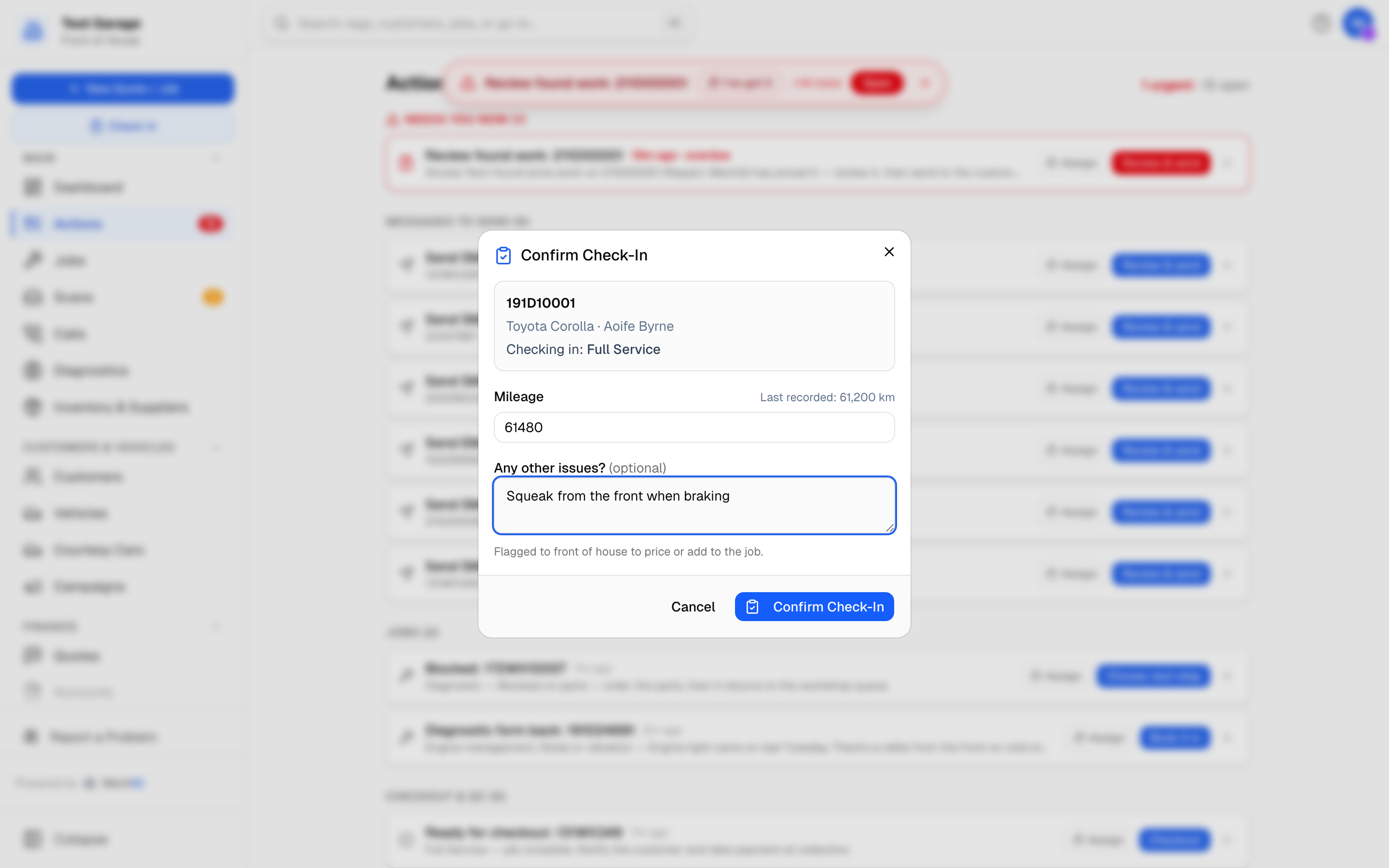 Confirm Check-In. The mileage is optional; the last recorded reading is shown beside it.
Check a car in
- Click Check In in the sidebar.
- In Check In Vehicle, type the Registration and click Find Job (or press Enter).
- Confirm Check-In opens with who's at the counter: the customer's name as the heading, then Welcome back · 4th visit · last in March (Full Service) -- or First visit -- and, if they've answered a satisfaction survey, how they rated their last visit with their own words (in red when it was 6 or under -- worth knowing before you say hello). Below that, the reg, the make and model and Checking in: the booked job type. Nothing about money is shown here.
- If the car has more than one booking, pick Which booking is being checked in?.
- An amber line warns if the job was booked for a different day.
- Enter the Mileage (optional) if you have it. The last recorded reading is shown beside the field; if your figure is lower, an amber warning asks you to double-check. It warns but never blocks, since clocks do get replaced. If you leave it blank, the technician is asked to read the odometer at the car and must record it before they can finish the job -- see Mileage not taken at check-in.
- Type the Key tag (optional) number you hung on the keys. It shows on the job.
- Reminders and offers? shows when the customer has no marketing consent recorded (an imported customer has none). Ask them; They said yes records it there and then, as said in person, with your name and the time. Without a yes, MechIQ sends them no NCT/MOT or service reminders and no offers. It does not show for a customer who opted out.
- If the customer mentions anything outside the booked work (a rattle, a warning light, a scrape), type it in Any other issues?. It appears on the job as Customer raised at check-in, and the desk gets a Price this concern task on the job's Work & approvals (and in Actions): price it as extra work for the customer to approve, or close it with a reason. See Found Work & the Technician Handoff.
- Click Confirm Check-In.
From a job's own page, the Check In button skips the registration step and goes straight to Confirm Check-In. It is the same check-in, with the same last step (below), from the sidebar, the job page and the mobile app.
Garage options on the confirm step
Two optional blocks appear when your garage has turned them on in Settings:
- Authorise booked work: the customer must have authorised the booked work before you can check in. Tick The customer has authorised the booked work. The time is recorded on the job.
- Damage waiver: the customer signs on screen. The signature is stored on the job and shown on the Job tab as Damage waiver signed.
After you confirm
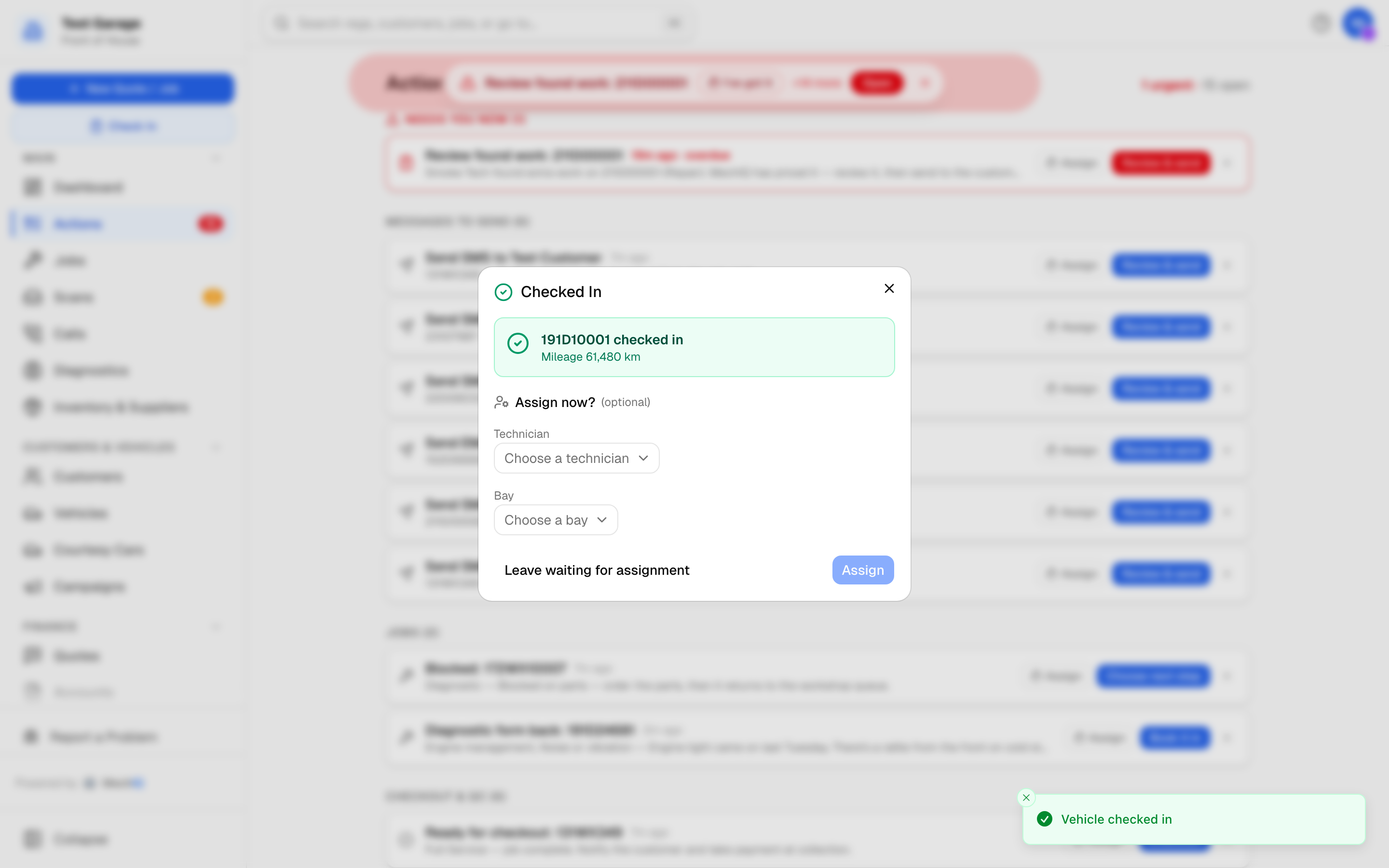 The confirmation. Give the car to a technician now, or leave it waiting.
A Checked In screen confirms the reg and the mileage you typed (or Mileage not taken -- the technician will record it when you left it blank). A browser check-in never opens the camera, so no warning lights are read here -- those come from the dashboard photo the technician takes at the car, or from a mobile check-in. Under Give it to a technician now? (optional) you can pick a Technician (only people with Works on jobs switched on in Team are listed; busy techs are marked), then click Give to technician. This only allocates the job; the clock does not start until the technician starts work, and the technician picks the bay then. Leave waiting for a technician leaves it in the tray for Get next job or the Tech Board. A booking never has a technician before check-in.
Checking in also:
- makes you the job's front-desk owner, replacing whoever took the booking (advisory; it labels and filters, nothing more);
- adds the mileage, when entered, to the vehicle's odometer history;
- starts generating the AI briefing and work plan for the technician;
- confirms an online request still marked Request -- to confirm (a car in the yard is confirmation enough);
- flags the job for condition capture, so the technician records the walk-around and dashboard photo at the car. A browser check-in takes no photos.
Mileage not taken at check-in
Mileage is optional at the desk so a busy counter isn't held up. When it's left blank:
- the job page shows Mileage: Not recorded yet, with a Record the mileage box you can fill in if you get the reading later;
- the technician sees Record the mileage at the top of their job and enters the odometer reading at the car;
- the job cannot be submitted for QC, completed, clocked off or handed back to the desk until the mileage is recorded -- MechIQ says Record the mileage first. (The desk taking a job back is not blocked, but completing it from the desk is.)
The reading the technician records is stored exactly as a check-in reading: it updates the vehicle's mileage and odometer history, so service history and reminders work as normal.
No registration
A job booked with No registration (a trailer, a wheel, a counter sale) has no plate to type. Open the job and press Check In there -- it goes straight to Confirm Check-In. For one that isn't booked yet, the Check In Vehicle window's Book one now for a customer link opens New job on No registration; once you confirm the booking it is checked in automatically. In the app, Check In Vehicle on a no-reg job's page goes straight to the walk-around instead of the plate scanner.
No booking for that reg
If Find Job finds no booked job, a note pops up with the customer's name and visits when the car is already on file, and the New job dialog opens with the reg filled in. Book the job and the vehicle is checked in automatically once you confirm. For a customer who will not leave details, use No contact details (walk-in) on the customer step.
Symptom questionnaire (diagnostic jobs)
For a diagnostic job, a short questionnaire helps the AI pin down the fault. Send it to the customer from the job: in the Job Summary card, Symptom questionnaire → Send, by text or email. Answers appear on the job as Customer symptoms. See Symptom questionnaire.
On a phone or tablet
In the mobile app, check-in runs from the camera at the car: scan the plate -- the customer's name, visits and last rating come up as soon as it's read -- record a walk-around video, then photograph the dashboard so the mileage and warning lights are read for you. The walk-around is a video -- there is no photo alternative, only Skip if you cannot record one. The same booking picker and walk-in path apply. See The mobile app.
What happens next
The job sits at Arrived until the technician starts it. The desk does not start work: the technician presses Start work and picks the bay then. See Starting work on a job.
Related: Creating a job · The job page and job statuses