Leave Management
Leave is yours alone. Team → Leave, the balances and the clash check are only shown to garage admins. The front desk can still record someone off (Tech off / ramp down on the Tech Board) and sees on the diary that a technician is off -- never why. A technician sees only their own leave, on My Profile. A day recorded from the Tech Board appears here like any other leave, and annual leave recorded there comes off the person's balance.
MechIQ tracks leave for your whole team on Team → Leave: annual leave, sick days, training and other absences.
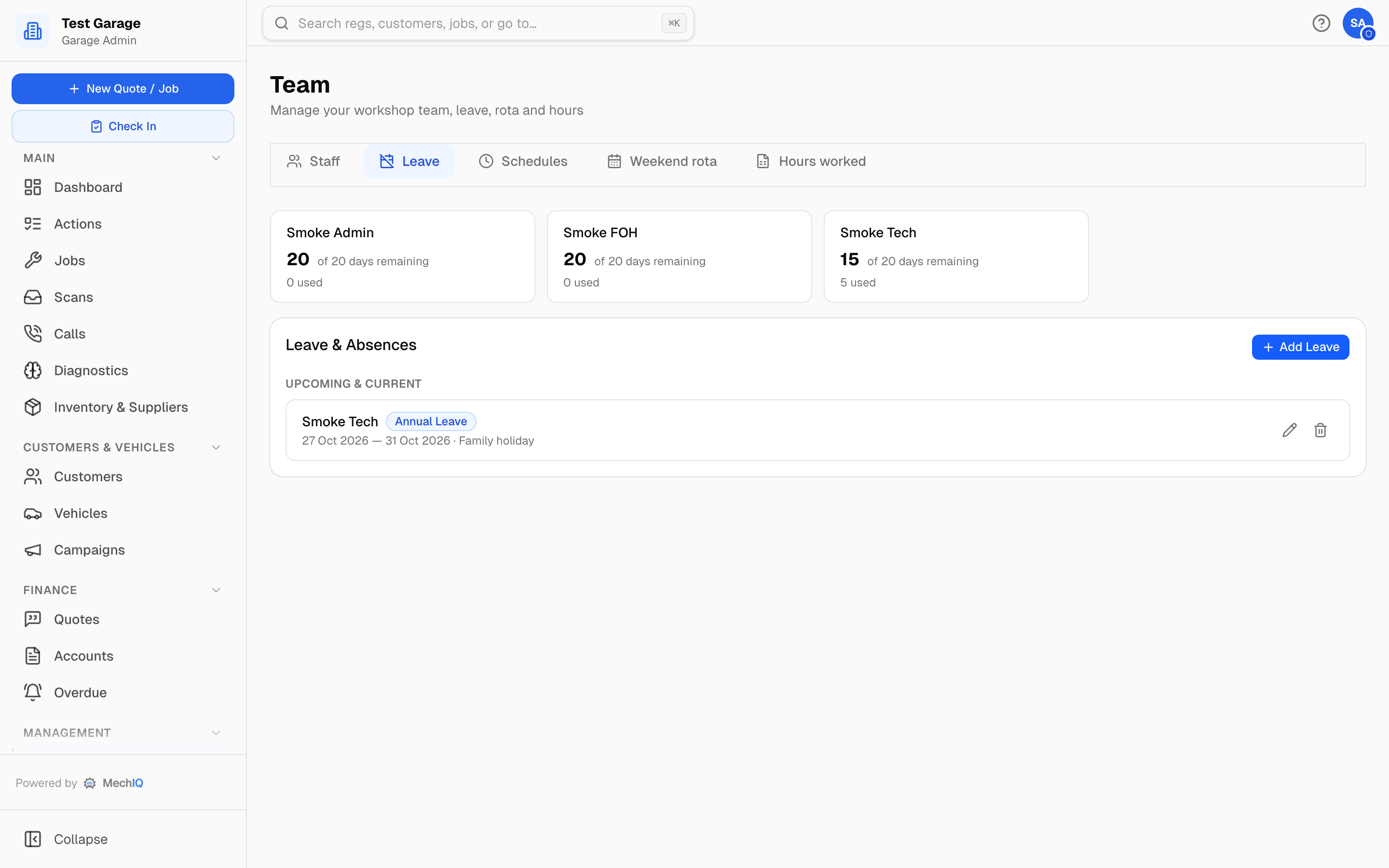 Team → Leave. Pending requests from staff appear in an amber panel above the list when there are any.
Annual leave allowance
Each person's entitlement is Annual Leave Days on their record (default 20 — edit it on the Team page). The balance cards at the top of the Leave tab show, per person, days remaining out of their entitlement, days used and days pending approval — amber at three days left, red at none. Click a card to open the person's record. The same balance shows in the Leave column on the Staff tab.
Adding leave
- Team → Leave → Add Leave on the Leave & Absences card.
- Pick the team member (search by name) — anyone with a leave allowance: technicians, front desk and admins, the type — Annual Leave, Sick Leave, Family Emergency, Training or Other — the From and To dates (inclusive) and any notes. Other needs a note saying briefly why.
- Click Add Leave.
Leave an admin adds is approved straight away. When a staff member books their own leave from My Profile → My Leave, the button reads Request Leave and it comes to you as a request.
Editing leave
Got the dates wrong, or someone's coming back a day early? Click the pencil next to the entry in Leave & Absences (beside the bin). The same form opens with what was recorded; change the type, the From / To dates or the notes and click Save changes. The person can't be changed — delete the entry and add it again for someone else.
- The entry stays approved, and the balance follows the new dates: lengthening two days of annual leave to three takes one more day off the allowance, and changing annual leave to another type gives the days back.
- If the new dates cover a day the person had jobs on, those jobs come off them the same way as when leave is approved (see below).
- A day recorded from the Tech Board's Tech off / ramp down is edited here like any other leave.
- The same rules apply as when adding: the end date can't be before the start date, and Other needs a note.
Staff can edit their own request from My Profile → My Leave (the pencil) while it is still Pending — once you've approved it, it's yours to change. A rejected request can't be edited; they add a new one.
Approving staff requests
Requests arrive as a Leave request row on your Actions board (one bell and push for it -- leave is one of the two things an owner is rung for; the other is an escalation) and a Pending Leave Requests panel at the top of the Leave tab. For each one you can check conflicts (who else is off in that period), then Approve or Reject. The person is notified either way.
Until you act, a pending request shows a Pending badge and does not reduce capacity — nothing is blocked out on your word alone. Pending days are counted separately in the balance cards, so a request you haven't approved yet doesn't quietly spend someone's allowance.
What approved leave does
- Days off are marked on the calendar and removed from capacity, so nothing gets booked against someone who isn't in.
- Only a technician's leave changes capacity -- a front-desk person on holiday takes nothing off the diary.
- Bookings carry no technician (the technician is chosen at check-in), so leave doesn't move bookings. A car already at the garage that was with that person goes to another technician who is in and has room, and the move is listed under the Tech Board's Moves. Only a car nobody can take raises a cars at the garage need a tech action; it lists them and closes itself once each has a technician.
- Future entries can be edited (the pencil) or deleted (the bin) from the list; past entries stay as the record.
Tips
- Enter sick days as they happen so the calendar stays accurate.
- Plan annual leave well in advance so the calendar reflects reduced capacity.