Calendar Import/Export
Settings → Calendar Import/Export (garage admin only) moves bookings in and out of MechIQ. For customers, vehicles, job history and parts use Data Import and Data Export instead.
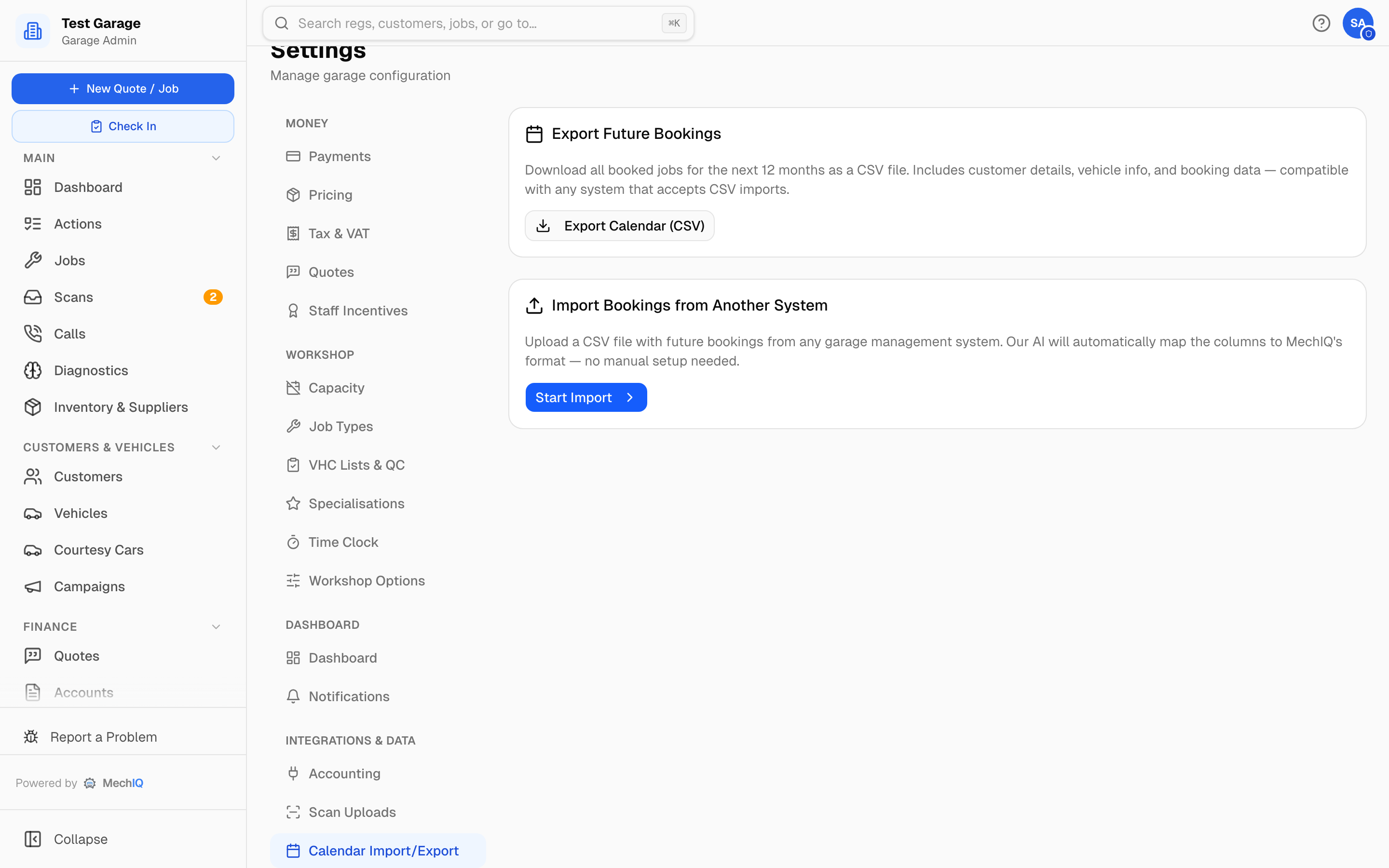 Settings → Calendar Import/Export.
Export future bookings
Export Calendar (CSV) downloads every booked job for the next 12 months — customer details, vehicle and booking data — in a CSV any system that accepts CSV imports can read.
Import bookings from another system
Bring future bookings across from your old garage system so your diary is full on day one. Click Start Import and follow the four steps:
- Upload — drop in a CSV of future bookings. Anything with a date, a registration and a customer works; the column names don't have to match MechIQ's.
- Column Mapping — MechIQ's AI maps your columns to MechIQ's fields and shows a preview of the mapped data. Adjust any mapping that's wrong. The required fields must be mapped before you can continue.
- Review — Validate Import runs a dry run: each row is checked and any problems are listed. When it reads "All bookings validated — ready to import", confirm.
- Import — bookings are created on the calendar. The result shows how many bookings, customers and vehicles were created (customers and vehicles that don't exist yet are added as it goes).
Bookings that are part of a full migration from Garage Hive can also be imported through Data Import with the open Jobsheets list — see Importing from Garage Hive.