Data Import
Settings → Data Import (garage admin only) is the three-step wizard for moving your existing data into MechIQ: Upload → Preview → Done.
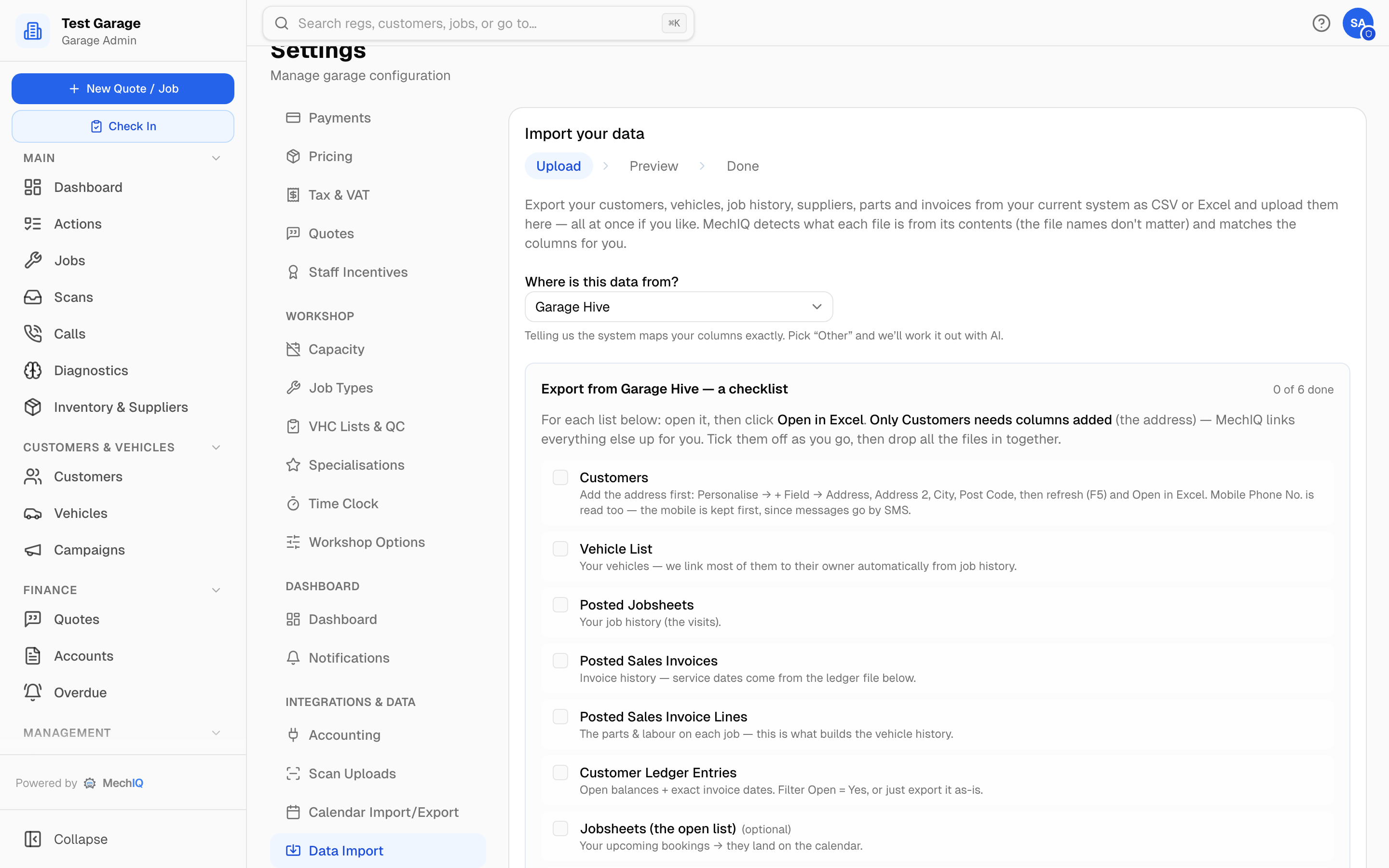 Settings → Data Import on the Upload step.
1. Upload
- Where is this data from? — choose Garage Hive, Autowork Online (MAM / Euro Car Parts) or Other / not listed. Garage Hive is the one system MechIQ maps column-for-column from a built-in list of its export headings. Autowork Online and Other / not listed both go the same way: MechIQ works the columns out with AI (and recognises common export shapes on the way), so telling us it's Autowork only records where the data came from.
- An export checklist for the chosen system appears, telling you which lists to export and how. The two system-specific guides are Importing from Garage Hive and Importing from Autowork Online.
- Drop your CSV or Excel files into the upload zone — all at once if you like. File names don't matter: MechIQ identifies each file (customers, vehicles, jobs, invoices, invoice lines, ledger entries, suppliers, parts …) from its contents.
- We detected these files lists each file with the type MechIQ recognised. Change a file's type with the selector on it if one was misread, or Upload different files. Then Continue to preview.
There is no Business Central connector step for Garage Hive — the file export is the supported route.
2. Preview
MechIQ builds a preview showing exactly what will be created — counts per entity, duplicates it will skip, and any missing details or warnings. Nothing is written until you confirm. An import never overwrites a customer, vehicle or supplier that already exists, so re-running an import is safe: nothing gets duplicated.
Marketing consent
The preview always says what happens to marketing consent. Reminders (NCT/MOT, service) and offers only text a customer with consent recorded.
- Your file has a consent column (for example Marketing Consent, SMS consent, Opt in): a clear yes (Yes, Y, True, 1) comes across as consent recorded in your old system; anything else is no consent. The preview says how many said yes.
- Your file has none: the preview says so. Those customers get no reminders or offers until you record their consent — one tap at check-in (They said yes), or on the customer's page.
MechIQ never marks a whole import as consented.
Moving from Garage Hive? We can run the import for you — the link is at the top of this page.
Fill in missing details on records you already have
Above the counts is a box: Fill in missing details on customers, vehicles and suppliers I already have. It's off unless you tick it. Tick it when you're importing a list again because the first export was missing columns — most often the customers' addresses, which Garage Hive's standard Customers list doesn't include (see Already imported? Fill in the blanks).
With it ticked, a row that matches a record already in MechIQ fills in only the details that record has empty — an address, phone, email, payment terms, how they found you; a vehicle's VIN, engine, colour, MOT / NCT due date; a supplier's phone, email, address, terms. Nothing already filled in is changed. The preview updates to show, per list, how many will be created, how many existing ones get missing details (and which), and how many are already complete. A phone number or email that already belongs to another customer is kept on this one as a shared number (see Two customers, one phone number below); a VIN already on another vehicle is left blank. Both are counted. New rows are still created as normal.
3. Done
The result summary shows what was created, in plain names (Customers, Vehicles, Suppliers, Open invoices …) and only for the lists that brought something in (and, with Fill in missing details ticked, how many existing records got details). A committed import ticks Bring your old data across on the dashboard's Finish setting up list, and an import that brings in stock ticks Stock you keep on the shelf. Undo this import reverses the whole batch — it deletes what was created and empties again any details it filled in, except ones you've changed by hand since. It is available for 48 hours after the import, for your most recent import only, and only as long as you haven't edited the imported records or booked jobs against them. Past any of those and you correct records individually instead. Large undos ask you to type DELETE to confirm. Previous imports are listed under Previous imports on the Upload step, each with its own Undo while it still qualifies.
If you import in stages, check each batch before running the next — starting a new import closes the door on undoing the last one.
Clean it in the old system first
Duplicates, dead phone numbers, vehicles with no owner — fix them where they are. It is far easier than after the import, and an import is only ever as good as what you feed it.
If you are moving from another system, export it yourself; most let you. There are step-by-step guides for Garage Hive and Autowork Online.
Importing twice is safe
An import never overwrites a customer, vehicle or supplier that already exists, so you can do a trial run, check it, and import again for real. A customer is recognised by the old system's customer number first (Garage Hive's No.). Without one, by the same name together with the same phone or email; a customer with neither is matched only by the exact same name, and only to a customer who also has neither. Vehicles match on registration or VIN, suppliers on name, invoices on number. An open payment from a ledger file is matched on the customer's number and the payment's document number, so it is never brought across twice, and an open balance that's already right is left alone. Lines for a job that already has its lines are never added again.
Two customers, one phone number
Two customers with different names are two customers, even when they share a phone number or email (a company and its sister company, a parent and their son). Both come across. In MechIQ a phone number or email belongs to one customer, because it's what rings up when they call and where their texts go. So the first one keeps it, and the other shows it as a shared number ("Shared phone 087… — also on C00842 …") on their customer page. Searching that number finds both. Messages go to the customer who holds it.
The same name on the same phone or email is one customer entered twice in the old system: they become one customer, and that customer answers to both old customer numbers, so vehicles, invoices, the ledger and your Sage account references under either number all land on them.
The one exception: a record you edited in the old system between the two runs can miss the match and arrive as a new row. Which is the other reason the cleaning comes first.
Vehicles with no known owner: Unassigned vehicles (imported)
Every vehicle in MechIQ belongs to a customer. A vehicle whose Customer No. is blank, or names a customer who isn't in your customers file or already in MechIQ, isn't dropped. It goes to a customer called Unassigned vehicles (imported). MechIQ creates that customer the first time it needs one, and there's only ever one per garage. Anything else that names the same unknown customer goes with the vehicle: its jobsheets and their parts and labour lines, invoices, open balances and open payments. The preview tells you before anything is imported, for example "771 vehicles with no known owner will go to 'Unassigned vehicles (imported)' with their history (0 jobs, 0 invoices)".
- Moving them to the right customer. Open Unassigned vehicles (imported), go to its Vehicles tab and click Move to customer on a car (or Move to customer on the vehicle's own page). Pick the customer. The car moves, and so do its jobs, quotes, invoices and payments. The move is recorded on each job's timeline. If one of its documents has already gone to your accounting package, the move is refused: credit that document and raise it again on the right customer.
- When the customer turns up later. If a later import brings the customer the vehicle's old Customer No. named, for example your customers list again with Fill in missing details ticked, the car and its history move to that customer automatically. The preview counts them first. Undo on that import puts them back.
- Never messaged, never counted. The holding customer has no phone or email. It gets no reminders, campaigns or statements. It isn't counted in your customer numbers, the retention sweep never archives it, and you can't book work on its cars until you move them. You also can't give it contact details or merge it with another customer.
- Money. Its invoices keep their real amounts, VAT and paid or unpaid state. An unpaid one shows in aged debtors under Unassigned vehicles (imported) with the note Owner not known yet. It never gets a statement. Its documents are held back from your accounting exports: no Sage account reference, not in the export files, not pushed to Xero or QuickBooks. Once you move a car, its documents export under the real customer's account. Invoices imported from your old system were already in its books, so they never export either way.
A vehicle listed under more than one customer in the Vehicle List is linked to one of them and not duplicated. If one of the listings names a customer you have, the car goes to that customer and not to Unassigned vehicles. The preview counts these cars so you can check their owner.
A vehicle-only import into a garage with no customers at all is still refused: the preview asks for your customers file.
What comes across
Customers (with account terms), vehicles (linked to their owners, with MOT/NCT dates), job and invoice history including itemised parts and labour (each imported invoice keeps the VAT it was actually charged and what was already paid against it in the old system, so it isn't shown as owed again), open balances, credit customers hold on account (open payments in the old system's ledger, brought across as Brought forward credit you apply to invoices like any other; not counted as takings and never sent to your accounting package), suppliers, your parts catalogue with stock levels, and future bookings. Account references for your accounting package are assigned by MechIQ on the first export — unless the import brings them: a customer or supplier list with Garage Hive's External System No. column (or the references-only Configuration Package, see Garage Hive data export) gives each one the reference your accounts package already uses. If your customers and suppliers already have accounts in Sage and your old system has no reference for them, load your Sage lists with Settings → Accounting → Match to my Sage accounts so imported customers export under their existing Sage reference instead (see Accounting settings).
Related
- Calendar Import/Export — a lighter import for bookings only.
- Data Export — getting your data back out.
- Going Live — A Plan You Can Copy — where an import sits if you are moving the whole garage across: a trial run about a week out, the real one on the cutover weekend.