Taking a payment
Most payments are taken at checkout and need nothing more. Money that arrives later goes through ONE dialog, Take payment, whichever way you open it. This is for money that arrives on its own: a cheque in the post, a bank transfer for last month's invoices, a customer paying off part of what they owe. FOH and garage admins can record payments; technicians cannot.
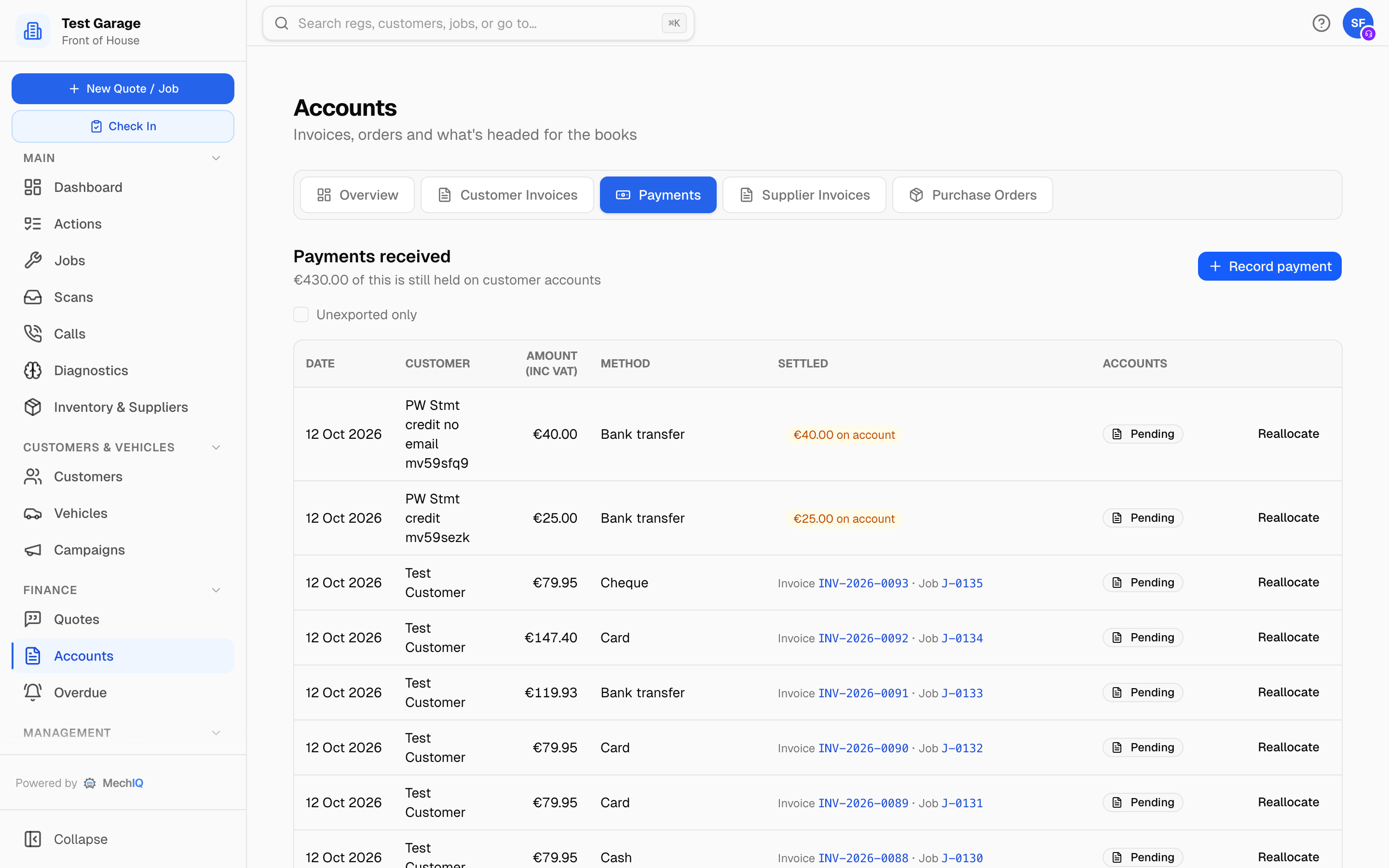 Accounts -> Payments: every payment received, newest first, and the invoices each one settled.
The Payments tab
Accounts -> Payments lists every payment, newest first: Date, Customer, Amount, Method (with the cheque number or bank reference beside it), Settled and Accounts.
Settled says what the payment was applied to, each item named for what it is: Invoice INV-0042, Credit note CN-0004. Clicking the number opens that invoice or credit note. The job behind an invoice is a separate link to the job's money section: Job J-0107 when the job has its own number, or just job when the job and invoice share one (invoices imported from Garage Hive use the same number for both, so it is only printed once). When one payment covers several items, each one shows how much of the payment went to it. A credit note's amount is negative because it reduces what the payment had to cover.
Accounts shows whether the payment has reached your accounting package. It uses the same badge as the Invoices list: In your books once it has been sent through your connection or included in an accounts export; Not in your books yet until then; Didn't reach your books if the connection rejected it (hover over the badge to see why, and the hourly retry tries again); Not applicable · no money moved for an entry that only used a credit note against an invoice, because no money changed hands and the credit note is already in your books; and Not applicable · brought forward for credit brought across from your old system by a data import, which is already in your books from there. Tick Unexported only to see just the payments the next export will include.
A payment with money not yet applied shows an amber €X on account tag, and the line under the heading adds those up across every payment, not just the ones on screen. The list shows 100 at a time, newest first; Show more loads the next 100. Take payment searches every customer by name, phone or email as you type.
Where to record one
- Accounts -> Payments -> Take payment -- choose the customer under Who paid?, then fill in the payment.
- The customer's record -> Account tab -> Payments received -> Take payment -- same screen, customer already chosen. Best when you are looking at their account anyway.
- Accounts -> Invoices -> the row's ... menu -> Take payment… -- the same screen, titled Take payment -- INV-... and opened on that invoice: it is already ticked at what is still owed on it (not its original total, if it's part paid). The customer's other open invoices are in the list too, so one payment can still settle several. Change the amount for a part payment, or write off the rest as a discount.
- The job -> Take payment (once the car has gone and the invoice is still owed -- while the car is ready to collect, use Check out): the button on the Money tab, What needs doing, or the search box while the job is open. All three open this dialog straight away. Dashboard -> Deferred Payments -> Take payment -- the same, opened on that invoice.
Whichever way you come in it is one screen with the same choices, and nothing is saved until you have checked the summary and clicked Confirm payment.
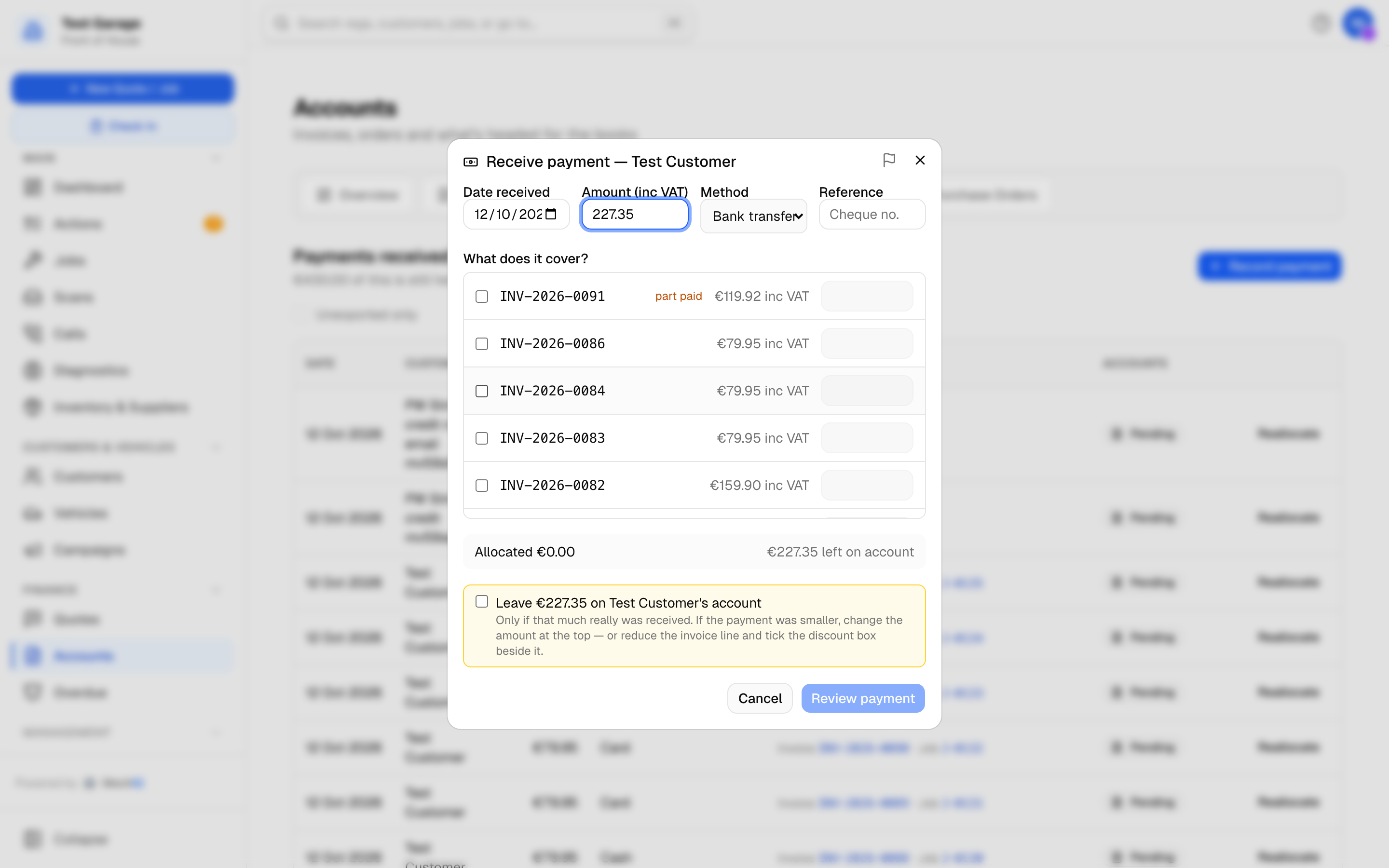 Take payment. Tick the invoices the money covers and the amount adds itself up.
Filling it in
- Date received -- the day the money was banked, not today. Back-date a cheque banked last week; the day's takings and the accounts export follow this date. It cannot be in the future.
- Amount -- fills in automatically as you tick invoices. Type over it if the customer paid more or less than the invoices you ticked. With just one invoice ticked, the invoice's line follows what you type (up to what it owes).
- Method -- the same list as checkout, from Settings -> Payments: Card, Cash (if your garage accepts it), Bank transfer (if switched on) and Cheque -- and a Reference (cheque number or bank reference) so it can be matched to the bank statement.
- What does it cover? -- tick the invoices it settles. This is the allocation: which invoices the money is applied to, and how much of it goes to each. Each line starts at its full outstanding amount; change the box on a line to allocate less. Invoices already part paid are marked, and credit notes held on the account appear in the same list so they can be used up alongside the money.
Changing a line changes the Amount at the top with it, so the payment always equals what you have allocated. If you meant to record a different figure -- a cheque for more or less than the invoices you ticked -- type over the Amount afterwards and it stands.
The line under the list says how it adds up: Allocated €X, then Fully allocated when it balances exactly, Nothing allocated — tick an invoice when no invoice is ticked, €Y left on account when they paid more than you allocated, or, in red, €Y more than the payment when you have allocated too much (fix a line before saving). Money left over has to be confirmed with Leave €Y on the customer's account before the dialog will let you record the payment, so it is never what happens by accident.
Click Review payment. The dialog shows, in words, what is about to happen -- for example Record €100.00 by Bank transfer against INV-0042 -- €50.00 still owed, or -- €12.50 written off by its own credit note (Goodwill), plus anything left on the customer's account and the date received. Nothing has been saved yet: Back returns to the form to change it, Confirm payment records it.
Part payments, discounts and write-offs
- A payment smaller than the invoice leaves the invoice Part paid with the rest still owed (or Pay later / On account, if it was already).
- If the shortfall is being forgiven -- a €1,001.20 invoice paid with a €1,000 transfer -- allocate what was actually received on that line, then tick Write off the other €X by its own credit note beside it and give a Reason for the write-off (required). The invoice is settled in full and the difference written off, so it never sits on the overdue list. The write-off is the same as one made at checkout. The invoice stays exactly as it was issued: the write-off is its own credit note, INV-...-WO, dated today, with the VAT at each of the invoice's rates, and it goes to your books like any credit note.
- A Pay later bill nobody will pay: set its line to 0, tick Write off the other €X, give the reason and click Review payment. The summary reads Write off -- no money taken; Confirm write-off writes it off. With nothing ever paid on it, the bill reads Written off; with part of it paid before, the rest is its own credit note, as above.
- Reducing a line WITHOUT ticking that box is a part payment: the balance stays owed.
- Paying MORE than the invoice owes leaves the extra on the customer's account (see below).
Money on account
A payment with nothing ticked, or more than the ticked invoices, is held on the customer's account. It is offered at their next checkout, already ticked (Use €X held on account) and the unapplied amount shows in the On account column of their payment history, on the customer's Account tab. Deposits work the same way -- see Taking a deposit.
Re-allocating: moving a payment to the right invoice
To change which invoices a payment settles -- to allocate it somewhere else, or to un-allocate it entirely and leave it on the customer's account -- click Reallocate on its row in Accounts -> Payments. Change what this payment settles lists every invoice for that customer -- paid ones included, marked already paid or settled by this payment -- with the current allocation ticked. Untick the wrong one, tick the right one, and Save allocation. An invoice that loses its allocation goes back to owed, so nothing stays settled on money that has moved. When that invoice was paid, the dialog says so first -- INV-0036 is paid. Moving €X off it re-opens it -- and you tick to confirm before Save allocation works. Clearing every tick un-allocates the payment completely and leaves all of it on the customer's account, ready to be allocated to a later invoice.
Checking where it went
The customer's Account tab lists every payment with the invoices it was applied to and anything still held on account. Accounts -> Payments shows the same across all customers, and Customers -> Customer credit lists everyone with money on account -- with a flag on anyone who also owes, so a payment waiting to be applied doesn't sit there unnoticed (see Customers). To pay credit back to the customer, use Refund -- see Credit notes and refunds.
Related: Customer statements · Chasing overdue money · End-of-Day Cash-Up · Credit notes and refunds