Credit notes and refunds
An invoice is a document you gave a customer. Once it exists you do not edit it -- you raise a credit note that corrects it, and both stay on the record. A credit note is a negative invoice: it reduces what the customer owes and reverses the VAT at the rate the original charged.
Raise one when you overcharged, billed for work not done, a part came back after invoicing, a goodwill gesture is owed, or the invoice went to the wrong customer or job. If the invoice has not been raised yet, none of this applies -- fix the job's lines and invoice it correctly, or give a discount before you raise it. FOH and garage admins can raise credit notes.
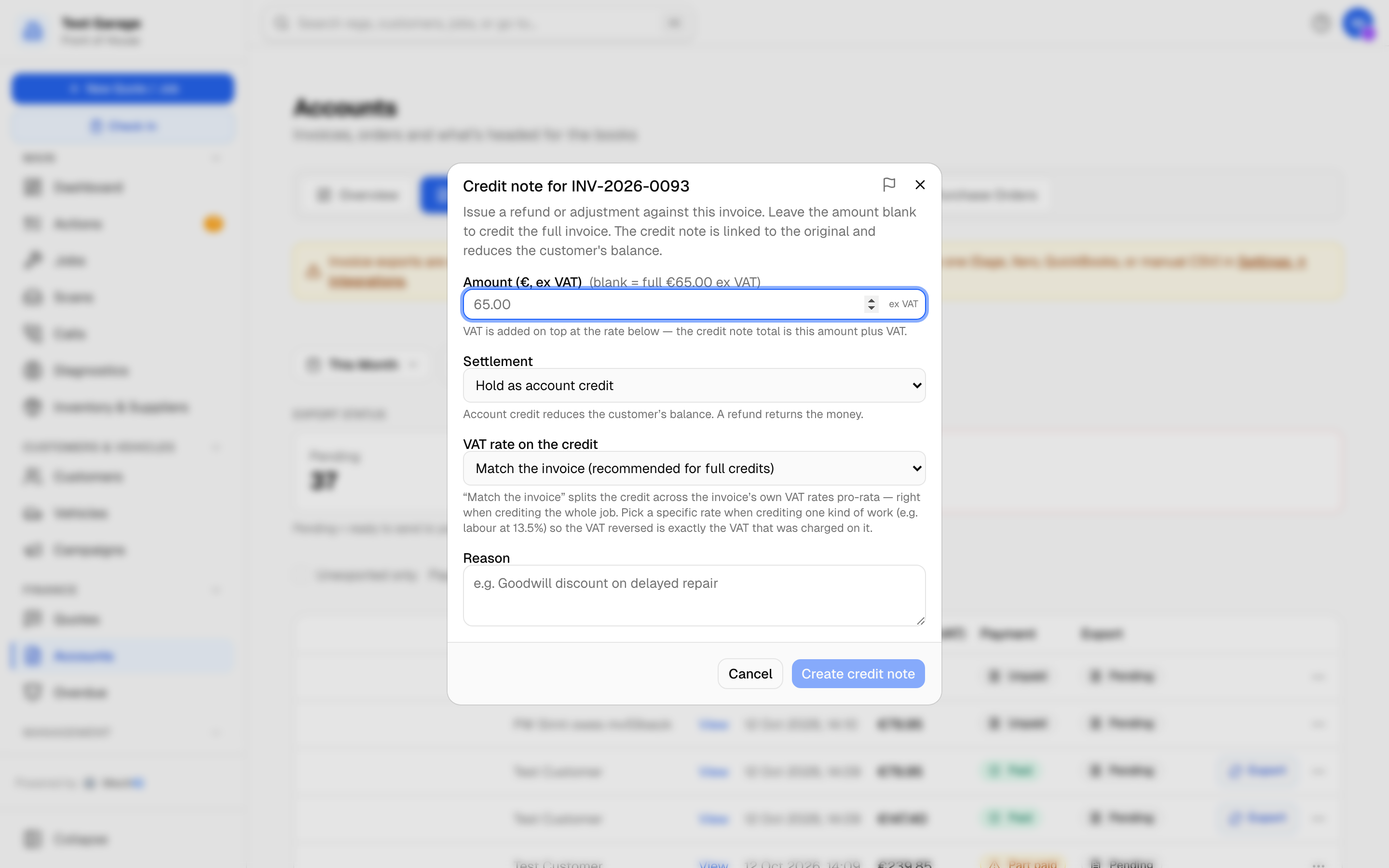 Raising a credit note. Leave the amount blank to credit the whole invoice.
Raising a credit note
Open Accounts -> Invoices and find the invoice (the date filter defaults to This Month, which is a rolling month back from today -- widen it for anything older).
Open the row's ... menu and choose Raise credit note.
What is credited -- say what the credit is for:
- Chosen lines (the dialog opens on this) -- the invoice's lines are listed as the invoice carries them: ex VAT, after any discount, with what each has left to credit. Tick a line to credit all it has left, or type a smaller amount before VAT. Each line is credited at its own VAT rate and goes to its own sales account in your accounts, so a goodwill credit for labour is a labour credit. A line can never be credited for more than it has left; a second credit note on the same line starts from what the first one left.
- An amount across the whole invoice -- one amount before VAT, spread over every line in proportion to what each has left. Leave it blank to credit the whole invoice. Here you can also set VAT rate on the credit (Match the invoice is right for a full credit).
Under it the dialog shows what the credit note will come to before you create it: Net, VAT (per rate when the lines are at different rates) and the total inc VAT, and where it goes (off what the invoice owes, held on the customer's account, or paid back). Amounts are ex VAT -- 40.00 on a 23% line is a 49.20 credit.
Hold it, or pay it back -- one choice, with the same words as a refund of credit:
- Hold as account credit -- it first comes off whatever the invoice itself still owes (so an unpaid invoice you credit in full is no longer owed or overdue); anything left over -- the invoice was already paid -- is credit the customer holds, used against their next invoice or payment. The usual choice for account customers.
- Pay it back now -- Card, Cash, Bank transfer or Cheque (the same list as checkout, less any your garage has turned off) -- the money goes back to the customer. A bank transfer or cheque is recorded only; make the transfer in your bank or write the cheque. A refund can be no more than the money paid on the invoice (less earlier refunds). On an invoice that was never paid there is nothing to hand back -- hold the credit on account.
Reason -- required. It prints on the credit note and goes to your accounts.
Click Create credit note. A credit note for chosen lines lists those lines, named as the invoice names them.
Where it shows
- On Invoices, the credit note sits indented under the invoice it credits with a Credit note badge, and the Payment filter has a Credit notes option.
- On the job page's Invoice card, with a return arrow beside its number.
- A credit held as account credit appears in Take payment alongside the customer's outstanding invoices, so it can be used up when the next cheque or transfer arrives, and at checkout as Use €X held on account (ticked already).
- It exports with the invoices. Where the accounting package supports it, the credit is allocated against the invoice it corrects.
Two kinds of refund
- The sale was wrong -- overcharged, a part came back, a goodwill gesture -- raise a credit note and choose Pay it back now, as above. It reduces the sale and reverses its VAT, because the sale really is smaller.
- The money was never a sale -- an overpayment, a deposit for work that didn't happen, a customer who paid twice. Do not raise a credit note for these: it would take the amount off your sales and VAT for money that was never a sale (and a deposit with no invoice behind it can't have one). Use Refund instead -- see below.
Either way it is one refund: the same choice, the same words, and the same record -- money paid back to the customer. It shows in that day's cash-up as money out, named Refund, on Accounts -> Payments with its reason, and goes to your accounts with the rest of the payments -- in a Sage export as an SP (sales payment) line for the amount paid back, with the credit note number as its reference when there is one. With a live connection, MechIQ sends the refund to your package once, after the credit note is there. MechIQ records the refund; the money itself goes back on your card terminal or payment provider, or from your bank.
Refunding a customer's credit
Money a customer has paid that isn't used against an invoice yet -- their credit -- is normally used on their next invoice. To pay it back instead:
- Open Customers -> Customer credit and click Refund… on their row -- or, on the customer's Account tab, Refund €X… beside Take payment.
- Amount -- starts at their whole credit; it can't be more.
- Pay it back now -- Card (refund it on the terminal or in your payment provider), Cash (out of the till), Bank transfer (make the transfer in your bank) or Cheque (write the cheque). These are the same words as a credit note paid back.
- Date, an optional Reference, and a Reason -- required; it goes on the payment record.
- Click Refund €X.
Their credit drops by the amount, the refund shows on Accounts -> Payments with its reason, and in the day's cash-up. Front desk and garage admins can both refund. If part of the credit is a credit note kept on account, the refund uses that note up, so it can't also be spent at checkout.
Why not delete the invoice
An invoice number that vanishes is a hole in your books, and Revenue expects a continuous sequence. A credit note leaves the trail intact: what was charged, what was taken back, and why.
Related: Accounts · Taking a payment · Taking a deposit