Group Accounts
Some customers belong to an account that is managed across every garage in your group -- a Group account. (An account set up in this garage only is an Account customer.) Link the customer to the Group account and its agreed terms apply to their jobs instead of the customer's own settings.
The account itself is created once, at group level, by your group owner. At the front desk you only link the right customer to it.
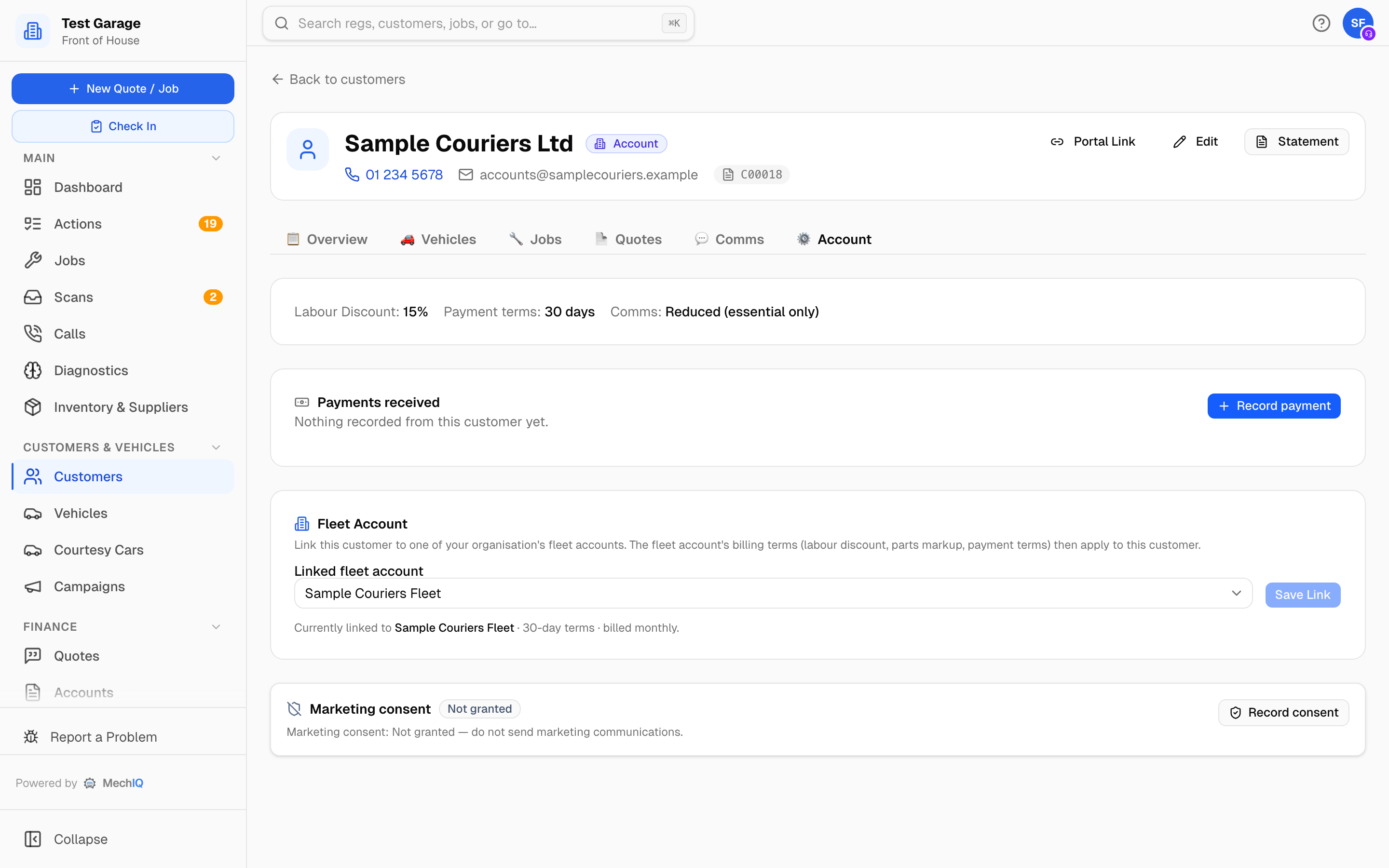 The Group Account card on a customer's Account tab (earlier screens called it Fleet Account).
Link a customer to a Group account
- Open the customer's record and go to the Account tab.
- On the Group Account card, choose the account under Linked group account.
- Click Save Link. The card then reads Currently linked to Example Fleet Ltd, with the account's payment terms and billing cycle if they are set.
To remove the link, pick None (no group account) and click Unlink.
The Group Account card only appears when your group has at least one Group account. If it is not on a customer's Account tab, there is nothing to link to -- check with your group owner.
What changes once linked
- The customer bills to account whenever the Group account does -- the Group account's setting wins over the customer's own account tick.
- The Group account's labour discount and parts markup apply. Where it leaves one of them blank, the customer's own value still stands.
- The Group account's payment terms apply to their invoices.
- Discounts show as explicit lines on the invoice so the customer sees the saving.
- The garage's account invoices for that customer roll up into the Group account's consolidated statement, which the group owner sees on Group Accounts and can download as a PDF or email to the account's billing contact. Only invoices still unpaid or part paid are counted: an account invoice left as Pay later (deferred) is missing from the figure, so settle or re-raise those rather than relying on the group total to show them.
Tips
- If a customer's pricing looks different from a normal walk-in, check whether they are linked to a Group account -- that is usually why.
- Group account terms are edited at group level. If the discount or payment terms look wrong, that is a job for the group owner, not the customer record.