The Setup Wizard and "Finish Setting Up"
Setting up a garage on MechIQ happens in two parts. The setup wizard asks only for the minimum MechIQ needs to run a real job — about ten minutes. Everything else waits on the dashboard's Finish setting up checklist, for when you've had a look around.
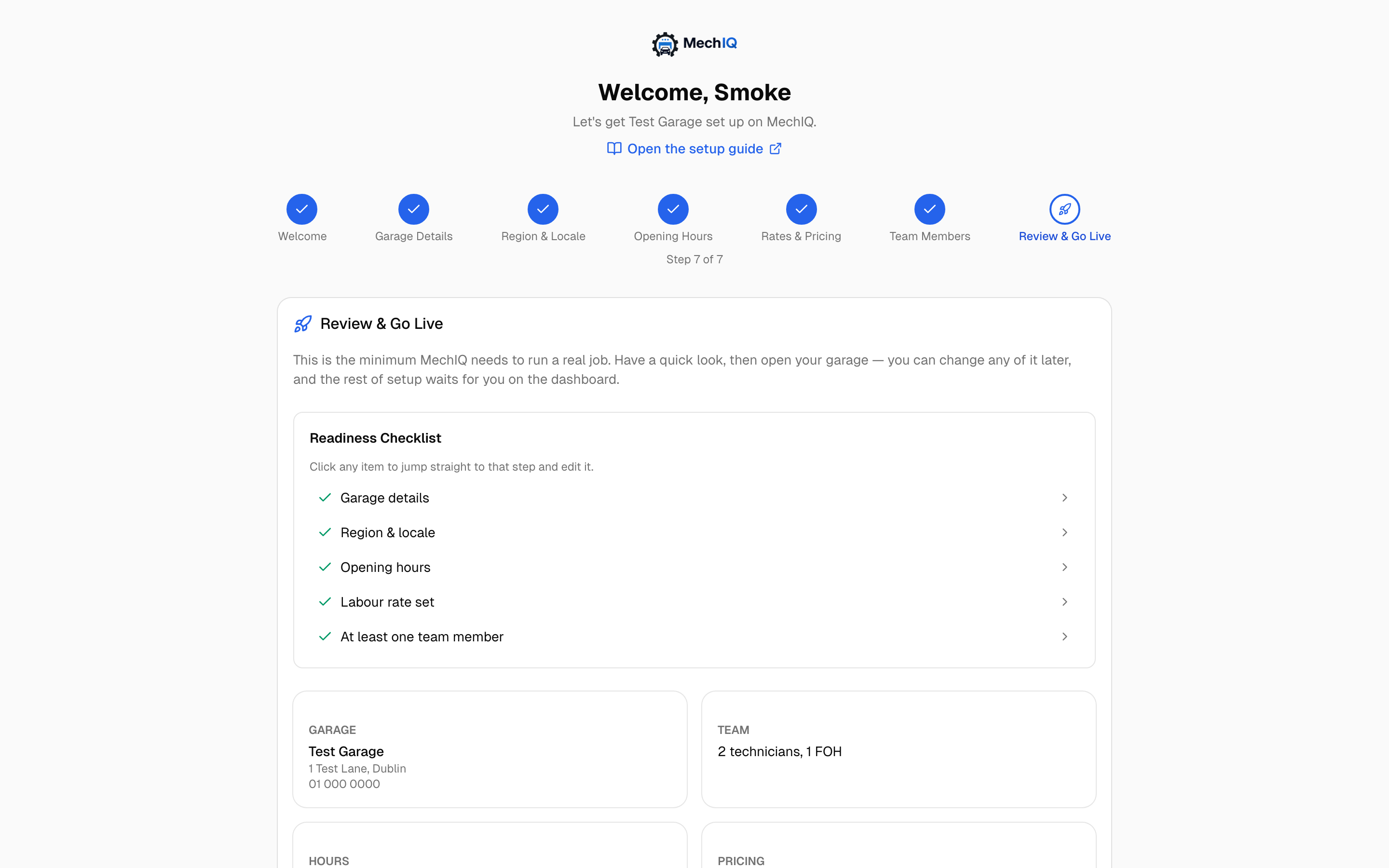 The last step of the wizard. Every answer can be changed later in Settings.
The wizard
You see it the first time the garage's admin signs in. It opens on a Welcome screen, then has seven steps — eight if you pay MechIQ by card, because the Subscription step is added. The welcome screen and the "Step 1 of 8" line under the step tracker always give the same count. The tracker lets you go back to any step, and Open the setup guide at the top links to the printable guide.
- Welcome (not counted as a step) — what's coming, and what's worth having beside you (your VAT number, opening hours, hourly rate, staff names).
- Garage Details — garage name, contact email, phone, address, VAT number and your logo. Your invoice number prefix is not asked here; it lives in Garage Profile with the rest of these, and is worth setting before your first invoice.
- Region & Locale — pick Ireland or the UK; MechIQ sets currency, VAT rates, distance units and timezone. VAT is shown, not asked — the statutory rates are already known (edit later under Tax & VAT).
- Opening Hours — per-day open/close times, breaks and whether the day takes online bookings, with copy Monday to weekdays. Same as Operating Hours. Online bookings stay off until you have a job type customers can book — a new garage has none, so the step says so. After you open, add your jobs in Job Types, then turn online bookings on for the days you want in Settings → Operating Hours.
- Rates & Pricing — what you charge an hour and what you add to a part are the two that matter; padding on book repair times and the consumables charge come with sensible defaults, and Target profit margin is best left blank until you have seen a few jobs priced. Whether you take cash and bank transfer (with the bank details that print on invoices) is set here too. The rest, including the minimum labour charge, is in Pricing.
- What do you sell? (optional) — your starter list of jobs. Tick the cars you work on (Petrol / Diesel, Hybrid, Electric) and MechIQ shows the common jobs that fit, each with its hours, a labour line and its usual parts, so a first booking is priced and online booking has something to offer. Change the hours before you add them; everything else can be changed later in Job Types. Skip leaves the item on the Finish setting up checklist. The number of bays starts at the number of technicians you gave at signup; change it in Settings → Capacity.
- Team Members — add your staff. Their password is optional: leave it blank and MechIQ generates a one-time password the person must change at first sign-in; type one (useful when they're standing beside you) and that password is theirs to keep, with no forced change. Either way the username and password are shown once with a copy button and a QR code to install the app — take a copy before moving on. You're asked whether you work on cars yourself; if so you can be given jobs and run the clock. A second question asks whether to put you in the diary — off by default. In the diary your hours count as bookable capacity and you get a column on the Tech Board; most owners leave it off and still pick up jobs when it's busy. You can change it later on the Team page.
- Subscription (card-billed garages only) — your card is asked for once. If you added it at signup, this step already says Free trial started — press Continue. If you left the payment page before you finished, Finish adding your card takes you back to the same payment page. The garage can't go live without an active or trialing subscription. Trial, demo and invoice-billed garages don't see this step.
- Review & Go Live — the Readiness Checklist: garage details, region & locale, opening hours, labour rate set, someone to do the work (a team member, or you if you said you work on cars yourself), and the MechIQ subscription where required. MechIQ checks the same list again when you press Open my garage, and tells you what is missing. Click any item to jump back and fix it. The Team summary counts technicians the same way as your plan's technician seats (Plan & Billing).
Your first look around
The first time you open the dashboard after go-live, a short tour shows four places: New job (book or price a car), Check In (a car arrives), Actions (what needs you), and the Finish setting up card. You can skip it; it does not come back on another device.
A person, and a place to practise
Week one does not have to be on your own. The wizard, the Finish setting up card, Data Import and the Help Centre all show:
- Request a setup call — a dialog asking your preferred day/time, a phone number (pre-filled from your own) and an optional note. We'll contact you to arrange it. Owner/garage_admin only.
- Moving from Garage Hive? We run the import for you — the same dialog, so we know to call about the import.
Both land on our side the same way every other support request does, so nothing is missed.
Practise first. On the Finish setting up card (and in Help), Make my practice garage makes a copy of your garage — your prices, hours, VAT and job types — with a few made-up customers and cars. Your staff can open it too, with their own logins, from the garage switcher. Try a quote, a booking or a whole job there:
- Nothing is sent from a practice garage — no texts, no emails, no supplier orders. A send there reads Not sent with the reason.
- Nothing reaches your real garage — its jobs, invoices and reports are its own. It copies no connection (no accounting package, supplier account or payment provider).
- MechIQ AI is capped at 5 calls a day in a practice garage — the sample cars already come with their technical data and repair times, so quoting and the technical pages work on them without using up the cap; after 5 calls MechIQ's AI behaves exactly as it does with AI switched off, until the next day.
- Vehicle look-ups only work on the sample cars — type any other registration and enter its details by hand; a practice garage never makes a real (billed) registry or technical-data look-up.
- An amber bar says you are in the practice garage, with Back to your garage.
- Start again (owner only) clears it and makes a fresh copy from your garage as it is now. Staff added after the copy was made can open it once you start it again.
Finish setting up
After go-live, the owner's dashboard shows a collapsed Finish setting up card with a count like "3 of 13". Open it for the rest of the setup, each item linking to the place that owns it:
- Set up the jobs you sell → Job Types (ticks itself once you have any)
- Bring your old data across → Data Import (ticks itself when an import is committed)
- How you take payment → Payments (ticks itself)
- Your parts suppliers → Inventory & Suppliers (ticks itself)
- Stock you keep on the shelf → Inventory (ticks itself once you have stock, by hand or from an import)
- How your quotes work → Quotes
- Messages to your customers → Messages
- Let customers book online → Online Booking
- Your vehicle health check → VHC & QC checklists
- Who works when → Team → Schedules
- Clock-in and annual leave → Time Clock (ticks itself once either role's clock is on)
- What your techs are best at → Specialisations
- Genuine (OEM) parts ordering → Workshop Options, which points you to Inventory → Suppliers → Online suppliers (see Genuine parts via partslink24)
Items MechIQ can see the answer to tick themselves, and you cannot untick them; tick the rest off yourself. Ticks are stored on the garage, so every device shows the same list, and the card disappears on its own once everything is done. Until then the same reminder is on the Actions board as Finish setting up your garage. Its Open the checklist button opens the card on the dashboard. The reminder closes itself when the list is done or when you mark setup complete.
Mark setup complete at the bottom of the card puts it away when you have done what you want to. It does not tick the remaining items, and it is stored on the garage rather than in your browser, so the card stops prompting on every device at once. To bring it back, Settings → Dashboard → Finish setting up checklist → Show it again, which also lists whatever is still outstanding.