Navigating MechIQ
MechIQ is organised around a sidebar on the left. It adapts to your role -- you only see the pages that belong to your job.
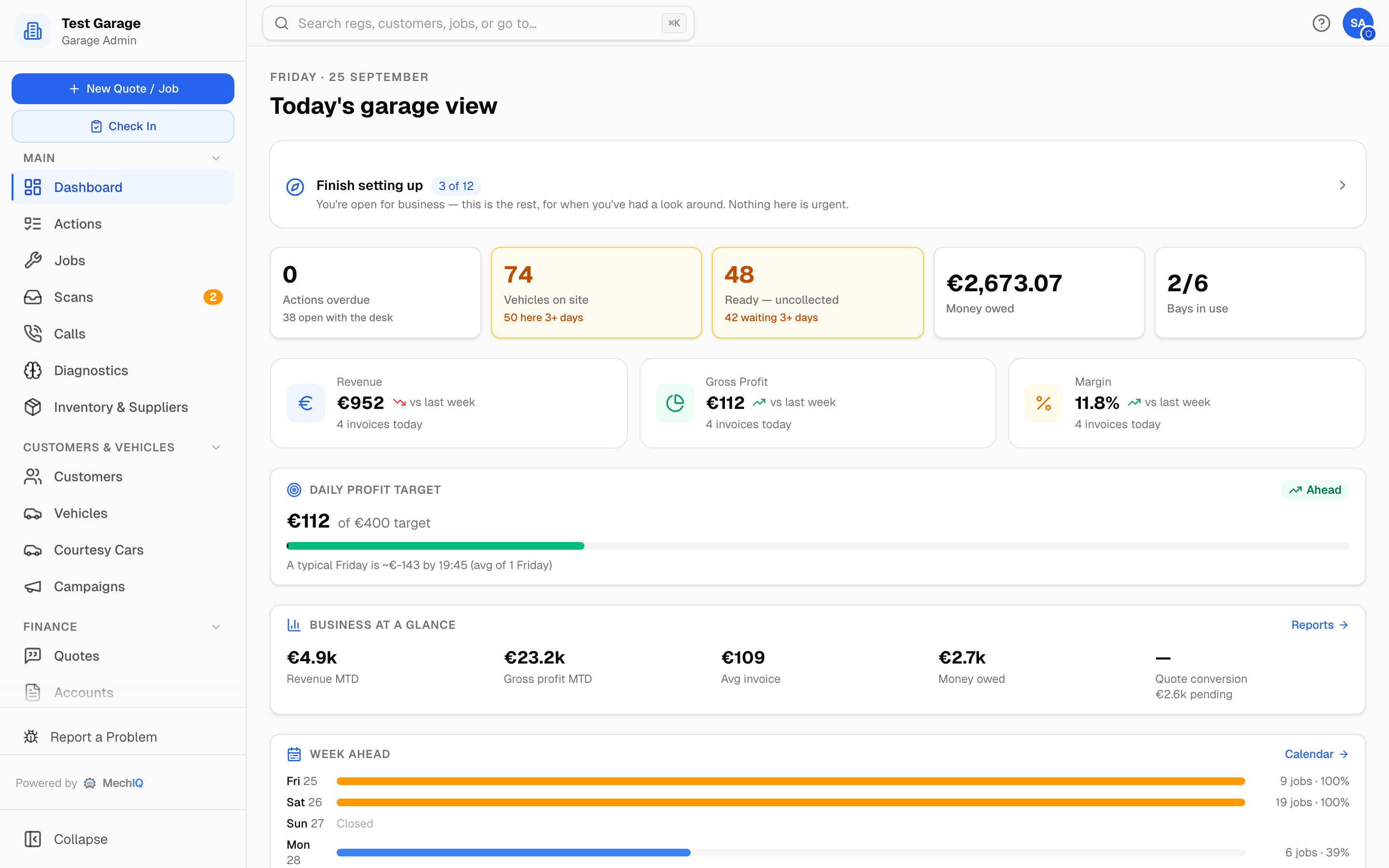 The home screen for admin and front of house: sidebar on the left, search across the top, help and your avatar at the top right.
The sidebar
For admin and front-of-house users the sidebar is grouped:
- Main -- Dashboard, Actions, Jobs, Scans, Calls, Diagnostics, Inventory & Suppliers.
- Customers & Vehicles -- Customers, Vehicles, Courtesy Cars (when enabled), Campaigns.
- Finance -- Quotes, Accounts, Overdue.
- Management -- Team, Reports (admin and reporting logins), Settings, Help. Owners of more than one garage also get Organisation.
New job and Check In sit at the top of the sidebar, under the garage name. There is no separate Calendar item -- the schedule lives on the dashboard's Tech Board and Calendar tabs.
Click a section heading to collapse it; MechIQ remembers. Collapse at the bottom shrinks the whole sidebar to an icon rail, remembered too. Report a Problem is in the menu under your initials (top right) on every screen, and our replies come back under My reports in that same menu. See Report a Problem.
Badges: Scans carries the number of inbound documents waiting. Actions carries a count that depends on your role: front of house see every open item for the desk, amber for work in the queue and red when something is interrupting; an owner sees only the items that have gone past their response time, always in red, so the badge is an escalation count rather than a workload one. Anything urgent also pops a dismissible alert at the top centre of the page, with a chime and a count on the browser tab. There is deliberately no notification bell for admin and front of house on the desktop -- one signal, not two.
Technicians get the tablet layout
Signing in as a technician gives you the tablet layout on any device -- even a desktop browser, where it is drawn at tablet width in the middle of the window. There is no sidebar. Instead:
- A bottom bar with My Work, Diagnostics and More (Day plan, Time clock when enabled, My profile, Help, Log out).
- A top bar with the attendance clock, a notification bell for your jobs, the ? help button and your avatar.
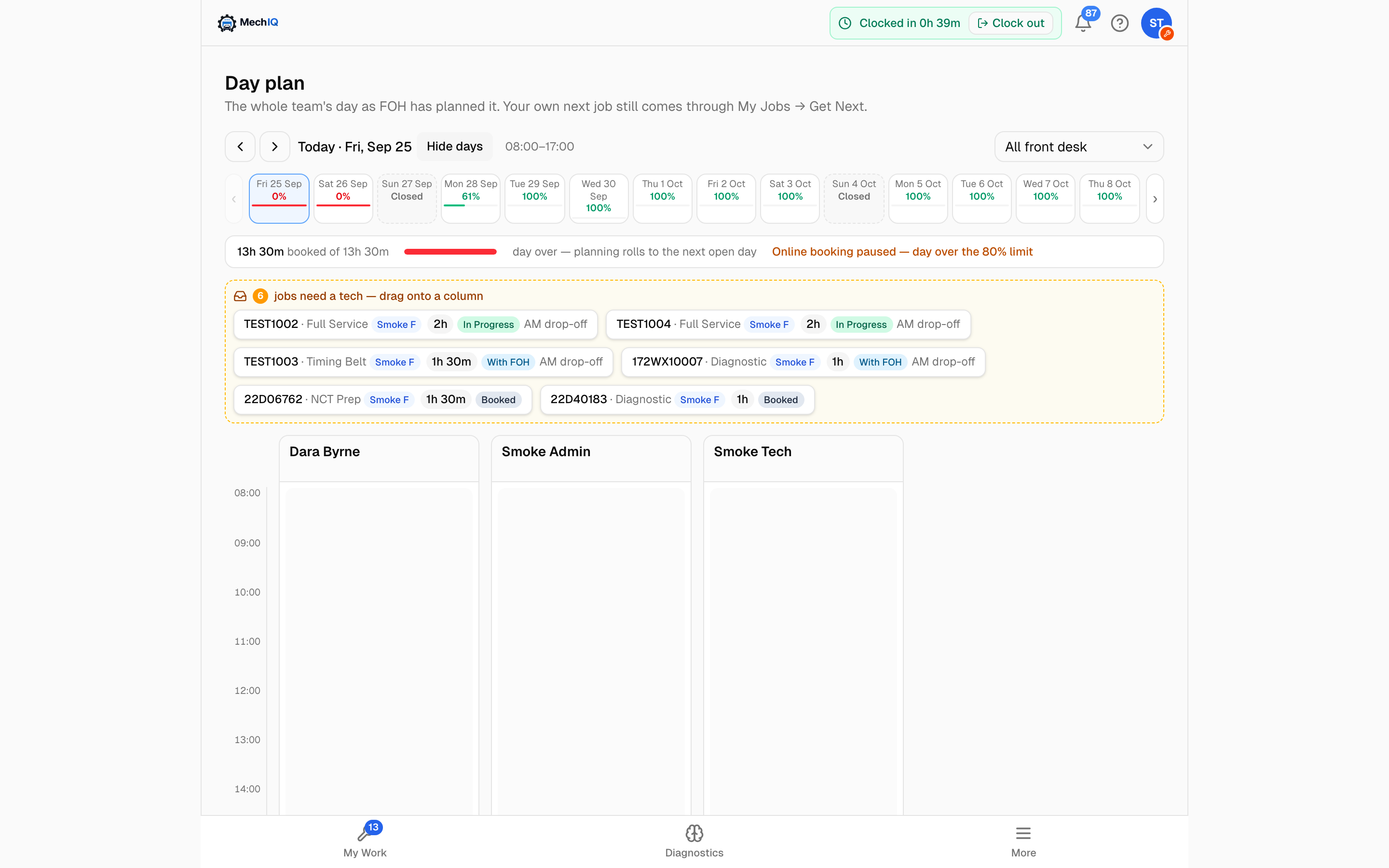 A technician on a desktop browser gets the same tablet layout the workshop uses.
Day plan is on the More menu (and at /day-plan if you prefer the address). See the technician articles for the rest.
Search, and Go to
The search box across the top belongs to the admin and front-of-house layout. Click it -- or press Cmd+K (Mac) / Ctrl+K (Windows) from any page in that layout -- and type. The technician tablet layout has no search box and no Cmd+K -- a technician works from My Work and the app's own tabs.
Two kinds of result appear:
- Go to -- places in the portal: pages, Settings tabs, and named things inside them. Type chart of accounts and the first row takes you to Settings › Accounting; stock check, payments, online booking and time clock all work. Only places your role can open are listed.
- Records -- customers, vehicles (with or without dashes in the reg), active jobs, invoice numbers, purchase orders, parts (by number or name) and suppliers. Each section shows the top few; a section marked Top 10 has more.
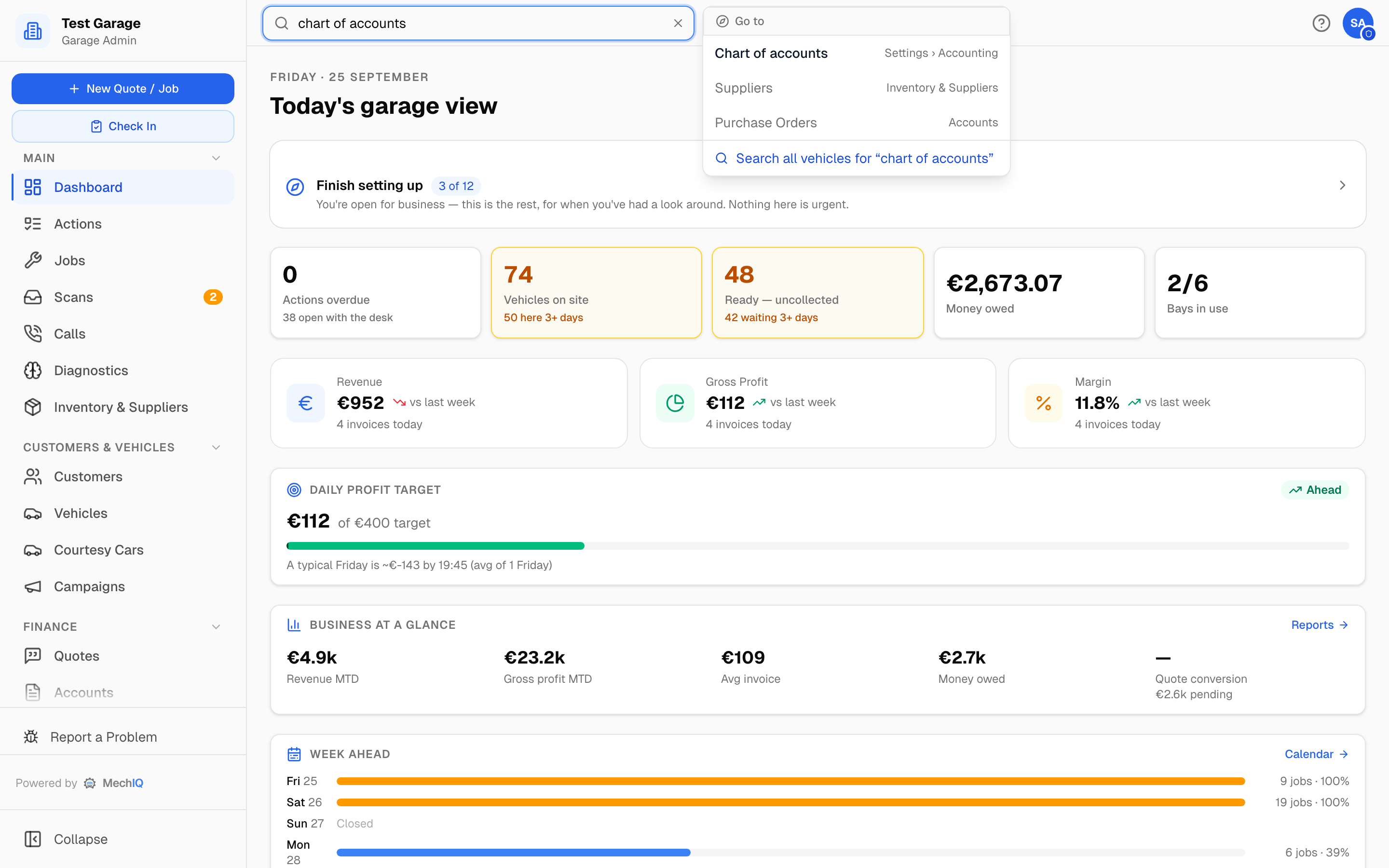 Search finds places as well as records. The Go to rows come first.
Arrow keys move through the rows and Enter opens the highlighted one. Enter with nothing highlighted runs a full search of the vehicle list for what you typed, as does Search all vehicles for "…" at the bottom.
The ? help button
The ? at the top right opens help for the page you are on -- For this page names the article, with its summary and Open full article. On a tabbed page it follows the tab you are looking at. Type in Search help… at the top to search every article without leaving the page -- articles whose title matches come first, and Enter opens the top one. Underneath are Browse all help and Can't find what you're looking for? Contact support, which opens a support request to MechIQ.
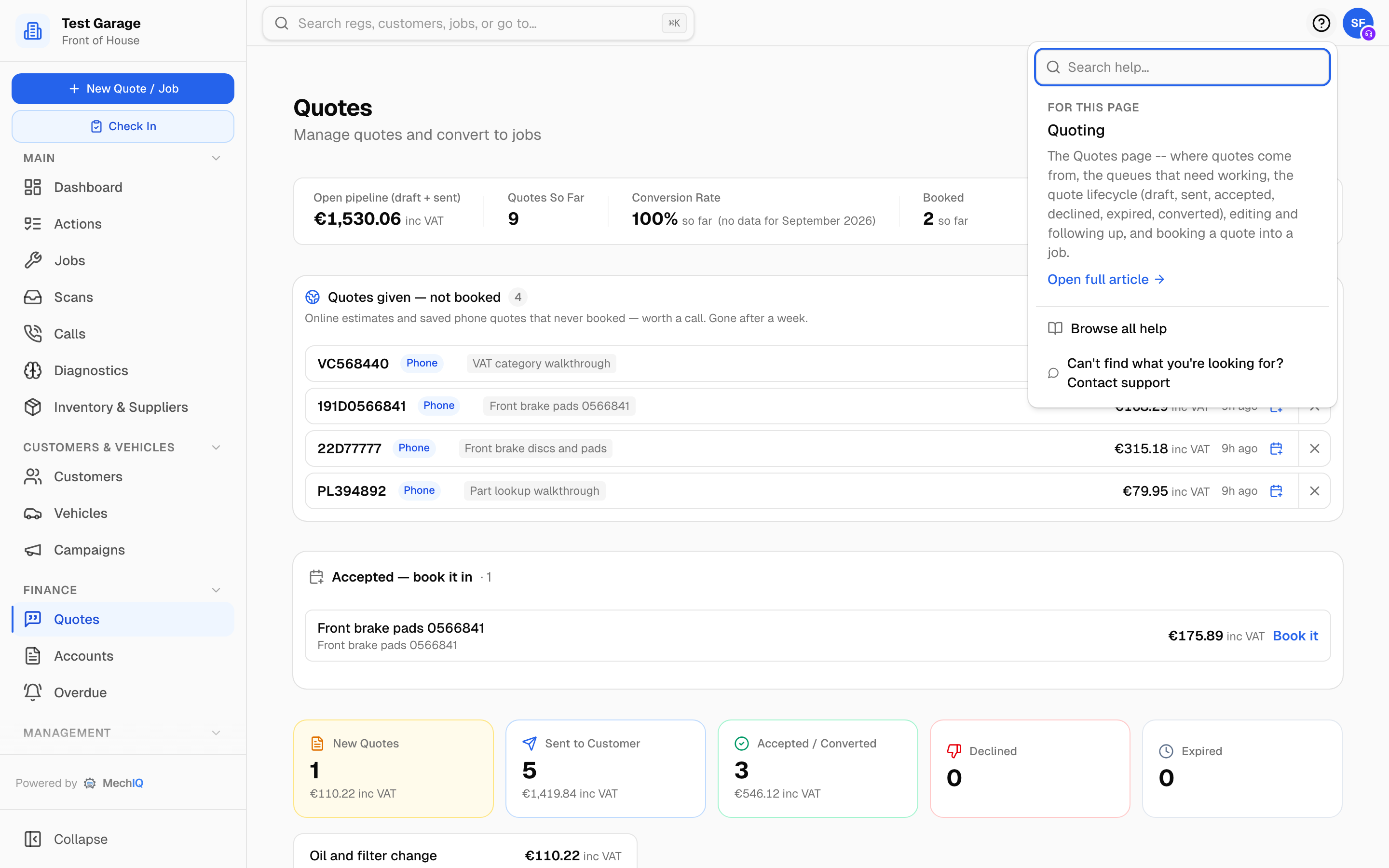 The ? button knows which page you are on.
The Help Centre
Help in the sidebar (or More → Help for a technician) opens the Help Centre: twelve sections grouped by what you do. Nothing is hidden from you -- help is documentation, not permissions, so every article is readable whatever role you are in. Search matches titles, summaries, tags and body text word by word: when nothing matches every word you typed, MechIQ shows the articles that match some of them, each badged Partial match, rather than nothing. Click a tag chip on any card to see everything with that tag, across all twelve sections.
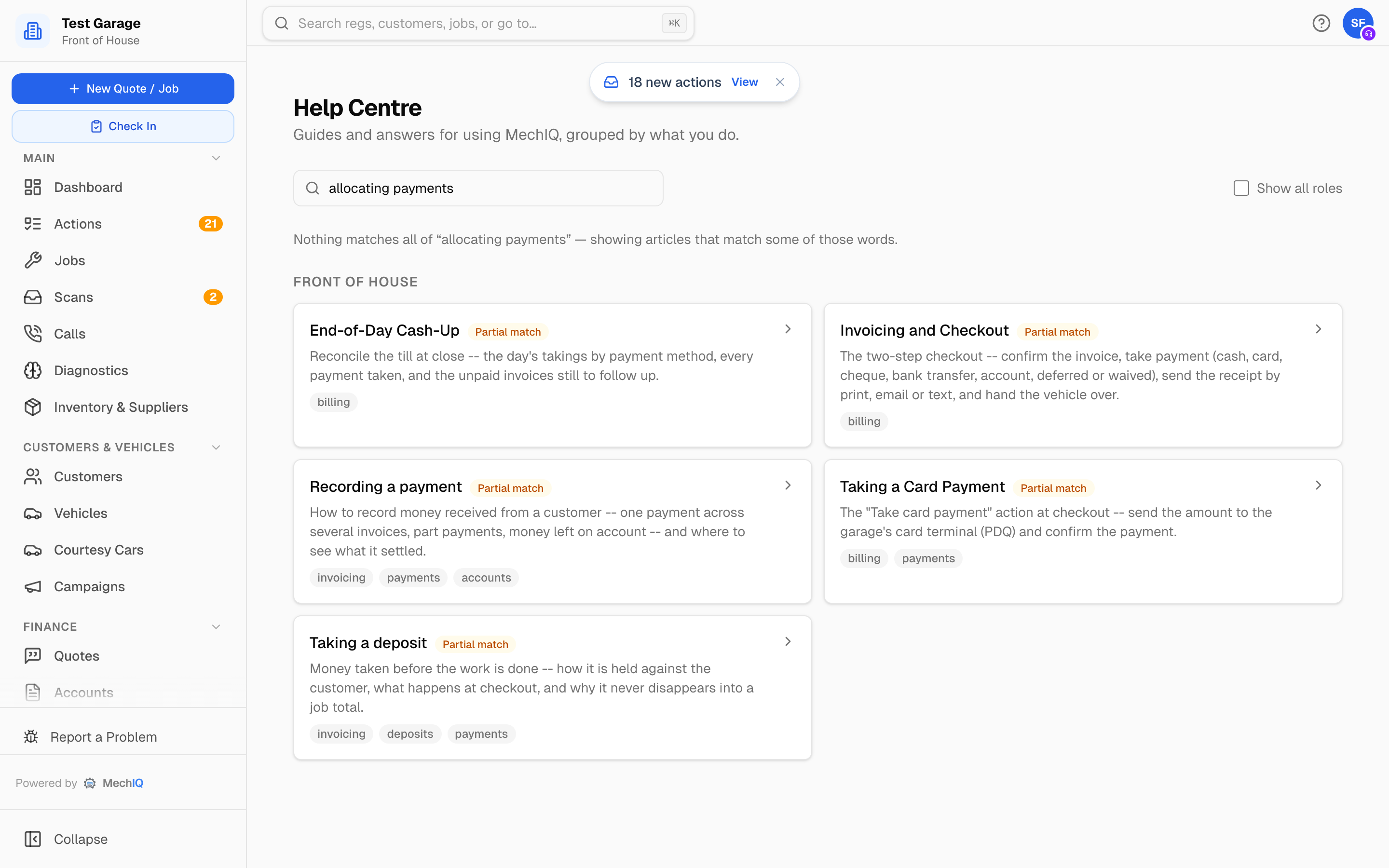 Help search never comes back empty-handed when part of your phrase matches.
Switching role
If your account holds more than one role, open the avatar at the top right and choose Switch to …. See Logging In.
On mobile -- the native app
Away from the desk the native app is the primary mobile experience. On a phone a job is split into section tabs -- Briefing · Work · Parts · Assets -- so you tap straight to what you need. See Using the MechIQ Mobile App.
Dark mode
Open My Profile from the avatar menu and use Dark Mode / Light Mode at the top. It switches instantly, and it is remembered per browser rather than on your account -- so set it again on the workshop tablet or a second computer.