Logging In to MechIQ
You reach MechIQ at your garage's own web address -- your subdomain, for example yourgarage.mechiq.ie. One application serves every garage role; you choose the role when you sign in.
Signing in
- Open your garage's MechIQ address. The garage's name and logo show at the top.
- Enter your username and password (the eye icon shows the password) and click Sign in.
- If your account can work in more than one role, MechIQ asks you to Select a portal:
- Garage Admin -- settings, team, reports and every feature.
- Front of House -- the desk: jobs, customers, vehicles, the schedule, quotes, invoices, messages.
- Technician Portal -- the tablet layout for working jobs.
- Organisation -- for owners of more than one garage, the group-level view. See Getting Started as an Organisation Owner.
- Reports -- a read-only reporting login.
Most people hold one role and go straight in. Where you land depends on the role: technicians on My Work, reporting logins on Reports, everyone else on the Dashboard.
Usernames belong to the garage
MechIQ builds every username the same way -- first.last, so Alan Fitzpatrick becomes alan.fitzpatrick, all lower case with accents and punctuation stripped. If two people at the garage would get the same one, the later account gets a number on the end. Usernames belong to your garage: alan.fitzpatrick at another garage is a different account, and you always sign in at your own garage's address. An email address on your account is optional.
First login
If your admin set you up with a temporary password, MechIQ asks you to Set a new password the first time you sign in -- choose one, confirm it, and Set password & sign in.
Just signed up? After you add your card, the page you come back to shows your garage address and your username, with a Sign in button. Your temporary password is in the welcome email. The page only says your free trial has started when the payment provider has confirmed your card.
Daily sessions
Your session lasts the full working day, so you stay signed in while you work. You sign in again the next day.
Switching role without signing out
Once you are in, the avatar at the top right shows your initials with a small badge for the role you are in (a shield for admin, a headset for front of house, a spanner for technician). Open it and choose Switch to Front of House, Switch to Technician and so on. The page reloads in the other role -- a technician context opens on My Work.
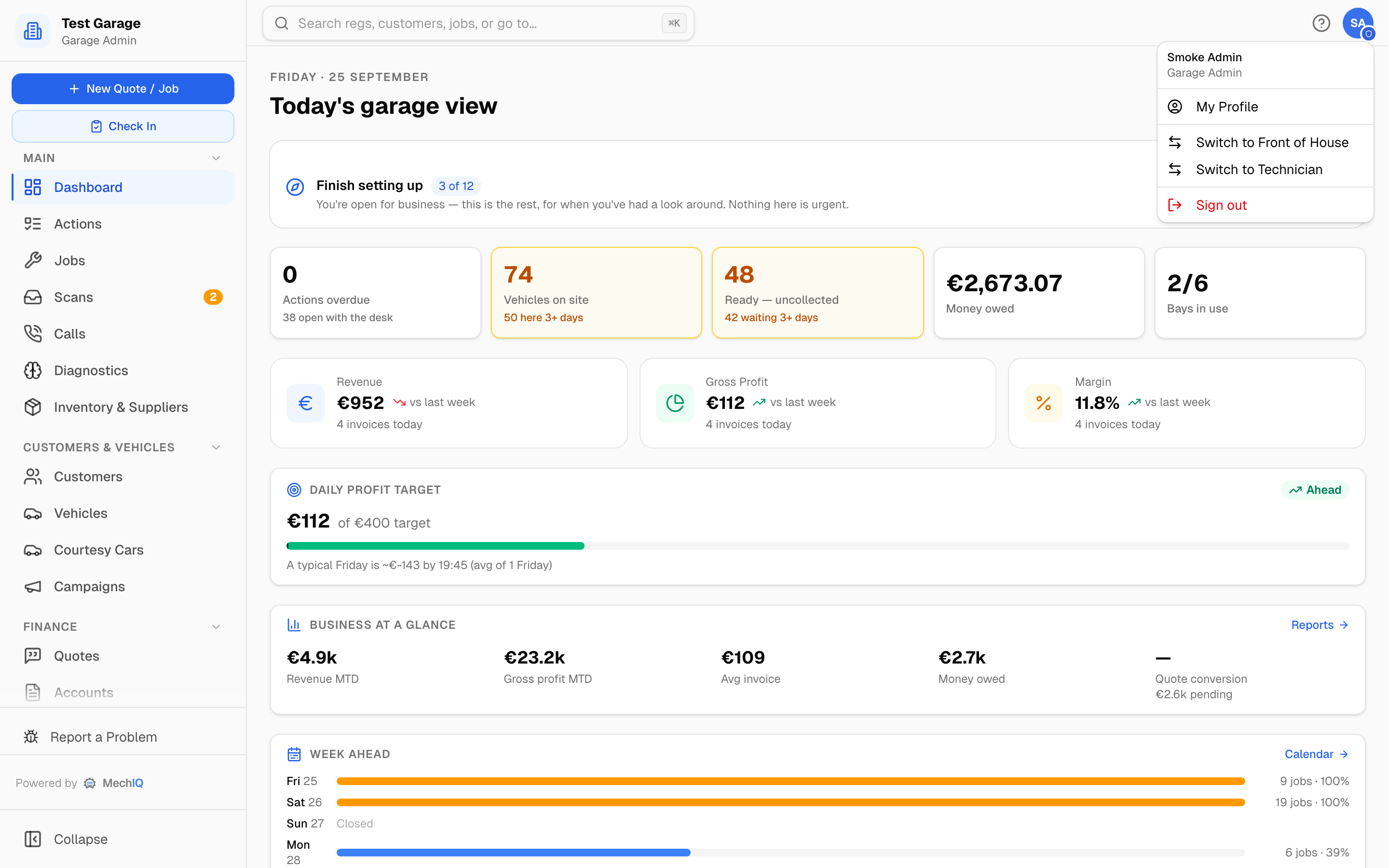 The avatar menu. The role badge on the avatar tells you which context you are in at a glance.
On the mobile app
The native app asks for one extra thing: your garage code, the first part of your garage's web address (yourgarage for yourgarage.mechiq.ie). Then username and password, and a role if you hold more than one. The app remembers the code and username on that device, never the password. See Using the MechIQ Mobile App.
Platform admin portal
MechIQ staff use a separate portal at admin.mechiq.ie, marked with a red banner. Garage users never need it.
Troubleshooting
- Wrong role view? Switch from the avatar menu, or sign out and pick a different portal.
- Forgot your password? Technicians and front of house cannot reset their own -- ask your garage administrator or a front-of-house colleague, either of whom can reset it from Team › Staff (front of house can reset technicians and other front-of-house accounts, never an admin). Garage admins use Forgot password? under the sign-in form: enter the email on your admin account and a reset link is sent to it. The link lasts one hour, and the screen says the same thing whether or not the email matched, so nobody can use it to guess your garage's admin address.
- Not sure of your username? It is
first.last. Your admin can see it on Team.