Using the App on Your Phone or Tablet
MechIQ has a native app for iPhone, iPad and Android. It is the primary mobile experience for technicians, front of house and garage admins -- purpose-built for the device in your hand, not a shrunk-down web page.
Technicians work on a tablet. It is the device the workshop side is designed around: a job on screen beside the car, big enough to read a torque figure at arm's length. Front of house use a phone -- the desk work stays on the web portal, and the app covers what they do away from it.
Organisation owners, reporting-only logins and MechIQ platform admins stay on the web app; the native app does not include those roles and says so if you sign in with one.
Installing the app
- iPhone / iPad -- MechIQ on the App Store.
- Android -- MechIQ on Google Play.
Or open mechiq.ie/get-app on the device and it sends you to the right store. Your garage admin can show you a scan-to-install code when they set up your account.
Signing in
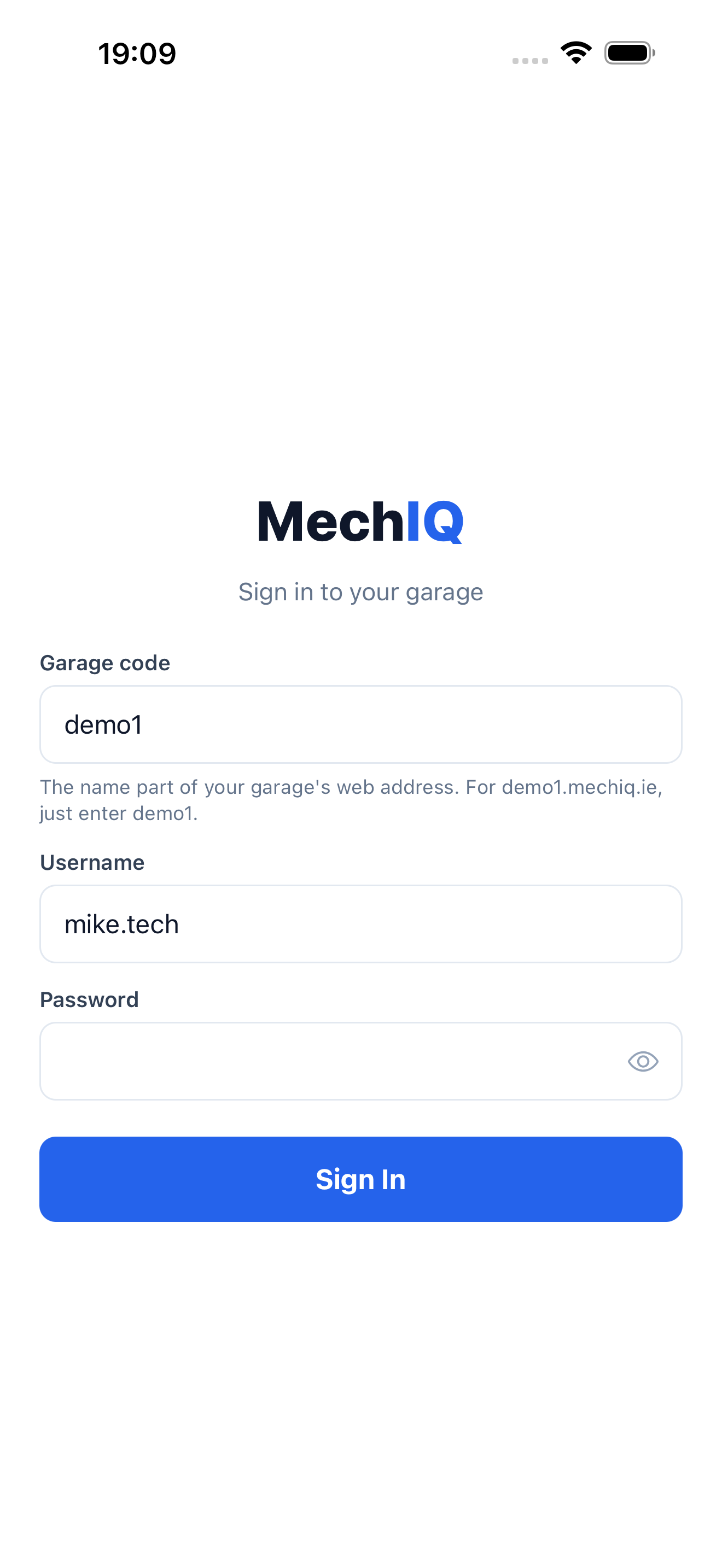
Enter your garage code, username and password. The garage code is the first part of your garage's web address -- yourgarage for yourgarage.mechiq.ie; paste the whole address and the app reduces it for you. The app remembers the garage code and username on that device (never the password), so day to day it is just the password.
If your account holds more than one role the app asks How do you want to work today? -- pick one. You can switch later from the avatar menu (front desk and owners: also More → Switch role).
The app layout
Bottom tabs
The tabs change with your role:
- Technicians -- My Work · Diagnostics · Parts, plus Time Clock when the garage runs the attendance clock. There is no More tab; your profile, notification preferences, Help, Switch to … and Sign out are behind the avatar at the top of My Work, and the bell beside it is your notifications.
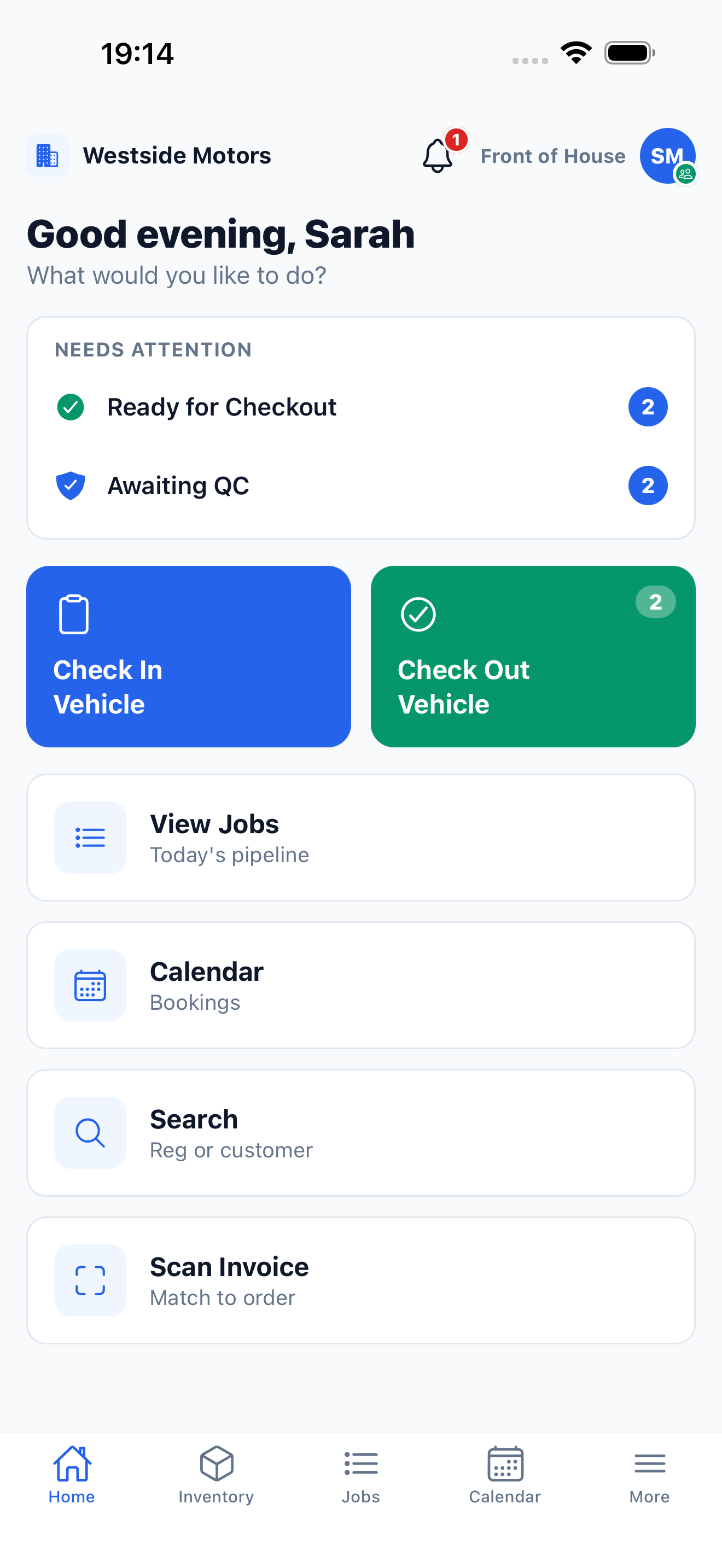
- Front of house and garage admins -- Home · Actions · Jobs · Inventory · More. Actions carries a badge with the open count. More holds the calendar, search, calls, scan invoice, notification preferences and -- for owners -- Reports.
On a tablet the technician app opens a two-pane workspace: the job list in a rail on the left, the job on the right.
Section tabs on a job
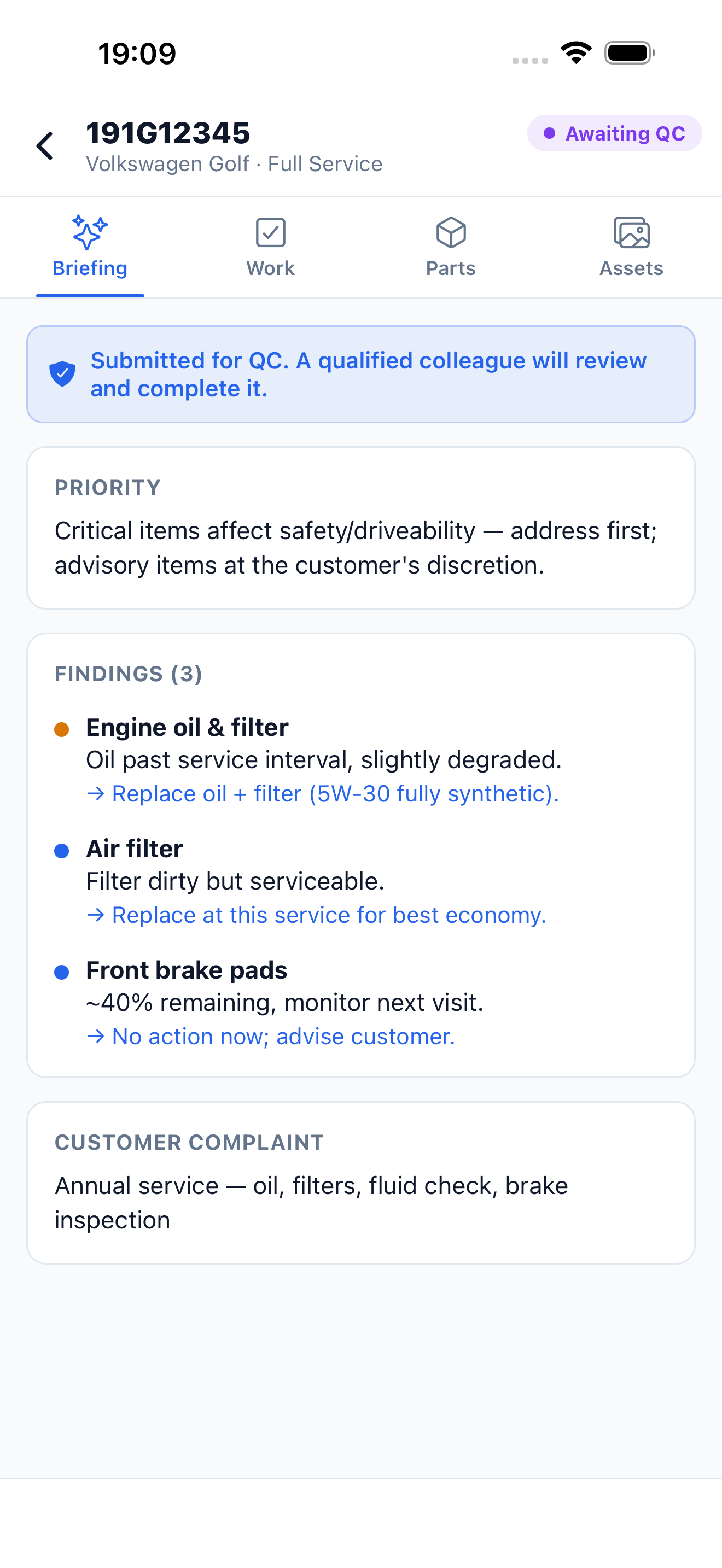
A job is split into section tabs along the top so you are not scrolling one long page. For a technician: Briefing · Work · Parts · Assets. Tap a tab to jump straight to that part of the job.
Working-day sessions
Your session lasts the full working day, so you are not asked for your password every few minutes. You sign in again the next day.
Push notifications
The app sends push notifications on iPhone and Android, so you hear about what needs you even when MechIQ is closed -- allow notifications the first time you are asked. A technician's notifications are about their own jobs -- parts arrived, work approved, a QC result -- with one exception: when any job is marked urgent, everyone on shift is told, technicians included. Preferences are under the avatar menu.
Each phone or tablet you sign in on gets your notifications -- an owner with a phone and a tablet hears on both. Sign out on a shared tablet: the tablet then stops getting your notifications, and whoever signs in next gets only theirs. Tapping a notification opens the screen it is about: the job (at the right tab), Calls for a call, My Profile → Leave for leave, the customer for a reply or an answered quote -- also when the tap opens the app from closed.
My Profile → Account shows the App version. Keep the app updated; MechIQ notes very old versions so we can tell you when to update.
Who uses the app
- Technicians -- the whole job flow on the tablet: My Work, VHC, work plan, parts, write-up and QC. See The App in the Workshop.
- Front of house -- check-in, check-out, actions, jobs, scanning invoices and stock on the move; the desk work stays on the web portal. See The App Away From the Desk.
- Garage admins -- the front-of-house tools plus a money-at-a-glance home and Reports.
Leave
My Profile → Leave shows your allowance and your requests. Request leave asks for time off. A request that is still pending and not over has Edit (change the dates, type or notes; only what you change is sent) and Cancel request (it asks Cancel this request? first) -- the same as My Profile → Leave on the web.