Messages Settings
Settings → Messages is the one place for how MechIQ talks to your customers: which messages they get and when, what the messages say, and who they come from. Front desk and garage admins both open it. Only garage admins can change the switches, the tone and the sender. Technicians can't open the section -- only the desk messages customers.
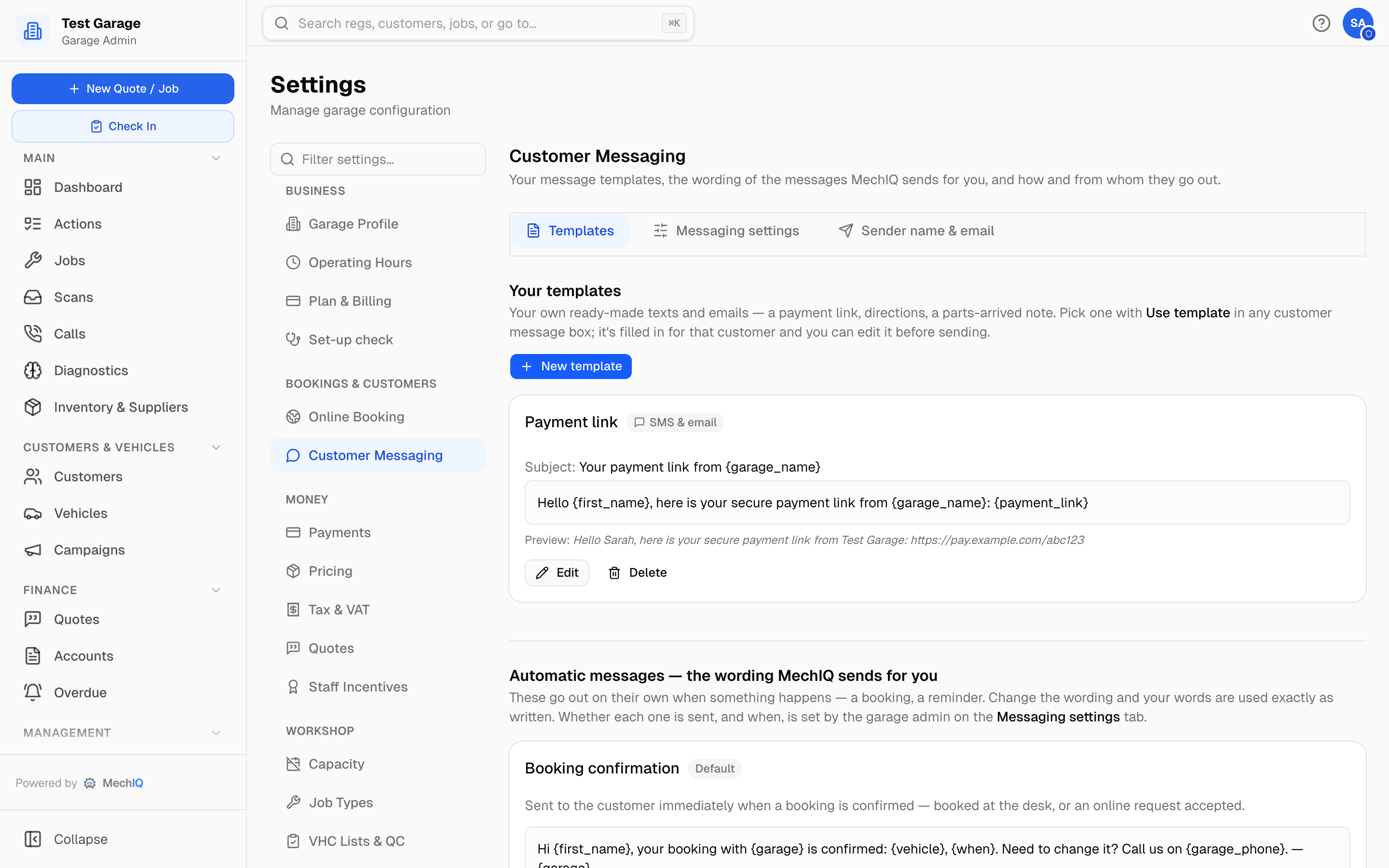 Settings → Messages. Its tabs are described below.
It has four tabs:
- What your customers receive (opens first) -- every message a customer can get, and the on/off and timing of the ones MechIQ sends by itself. Front desk see it read-only.
- Templates (front desk and admins) -- your own templates, and the wording of the messages MechIQ sends for you.
- Messaging settings (admins) -- tone, the tracking link and the declined-work follow-up.
- Sender name & email (admins) -- the name your texts come from and the address your emails come from.
If your garage is near or over its SMS allowance, a banner says so at the top of every tab.
Saving. Changes are held until you click Save changes on the bar at the bottom of the screen; Discard drops them. Nothing saves by itself. Your own templates and the sender cards have their own Save buttons.
What your customers receive
One card for each message. Each card shows:
- What starts it -- for example "The desk books a car for a later day".
- Channel -- text (SMS), email, or the customer's choice. When a text can't reach the customer (no mobile), most messages go by email instead; the card says so.
- Who sends it -- Sent automatically (MechIQ sends it by itself), Prepared for you to send (MechIQ writes it; a person sends it) or Sent by staff.
- Marketing -- needs consent on the NCT/MOT and service reminders and campaigns. These go only to customers who agreed to marketing and did not choose No marketing. Each one carries the customer's own opt-out link, added after your wording, so it is always there.
- When it goes, and Edit wording → to its text on the Templates tab.
Switched off by MechIQ. If MechIQ has stopped texts or emails for your garage, a banner at the top says so -- "Texts to customers are switched off by MechIQ -- contact MechIQ support". You can't change this here; contact MechIQ support.
The garage admin sets these here:
- Booking confirmation -- on by default. One per car per booked day, from a desk booking, a booked quote, or when you confirm an online request. Never for a same-day walk-in or a car already checked in. Online customers always get their "request received" message.
- Appointment reminder -- send it N hours before the booking. 0 = off; 24 is typical. Reminders are checked every hour. The text says the drop-off window -- tomorrow afternoon -- never a made-up clock time. One per car per day; an online request you haven't confirmed gets none.
- NCT / MOT reminder -- Text customers their NCT/MOT reminder (off by default). Below it: Generate NCT/MOT/CVRT and service-due reminders (the desk sees each due car on the Actions list) and Remind N days before due (default
42,14,7). Never for a car that is booked in or in the garage. - Service reminder -- shown only where service reminders are available to your garage. Once per service, when the car is due and nothing is booked.
- Payment reminder -- Send a payment reminder for Pay later invoices (off by default). Set N days after the invoice is left to pay later (default 7). You can write your own wording with
{first_name},{amount},{garage_name},{vehicle}and{invoice_number}; leave it empty for the standard wording. Any other word in curly brackets is refused when you save. Reminders go only for a live or trial garage, never to the "Unassigned vehicles" holding customer or an archived customer.
A demo garage sends nothing by itself; the list says so.
Templates
Your templates
Your garage's own ready-made texts and emails -- a payment link, directions, a parts-arrived note -- that anyone on the desk drops into a message with Use template. See Message Templates for writing and using them.
Automatic messages -- the wording MechIQ sends for you
These go out on their own when something happens. Each card says when it's sent, shows Default or Custom, and previews the message for a sample customer:
- Booking confirmation -- when a car is booked for a later day: a desk booking, a booked quote, or accepting an online request. Never for a same-day walk-in or a car already checked in, and one per car per booked day. Switch it off on What your customers receive.
- Online booking request received -- when a customer's online booking request arrives, before you confirm it.
- Online booking declined -- when you decline an online request.
{reason}is the reason you type when declining (left out if you don't give one). - Appointment reminder -- before the booked appointment, at the lead time set on What your customers receive. Add anything the customer should bring or do.
- NCT / MOT reminder -- as the test due date approaches, when customer texts are switched on in What your customers receive. MechIQ adds the customer's opt-out link after your words.
Front desk and garage admins can both change these. Click Edit wording, change the text, use the buttons under the box to insert variables ({first_name}, {vehicle}, {garage_name}, {garage_phone}, {when}; {test_name} and {due_date} for the test reminder; {reason} for a declined booking), then Done -- and Save changes on the bar. The garage's name is {garage_name} in every message; any other word in curly brackets is refused when you save. Reset to default removes your wording and goes back to MechIQ's. Wording that asks the customer to reply is not saved while your texts go out from a sender name (no number to reply to) -- the save says why; ask them to call instead, e.g. with {garage_phone}. The same rule applies to your own templates and to campaigns.
Added to messages (garage admin only -- front desk see the current wording but can't change it):
- Message sign-off -- added to the end of every AI-drafted message. Default
Thanks, {sender_name} & the {garage_name} team.{sender_name}is the person sending;{garage_name}is your garage. When nobody is sending -- a message MechIQ prepares for you -- the sender's part is left out: Thanks, the Test Garage team. A preview shows how it reads. - Completion disclaimer -- added to the email when a job is marked complete (not to SMS). The placeholder shows the standard wording; leave it blank to send no disclaimer.
Messaging settings
Garage admins only.
Message tone
How AI-drafted messages sound: Friendly (default; first-name basis, casual phrasing), Professional (full names, structured) or Casual (short, minimal formality). It affects AI drafts only -- you can always edit a message before sending. Which messages go out, and when, is on What your customers receive. Edit the sign-off → takes you to the sign-off on the Templates tab.
Job tracking link
Send customers a link to track their job -- off by default. Every job has its own tracking page where the customer can follow its progress, see their health check and pay an invoice. Once the bill is ready it shows Left to pay -- the balance after anything already paid, with Paid so far -- and the pay button names that amount. Every step of the job shows once in the timeline. This setting decides whether customers get to it.
- On -- booking confirmations include the tracking link, the approval page shows Track Your Job after the customer responds, the customer portal links each job to its page, the job page offers Customer Tracking Link with Copy, and the printed job card carries the Scan for live status QR code.
- Off -- none of that. Messages and drafts are worded without a link (a booking confirmation just confirms the booking), and links already sent stop opening: the customer sees Tracking Not Available with your garage's name and a Call button. (A mistyped or old link says This link isn't valid, with the same Call button.) Turn it back on and the same links work again. A customer who pays an invoice online is returned to your booking page rather than the tracking page.
The symptom questionnaire link and the approval link are separate and are not affected.
Declined work follow-up
Remind front of house about declined work after N days (default 30). When a customer declined recommended work and hasn't rebooked, the desk gets a notification suggesting a follow-up. Nothing is sent to the customer automatically -- staff draft the message. Set to 0 to turn it off.
Sender name & email
Garage admins only.
SMS sender name
Texts can show your garage's name instead of a phone number. Enter a sender name (3–11 characters) and click Save changes in the bar at the bottom of the page -- MechIQ registers it with the networks for you. The box shows the name you saved. For Irish numbers you get one email from ComReg to approve the name (a one-time step); UK numbers go through network vetting. The Network registrations list shows each region's status: Queued for registration, Registration filed, Action needed (check your email), Active, or Rejected. Until it's active, texts send from the standard MechIQ sender. Changing the name restarts registration.
Near the border? Once your name is active you can Also brand texts to the other region so customers with numbers from there get your name too.
Sending email from your own address
By default customer emails come from an @mechiq.ie address. Two ways to change that, each with its own article:
- Send from your own domain -- add DNS records at your registrar; no password stored. See Send Emails From Your Own Domain.
- Send through your own email account -- enter your mailbox's SMTP details (the same values your old system or email program uses). The password is stored but never shown again, to anyone. See Send Emails Through Your Own Email Account.
If both are set up, the email account is used.
Related
- Message Templates -- writing and using your own templates.
- Payments -- how you take money. The payment reminder is on What your customers receive.
- Notifications -- the weekly summary email to your garage.
- Marketing consent -- who gets reminders and campaigns, and opting out.
- Customer Communications (FOH section) -- sending and editing messages day to day.