Printing a job card
Every job has a printable card. It is the sheet you hand a technician who works from paper, clip to the keys, or give a customer who wants the list of work on a page.
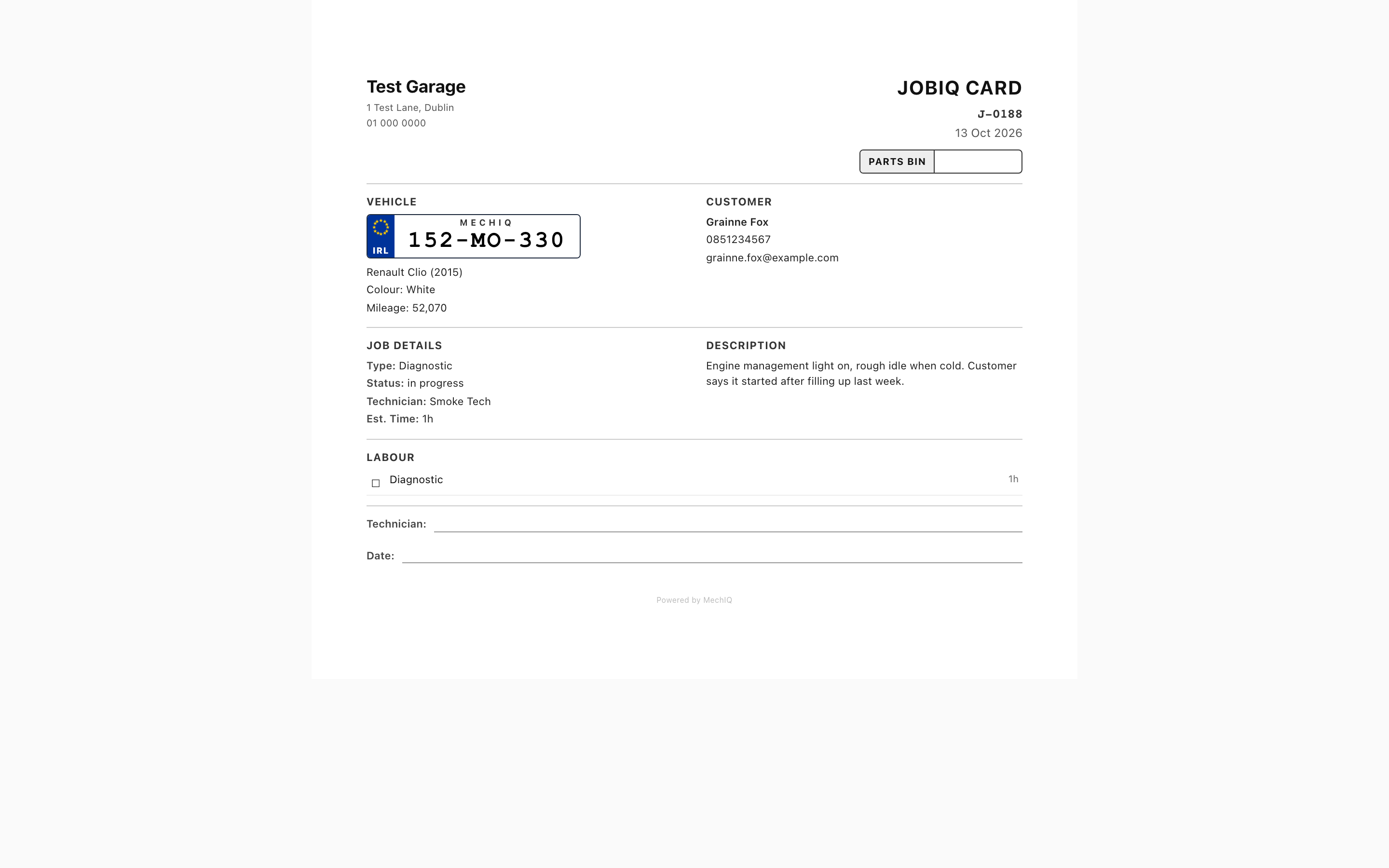 The JobIQ card. It opens in a new tab and the print dialog appears on its own.
Print one
Open the job and click Print job card in the top row, beside the job number. It is in the same place on every job, open, collected or cancelled. On a narrow window the button shows only the printer icon.
The card opens in a new browser tab and your browser's print dialog appears after a moment. Choose your printer or Save as PDF.
What is on it
- Your garage name, address, phone and logo.
- JobIQ Card, the job number and the date (check-in date if the car is in, otherwise the booked date).
- A Parts bin box under them: the Parts bin set on the job page (see below), otherwise left empty to write the bin in by hand.
- Vehicle: the plate, make, model, year, colour, engine and check-in mileage.
- Customer: name, phone and email.
- Job Details: type, status, technician, bay and estimated time. Description: what the customer reported.
- Diagnosis: the AI diagnosis, once it has run.
- Task Checklist: the work plan, grouped by task, with a tick box and estimated minutes per step -- the booked work and any found work the customer has agreed to.
- Labour: the job's labour lines -- what the work is and how long it's booked for, each with a tick box. Work already listed under Task Checklist isn't repeated here, so this is where work added by hand shows up (and all the work on a job with no AI plan). Hours only, never rates or amounts.
- Parts: part, part number and quantity, for the work going ahead.
- VHC -- Items Requiring Attention: amber and red items from the health check, with notes. Green items are left off. An item whose found work is priced but still waiting for the customer reads Awaiting customer decision — don't start.
- Work done / anything found: a ruled area for handwritten notes (paper mode).
- A Technician and Date signature line, and -- when the garage has the job tracking link switched on -- a QR code labelled Scan for live status that opens the customer's tracking page.
Only the work going ahead
The card is what the workshop works from, so it carries only work that is going ahead:
- Declined work never prints. Found work the customer said no to (on their approval link, or recorded at the desk) is left off the Task Checklist, the Labour and the Parts, and its VHC item is left off too. A line under the VHC table says how many were left off: 1 finding the customer declined — not printed.
- Work still waiting for the customer isn't on the checklist, labour or parts yet. Its VHC item prints, marked Awaiting customer decision — don't start.
- A part struck off a priced service, or one sent back to the supplier, doesn't print.
Once the customer agrees to more work, print the card again and it's on it.
No money on the card
The job card is a workshop sheet, so it never shows money: no prices, line totals, VAT, totals, deposits or payments. That's the same for every garage and every user. For the figures, use the quote or the invoice.
Paper job cards
If your garage runs paper job cards (Settings), the card prints a blank Vehicle Health Check -- mark G / A / R form from your default VHC template when the check has not been done yet. The technician marks it by hand and the desk keys the ambers and reds into the Work & approvals tab afterwards. See Paper job cards.
Related: The job page and job statuses · Customer portal