Customer Portal
The customer portal gives each customer one page with everything about their dealings with your garage, so they can check a job or pull up a receipt themselves instead of ringing the desk.
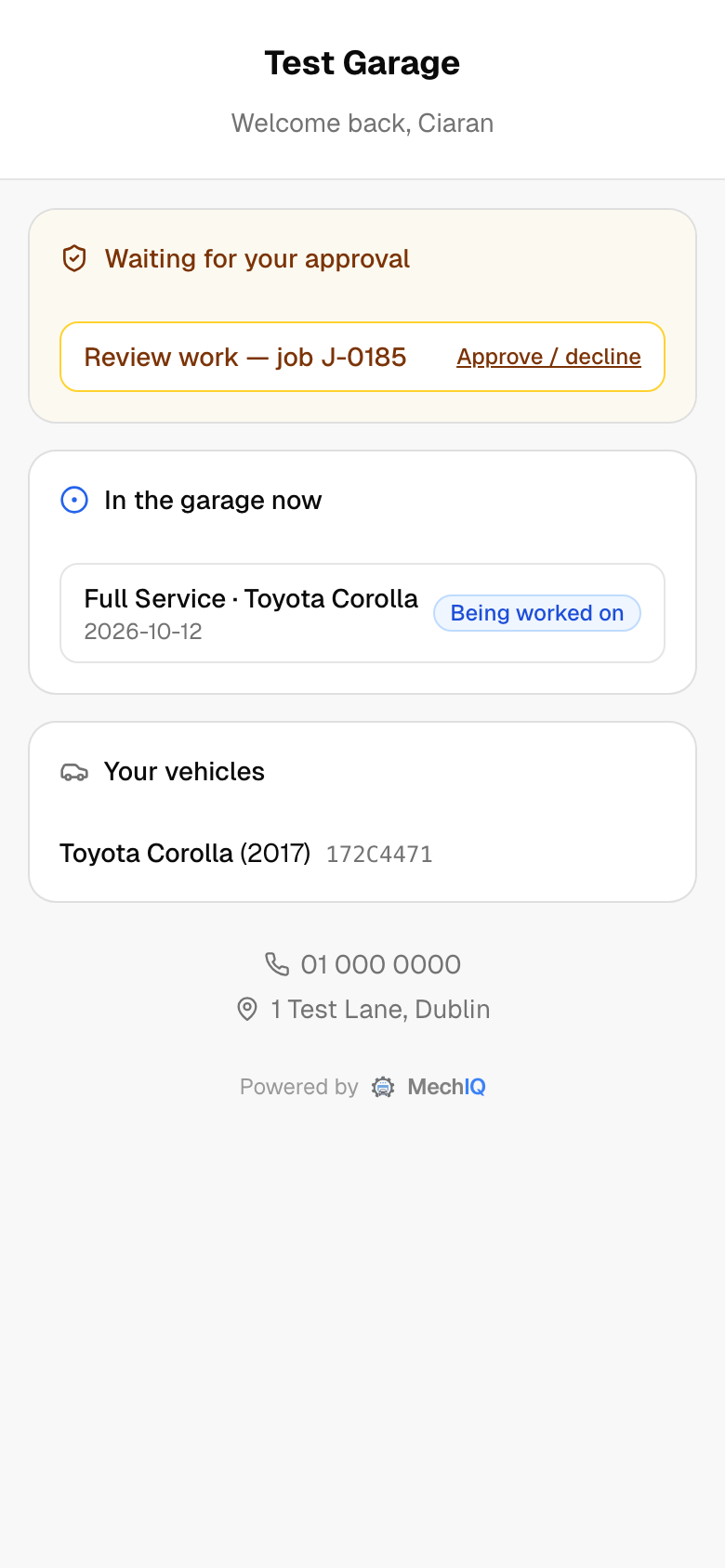 The portal as the customer sees it on their phone.
What the customer sees
The page opens with your garage's logo (or name) and Welcome back, Aoife, then, in this order:
- Waiting for your approval -- only when work needs their go-ahead, with an Approve / decline link per job. These are the same approval links MechIQ emails, so a customer who cannot find the email -- or never gave you one -- can approve here. (Approval requests only ever go by email: the detail of the work has to be something the customer can keep.)
- In the garage now -- jobs on cars that have arrived, with a plain-English status -- the same words as the tracking page (Checked in, In progress, Awaiting your approval, Waiting for parts, On hold, Final checks, Ready for collection) -- and, when the garage has the job tracking link switched on, a link to the live tracking page.
- Booked in -- bookings for a car that has not arrived yet (status Booked). A booking is never listed as "in the garage".
- Your vehicles -- the cars on file for them.
- Vehicle condition: before & after -- if the technician photographed the car at check-in and check-out, the Drop-off and Collection photos side by side.
- Invoices & receipts -- each invoice with its Invoice total (inc VAT), a Paid, Part paid or Due badge, and a download (the invoice, or the receipt once paid). An invoice still owed shows Paid so far (when the customer has paid some of it) and Left to pay (inc VAT) -- the balance, the same figure the payment page charges. When your garage takes payment by link (Settings -> Payments) it also has Pay €amount now, and that amount is what is left to pay, never the invoice total.
- Service history -- past jobs.
- Your phone number and address.
Everything is read-only. The customer can look, approve and pay an owed invoice by your pay link; they cannot change anything or book. Every date on the page reads the same way (for example 15 Oct 2026).
Share the link
- Open the customer's record from the Customers page.
- Click Portal link in the header.
- Click Send by text… or Send by email…. What they'll get shows the message first (the link reads (link) until it is made on Send); click Send text or Send email. You see Portal link sent by text to …. The message goes on the customer's message history like any other.
Copy link is there too, for a channel MechIQ does not send by. A send option shows — no mobile number or — no email when the customer has no contact detail for it: add one on the record first. Sending is a front desk and garage admin task -- a technician does not see this menu.
The link is created the first time it is sent or copied and stays the same afterwards, so the customer can bookmark it. It has no expiry date -- it works until you stop it.
Stop a link
Stop the current link is the last item in the Portal link menu once the customer has a link (before the first send or copy there is nothing to stop). Use it when a link has gone somewhere it shouldn't -- a shared mailbox, the wrong number. Confirm Stop the current portal link? The link the customer has will stop working. and the old link dies immediately; the next send makes a fresh one.
How it is protected
The link contains a long random code unique to that customer. There is no password and nothing to set up. Anyone with the link can see that customer's page (and only theirs), so send it to the customer directly, never to a group. A revoked (or mistyped) link shows the customer This link isn't valid any more -- please contact your garage for a new one.
Tips
- Text the portal link after a customer's first visit. It saves the "is my car ready?" calls on every later job.
- An owed invoice shows Pay €amount now (the balance) on the portal when your garage has a pay link set up, as well as in the ready-for-collection message and the pay-later reminder.