Customer Communications
Every message to a customer goes through ONE composer, Message customer. Nothing goes to a customer until a person on the desk presses its send button. Opening the composer sends nothing and saves nothing. Technicians can make a Progress update to read out or copy, but only the desk and garage admins can send.
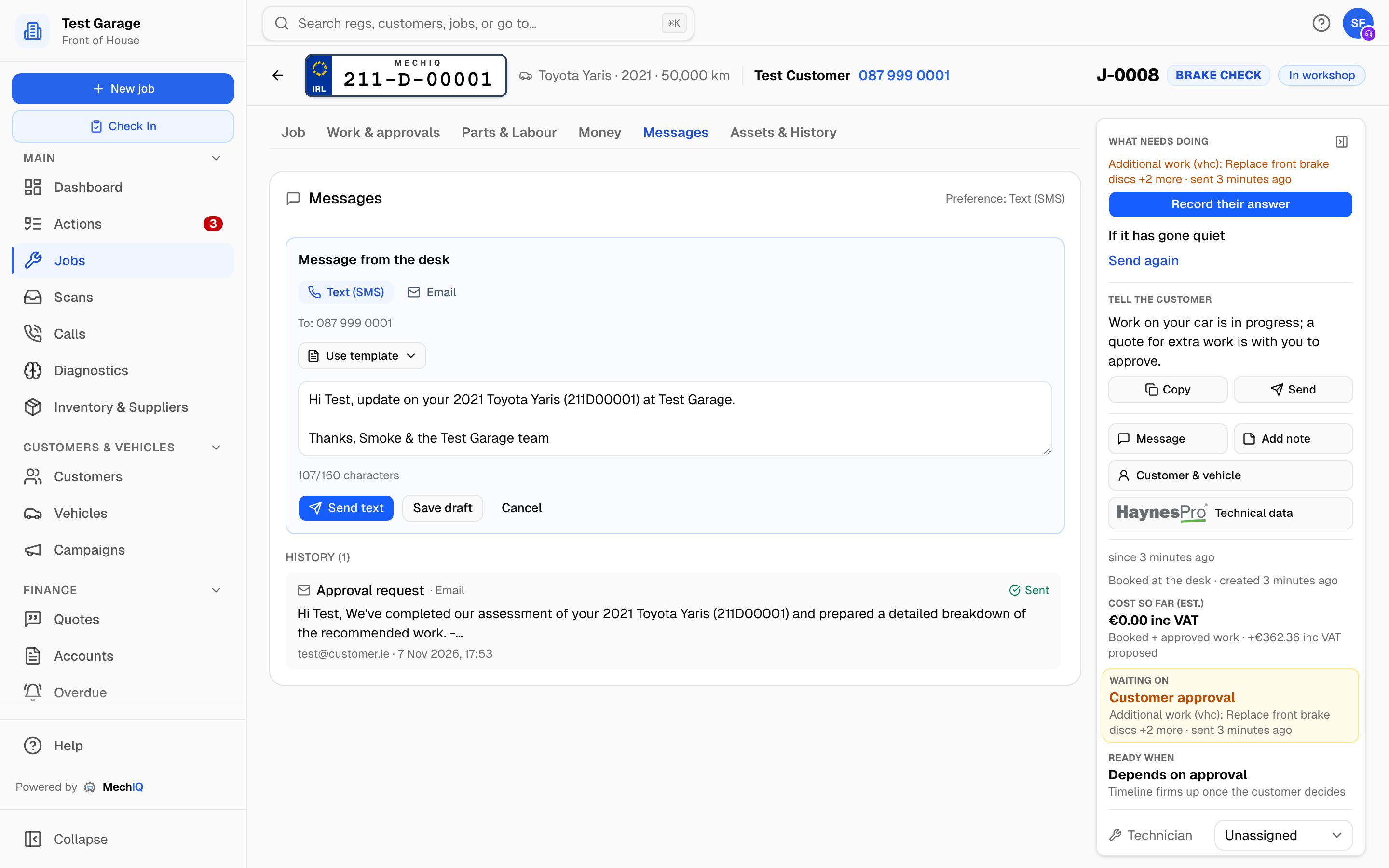 The job's messages with a message open in the composer. (The tab is called Messages.)
The job's Messages
Open a job and click the Messages tab. Or click Message in the panel on the right: the same messages panel opens at the side, from any tab, and the tab does not change. The header shows the customer's Preference -- Text (SMS), Email or No marketing (see below).
The panel shows:
- Draft -- not sent -- messages MechIQ prepared for you (see below), or that someone saved. Each shows why it could not go, if MechIQ knows. Click Open and send.
- The buttons Progress update, Feedback request (collected jobs only), Write a message and Log a call.
- History -- every message for this job, with its status: Sent, Delivered, Read, or Not sent with the reason.
The composer
The composer shows:
- To: -- who the message goes to.
- The channel buttons Text (SMS) and Email. A channel that cannot reach the customer is greyed out, and the reason is under it -- for example no email address on file, or the number on file looks like a landline. If MechIQ has switched your texts or emails off, the reason is Texts to customers are switched off by MechIQ -- contact MechIQ support.
- The words. Edit them as you like. An email also has a subject. A text shows a count against 160 characters.
- Use template, for your garage's own message templates. It is not offered over an approval request or a feedback request, which carry links MechIQ makes.
- A link note, when a link is made only when you send -- for example The approval link is made when you press Send -- keep {approval_link} in the message. Do not delete the marker.
Click Send text or Send email. Message sent shows only when the message left MechIQ. If the send fails, you see Not sent and the reason, and nothing is marked as sent. Save draft keeps a job message unsent, as a task on the Actions board.
Progress update writes where the job is at, with a greeting and your sign-off. You choose the channel for each progress update. The AI drafted badge shows only when the AI wrote it. The Progress update card on the job's Overview has Send to customer, which opens the composer with it.
A customer with a landline and no email can only be rung: the panel gives you Call, Progress update to read out and Log the call with this update. A customer with no contact details gets a link to fix the record.
No marketing. A customer whose preference is No marketing gets no NCT / MOT or service reminders and no campaigns. Messages about their own job still go.
Asking the customer to approve extra work
On the job's Additional work card, click Send for approval. The composer opens with the Approval request: it lists the items and keeps the marker where the approval link goes. Approval requests go by email, so the customer keeps the detail. Click Send email. The card reads Awaiting customer only after the message left, and a chase row starts on your Actions board.
- No email on file -- Email is greyed out with the reason. Choose Text (SMS) to send the link by text, or Save draft. The card reads Draft -- not sent until it goes.
- If a send fails, the card reads Not sent -- failed with the reason and offers Send for approval again. The link stays the same.
The job summary also lists the Approval request and the Symptom questionnaire with when each last went. Send (or Send again) opens the same composer. Copy link copies the link.
Ready to collect
When a job is complete, What needs doing in the job's panel says Customer not told it is ready, and Send under Tell the customer opens the composer on the sentence shown there (Your car is ready for collection.), as the Ready to collect message. Check it and send it. The row clears only when the message really left. If you told them another way, Told them records it: In person, or Ring them, which shows the number and a Customer told button that logs an outbound call on the customer's timeline.
If your garage has a payment link set up (Settings -> Payments), the ready message includes it. When the provider makes the link, the composer shows The payment link is made when you press Send.
Which channel a message goes by
The type of message decides the channel:
- Approval request -- email (you may choose a text when there is no email).
- Ready to collect, Booking confirmation -- a text, or email when there is no mobile.
- Progress update, desk messages, Feedback request -- the customer's preference; you can change it for each message.
- NCT / MOT reminder -- a text only.
- Statements and service history -- email only (they are PDFs).
- WhatsApp is not offered yet. Texts go from your garage's name, so customers cannot reply to them -- messages ask them to call.
What MechIQ prepares for you
MechIQ prepares messages at two moments only: when a job is Complete (the Ready to collect message) and when you save an approval request. They show as Draft -- not sent and as rows on the Actions board. Sending the message clears the row. Account customers with Reduced communications only get the ready message.
Feedback requests are only ever sent by a person. Nothing is prepared when a car is collected. Open the collected job's Messages and click Feedback request. The rating link is made when you send it.
What goes out without you
Settings -> Messages -> What your customers receive lists every message, what starts it and whether it is on (see Messages Settings). The ones MechIQ sends by itself:
- Booking confirmation -- only for a car booked for a later day, never a same-day walk-in or a car already checked in, one per car per day.
- The acknowledgement or decline of an online booking request.
- Appointment reminder -- a set number of hours before a confirmed booking.
- NCT / MOT reminder -- by text, to customers with marketing consent and a mobile, never for a car that is booked in or in the garage. Each one carries the customer's own opt-out link.
- Payment reminder -- for a Pay later invoice still owed after the set number of days.
Diagnostic jobs
While a diagnostic job is still with the technician, a message that states a fault or a price -- a Quote, an Approval request or a Progress update -- is held. The composer warns: The technician has not finished investigating — the customer may get a wrong diagnosis or price. You can still send it: Send asks once, and Send anyway sends it. Every other message sends as normal -- the symptom questionnaire, booking confirmations, collection messages and your own messages. Once the technician hands the job back, nothing is held.
Tips
- Read every draft. The AI is good, not perfect -- and it writes in your garage's tone (Settings -> Messages -> Messaging settings).
- If we have set a monthly message allowance for your garage, the panel tells you once you pass 80% of it. Nothing is ever blocked.