Workshop Options
Settings → Workshop Options (garage admin only) collects the optional on/off switches that change how the workshop runs. Every one of them is off by default. The toggles in the first group save with the Save bar at the bottom of the page; Wall display and Courtesy Cars have their own buttons.
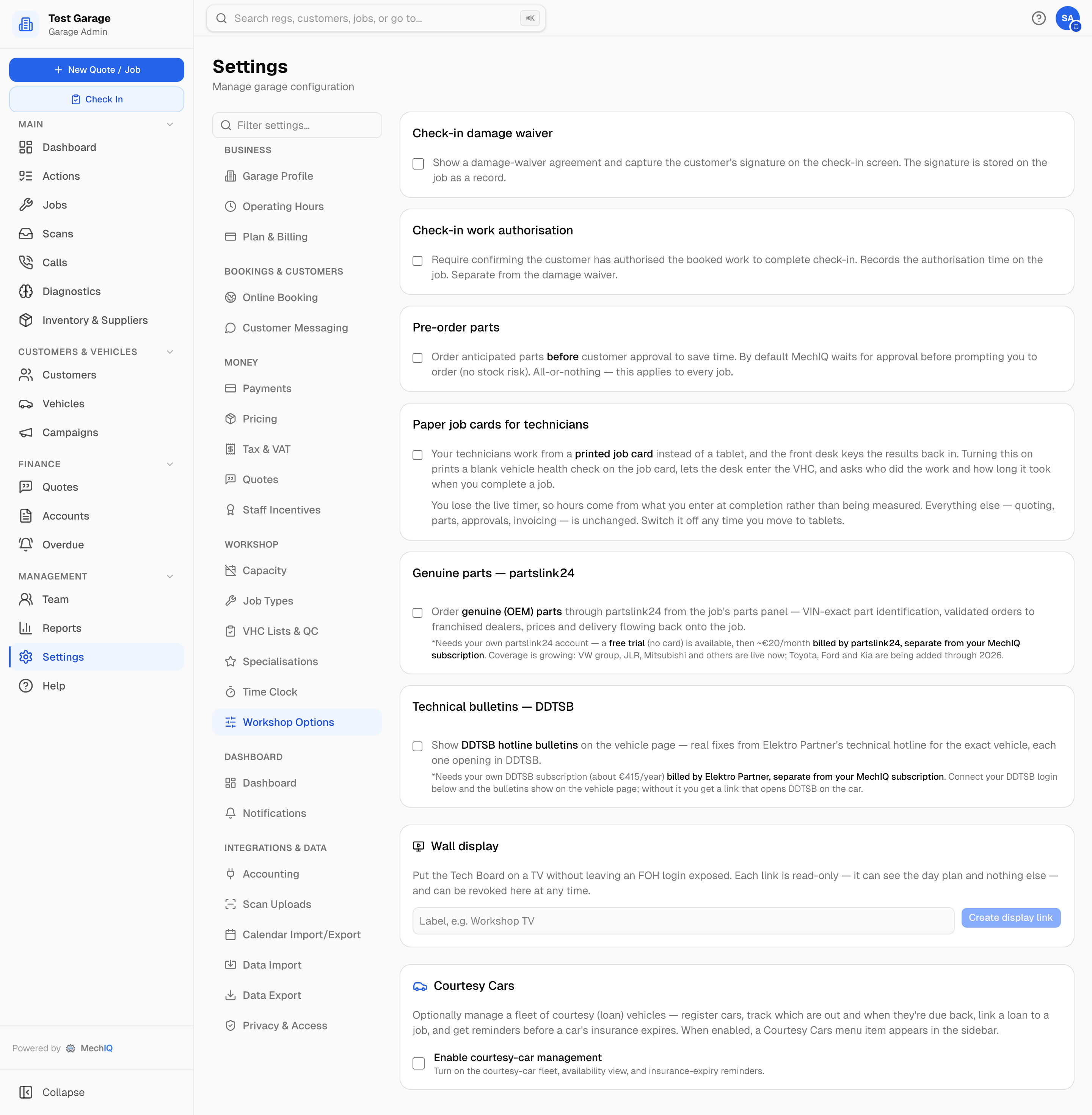 Settings → Workshop Options.
Email orders
It is a choice, not an on/off switch. It saves with the Save bar.
It decides how a purchase order reaches a supplier that takes orders by email, when someone presses Order parts:
- MechIQ sends them -- MechIQ emails the purchase order as a PDF, from your garage's name. The supplier's reply goes to your garage email address. You get a copy of every order. This is the default when your garage has an email address.
- I send them from my own email -- the order box shows Copy order and Open in my email. Send the order, then tap Sent.
A garage with no email address always sends its own. Add the address under Garage details to let MechIQ send them.
If an email fails, the order is saved for later with the reason. It never shows as On order until it has gone.
Check-in damage waiver
Shows a damage-waiver agreement on the check-in screen and captures the customer's signature, which is stored on the job as a record. When it's on, enter your Waiver text.
Check-in work authorisation
Check-in can't be completed until FOH confirms the customer has authorised the booked work; the authorisation time is recorded on the job. Separate from the damage waiver. Optional Authorisation wording is shown at the desk.
Parts bin
Every job has a Parts bin -- where its boxed parts are waiting. Front of house sets it on the job page (next to the job's details) or in the app's Parts card; the technician sees it when they pick the job up, and it prints on the job card. There's no setting to turn it on: it's always there.
Pre-order parts
By default MechIQ waits for customer approval before prompting you to order parts (no stock risk). Turn this on to order anticipated parts before approval to save time. It's all or nothing — it applies to every job.
Paper job cards for technicians
Your technicians work from a printed job card and the front desk keys the results back in. Turning it on prints a blank vehicle health check on the job card, lets the desk enter the VHC, and asks who did the work and how long it took when a job is completed. You lose the live timer. See Paper job cards.
Genuine parts — partslink24
partslink24 is no longer switched on here. This card only points to Inventory → Suppliers → Online suppliers, where you use partslink24 with Napa Auto Parts and every other supplier you can order from online. See Genuine parts via partslink24.
Technical bulletins — DDTSB
Shows DDTSB hotline bulletins on the vehicle page — real fixes from Elektro Partner's technical hotline for the exact vehicle, each opening in DDTSB. It needs your own DDTSB subscription (about €415/year, billed by Elektro Partner, separate from MechIQ).
What each person sees on a vehicle page:
- Garage without a DDTSB account (toggle off): a card saying DDTSB has bulletins for this vehicle (with a count by group — critical, model-specific, general — when DDTSB gives one), a Sign up via MechIQ's partner link and an Open in DDTSB link. Both technicians and FOH see the card. A technician can't buy a subscription, so instead of the sign-up link they get Ask the office about this (one ask per garage). The ask is not a task on anyone's Actions list: the garage admin gets one notification, and this card in Settings says who asked and when until you turn DDTSB on or dismiss the offer. FOH or an admin can dismiss the card with the × — that hides it for the whole garage, permanently.
- Toggle on, no login connected: the card asks you to Connect your DDTSB account (here, under Workshop Options). Until then the bulletins are in DDTSB itself.
- Toggle on and login connected: the card lists the vehicle's bulletins directly — critical ones marked red — each opening in DDTSB, with the count for this vehicle.
Connecting your DDTSB login
- Tick Technical bulletins — DDTSB and click Save changes in the bar at the bottom.
- In the box that appears, enter the DDTSB username and password you use on ddtsb.autofrontal.com and click Connect. MechIQ checks the login with DDTSB first.
- Once connected the box shows Connected as …, the username and your subscription end date. Change login or Disconnect at any time.
Every DDTSB lookup for your garage then runs on your account; the password is stored securely and never shown again.
Wall display
Put the Tech Board on a workshop TV without leaving an FOH login exposed. Click New display link, type which screen it is for (e.g. "Workshop TV") and click Create display link. The link is shown once — copy it and open it on the TV. Each link is read-only: it shows the day plan and nothing else. The list below shows every link you've made; Revoke (then Yes, revoke) stops that screen on its next refresh, and the screen says the link was turned off.
Courtesy Cars
Enable courtesy-car management turns on the courtesy fleet, the cars-out/due-back view and insurance-expiry reminders, and adds Courtesy Cars to the sidebar. It has its own Save button. See Setting Up Courtesy Cars.