Job Types & the Standard Jobs Wizard
Job types are the services on your menu. They do a lot of work behind the scenes:
- they're what customers pick when booking online,
- they set the time allowed for a job in the calendar (capacity planning),
- each carries its default labour and parts, so quotes and booking estimates price themselves,
- they decide which jobs need a vehicle health check,
- their colour category colours each job on the calendar and today's pipeline (a category's new colour or name is saved with Save changes at the bottom of the page),
- and your reports break results down by them.
You manage them in Settings → Job Types (open to garage admins and FOH).
Who can do what
| Garage admin | Front of house | |
|---|---|---|
| Add Job Type, Edit (name, hours, category, pricing, menu parts, online booking, VHC and road-test rules) | Yes | Yes |
| Disable / Enable a job type | Yes | Yes |
| Delete a job type | Yes | No |
| Standard Jobs Wizard, Clear All, Price all services per-car | Yes | No |
| Add, rename, recolour or remove Job Categories | Yes | No (FOH see the categories and pick one on the form) |
Front of house retire a service with Disable. Deleting is permanent, and the bulk actions and the colour scheme change the whole menu at once, so those stay with the garage admin. Changing a job type's price never reprices jobs already booked: a job keeps the price it was booked at.
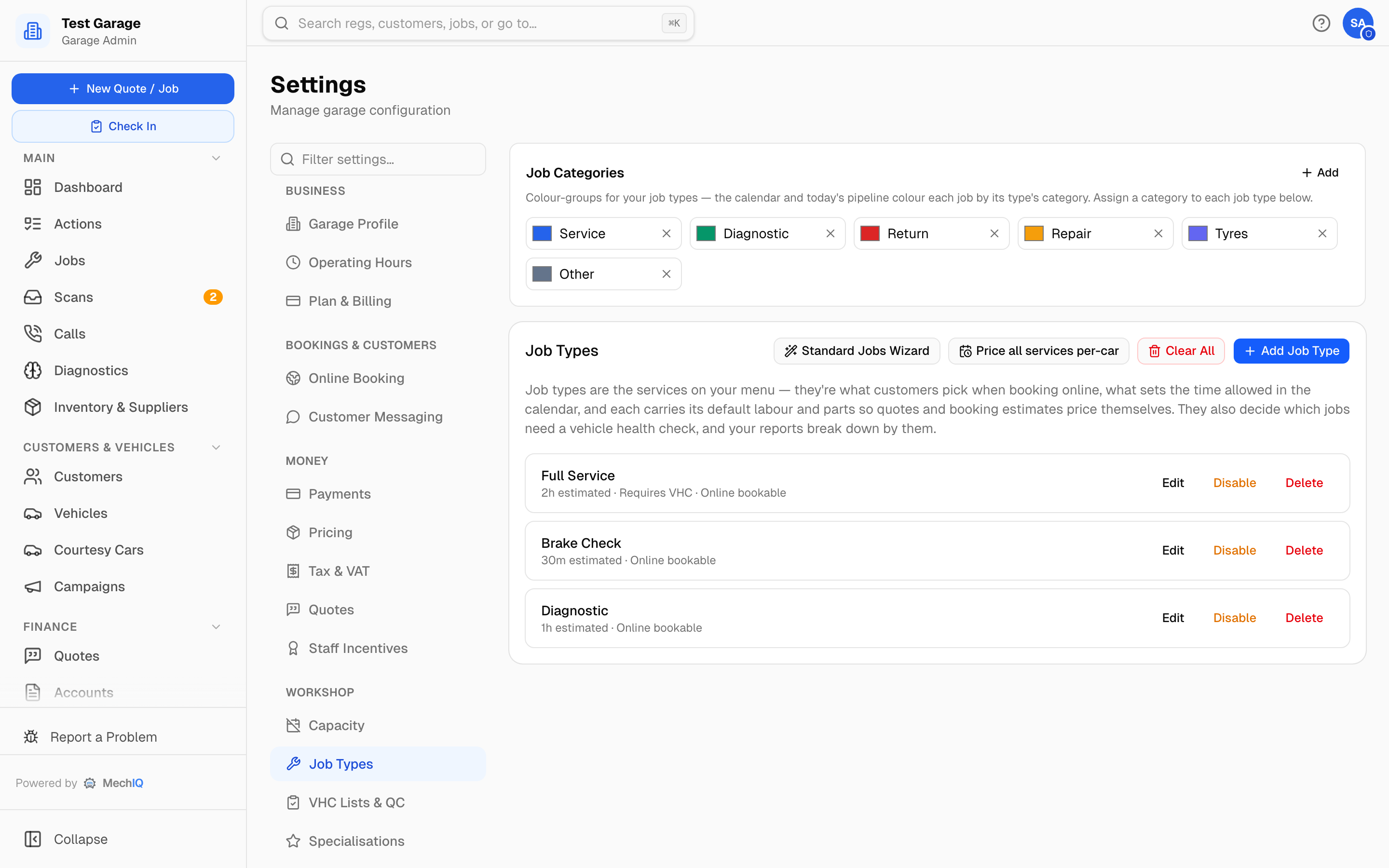 Settings → Job Types. A new or edited job type saves when you click Save on its form.
The fastest start — the Standard Jobs wizard
Rather than typing each service in by hand, click Standard Jobs Wizard. Three quick steps:
- What do you work on? — tick Petrol / Diesel, Hybrid, Electric (or any combination). This tailors the list: an electric-only garage never sees oil changes, timing belts or engine-light work, and gets an EV Service instead.
- Pick the standard jobs — a ready-made list grouped into Servicing, Brakes, Diagnostics, Tyres & Wheels and Other. The everyday ones are pre-ticked. Anything you already have is shown greyed out as "Already set up".
- Review — adjust the estimated hours, see the parts each job includes, then create them all in one go.
Every job is created with sensible labour and parts already attached (part costs are starting estimates that follow your markup — tune them later). You can re-run the wizard any time — it skips services you already have and never overwrites your tuned ones.
Colour categories
Job types are grouped into colour categories so the calendar day-view and today's pipeline colour each job by what kind of work it is — Service, Diagnostic, Return, Repair, Tyres, Other by default. Uncategorised jobs show in neutral slate.
The Job Categories panel at the top is where you manage them: click a colour swatch to change a category's colour, rename it inline, Add a new one, or remove one you don't use. Then assign a category to each service with Category (colour) on the Add / Edit form.
Adding or editing one at a time
Add Job Type (or Edit on a row) opens the form:
- Name, Category (colour) and Estimated Hours — the hours drive how many jobs fit in a day.
- How is this job priced? — see below.
- Menu parts (not for schedule-priced types) — the parts every one of these jobs includes, at your cost (before markup), by name and quantity. They appear on quotes by name. Leave empty to let the AI suggest parts per job. Under each part, tick Petrol, Diesel or Electric if only those cars need it — see Parts for one fuel only.
- Available for online booking — shows it on your public booking page. Underneath, Show an instant price online: off means customers see "call us to price this job" instead of a price — for work you won't quote blind (clutch, gearbox).
- Requires Vehicle Health Check, Needs a lift / ramp (so it's only booked when a ramp is free), Road test before work and Road test after work (the technician gets a road-test step with notes, skippable with a reason). Most jobs don't need a road test, so both are off by default.
- VHC checklist for this job type — pick a specific template (e.g. the quick "Minor Visual Check") or leave it on the garage default.
- Configure VHC items covered by this service — items the tech can skip because the service replaces them anyway.
Disable hides a service from booking and new jobs but keeps its history; Delete removes it — if it has job history you'll be asked to confirm, and past jobs keep the service name.
Parts for one fuel only
A Full Service on a petrol car needs spark plugs. On a diesel car it needs a fuel filter. One job type can carry both:
- Open the job type and add the part under Menu parts.
- Under the part, tick the fuel it is for: Petrol, Diesel or Electric. You can tick more than one.
- Leave all three unticked for a part every car gets (engine oil, oil filter, pollen filter).
- Click Save.
When the job type goes on a job, a quote or a quick price, each car gets the every-car parts and the parts for its own fuel. The labour and hours do not change.
MechIQ reads the fuel from the car's record. A hybrid counts as its engine fuel: a petrol hybrid gets the petrol parts.
If MechIQ cannot tell the fuel (no fuel on the car, or a hybrid that does not say petrol or diesel):
- When you add the job type, MechIQ asks Choose the fuel type before it adds any parts. Click Petrol, Diesel or Electric. MechIQ saves the fuel on the car, so it asks only once.
- When a customer books online and MechIQ cannot tell the fuel, the online price is a "from" price with the every-car parts only. The job then shows Fuel type needed for service parts — choose. Click the car's fuel and MechIQ adds its parts.
The Standard Jobs wizard's Full Service already has spark plugs (petrol) and a fuel filter (diesel). Check the costs before you save.
How a job type is priced
- Hours × labour rate + parts — the usual: your estimated hours at your rate, with parts added as quoted (menu or AI).
- Fixed menu price — one flat price every time, e.g. "Full Service €199", entered ex VAT: VAT is added on top at your labour rate, so a €199 menu price invoices at €199 + VAT. Parts and hours don't change what the customer pays. Your consumables charge, if you have one (Inventory → Charges), is added on top -- on the online price and the invoice alike.
- Per-car, from the manufacturer's schedule — MechIQ looks up what this car needs at its age and mileage (oil, filters, fluids) and prices it per car. Your estimated hours become the labour floor: the customer is charged the higher of your hours and the manufacturer's book time. If the job type has no menu parts, a desk quote or quick price lists the parts from the manufacturer's schedule for the car (it needs the car's mileage). With menu parts, your parts are used.
Price all services per-car (shown while you have hours-priced services) switches every service-type job to schedule pricing in one click.
Starting over — Clear All
Clear All removes every job type that's never been used and disables the ones that have job history (so your reports keep their labels). Then run the Standard Jobs wizard for a fresh menu.
Tips
- Keep the estimated hours realistic — they drive how many jobs fit in a day on the calendar.
- Use the fixed price for the services you advertise on a board outside; leave everything else on hours × rate.
- The rates and markups a job type is priced from live under Pricing.
Charges a job type adds
A charge can be added with a job type -- "CVRT" adds the CVRT test fee. You choose this on the charge, in Inventory → Charges (tap the job type under Added with job types). The charge is added once, quantity 1, when the job type is booked by the desk or online, quoted, or applied to a job with Add service or charge; it is not added twice, and if the desk removes it, it is not added again. A charge bills on top of a fixed menu price. See Charges, Levies & the Consumables Charge.