Time Clock
The Time Clock lets staff clock in and out for their working day so you have an attendance record for payroll. It is optional and off by default, and it is separate from the job timer -- clocking in records attendance only, it does not start any job.
You enable and manage it from Settings -> Time Clock (admin only).
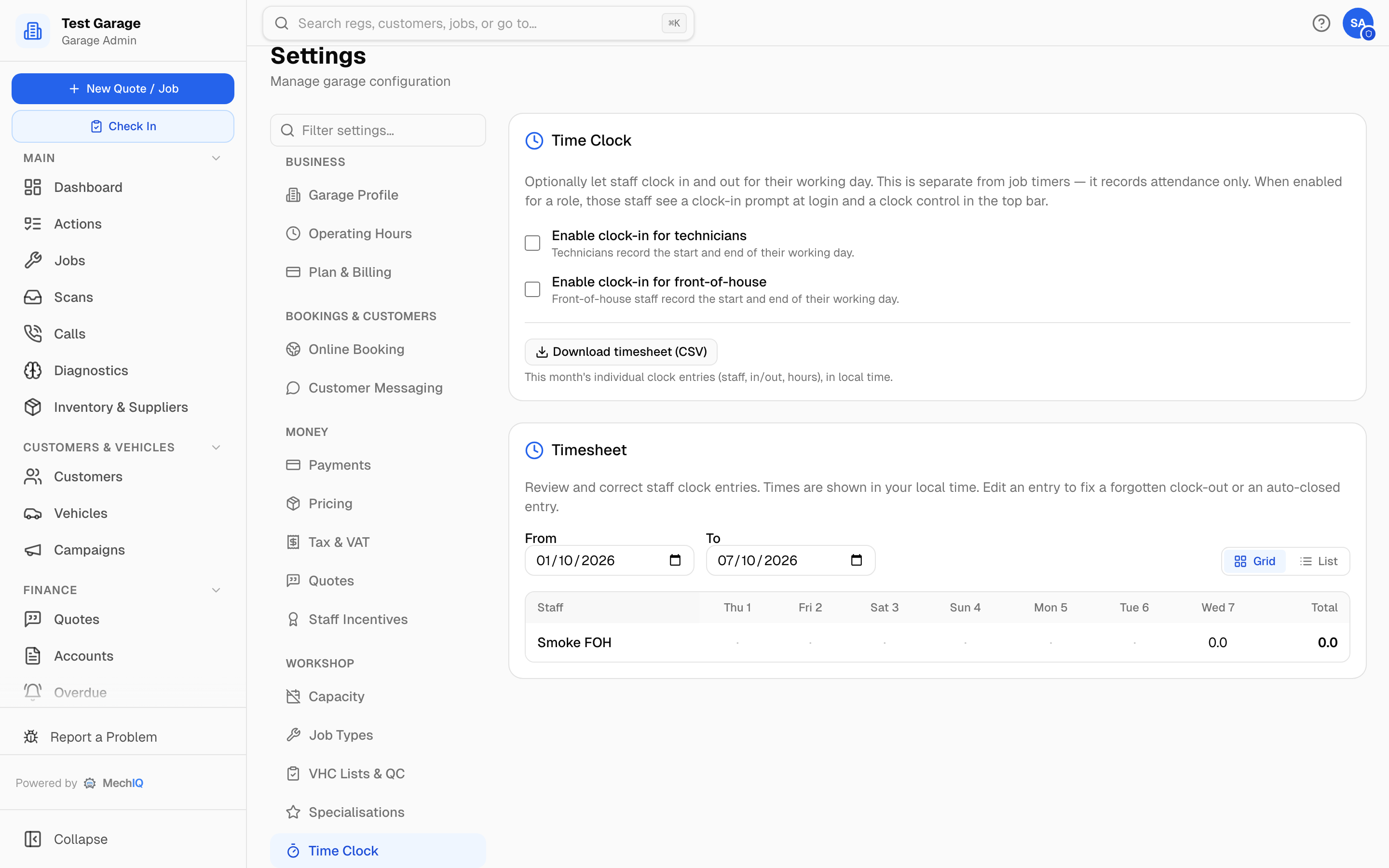 Settings → Time Clock. The card has its own Save button, which appears once you change a tick box.
Enabling Clock-In per Role
You can turn the clock on independently for each kind of staff:
- Go to Settings -> Time Clock.
- Tick Enable clock-in for technicians and/or Enable clock-in for front-of-house.
- Click the card's Save button.
When enabled for a role, those staff see a clock-in prompt when they log in and a clock control in the top bar so they can clock out at the end of the day. (Technicians on a tablet get a purpose-built clock-in/out screen.) Leaving a role unticked means that group never sees the clock.
Reviewing and Correcting Timesheets
The Timesheet panel underneath the toggles shows each staff member's clock entries so you can check and fix them. It has two views, switched top-right:
- Grid (the view it opens on) -- staff down the side, days across the top, one hours figure per cell and a Total column. The at-a-glance check before payroll: a day with an entry still open shows amber with a
*. Click a cell to edit that day's first entry. - List -- the full detail, one row per entry: Date, In, Out and Hours, plus a total per staff member. Use this view for a day with more than one entry.
- Set the From and To dates to the period you want (it defaults to this month so far).
- Switch to List for the entry-by-entry view.
- An entry still open (no clock-out) shows Open. Entries the system closed automatically at the end of the day are tagged Auto; entries you have corrected are tagged Edited.
Editing an Entry
To correct a forgotten clock-out or an auto-closed entry:
- Click the pencil icon on the entry in List view (or the cell in Grid).
- Adjust the Clock in and Clock out times. Leave Clock out blank (or use the reset button) to re-open the entry.
- Click Save.
Saving marks the entry as Edited and clears the Auto flag -- it's a reviewed time now. Times are shown and entered in your own local time -- what the clock on the wall said.
Note: clock-out cannot be earlier than clock-in -- the dialog will warn you if you try.
Exporting for Payroll
Hours for payroll are downloaded in ONE place: Team → Hours worked — totals by person (weekday, Saturday and Sunday hours) for any date range. See Team Management. The Time Clock card links there. Check and correct individual clock entries in the timesheet review on this page first.
Tips
- Enable the clock only for the roles you actually want to track -- many garages start with technicians only.
- Review the timesheet before each payroll run and fix any Open or Auto entries first.