Team Management
Team in the sidebar is where people live. Five tabs across the top:
- Staff — accounts and roles.
- Leave — balances, requests, absences (see Leave Management).
- Schedules — the week each person really works, as the Tech Board plans it, and why (see Work Schedules).
- Weekend rota — who's on for days that aren't part of the normal week (see below).
- Hours worked — the payroll export (garage admins; see Hours worked).
Settings are for configuration; Team is for people.
Weekend rota
For days the garage opens with only some people in — Saturday cover by one or two, say. A day shows up here once its Staffing is set to Rota in Settings → Operating Hours; until then the tab says No rota days set up, with a link to that setting. The next eight weeks of rota days run across the top and your staff down the side: tick someone to put them on that day (they work the garage's hours; click the hours under the tick to change them for that person), untick to take them off. On a rota day nobody works unless they're ticked. Garage admins and the front desk can both roster people. The whole job, from opening the day to paying for it, is in Opening at Weekends.
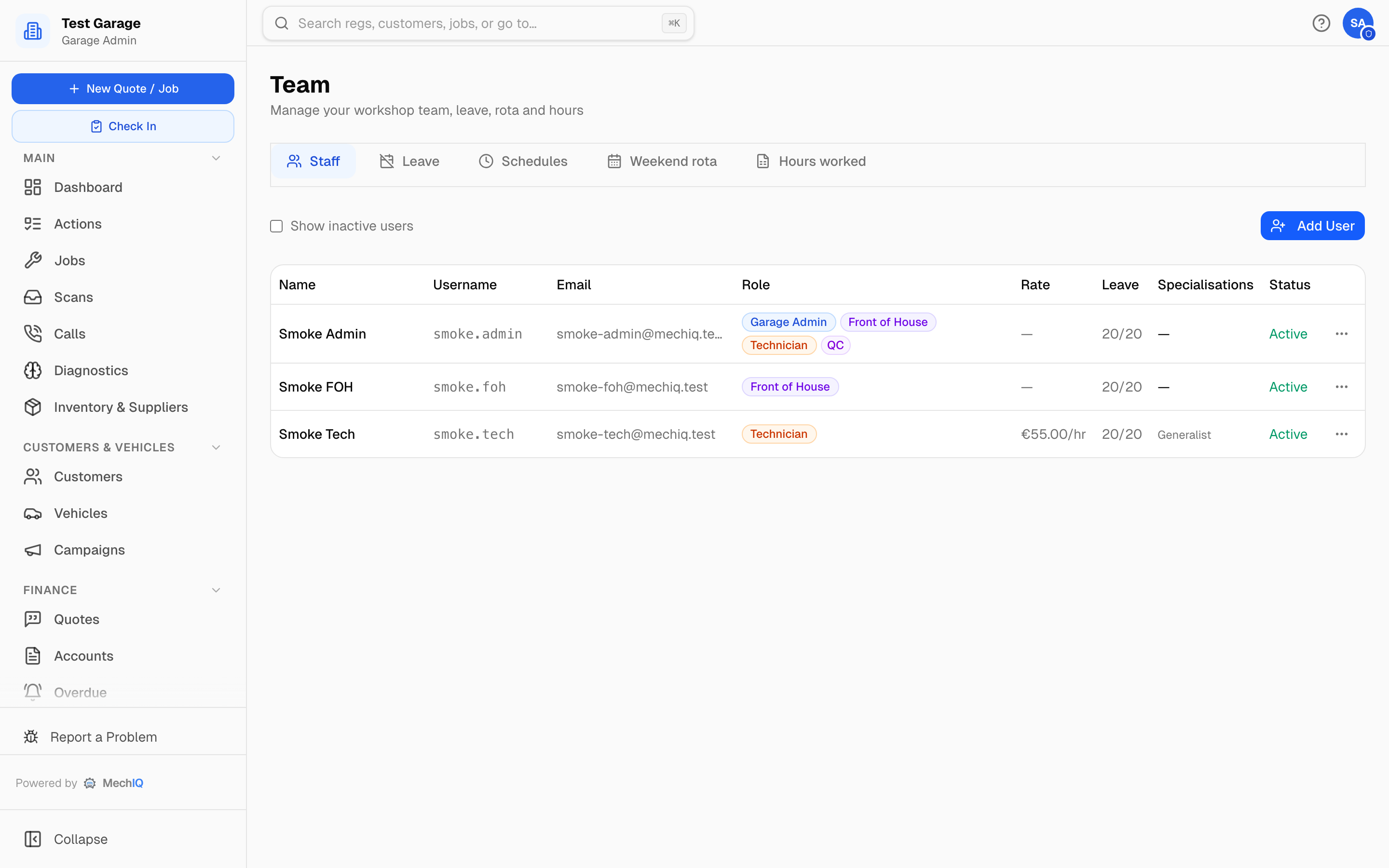 Team → Staff. Click a row to edit; the ⋯ menu holds Reset password, Deactivate and Reactivate.
Who can manage the team
Garage admins manage everyone. A front-of-house user with Allow this user to manage FOH & technician accounts ticked can add and edit FOH and technician accounts (not admins or reporting users, and not technician cost rates). Tick Show inactive users to see leavers.
Roles
Each person has one main role:
- Garage Admin — full access: settings, team, reports, money.
- Front of House — the dashboard, jobs, customers, vehicles, calendar, communications and the Team page, plus the operational Settings tabs (Operating Hours, Capacity, Job Types, Specialisations, Scan Uploads). Money figures on the dashboard depend on Settings → Dashboard.
- Technician — their assigned jobs, diagnostics and the tech app. Cannot see pricing or customer contact details.
- Reporting — read-only access to Reports and nothing else, for an accountant or business manager. See Reporting-only access.
Additional access lets one person cover more than one role — an FOH who also works the floor, a technician who runs the desk, an admin who turns spanners — and switch between them without logging out. Granting Technician makes someone assignable to jobs. Only an admin can grant Garage Admin. Someone whose roles change sees them at their next sign-in.
Adding a team member
- Team → Staff → Add User. (The setup wizard's Add a team member opens this same form.)
- Enter their Full Name and pick their Role. The role starts as Technician; choose Garage Admin only for someone who must have full control of the garage, settings and billing included. There is no email field -- staff added here sign in with the username MechIQ generates, and an address is never required. (An Email field appears in the edit form only for someone who already has one on their record, so it can be corrected.)
- Fill in whatever else applies (below).
- Password — if they're standing beside you, type the password they want: it's theirs, with no forced change at first login. Leave it blank and MechIQ generates a one-time password they must change.
- Click Add User.
MechIQ works out the username for you. It is shown once, with the password, on the screen straight after you save, with a Copy details button and a QR code that installs the MechIQ app on their phone. Take a copy then — a generated password is never shown again.
Technician settings
For anyone who can be assigned work — a technician, or someone with the technician additional access:
- Cost / hour (€) — what they cost you per hour (their wage), used only for margin reporting; never charged to a customer; visible to garage admins only -- the Cost / hour column on the Staff tab (it shows Not set for a technician with no cost, never your charge-out rate) and the cost on each labour line are hidden from front of house and technicians, including an owner who has switched into Front of House. Required for every technician before Cost my labour can be switched on under Pricing.
- Annual Leave Days — their entitlement (default 20). Shown for everyone, whatever their role.
- Can perform quality checks (QC) — lets them sign off completed jobs (technicians and admins). A technician cannot sign off their own work when QC by a different person is on.
- Works on jobs — on by default. This is the one that decides whether someone can do workshop work at all: with it off they cannot clock onto a job, be given one, or complete one. They are left out of every "who's doing the work" list -- the job page's Technician picker, check-in, the Tech Board, reopening a job -- and if a job is put on them anyway (an old job, say) MechIQ refuses to start it and says Name isn't set up to work on jobs -- turn on 'Works on jobs' for them in Team (uses a technician licence). Untick it for someone who holds the technician role only to switch into the tech view — an owner or front-desk manager who never picks up a spanner. This is also what uses a technician licence, so turning it off frees a seat, and turning it on takes one.
- Put them in the diary (Put me in the diary on your own record) — only offered when Works on jobs is on. On by default for a technician; off by default for an owner (garage admin): an owner who works on cars isn't counted as bookable capacity unless they choose to be. In the diary, the person gets a column on the Tech Board and their hours count in the day's capacity. Leave it off for someone who works on jobs but shouldn't be planned — an owner, or a manager who covers when it's busy. They keep their technician licence and can still be given a job by hand.
Two more appear only when Technician is the person's main role — not when they hold it as additional access:
- Specialisations — from the list under Settings → Specialisations; none means generalist.
- Apprentice — auto-scheduling won't hand them diagnosis work or jobs over 2 hours; you can still assign them anything by hand on the Tech Board.
Which of the two you want
| Clock on and complete jobs | Column on the board | Uses a licence | |
|---|---|---|---|
| Owner or manager who never works on cars | no | no | no |
| Manager who covers jobs but isn't scheduled | yes | no | yes |
| Technician | yes | yes | yes |
The middle row is the common one people get wrong. Someone who can pick up a job is using a technician licence whether or not you plan their day — so "not bookable" is not a way to have an extra pair of hands for free. Both settings are available on a plain Technician as well as on an admin, so a senior tech who shouldn't be changing garage settings doesn't need to be made an admin to be left out of the diary.
Passwords
- Reset password — ⋯ → Reset password on their row (or the Reset password button in the edit form). Type the password they want, or leave it blank for a one-time password they must change. The new details are shown once with a Copy details button.
- The password rule — at least 8 characters, with an upper-case letter, a lower-case letter and a number. The rule shows under every password box, and ticks off as you type; MechIQ refuses a typed password that breaks it and says why.
- The only self-service route is Forgot password? on the login page, and that works for garage-admin accounts only (they have an email). Technicians and FOH come to you.
Leavers
Deactivate instead of deleting (the ⋯ menu) — it keeps their job history, frees their technician seat, and can be reversed with Reactivate. You can't deactivate yourself.
Hours worked
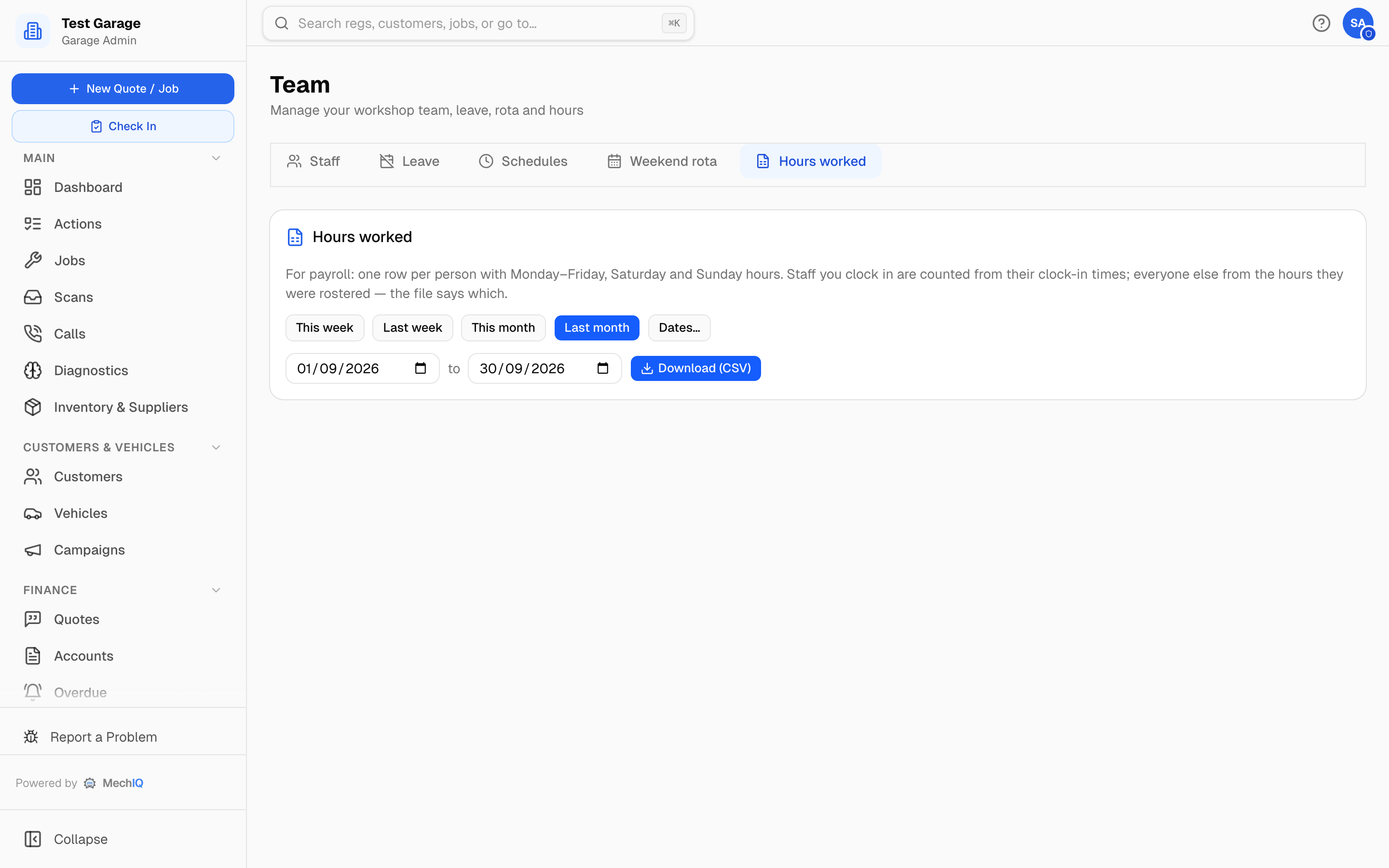
Team → Hours worked (garage admins only) is the export for payroll: pick This week, Last week, This month, Last month or your own dates and click Download (CSV). One row per person with their Monday–Friday, Saturday and Sunday hours, the total, and days worked, in your garage's local time.
Staff you clock in (see Time Clock) are counted from their clock-in times. Anyone you don't — and owners, who never clock in — are counted from the hours they were rostered (weekly pattern, one-off changes and the weekend rota), less approved leave. The Hours from column says which, so payroll can tell planned hours from recorded ones.
When adding someone needs a bigger plan
Your plan covers a number of technicians (see Plan & Billing). If the person you're adding would take you past it, MechIQ stops and tells you which plan it moves you to and what it costs per month. Confirm and the person is added straight away — the new price starts at your next billing date, and nothing is charged that day. Cancel and nothing changes.
Only the two settings above decide this: someone who doesn't work on jobs never counts, and front-of-house and reporting accounts are free.