Opening at Weekends (Rota Cover)
Plenty of garages open on a Saturday morning with just one or two people in — for tyres, say, or MOT/NCT drop-offs — while everyone else works Monday to Friday. MechIQ handles that in three steps, and then gives you the weekend hours for payroll.
1. Open the day — and decide about online bookings
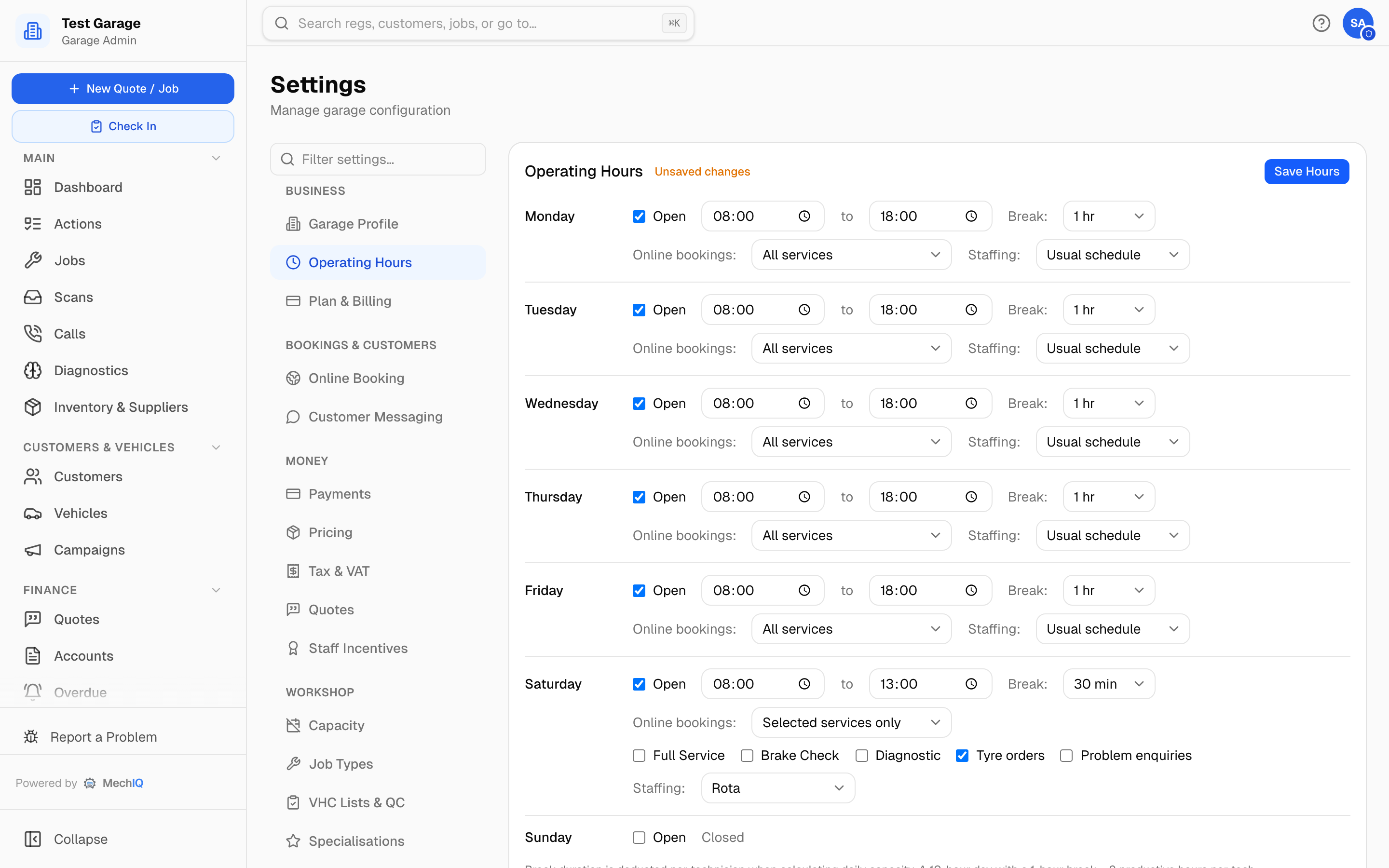
Go to Settings → Operating Hours. On the day (Saturday, say):
Tick Open and set the hours, e.g. 09:00 to 13:00. Set Break to None for a short morning, otherwise it comes off the day's capacity.
Online bookings — All services by default. Two other choices:
- Off — the day is open for the front desk and walk-ins only. Customers see it as closed on your online booking page and can't book it there.
- Selected services only — tick what customers can book online that day: any of your online job types, Tyre orders (when tyre booking is on) and Problem enquiries (bookings where the customer describes a fault instead of picking a service). A customer booking anything else sees the day as closed. Saturday for tyres only is the usual one. If you pick this and tick nothing, the day is saved as Off.
Either way, your front desk can still book any work in for the day as normal.
2. Staff it from a rota
On the same day, set Staffing to Rota, then click Save changes on the bar that appears at the bottom of the screen.
A rota day is worked only by the people you roster for it — nobody's normal weekly pattern puts them on it. (Leave it on Usual schedule only if the day really is part of people's normal week, like a shift that always works Saturdays.)
3. Tick who's on
Go to Team → Weekend rota. Your rota days for the next eight weeks run across the top and your staff down the side.
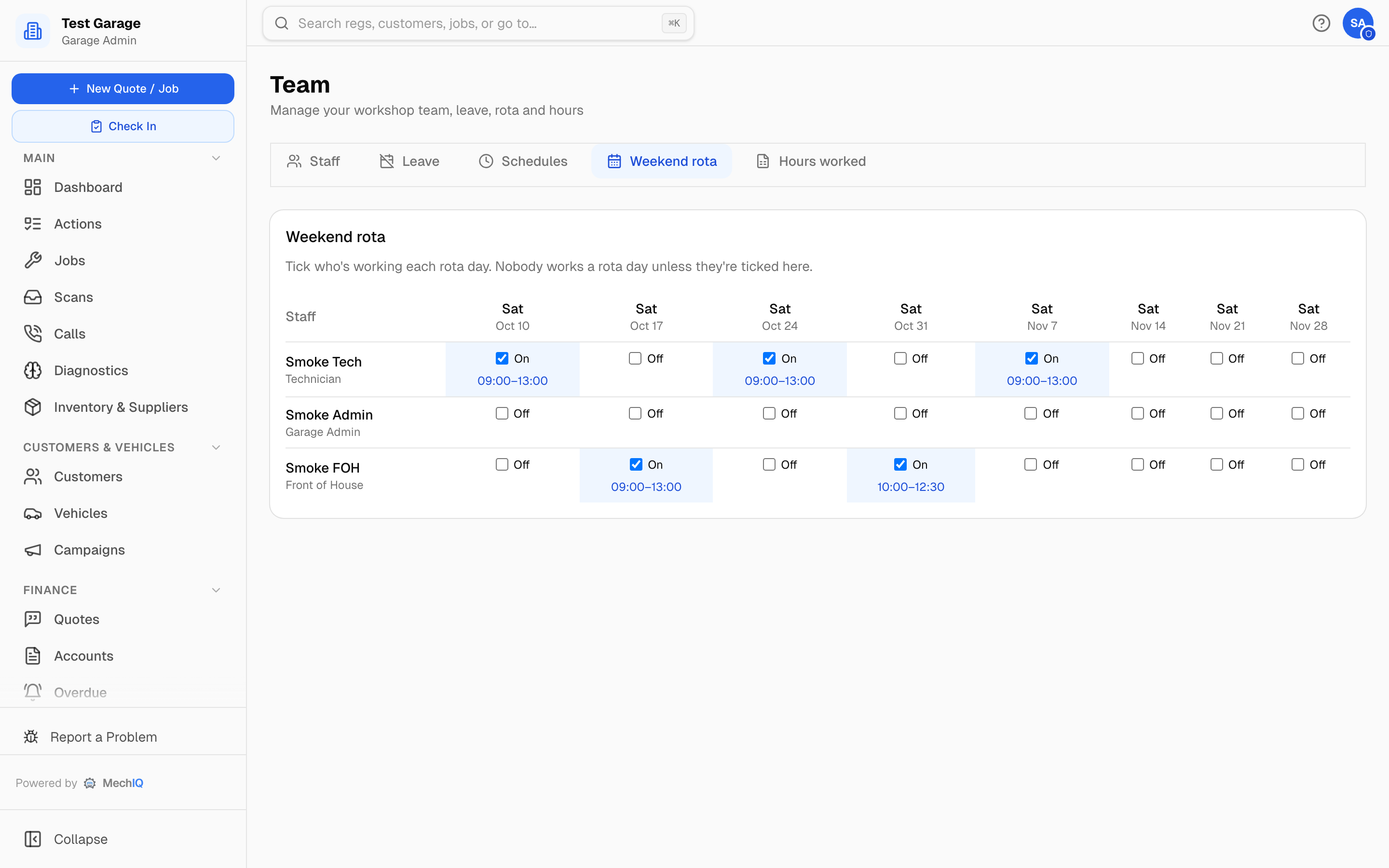
- Tick a person to put them on that day — they work the garage's hours for it.
- Click the hours under a tick to give that person different hours that day.
- Untick to take them off.
Capacity, the Tech Board, the calendar and online booking all follow straight away. If nobody is ticked, nobody is working that day.
Weekend hours for payroll
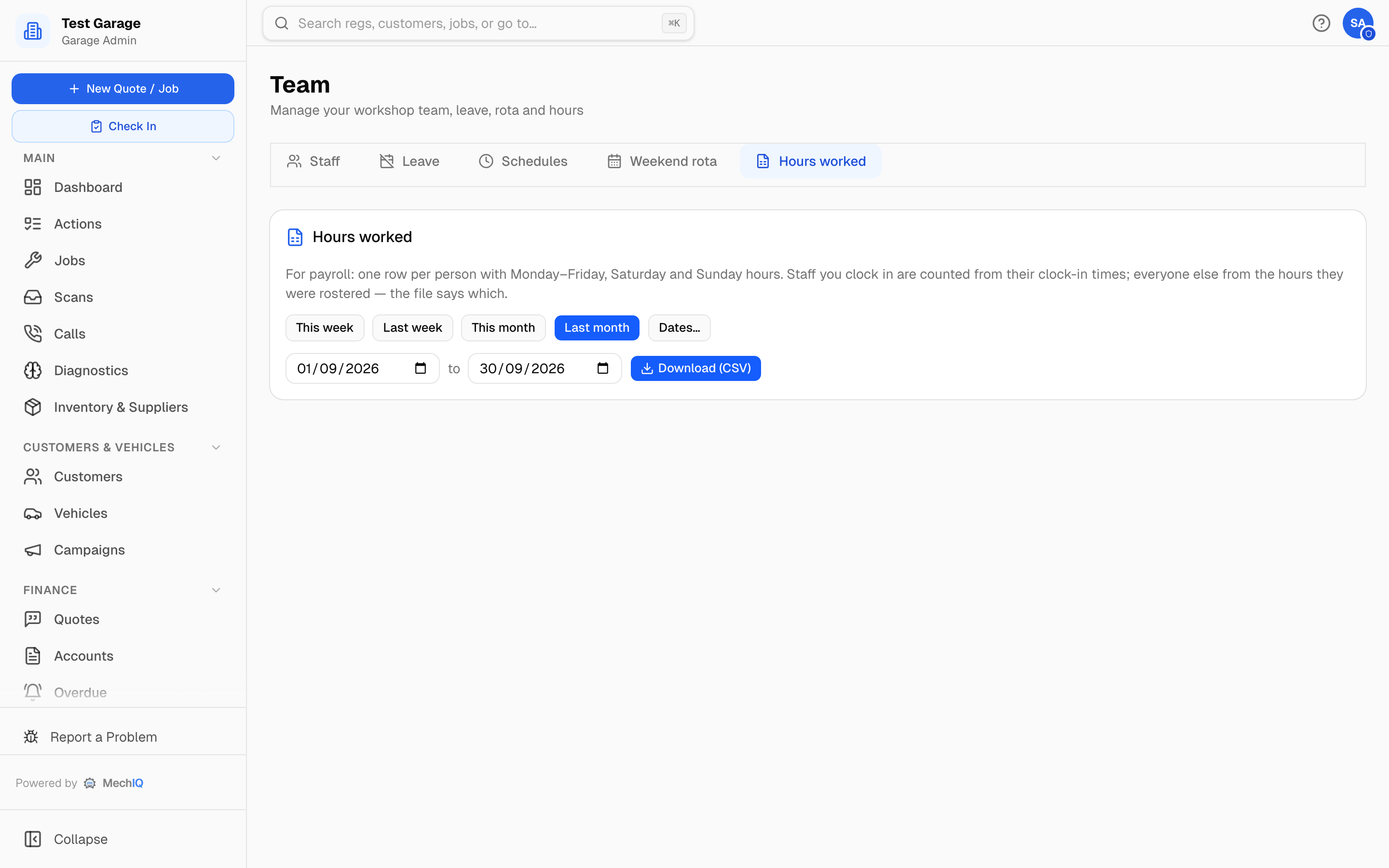
Go to Team → Hours worked (garage admins). Pick the week or month and Download (CSV): one row per person with Monday–Friday, Saturday and Sunday hours, total hours and days worked.
If you use clock-in, hours come from people's actual clock-in times. If you don't, they come from the hours people were rostered — including the weekend rota — less approved leave, and the file says so in the Hours from column.