Job notes, photos and the tracking link
A job carries three kinds of record besides its status: the notes people add, the photos and scans attached to it, and the link the customer uses to follow it.
Notes
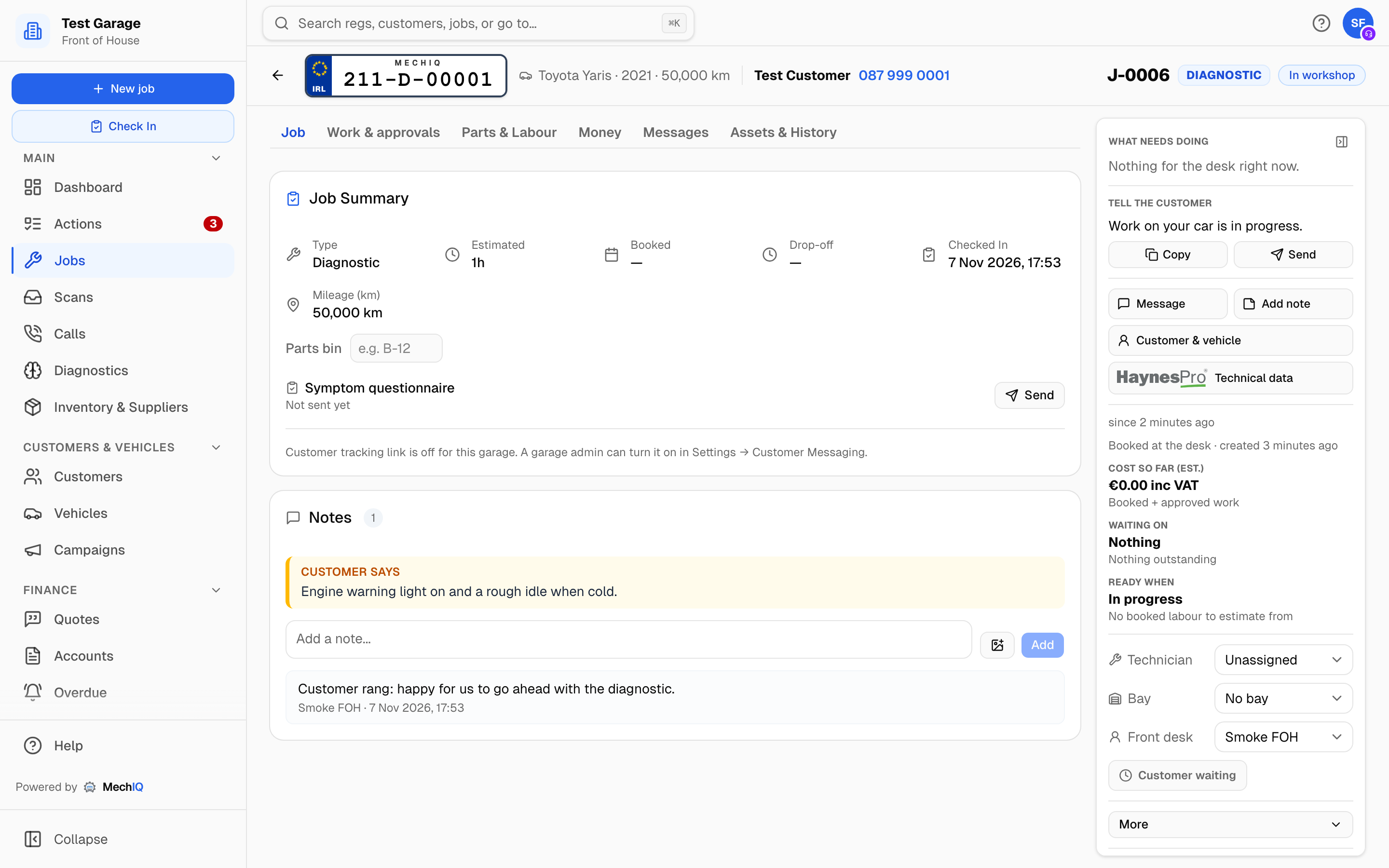 The Job Summary, Notes below it, and the Job details panel on the right.
The Notes card sits on the job's Job tab, below the Job Summary. Add note in the job's panel on the right opens the same Notes at the side, from any tab.
- Customer says shows the description entered at booking, so it is never lost among later notes.
- Type in Add a note... and click Add. Use the camera button beside it to attach photos or video first; the files are listed under the box and can be removed before you save. The note is only written once its attachments have uploaded, so the two never drift apart.
- Each note shows who added it and when. Hover a note and click the bin to delete it.
- Notes are read-only once the job is collected or cancelled.
Every note also appears on the Assets & History tab's timeline, marked Note, alongside the status changes. Notes are internal: the customer never sees them.
Photos, video and scans
The Assets & History tab holds the complete media record for the job in its Assets card, at the top of the tab with a count beside the title. Searching for assets, photos or files in the search bar while a job is open takes you straight there. The card groups everything by where it came from:
- Vehicle inspection report: at the top once the health check is complete -- the PDF of the inspection (no prices). See Reviewing and sending a VHC.
- Check-In Walkaround and Check-In Dashboard: the condition video and dashboard photo captured at the car.
- Tech Photos: findings and damage photos the technician took.
- Diagnostic Scans: PDFs from a scan tool, emailed or uploaded. Click View PDF.
- Note Photos: photos attached to notes.
- Health Check Photos: every photo and clip from the health check, captioned with its item and rating.
When both drop-off and collection condition photos exist, the tab shows them side by side under Condition: drop-off vs collection, which settles most "that scratch was not there" conversations.
Click a thumbnail to open it full size. From the browser the desk views assets; adding and deleting photos is done by the technician on their device. See Job assets and scans for how they get there.
The customer's tracking link
Each job has its own tracking page, where the customer sees the job's progress and reads updates. The status is always in the customer's words: Booked, Checked in, In progress, Awaiting your approval, Waiting for parts, On hold, Final checks (the quality check), Ready for collection, Collected, Cancelled or Missed booking -- never an internal status. A booking shows its day and drop-off window, for example Morning drop-off. The link is in the Job Summary card on the Overview tab under Customer Tracking Link. Click Copy to put it on the clipboard and paste it into a message.
The tracking link is a garage setting and is off by default. While it's off the card says Customer tracking link is off for this garage instead of showing the link, no message carries one, and links sent earlier don't open. A garage admin turns it on in Settings → Messages → Messaging settings.
Just above it, the card shows the Symptom questionnaire until it's answered, with Send (it opens the Message customer composer) and when it last went. See Symptom questionnaire. The approval request is on the Extra work card: see Sending the approval link.
The same token drives the questionnaire link and the QR code on the printed job card. See Customer portal for what the customer sees.
Related: The job page and job statuses · Customer communications