Job Assets and Scans
The Assets tab gathers every photo, clip and document attached to the vehicle's visit, grouped by where it came from.
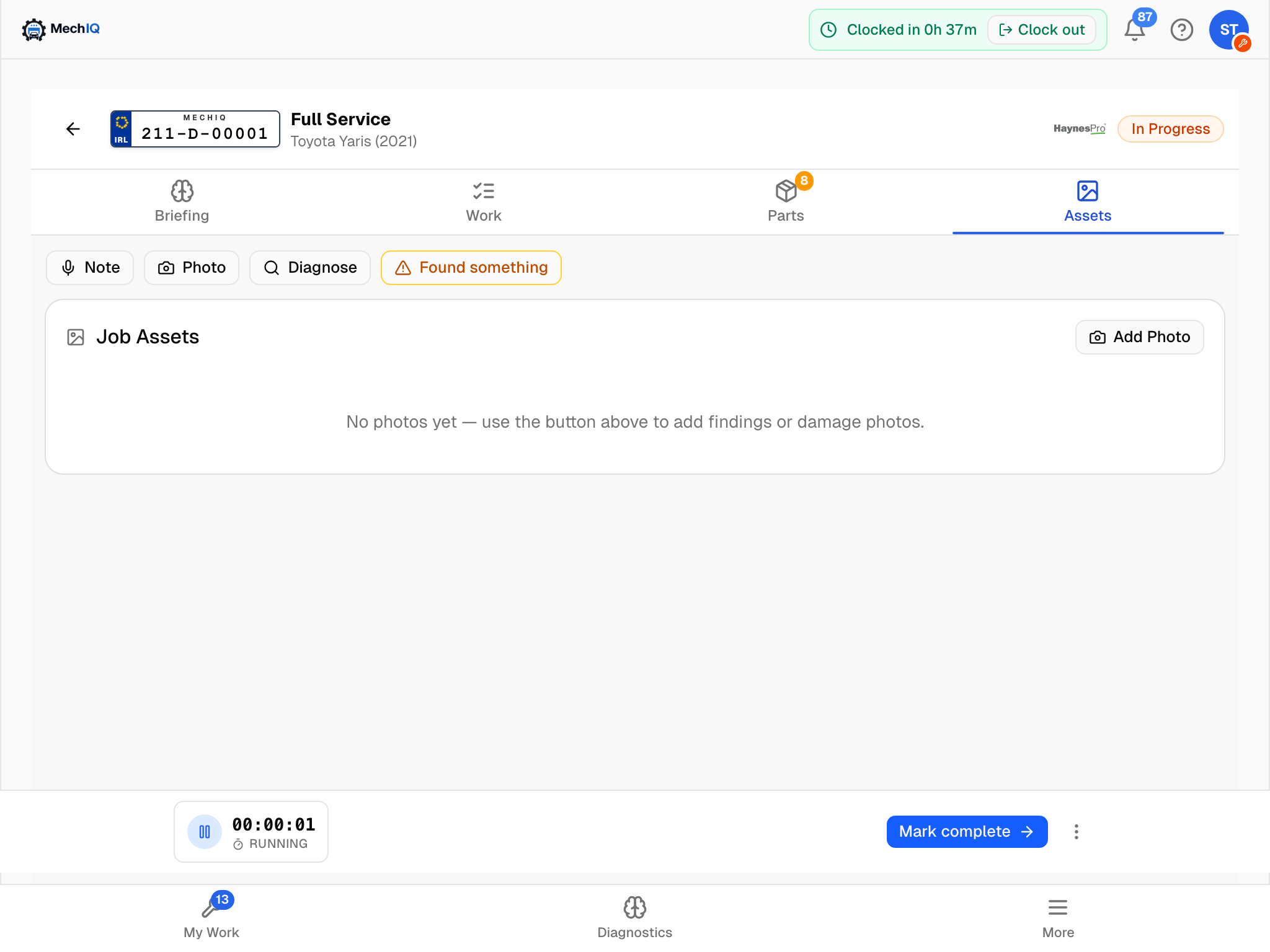 The Assets tab. Add Photo files a photo straight to the job; sections appear as media arrives.
What you will see
- Check-In Walkaround and Check-In Dashboard -- the walk-around video and dashboard/odometer photo the desk captured when the car arrived. Tap a photo to open it full-screen or a video to play it -- both inside the app.
- Condition: drop-off vs collection -- when both check-in and check-out photos exist, they sit side by side so damage claims are settled at a glance.
- Tech Photos -- photos and videos you add.
- Vehicle inspection report -- at the top once the health check is complete: the PDF of the inspection (every item with its notes and photos, no prices), with View PDF (Open PDF on the native app). It reads Report being prepared… for the few seconds it takes to make.
- Diagnostic Scans -- scan report PDFs on the job, with View PDF. They arrive here whether the scan was emailed to your garage's scan address and matched to the car, assigned from the desk's Scans page, or uploaded through Diagnose → Upload PDF.
- Note Photos -- a photo attached to a job note is shown here too, so the tab is the complete media record.
- Health Check Photos -- every photo and clip taken on the Vehicle Health Check, each captioned with its item and a coloured dot for its rating (green, amber, red). Tap to view or play. They are managed on the health check itself -- to remove one, open the VHC and tap its x there.
Each thumbnail carries its caption and time. In a browser, hover a thumbnail for the bin to delete an upload.
Adding a photo or video
- Add Photo on the Assets card -- take or choose a photo or clip, add an optional caption, tap Upload.
- Photo in the quick-action row, from any tab -- Add photos to the job -- straight to the job record, no AI. The green Snap for AI button on the same sheet is different: it asks the AI about the picture. See Snap for AI.
- On the native app, + → Photos & video, then Take photo, Record video or Choose from library. (+ → Add note has its own Take a photo / Photos & video buttons for attaching an image to the note's words.)
Your photo is saved to the job for the desk. For a finding on the Vehicle Health Check, use the camera on the VHC item instead -- that photo goes to the customer next to the finding; job photos stay internal.
Vehicle condition not recorded
If the desk checked the car in without photos, the Assets tab carries a ! and an amber card: Checked in at the desk without photos -- take a dashboard photo and walk-around before you start. Tap Capture for the guided walk-around and dashboard shot; it takes a minute and protects you if a scratch is queried later.
If an upload fails, the screen says why and offers Retry, so you do not have to record the walk-around again. To save, you need at least one of the two: a dashboard photo or a walk-around. If you can't do it now, tap Skip for now: the card stays on the job, and nothing else waits for it.
How scans get here
You do not have to upload a scan by hand. A PDF emailed to your garage's diagnostic-scan address that matches this vehicle is attached to the job automatically and the AI diagnosis runs on it; the PDF then appears under Diagnostic Scans. If a scan you emailed is not showing, it may not have matched -- ask the desk to check the Scans page.
Tips
- Good light and a steady hand; get close to the area of concern.
- A short clip is the answer for intermittent things -- a leak, a noise, play in a joint.
- On the native app the Assets tab is a gallery of the same sections, with Open PDF and Play video opening inside the app.