Reviewing and Sending a Vehicle Health Check
When a technician completes a Vehicle Health Check (VHC), the findings land with you at the front desk. Your job is to review what was found, check the pricing, and put it in front of the customer. This is the FOH counterpart to the technician's VHC article.
Technicians never send anything to the customer. Sending the findings, the approval link and any message is FOH or garage admin only.
What you see when a VHC is completed
Each item on the checklist was rated OK (green), Advisory (amber) or Needs Attention (red). The photos and short videos the technician attached to a finding (there can be several) travel with it: the customer sees them all under that item on the approval link and their tracking page.
The inspection report on the job page
The job's Work & approvals tab has a Vehicle inspection card whenever the job needs a VHC or one has been started. It shows where the inspection stands:
- Not started yet -- with who has the job. If the technician has already started work on the car without it, the card says so in amber, so you can ask them before the customer rings.
- In progress -- how many items the technician has checked so far, and the results up to now.
- Complete -- when, and by whom (and who keyed it in, if the desk transcribed a paper card).
- Skipped -- who skipped it and the reason they gave.
Once there are results, the card is the report itself: Needs Attention (red) and Advisory (amber) items with the technician's notes, then All Good (green), folded until you open it. Tap a photo or video thumbnail to see it full size. The technician's overall notes sit underneath, and Found work from this inspection lists each Extra work item raised from it with where it stands (Needs a price, To send, With customer, Approved, Declined and so on) -- price, send and record decisions on the Extra work card at the top of the same tab, as below. Print job card prints the job with its red and amber items.
The Job tab carries a one-line summary of the same thing (for example Complete -- 1 red · 2 amber) with a View report link. Once the inspection is complete, View report opens the PDF report (below) in a new tab; before then it takes you straight to the inspection card on Work & approvals. A job that needs no inspection and has none shows neither.
The PDF inspection report
When the technician completes the VHC, MechIQ makes a PDF of it and files it at the top of the job's Assets & History tab as Vehicle inspection report. It carries the garage name and logo, the car (registration, make, model, year, mileage), the customer, the job number, the date it was inspected and by whom, the red / amber / green counts, and every item -- Needs attention, then Advisory, then All good -- with the technician's notes and every photo. A video shows its still with Video clip - watch it in MechIQ. The technician's overall notes are at the end. The report has no prices on it -- it is the inspection, not a quote, so you can hand it to anyone.
- It takes a few seconds to make. Until it is ready, the card, the Overview line and Assets say Report being prepared….
- If the inspection is changed after it was completed (a note edited, a photo added or removed), the report is made again. There is only ever one -- the new one replaces the old.
- On the Vehicle inspection card, View PDF report opens it. An inspection completed before reports existed shows Create PDF report instead; press it to make one.
- The PDF is for the garage. Customers can't download it: they see the findings and photos on their approval link and tracking page instead.
On the job's Job tab, the Notes card records Vehicle inspection completed -- N item(s) need attention (or all clear) and, once pricing has run, Inspection findings priced and sent to FOH for review.
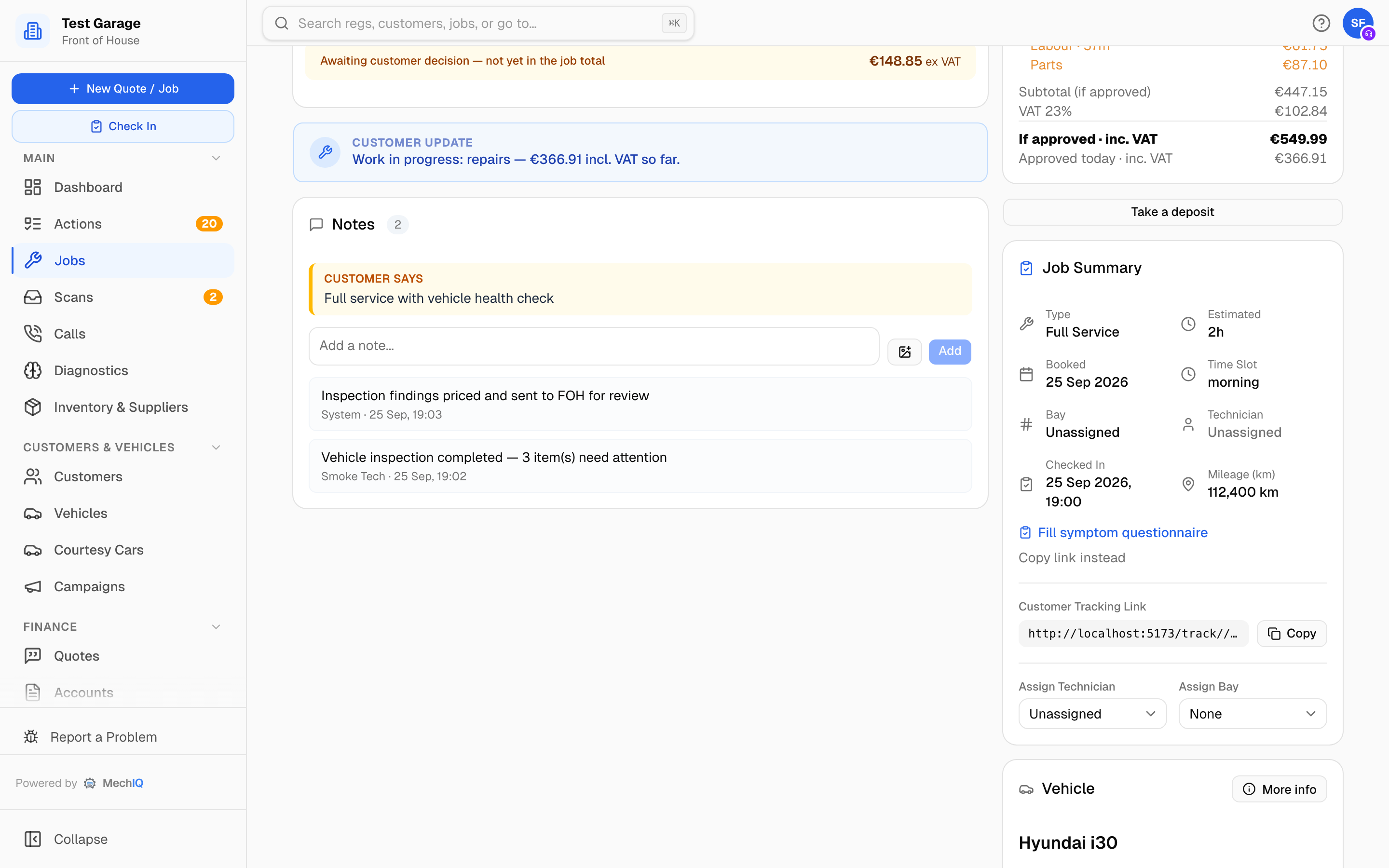 The inspection and its pricing are recorded in the job's Notes card.
When the technician changes a finished inspection
A technician can reopen a completed VHC and change it -- add a new amber or red item, turn one back to green, or add a note or photo. You are told what changed, and only that:
- A bell notification, Inspection amended: [reg], lists each change -- for example Front brake pads -- new, red or Tyres -- now OK (was red).
- New or escalated findings are priced in the background exactly like the first ones. They join the package still waiting to be sent, or arrive as a new package if the first one has already gone to the customer, and they land on the job's Price extra work row on your board (... (inspection amended)), saying what changed. A finding already priced, approved or declined is never priced twice -- an amber that became red is noted, not added again.
- A finding whose package was cancelled before the customer decided it (the job was completed with the package still unsent) was never really handled, so any change to the inspection prices it again -- the change reads Front left tyre -- red, priced again (its found work was cancelled before the customer decided). Only a decision counts as handled: a package the customer approved or declined, or one you declined with a reason, is never re-priced.
- A finding the technician now marks as OK is never removed for you. If it is still priced, a Finding downgraded: [reg] action names the line, and the finding under Additional issues found is badged Tech now says OK -- check the line. Decide whether to keep it, mark it Not needed (before sending), or talk to the customer, then press Mark handled on the action.
- The Vehicle inspection card lists every change under Changed after it was finished, with the time, and the job's Notes card records Inspection amended -- .... The PDF report is made again.
If everything came back green there is nothing to send: MechIQ generates the technician's task list and the job carries on. The full report, including the green items, appears on the customer's tracking page when your garage has the job tracking link switched on.
How amber and red items become priced work
Amber and red findings are priced in the background into a package on the Extra work card, marked From vehicle health check with the status Proposed -- review & send. Green items are never priced. When pricing finishes, the package lands on the job's Price extra work action on your Actions board and in the job's Open actions for this job strip, with a Send for approval button that opens the package card. The action never fires early, so there is always something priced to look at.
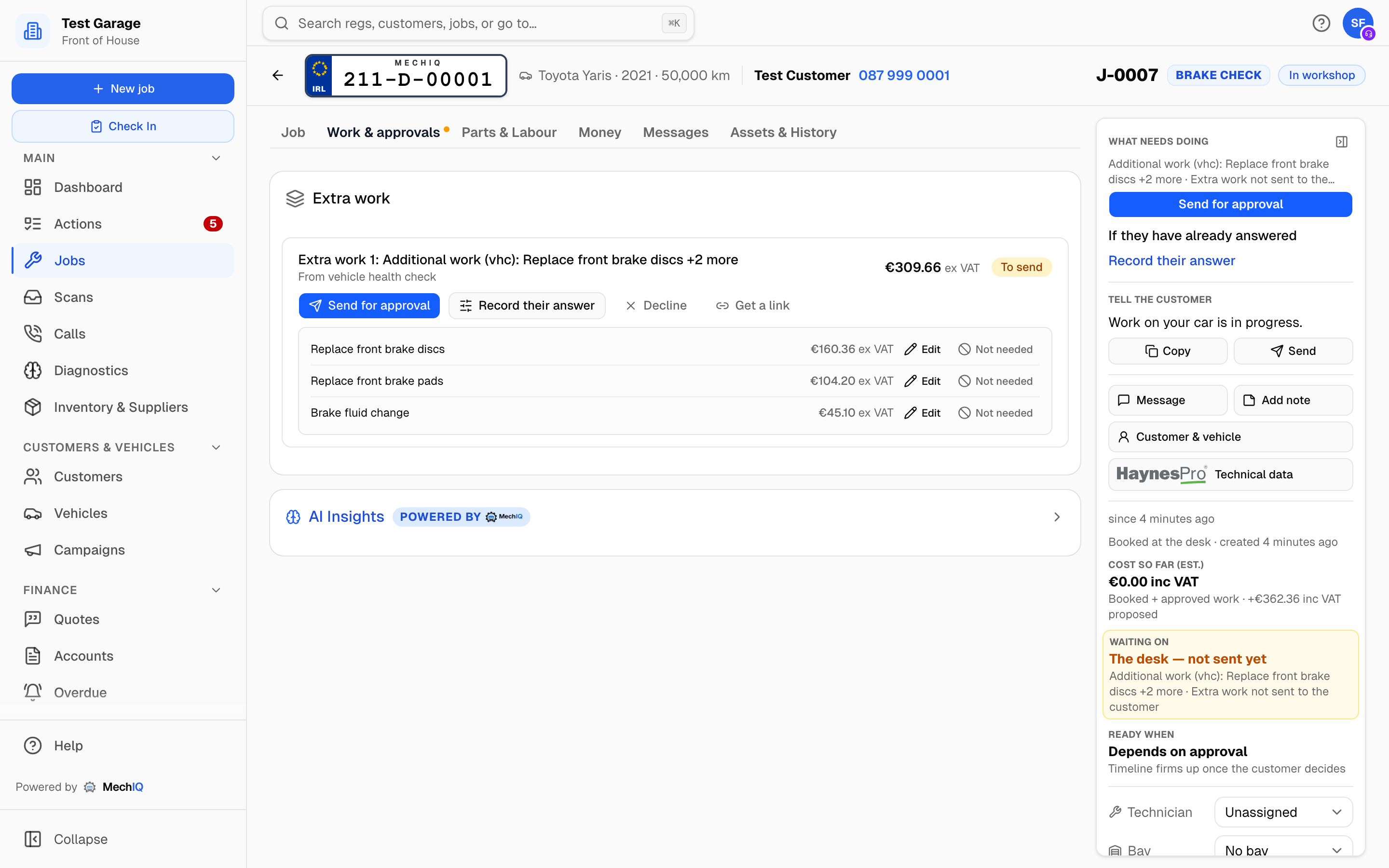 A VHC package as FOH sees it: each finding priced on its own line.
The package's value is not added to the job total until the customer approves it.
Send it, or record the customer's answer, before the job is completed. Completing a job with a package still undecided stops at Found work not decided -- see Completing a job. Nothing is dropped silently.
When a red or amber finding isn't priced
Every amber and red finding reaches you, even when MechIQ creates no package for it. It is listed under Additional issues found on the job's Work & approvals tab, and an action appears on your Actions board. There are two cases:
- Covered by booked work -- the finding is work the job is already booked for, described differently. For example, the job was booked for the "front driver's side caliper" and the technician flagged the "front right caliper", which is the same caliper on an Irish or UK car (the driver sits on the right). MechIQ doesn't price it twice. The finding is badged Covered by booked work and names the booked line. If the found work needs a part the job doesn't have yet (pads, say), it says The job has no part for: ...; add it in Parts & Labour if the work needs it. The action reads Inspection finding covered by booked work: [reg].
- Needs a price -- MechIQ couldn't price it. This happens if your garage has AI generation turned off, or if pricing came back empty. The finding is badged Needs a price: it is a line of the job's Extra work item, and Price it takes you to that line on the Extra work card, where you type the labour hours and add parts (see Found Work). The action reads Extra work to price: [reg], and its button is Price it too. Send for approval waits until every line is priced or marked not needed. The Work & approvals tab carries a dot while extra work is to price or to send.
Work on the other side of the car is never treated as the same job. A front left and a front right caliper are two lines, and so are front and rear, or upper and lower. MechIQ reads "driver's side" and "passenger side" using your garage's country: right-hand drive in Ireland and the UK, left-hand drive elsewhere.
When you've dealt with a finding, press Mark handled on the action.
If a technician hands a job back as Awaiting customer authorisation and no found work is priced for the customer, the Blocked: [reg] action tells you so and links to the found issues, not to customer messages. Price the work first, then send it for approval.
Review before you send
The card shows each item with its price ex VAT, so you can read it to a customer on the phone. Until you send the package, every line has two buttons of its own:
- Edit -- change the line's description, its labour hours (priced at the line's own labour rate) and each part's quantity and unit price ex VAT, right on the card. Save line re-prices the line and the package total. Fluids such as oil can take a fraction (4.5 L); other parts are whole units. A unit price you type is kept as the part's set sell price, exactly as in Parts & Labour.
- Not needed -- for a finding you already know the customer doesn't need (already done, not required on this car, the customer said no at the desk, or over-recommended). Pick a reason, add a note if you like (a note is required for Other) and press Not needed. The line is struck through with the reason, who marked it and when; it drops out of the package total and the Awaiting customer decision figure, and the customer is never asked about it. Needed again brings it back.
Lines you mark not needed are kept on record with the reason, so your garage can later see how much found work turns out not to be needed, and why. The job's history shows each one too.
The item's labour and parts lines also appear in the job's Parts & Labour tab, flagged as pending approval (or Not needed), where you can still change a price, markup or quantity or remove a line before sending. New extra work is priced on its line on the Extra work card, never added as loose lines in Parts & Labour.
Once the package is sent, its lines are what the customer is approving, so Edit, Not needed and Needed again go away. A not-needed line is then removed from the job for good: it is not on the customer's link or message, it can't be approved or invoiced, the technician never gets it, and its parts are never ordered (if they were already waiting on a held supplier order, they come off it). If you withdraw the request afterwards, that line stays off: it has no Needed again, and the line says why. To do that work, add it again as a new line.
When the technician says a line is not needed
The technician can also say a line of found work is not needed (Not needed, on the web and the app). The line is then out of the package -- the same as your Not needed -- whatever stage the package is at. On the card it shows struck through as Technician: not needed -- [their reason], with who marked it and when.
- Before you send: it is not put to the customer. Needed again brings it back.
- After you sent the link: it comes off the customer's link and out of the package total. If the customer had the page open already, their answer for that line is ignored. You get a Not needed: [line] -- taken off the approval link action.
- After the customer approved it: it no longer bills, and you get a Technician marked [line] not needed after approval action. Tell the customer, and cancel or return any parts ordered for it, then press Mark handled.
If the technician puts the line back (Needed again), it returns to the package, the link and the bill, and the action closes.
Under each part that has real alternatives in your catalogue or your supplier's published range, the card notes for example Front brake pads set: 3 grade options on the link -- so you know what the customer will be offered.
Send to the customer
Press Send for approval on the package. The Message customer composer opens with the approval request by email -- it lists the items, and the approval link is made when you press Send email. Once it has gone, the status changes to Awaiting customer, with the link on the card and a Copy button. Approval requests go by email because the message has to spell out the findings and what each item covers, which is more than a text can carry. A With customer row with a Chase button then stays on your board until the customer answers (the package leaves the job's Price extra work row when the request goes).
A customer with no email on file is not texted by itself: in the composer, Email is greyed out with the reason. Choose Text (SMS) to send the link by text, or Save draft -- the card reads Draft -- not sent and no chase starts until it goes (see Customer Communications).
The customer sees the findings grouped as Needs Attention and Advisory, each with the technician's notes, photo and price, and can Approve or Decline each item -- they only pay for what they approve. Where a part has alternatives they can pick Budget, Standard or Premium instead of the Garage's pick; the item and the total re-price on the page and the chosen part replaces the line on the job. See Customer Approval.
If the customer is at the desk or agrees on the phone, skip the link: use Record their answer (per item) or Decline. Sending or deciding never pauses the running job.
After the decision
- Approved -- the card asks Approved -- do you have the parts? (Parts in stock, Order needed or No parts needed), then Hand parts to technician puts the work on the technician's plan. See Found Work & the Technician Handoff.
- Declined -- the declined items' lines come off the job, but the findings are kept on the vehicle as declined advisories. If they declined on their link, a Customer declined extra work action asks you to call them before writing it off. The findings can be quoted again on a later visit.
Keying in a VHC yourself (paper-tech mode)
If your garage runs paper job cards (Settings → Workshop Options, the Paper job cards for technicians switch), the technician inspects the car from a printed card and you key the results in. The job's Work & approvals tab then shows the same Vehicle Health Check card the technician would use, in place of the read-only report:
- Press Start Vehicle Health Check (or Continue VHC to pick up a saved one). If the garage has several templates you are asked Which inspection?
- Open each category and tap OK, Advisory or Needs Attention for every item. Add notes (typed or dictated) and a photo or video where it helps the customer decide.
- Save Progress as you go. Complete VHC only unlocks when every item has a result -- until then the button reads Check N remaining items.
- If the card says the inspection was not done, use VHC not needed? Record a reason (or Can't inspect? Skip with a reason). The reason is kept on the job and the work plan is generated from the booking instead. Outside paper-tech mode skipping is the technician's call and the desk cannot do it.
Once complete, the amber and red items are priced exactly as above.
Good to know
- On jobs that require a VHC, it is the technician's enforced first step -- their work plan stays locked until the VHC is completed or skipped.
- The vehicle record keeps the date and result of its last VHC, so the next visit's briefing knows it was inspected.
- Your garage's VHC checklist templates are managed by a garage admin under Settings → VHC & QC checklists -- see VHC Templates.