Finishing a Job and the QC Handover
When the work is done you finish the job. Depending on how your garage is set up it goes to Awaiting QC for a second pair of eyes, or straight to Complete for the desk.
The Finish panel
When every task is ticked, the Finish panel shows at the end of the Work tab. The button in the bottom bar opens it at any time -- it reads Finish -- send to QC, Finish -- hand to the desk or Finish job, which tells you where the job goes. On the native app the same button opens the Finish job screen.
Everything for the finish is in one place:
- Parts used -- the parts on the job that are here, already ticked. You never set a price. If a part has no price, the desk sets it: with no QC step at your garage, the button reads Finish -- hand to the desk. A part you confirmed earlier on the Parts tab shows Confirmed. If you did not use a part, untick it: it comes off the bill and its stock goes back. Parts the desk returned or marked Not needed are not on the list. A part with no known quantity has a Quantity used box: type how much went in, or untick the part. The Finish button stays off until you do, and says which part it is waiting for.
- Finishing checks -- your garage's checks, for example Tools cleared, covers refitted, no loose items and Vehicle is clean and ready for collection. Tick each one. Nothing is ticked for you. Your garage admin sets these checks in Settings → Finishing checks; a garage can have none. The QC list does not ask a finishing check again.
- What did the diagnosis find? -- on every diagnosis job (and any job with fault-finding work), even before the work plan arrives. Choose Fault found, Fault fixed or No fault found. With Fault found the button reads Finish -- hand to the desk: no repair was done, so the job goes to the desk, not to QC. Write the fault and the repair in the note -- it becomes the repair line the desk prices (Price the repair for reg) and sends to the customer. Your choice goes into the job's notes. Until the customer decides, the job asks nothing of you; once they approve, the repair is on your plan and Start work comes back.
- Note -- optional. Write what you did and anything to flag, or tap the microphone to dictate. The note goes on the job as its Work Complete note: the desk sees it in the job's Notes and in History, and QC reads it.
- Not done yet -- shows when a step on your plan is not ticked, or the VHC is not done. It lists each task and how many steps are open. Tick them on the Work tab, or tick Finish anyway -- ... to finish with them open. The Work Complete note records what you left open.
- Record the mileage -- only if nobody took the mileage at check-in.
Then press the one button. A service job with the two default checks takes three taps: two checks and Finish.
When the button waits
The reasons show above the button:
- Tick the finishing checks, Choose what the diagnosis found or Not done yet -- do it on the panel.
- Record (or skip) the after-work road test -- the job type needs one. Go to the road test takes you to the card.
- Waiting for parts -- part name not here yet -- the part is still To order, On order or Short. The desk orders it. When you can do nothing more, use Hand back to desk. Only the desk can finish a job with parts not here.
- Found work waits on the customer's decision -- the button reads Finish -- hand to the desk. The job goes to the desk, and the desk gets the decision.
If the server refuses the finish, the panel lists every reason at once, and nothing on the job changes. If you have no signal on the native app, the finish waits in Waiting to sync and goes when the signal comes back.
A QC reviewer or the desk who completes a job with a part still showing Confirm is asked for its quantity on the same screen: type how much went in and press Save quantity. An override reason does not pass this. An AI-suggested part nobody confirmed, and a part marked not used, need no quantity.
You can still confirm parts during the job on the Parts tab (Confirm Parts Used). You do not have to: the Finish panel asks.
While the job is awaiting QC
The job shows the Awaiting Quality Check banner: Submitted for QC review. A senior technician will inspect and sign off. You do not need to do anything. Take your next job.
Pressed it by mistake? If the work isn't actually finished, tap Send back -- not ready for QC under the banner, write a short reason and tap Send back to tech. The job comes back to you In Progress with the job clock paused; press start on the clock when you pick it up. It is not a QC fail -- nothing is recorded against you. A job you are working on now stays yours.
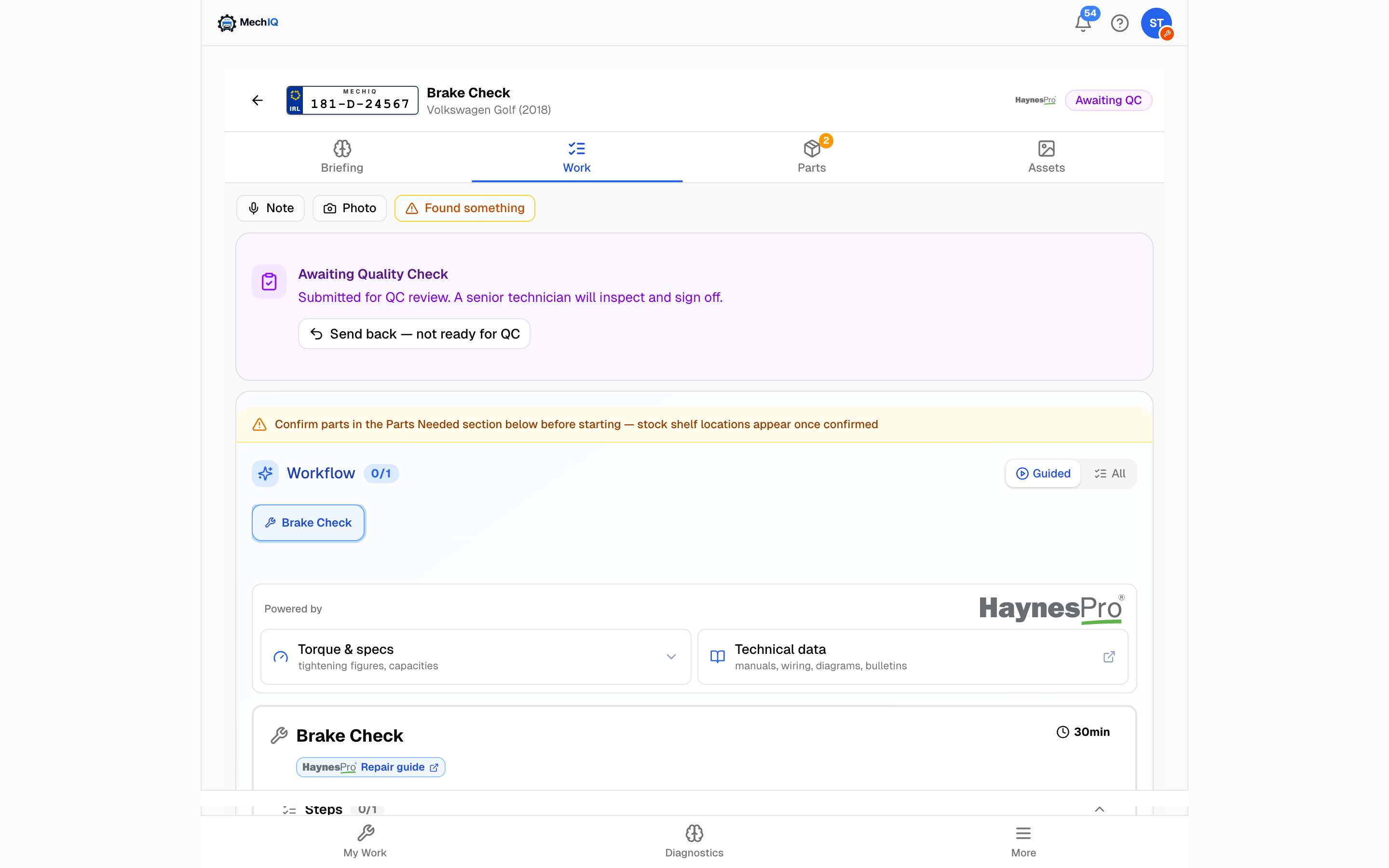 Awaiting QC. The reviewer sees the same job with the Quality Check panel instead of this banner.
If you are the QC reviewer
Technicians the garage has marked as able to pass QC see the review side (the front desk can pass QC too, from the job page). A purple N jobs need QC pill sits at the top of every page and the My Work badge counts them; on the native app a strip on My Work reads Finished work needs your check before checkout.
Tapping the pill or the strip opens Waiting on QC -- every job waiting, oldest first. Each row shows the registration and car, the customer and job number, who submitted it and how long it has waited, and any flags (Urgent, High priority, Call-out). It is a list even when only one job is waiting. Tap a row to open that job's QC; pull down to refresh (it also updates by itself as jobs come and go). Your own jobs are not in your list. The list is only for people who can QC: the front desk, the garage admin and the technicians the garage admin gives QC in Team. Without QC, Waiting on QC shows no list -- it says You don't have QC on this garage and names who does QC. A technician with QC also finds Waiting on QC in the menu (More on the web, the menu under your initials on the app), even when nothing is waiting. On a tablet the QC checks list in the left rail still opens a job in place.
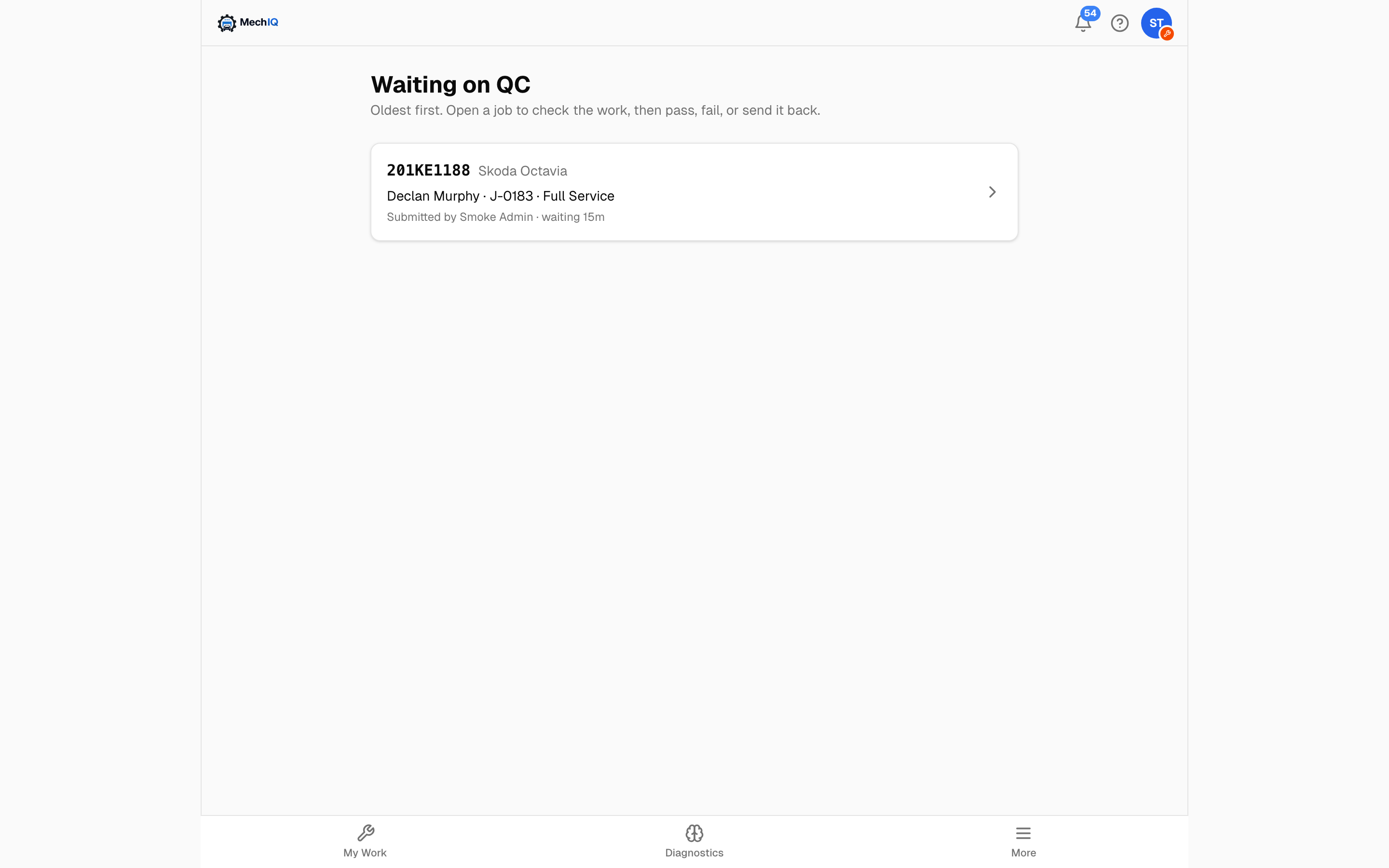 Waiting on QC. Oldest first; tap a row to open that job's Quality Check.
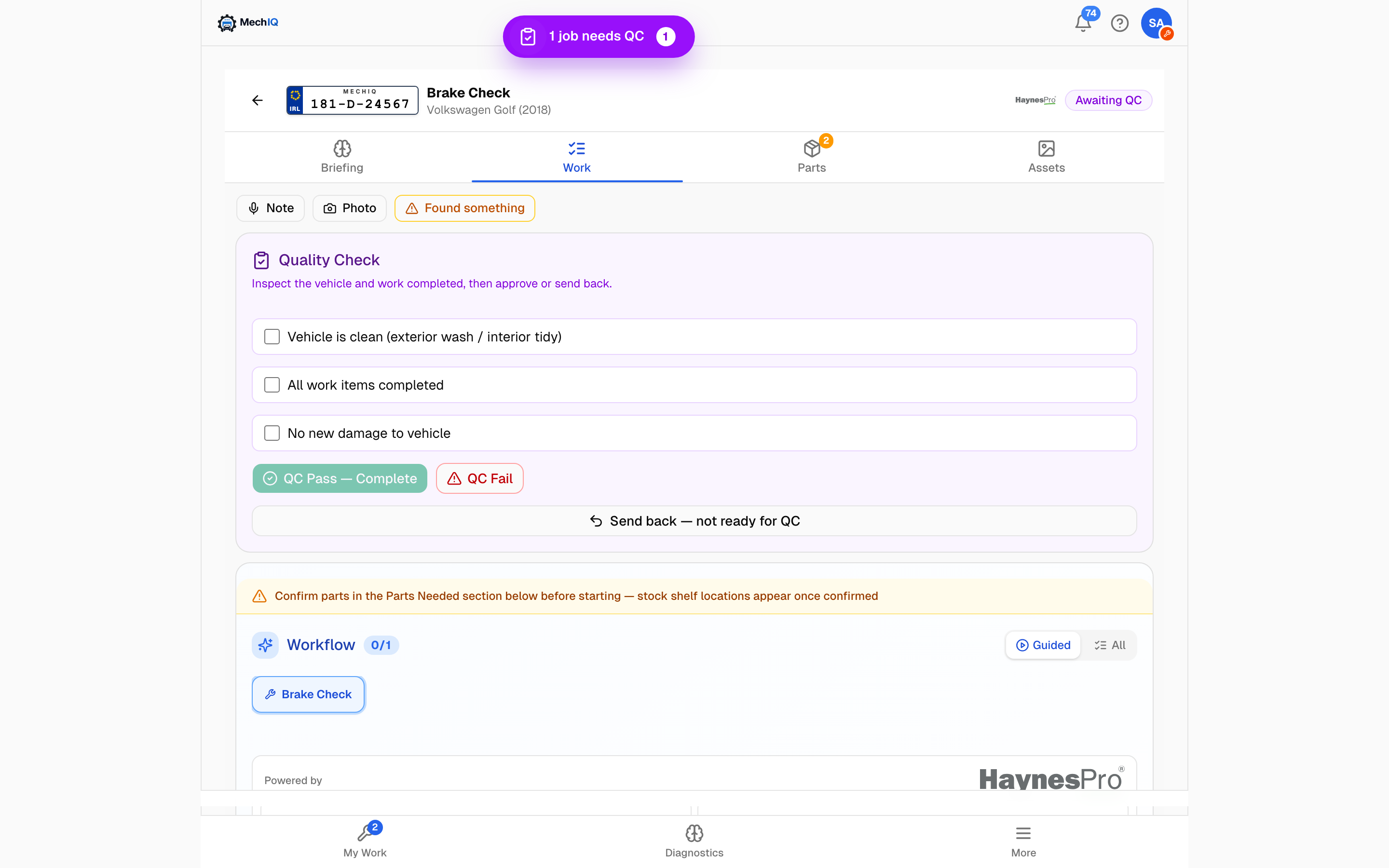 The Quality Check panel. Inspect the car and the work, tick every item, then pass or fail -- or send it back if it wasn't ready for QC.
Open the job. The Quality Check panel is at the top of the Work tab:
- Inspect the vehicle and the work. Look at the tasks, the photos and the notes -- the note from the Finish panel.
- Tick every checklist item.
- QC Pass -- Complete lands the job in Complete and records QC passed on the job. If a part on the job is still To order, On order or Short, the panel shows Waiting for parts and the pass waits until the part is here (the desk can finish anyway with a reason). Or QC Fail → type the answer to What needs to be fixed? → Send Back to Tech. That box is typing only -- there is no dictate button on it.
If your garage requires QC by someone other than the technician who did the work, the panel tells you so on your own jobs -- ask a colleague.
Not finished yet? If the job reached QC before the work was done (a part still to fit, a task not started), don't fail it. Tap Send back -- not ready for QC, give a short reason and tap Send back to tech. It goes back to the same technician In Progress, they get a Sent back: not ready for QC notification with your reason, and no QC fail is recorded. Keep QC Fail for work that was done wrong.
If your job fails QC
The job comes back to you In Progress with a red QC Failed -- Rework Required banner and the reviewer's note in the job notes. It waits in your list with the clock Paused -- back from QC: nothing counts until you start the clock, and the job you are working on now stays yours. Fix it and submit again.
Tips
- Tick steps as you go so the summary is right first time.
- Confirm parts before you reach for Mark complete.
- On the native app the write-up is what QC and the desk read -- two clear sentences beat none.