Parts Logging
The Parts tab lists the parts the job needs. MechIQ has already suggested them from the diagnosis or the service; your job is to confirm the real list once, at the end of the job, before front of house price it. You do not confirm task by task.
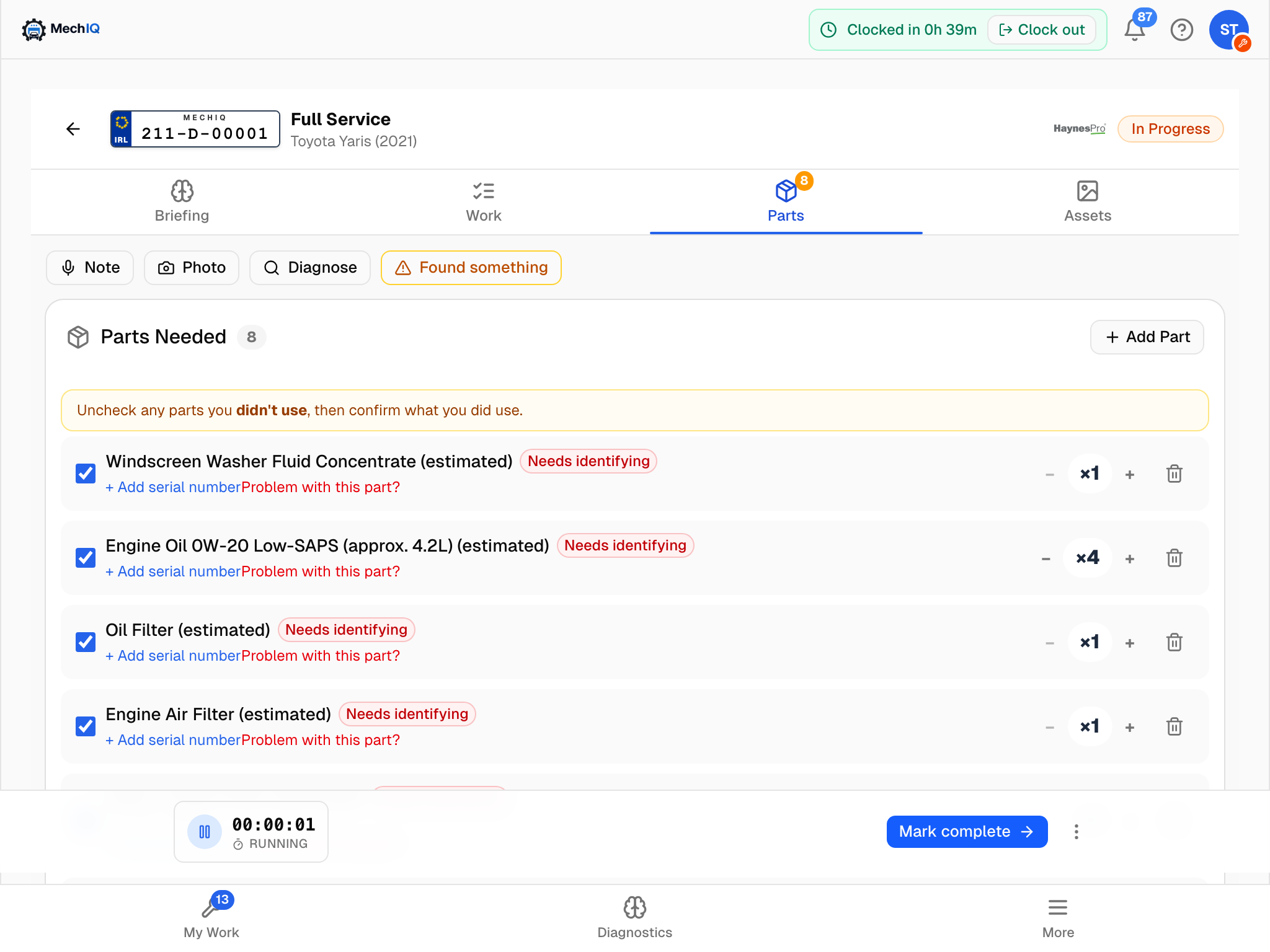 Parts Needed. Untick anything you did not fit, fix the quantities, then Confirm Parts Used.
What each row shows
- A checkbox (while unconfirmed) -- ticked means you used it. A part that is not here yet has no checkbox (see below). Nor has a part whose task is waiting: it reads Its task is waiting -- confirm it once the task is done, and Confirm Parts Used leaves it alone.
- The part name, and badges: who added the line (MechIQ suggested, Added by the desk or Technician request -- the desk's Parts panel shows the same words; where the price came from is a separate Price: … line the desk sees), the availability chip (below), a fitment chip when the parts data has checked it against the car, and a red problem badge once you report one.
- The part number, so you can check it against the part in your hand. A part taken from stock shows the stock item's number. No part number means the job has none yet (the AI's estimate is not shown as a number). The Finish job list shows the same number.
- The serial number, if known. + Add serial number records a serial on a part that needs one (a battery, an ECU).
- Once the parts are confirmed, the chip reads Used, or the row reads Not used.
- Not arrived -- can't be fitted yet on a part that is still To order, Needs a part number, On order or Short. You cannot have fitted a part that is not here, so you do not confirm it yet.
- − ×N + -- the quantity, editable while unconfirmed. Oil and other fluids show their unit (4.5 L): type the exact amount you used, or step it by half a litre. Everything else is whole units.
- Quantity used -- a box that shows Confirm when nobody knows the fill yet (for example coolant on a car with no published capacity). Type how much went in, even if it is 1. The part only counts as used with a quantity: Confirm Parts Used confirms your other parts and names the line that still needs its quantity.
- Remove (the bin) -- removes the row (confirm with Remove).
Status chips
Each part has one status. Front of house, the web and the app all show the same chip.
| Chip | Meaning |
|---|---|
| Needs a part number | The part has no checked part number yet, so it cannot be ordered |
| From stock · shelf | On the shelf at that location |
| To order | Not in stock, not yet ordered |
| Awaiting approval | Found work the customer has not approved yet |
| On order · due date | Sent to the supplier, not yet in (with the day it is due, when known) |
| In · location | Delivered and at the hand-off point |
| Short | The supplier delivered the order without all of this part |
| Used | Confirmed used, or the work is finished |
| Not used | Not used, so not billed |
Needs a part number is not something you fix on the Parts tab. Front of house resolve it from their parts board: one action, Identify the car, confirms which exact variant this vehicle is (from the parts data's short list for the VIN), and every part is then matched from that. The pick is saved on the car, so it happens once. If a line still cannot be matched after that, they identify it from its row.
Confirming what you used
- Untick any part you did not use.
- Fix the quantities with − and + (for a fluid, type the litres you actually put in -- the customer is billed exactly that).
- Add anything missing with Add Part (below).
- Tap Confirm Parts Used (it reads Confirm X of Y Parts Used when you have unticked some; X and Y count only the parts that are here).
Confirming records what you used. It does not order anything and does not check stock again: front of house orders the parts. Each row then says Used or Not used. The green strip reads Parts used -- N used, then the number not used, the number waiting for their task, and the number not arrived (can't be fitted yet -- the desk orders them). A part whose task is waiting (for example the brake pads while the pads task waits for the tyre) is never marked used: confirm it once the task is done. Confirming never marks a part that is not here as used. When it arrives, it asks for your confirmation again. A part you untick is kept on the job as Not used: it is not billed, its stock goes back on the shelf, and front of house is told.
Once every task is ticked and the parts are still unconfirmed, the bottom bar's button becomes Confirm parts and takes you here. You cannot complete the job until it is done. A part that is not here yet does not hold this button.
A part the garage holds in stock is reserved for the job when it is added. The on-hand count comes down when the car is collected.
Adding a part
Tap Add Part:
- Search parts by name or number -- type a name, or a part number with or without spaces or dashes (ahc 405 finds AHC405). Results show the part number, stock on hand and shelf, best first for this car. Suggested for this job lists likely parts before you type.
- Not in your parts? Type a clear name, set the Qty and tap Add -- you do not have to pick a row first.
- For which task -- choose the task the part is for (or None — other parts). The part then shows under that task's title (Parts: …), and the task waits for it while it is not here. The native app's Add a part has the same choice.
Each task on the Work tab lists its own parts under its title, with where each one is (Parts: Thermostat (On order)). A part is a task's when the desk put it on that task's labour line, or when the task names it.
A part you add is your request: it shows under its own heading, Requested by the technician, badged Technician request -- never under Booked work. The desk sees the same heading. You never see or set a price. A part picked from the list says Stock will be deducted automatically. (it comes off the shelf count when the car is collected); one added by name says Not in your parts -- it goes on as a request; the desk sources and prices it.
Problem with a part
Wrong part delivered, damaged in the box, does not fit? Tap the Problem with this part? button under the row, pick the problem type, add a note if useful and tap Tell front desk. The row gets a red badge and the desk gets an interrupt to sort a return or a replacement -- you do not leave the car.
On the native app
The native Parts tab works the same way with bigger targets: − N + steppers (taking a quantity of 1 down marks it Not used rather than zero), Correct on a fitment chip, Problem with this part?, Add a part (search by name or part number -- e.g. wiper blade, AHC405 -- or add it by name as your request, with a quantity), and Confirm remaining parts used. Each row shows who added it (MechIQ suggested, Added by the desk, Technician request), and a part whose task is waiting says so and is left alone. A part showing Confirm has a Quantity used box and a Not used link in place of the steppers. The gate hint under the bottom bar reads Confirm the parts you used before finishing.
Tips
- Confirm once, at the end.
- Name an added part specifically ("5W30 oil 1L", "front wiper blade") so the desk can match it to a supplier.
- Consumables covered by the garage's sundries charge do not need logging.
- A line marked Charge -- a CVRT test fee, the tyre disposal levy -- is not a part. There is nothing to fit, confirm, count or report for it, and its quantity follows the tyres by itself.