My Work
My Work is your home screen. It shows the job you are on right now, the jobs front of house have lined up for you, and the button that takes the next one.
It is the same screen everywhere: the My Work tab of the native app, and My Work in the tablet layout you get when you sign in as a technician in a browser. In a browser the web address is /my-jobs, and it is also the first tab in the bottom bar.
You work one job at a time. Finish it, submit it for QC, or hand it back before you take another.
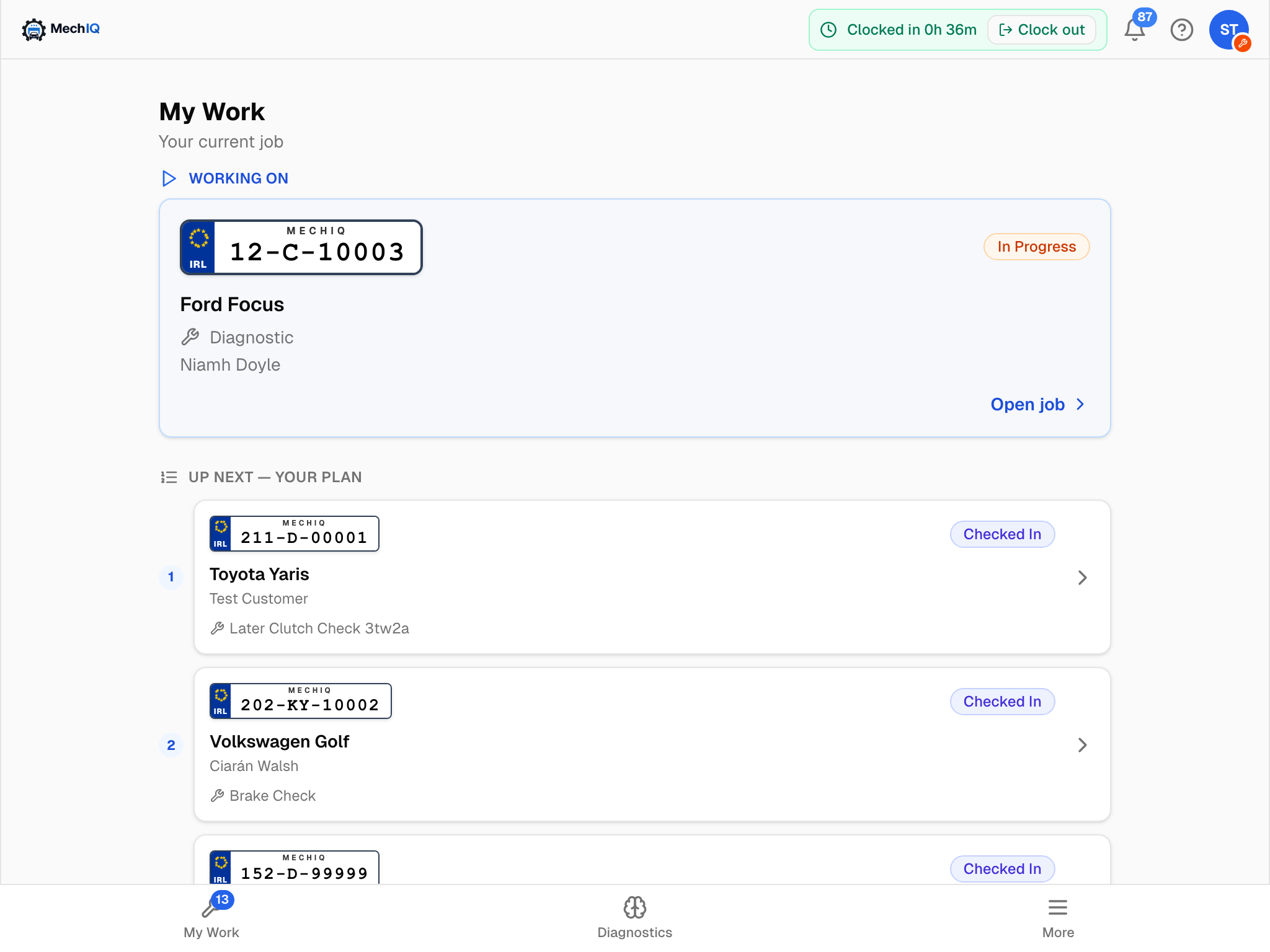 My Work on a tablet. The job you are on sits at the top; the numbered list under it is the order front of house have planned for you.
Working on
The card at the top is your current job -- the one you have in progress (or one paused while the customer decides on extra work). It shows the registration plate, make and model, job type, customer name, status and the bay the car is in -- Bay 3, Floor work, or No bay chosen while you have not answered the bay question. Tap Open job (or the card) to go into it. On a tablet the open job stays in the page address, so if the page reloads you are still in the job.
A job that is checked in but not started is not your current job: it waits in Up next until you take it with Get next job.
If you have nothing on, the heading reads Nothing on right now and you see No jobs assigned yet.
Waiting for QC
When you submit a job for its quality check, it is the reviewer's job now and you are free to take the next one. It leaves Working on and is listed under Waiting for QC until it is checked. Tap a row to look at it. The app and the web show the same list.
Up next -- your plan
Under the hero, Up next -- your plan lists the jobs front of house have put in your queue, numbered in their order, with the reg, car, customer and job type. A car in your queue that waits for its parts is not in Up next -- it has nothing to start yet. It is under Waiting for parts in Get next job. It is read-only: tapping a row opens the job to look at, but you still take work through Get next job, which follows this same order. Nothing is assigned to you automatically.
The line under the list says it plainly: FOH's plan -- "Get next job" follows this order.
View today's jobs
View today's jobs is collapsed by default. Expand it to see the whole floor -- every job in progress, checked in or booked for today across the garage, sorted by priority. Each card says whose car it is -- Yours, the technician's name, or Not assigned -- and the bay. It is there for a glance at what is coming, not for picking work.
Get next job
When you have nothing active, the blue Get next job button shows how many vehicles are waiting. Tap it and a pick list opens:
Your queue -- the planned order -- front of house's plan for you, first.
Waiting -- unassigned -- vehicles nobody has been given yet.
From other techs' queues -- work planned for someone else, if you need to help out.
Early — booked for
-- a car already here but booked for a later day. It comes last and is never the suggested pull; take it only if you mean to (the parts may be ordered for its own day). Waiting for parts -- a car where every open task waits for a part. Each row says which parts. These rows have no take button: you cannot take the car from Get next job. If the job must start now, ask the desk. The desk can put it on your queue.
Can start -- a car with some parts not here yet, but with a task that needs none of them. You can take it. The row names the task you can start and the parts that are not here yet.
When the parts of a car come in, the car shows Parts in -- ready to continue. It comes after your own queue and before all other cars that nobody has. If it is your own car (you paused it or handed it back), it goes to the top of your queue.
Get next job offers today's cars and cars carried over from an earlier day; the count on the button is those (not the cars waiting for parts). The top of today's list is marked Suggested. You choose -- tap any row and the job becomes yours and opens straight away. On the native app, a job that was handed back earlier is tagged Resuming -- work started so you know you are picking up where someone left off; the browser's list does not carry that tag, so check the job's status and notes once it opens.
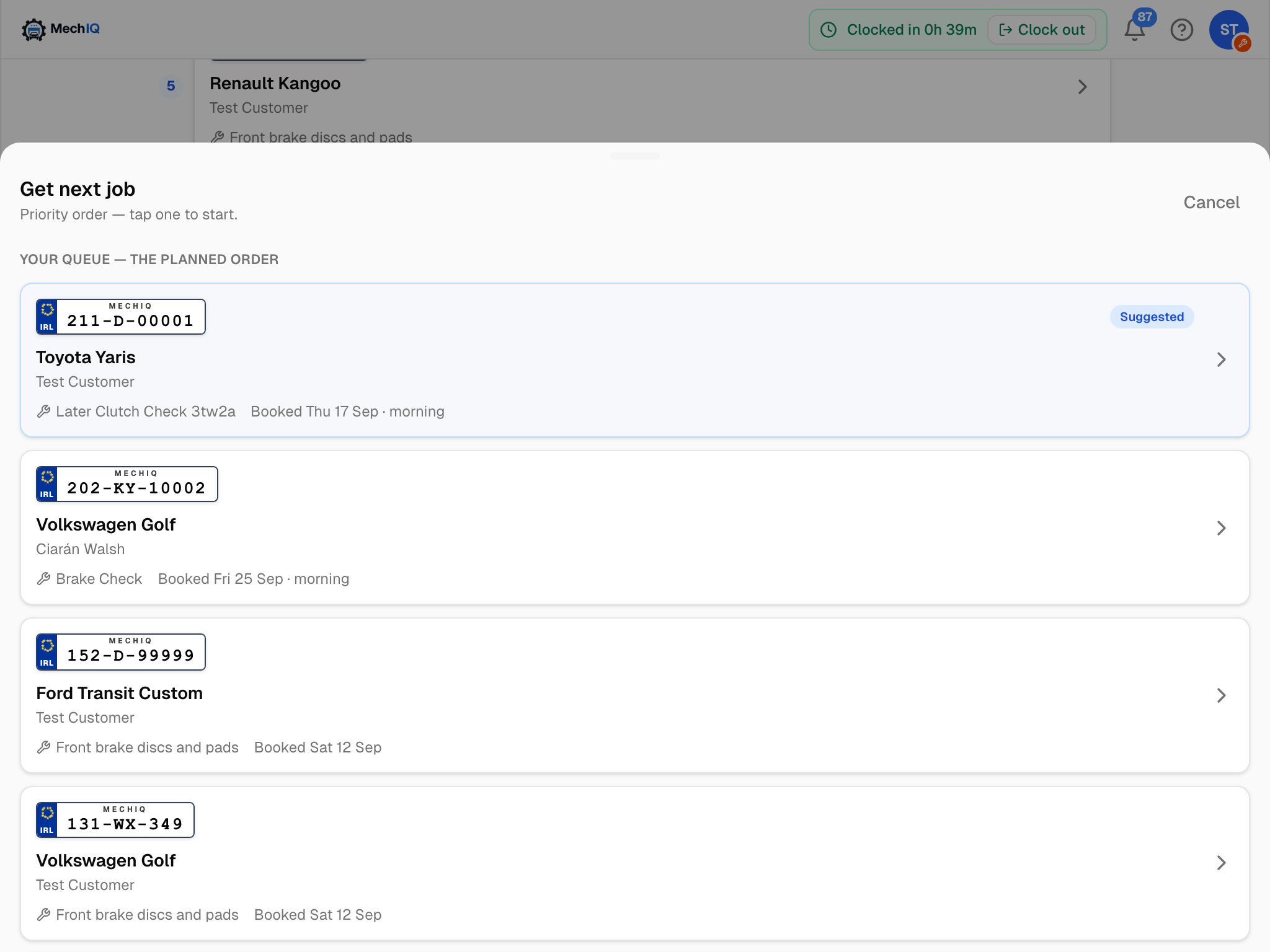 Get next job lists the waiting vehicles in priority order. The Suggested row is the recommended pull, but the choice is yours.
If someone else took the job between your tap and your pick, you get a short message and the list refreshes -- pick another.
Jobs only enter the queue once front of house has checked the vehicle in. If the list is empty, check with the desk.
Priority
A coloured pill shows on a job when its priority is not the default Normal: Urgent (red), High (amber) or Low (blue). Priority is set by front of house or the garage admin and drives the order of the queue.
Other things on My Work
- Awaiting actions badge -- the count on the My Work tab is the number of your jobs that need something from you (for example a QC to do, if you are a QC reviewer).
- Target progress -- if your garage has set you a labour target, a small progress card sits above the heading. It hides itself when no target applies.
- On a tablet, opening a job collapses the list to a narrow rail on the left so the job gets the full width. The rail button reopens the list.
- On a narrow screen (native app or browser) the same list runs in a single column, and opening a job takes over the screen.
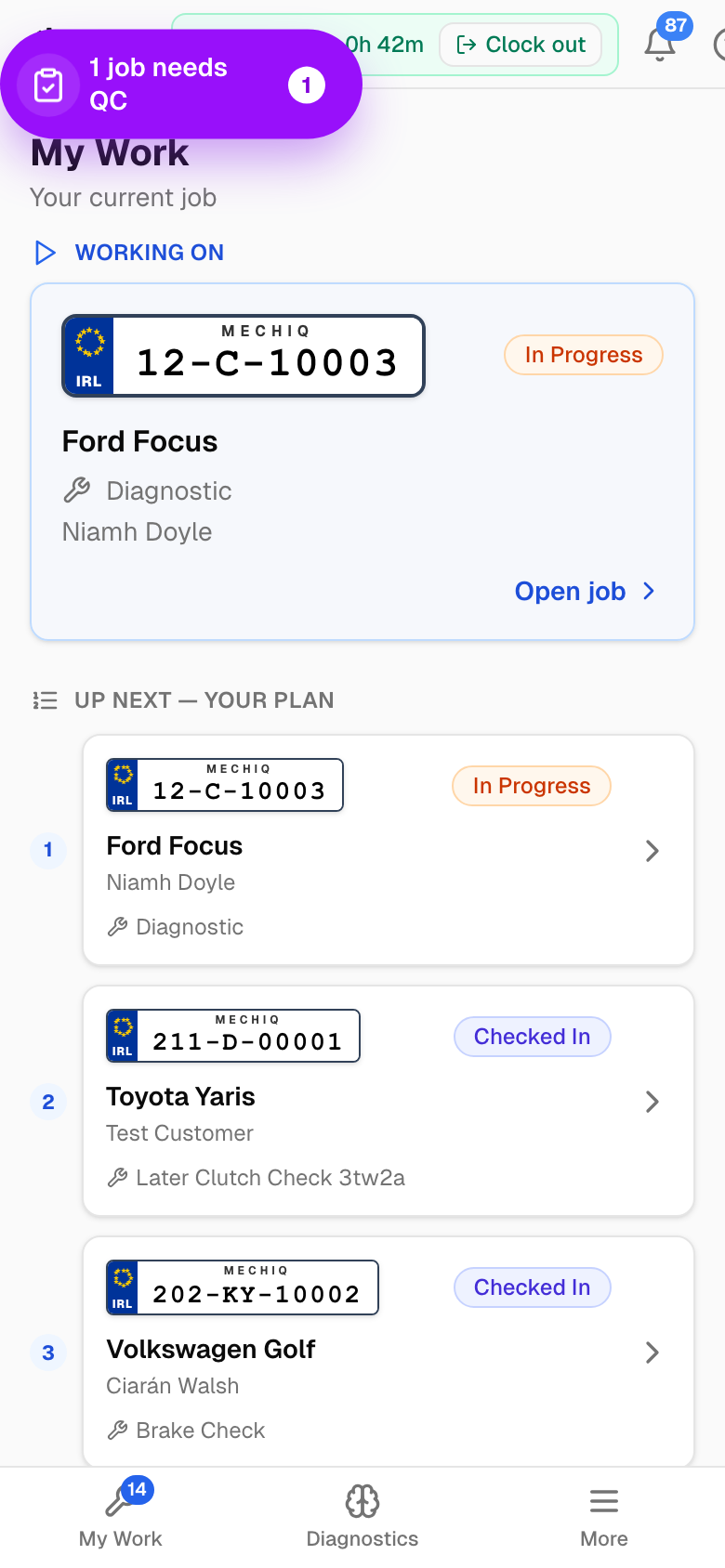 The same screen at narrow width.
- On the native app, a tablet gets the two-pane layout with the list on the left and the job on the right; a narrower screen shows the same list in one column. QC reviewers also see a strip at the top when finished work needs their check, and My hours today shows your time on the attendance clock.
Tips
- Check Up next at the start of the day to see what is coming.
- Take work through Get next job, not by opening a queued job -- the pick is what makes the job yours and starts it.
- If you are stuck waiting on parts, hand the job back or pause it rather than taking a second job on top.