Found Something Else
If you discover an issue that was not part of the booked work, flag it from the job. The button is in the quick-action row on every tab: Found something (amber). On a workflow step, Found something opens the same form. On the native app it is + then Send to the desk to price.
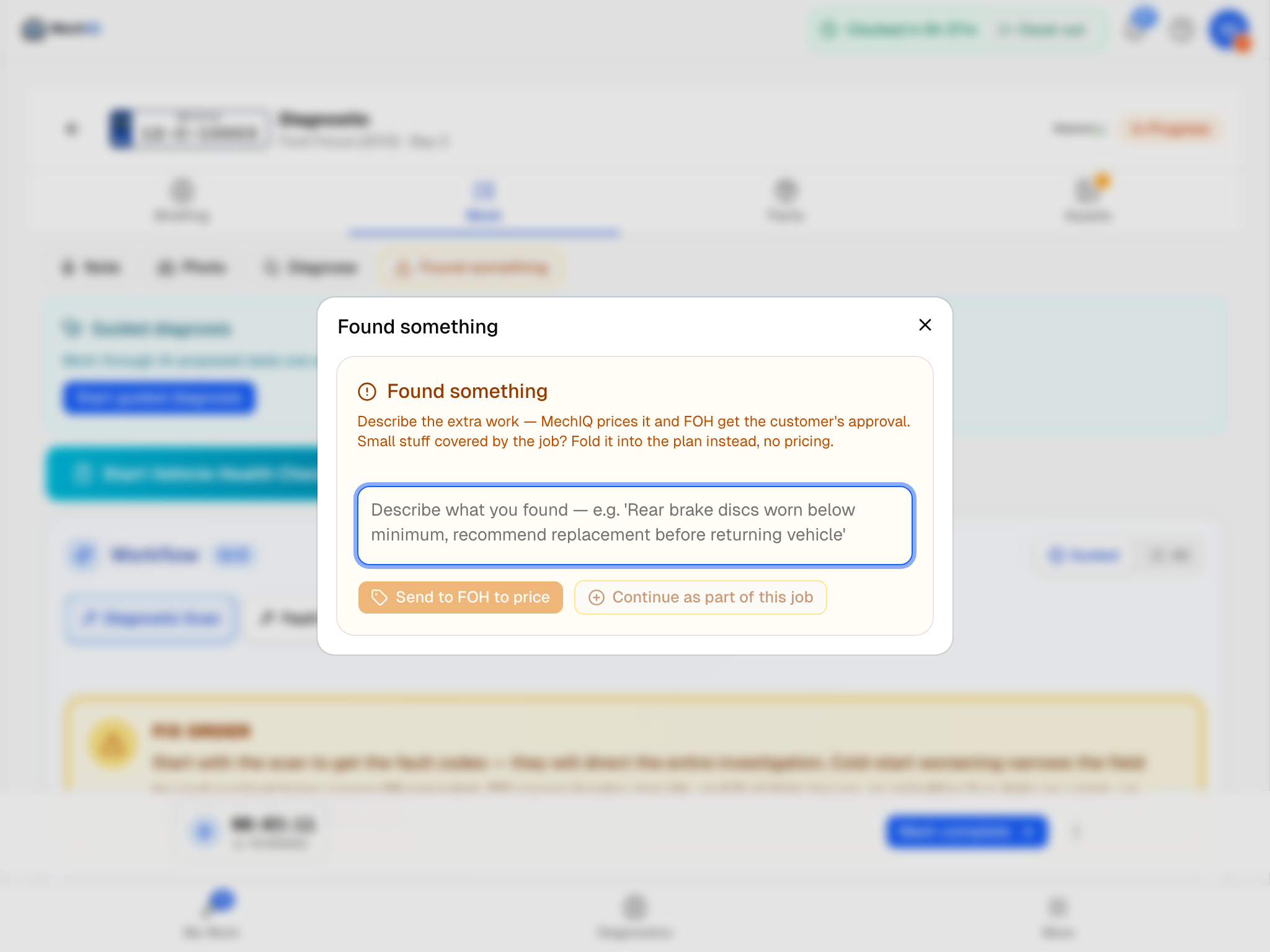 Found something. Describe what you found, then choose whether the customer has to pay for it.
How to use it
- Tap Found something.
- Describe what you found -- for example Rear brake discs worn below minimum, recommend replacement before returning vehicle. On the native app you can dictate it; check the text before sending. Add a photo (Add a photo on the browser, Take a photo or Photos & video on the native app) -- the desk and the customer see it with the work.
- Choose:
- Send to the desk to price -- the customer would have to pay for it. What you wrote, and your photos, go to the desk at once as a line of the job's Extra work (marked Needs a price), on the job's Price extra work action (one row per job, however many things you find). When MechIQ's AI is available it then prices the line. When the AI is off (or fails) nothing is lost -- the desk prices it themselves.
- Continue as part of this job -- it is small and already covered by the booked work. MechIQ adds it to your plan with no pricing and no approval. With the AI off, your words go on the plan as their own task.
The confirmation tells you what really happened, on the browser and the native app alike:
- Sent to the desk -- MechIQ is pricing it for approval. -- the desk has it and MechIQ is pricing it.
- Sent to the desk to price. -- the desk has it and prices it themselves (the AI is off).
- Added to your plan. / Added to the plan -- MechIQ is updating it. -- you chose Continue as part of this job.
- Not sent -- try again. -- nothing reached the desk; send it again.
Either way the sheet closes and you carry on. Your job keeps its status, your plan is unchanged (until approval comes back) and the clock keeps running.
What happens next
Front of house review the price, put the work to the customer, and:
- Approved -- the work comes back to your plan. See Found Work.
- Declined -- it never reaches you. Do not do declined work.
When to use it
- The issue was not in the booking description.
- The customer needs to know or agree before you proceed.
- It is a safety concern the customer should hear about.
Amber and red items on a Vehicle Health Check are flagged automatically when you complete the check -- you do not need to write them up here as well.
Tips
- Be specific. "Front pads at 2 mm, discs scored -- recommend pads and discs" gives the desk something to quote; "brakes worn" does not.
- Say so if it is safety-critical, so the desk prioritises the call.
- A photo on the job's Assets tab, or on the VHC item, helps the customer say yes.