Tyre Booking
Customers can request tyres on your public booking page -- either added on to a service booking, or as a tyre-only "Order tyres" booking. You confirm the actual price and place the supplier order when the booking comes in.
Tyre booking is off by default.
Turning It On
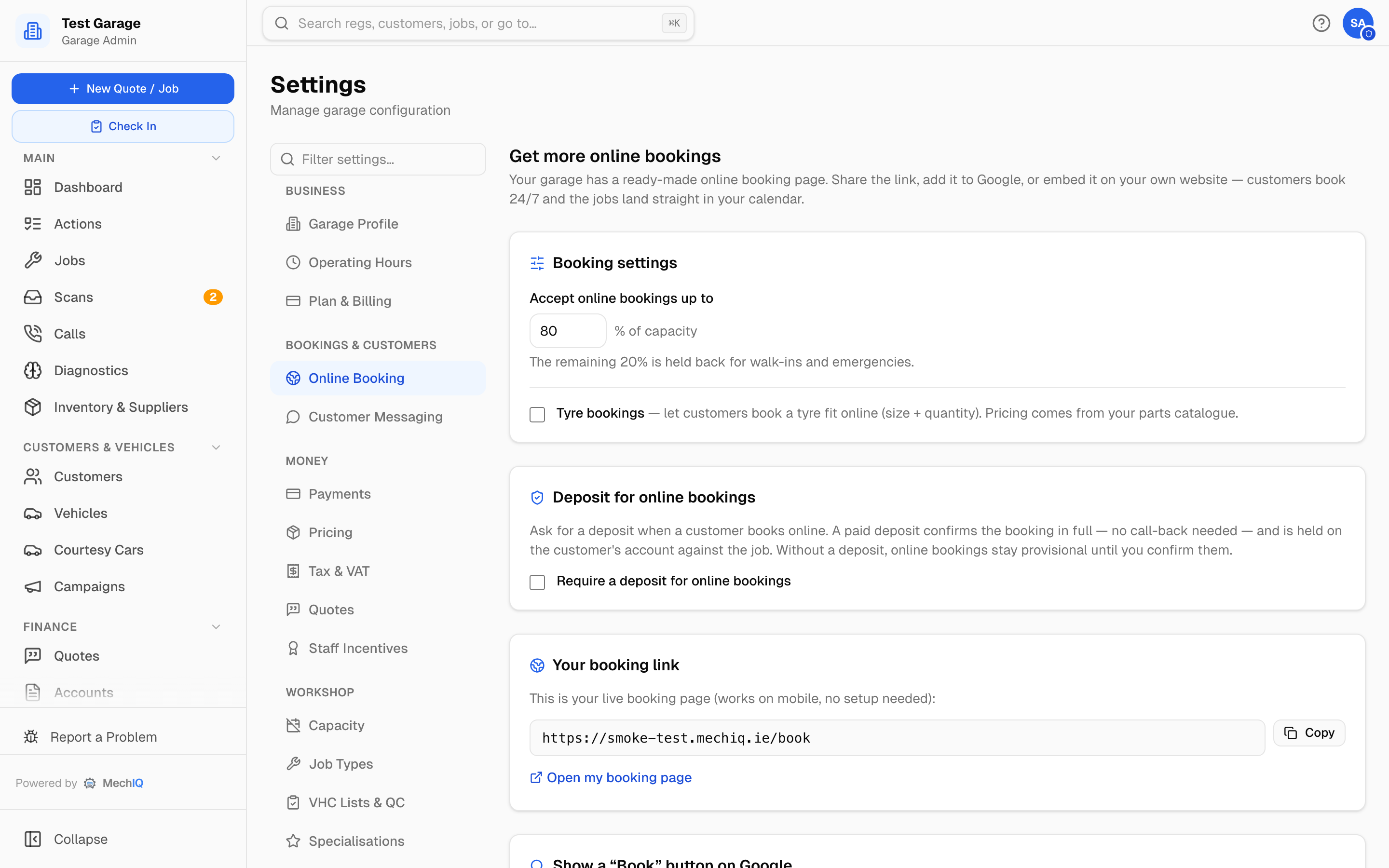 The Tyre bookings tick box on Settings → Online Booking.
- Go to Settings -> Online Booking and find the Booking settings section.
- Tick Tyre bookings.
- Click Save changes in the bar at the bottom of the page. Like every setting, nothing changes until you save.
Tyre prices come from your parts catalogue: when a customer enters their size, they see up to three real tyres from your catalogue (your cost plus your parts markup). Sizes that aren't in your catalogue are confirmed by you before fitting -- no guessed prices. Import your catalogue under Settings -> Data Import (the Items file).
What the Customer Sees
With tyre booking on, your booking page opens with a chooser: Book an appointment or Order tyres.
- Order tyres -- a tyre-only booking. The customer enters their tyre size (width / profile / rim, with optional load and speed rating), picks a tier, optionally names a brand, and sets a quantity (up to 4 per line). They can add more lines for a different size or tier.
- Book an appointment -- the normal service booking, with an optional New Tyres section where they can add tyres to the same visit.
Once the vehicle is known, MechIQ pre-fills a best-guess tyre size from the make, model, and year. The customer is told it is an estimate and asked to check it against the sidewall.
If matching tyres are in your catalogue, the customer sees indicative per-tyre prices with the note "Confirmed when the garage orders." -- plus each charge you add with every tyre (the tyre disposal levy), per tyre and in total, and your consumables charge, if you have one, as its own line (a tyre-only booking is invoiced with them like any job). The job the booking makes gets the levy as one line, quantity = the tyres -- see Charges, Levies & the Consumables Charge. A levy with no price set is not shown to the customer. Otherwise they see "Price confirmed by the garage."
After the Booking Comes In
- Each requested tyre lands on the booking's job as an unconfirmed part, named "Customer tyre: ..." with the size on the end of the name. The part number is the real SKU of the catalogue tyre they picked, or blank if the size wasn't in your catalogue -- the size is never used as a part number, so two different tyres in one size can't bind to each other at goods-in. It flows through your normal stock check and Order parts path -- nothing new to learn.
- A tyre-only booking creates a Tyre fitting job with no labour hours booked against it -- fitting is covered by your tyre margin, not charged as separate labour, so it doesn't eat into the day's capacity. If a particular fit will genuinely tie up a bay, set the hours on the job yourself.
- The booking confirmation tells the customer, per tyre, whether it is In stock (matched against your inventory, with its shelf location) or Will be ordered in. This is advisory only -- no stock is reserved.
Tips
- Keeping your tyre catalogue current means customers see real indicative prices, which reduces phone calls -- the customer is always told the garage confirms the final price.
- The in-stock check matches tyre sizes against the parts in a Tyres category of your catalogue, reading the size from the part number or name -- 205/55R16, 205/55 R16 91V or the run-together 2055516 all count. Tyres received from a scanned supplier invoice are filed this way automatically, with the size as the part number.
- Tyre bookings appear in your calendar like any other online booking -- see Online Booking for sharing your booking link.