Trade and Fleet Accounts
Trade and fleet accounts are commercial customers who bring regular work and pay on account rather than at the counter.
Setting up a trade account
- Go to Customers, open the customer, and click Edit.
- Tick Trade / Account Customer.
- Fill in the account settings and Save Changes.
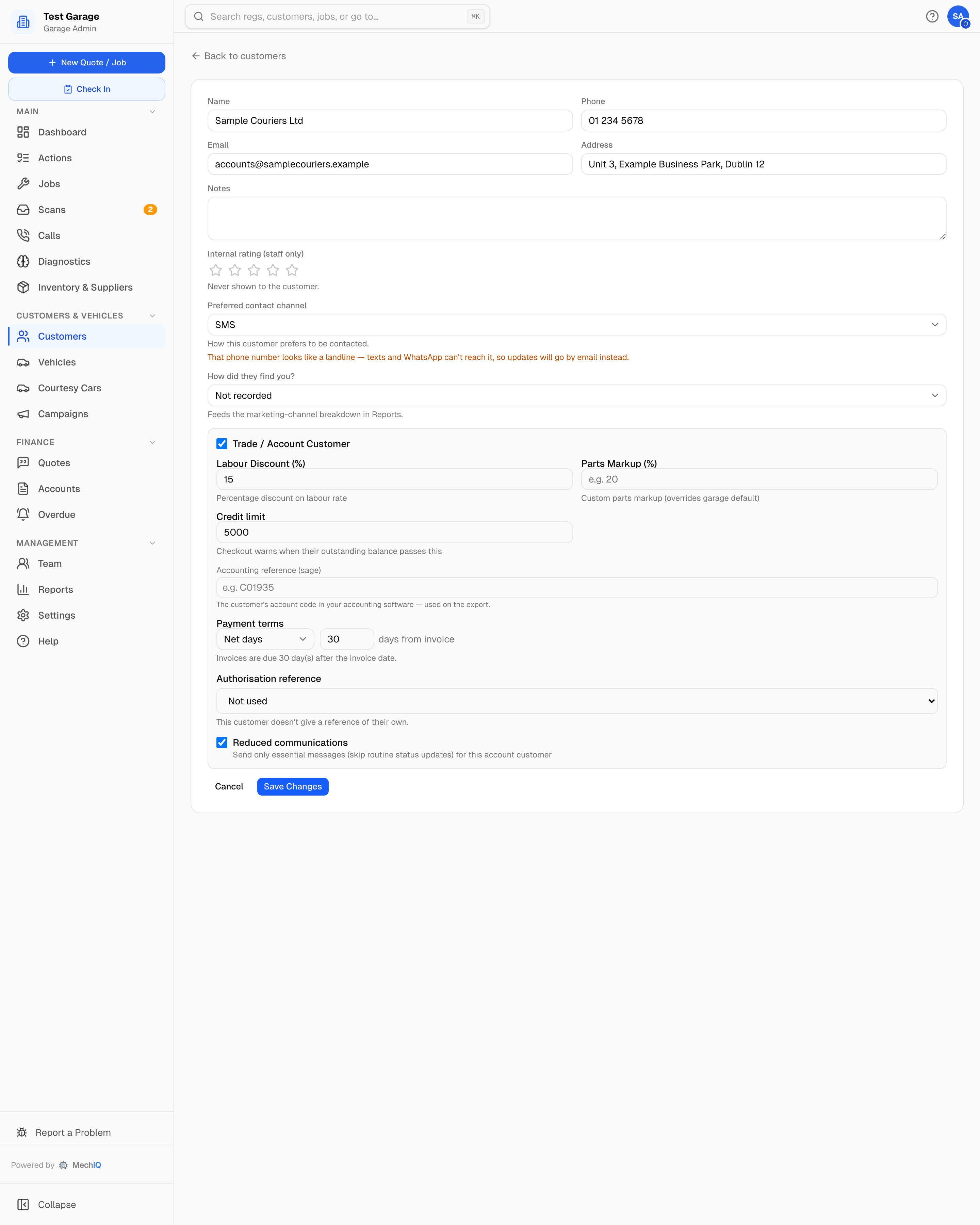
| Setting | What it does |
|---|---|
| Labour Discount (%) | Taken off the labour rate on every job (e.g. 10). The discount reduces the VAT on the labour only (the 13.5% band in Ireland); parts keep their full VAT. |
| Parts Markup (%) | This customer's parts markup, overriding your garage default (e.g. 20). It doesn't apply to a part the desk gave a fixed sell price -- that price stands. A lower markup shows on the invoice as an account discount on the parts, and reduces the VAT on the parts only. |
| Credit limit | Checkout warns when their outstanding balance plus the new work passes this. It warns; it doesn't block. |
| Accounting reference | Their account code in your accounting package. MechIQ assigns the next one at their first export if you don't (C00001..., or the next in your Sage series once you've matched your Sage accounts). |
| Payment terms | Net days -- due a set number of days after the invoice date (net 30 is the default). End of month -- due at month-end, optionally plus a number of months. This sets the due date on every invoice. |
| Authorisation reference | See below. |
| Reduced communications | Send only essential messages and skip routine status updates for this account. |
The customer's page shows an Account badge, a Statement button, and an Account tab summarising these settings.
Authorisation reference
Fleet and trade customers often authorise work with their own reference -- a lease company's order number, a fleet manager's job number -- and won't pay an invoice that doesn't quote it.
- Not used (default) -- nothing is asked for.
- Optional — ask, but don't insist -- front desk is asked at booking but can leave it blank.
- Required — needed to book a job -- a job can't be booked for this customer without one.
Once captured, the reference travels with the work: onto the job, the invoice, and the customer's statement. Set Required for any account that has ever rejected an invoice for a missing purchase order.
How an account customer is billed
Each job is still invoiced as it finishes. At checkout front of house chooses Put on account (Bill to their account -- not a payment) instead of taking payment, and confirms with Put €X on account. No money is recorded: the invoice stays owed in full against the account rather than being cleared at the counter, and the exports send it as unpaid. The Put on account option only appears for customers ticked as trade/account.
Nothing forces an account customer onto the account. Cash, card and bank transfer are still there at checkout, so a trade customer settling a one-off job on the spot is a normal checkout and the next job goes on account as usual. A one-off retail invoice doesn't count as account debt.
Chasing and settling
- Customers → Outstanding Balances -- what each customer owes, aged into current, 30, 60 and 90+ days. Send statements… previews who gets an outstanding-invoices statement by email, lets you untick anyone you'd rather ring (customers only in credit start unticked), and lists who can't be reached (no email, or a bounce). Every customer who owes money, or has money held on account, can be sent one -- account or not; nobody at zero is listed. See Customer statements.
- Statement on the customer's page -- What's owed or Full history for a date range, as a PDF or emailed.
- Finance → Overdue -- the working queue. See Overdue.
- Accounts → Payments → Take payment -- when the cheque or transfer arrives, record it and tick the invoices it covers. See Taking a payment.
An account customer is billed per job: at checkout the invoice is put on their account (Put €X on account -- not a payment; the invoice reads On account and stays owed). There are no periodic statement invoices: they pay from a Statement, which you run for one customer at any time or send to many with Send statements…. The customer's Account tab shows what they owe, their credit limit and their open invoices.
Group accounts
A Group account is a parent account several customers are linked to, set up once for a group of garages by the group owner. (An account set up in this garage only is an Account customer.) It carries its own labour discount, parts markup, payment terms and billing cycle, and those override the individual customer's on that account's invoices. Link a customer under Group Account on their page. See Group accounts.
Auto-approved quotes
Settings → Quotes → Auto-Approve Account Customers lets account customers skip the approval step so work continues without waiting for sign-off. It's garage-wide -- every account customer, or none.
Tips
- Trade discounts come straight off your margin. Set a target profit margin and watch the Financial report.
- Review account discounts annually.
- Auto-approval is all-or-nothing. Leave it off if even one account wants to see a price first.