Visual Diagnosis
The Photo / Video tab on the Diagnostics page lets you capture images or video of vehicle issues and send them to the AI for analysis.
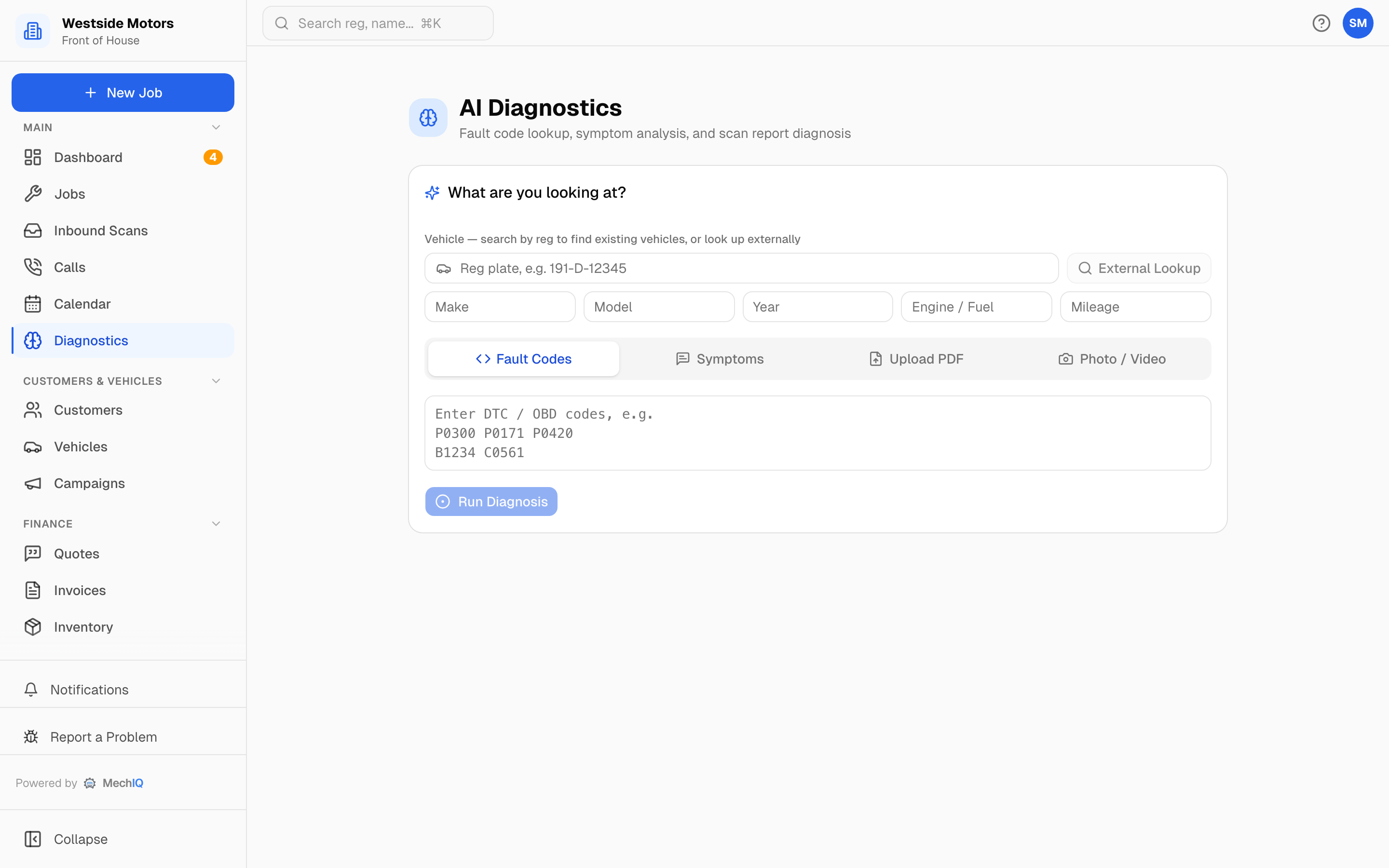 The Diagnostics page, where the Photo / Video tab sits alongside Fault Codes, Symptoms, and Upload PDF.
How to Use Visual Diagnosis
Go to the Diagnostics page.
Select the Photo / Video tab.
Choose your input method:
- Open Camera -- Opens your device's camera to take a photo or record a video directly.
- Upload Files -- Select an existing photo or video file from your device.
Add context if needed -- describe what area of the vehicle you are showing.
Submit for analysis.
The AI examines the image or video and provides its assessment, including what it sees, potential issues, and recommended next steps.
Where Results Appear
Visual diagnosis results are saved to the job if you started from a job context. If you used the standalone Diagnostics page, results are shown inline.
Tips
- Good lighting and a steady hand produce better results. Get close to the area of concern.
- Include a reference point in the photo (e.g. a nearby component) to help the AI understand scale.
- Video is useful for intermittent issues like unusual noises or vibrations.