Suppliers
Every parts supplier, utility company and subcontractor you buy from is a supplier in MechIQ. Suppliers live on the Suppliers tab of Inventory & Suppliers, and each has its own page.
The Suppliers tab
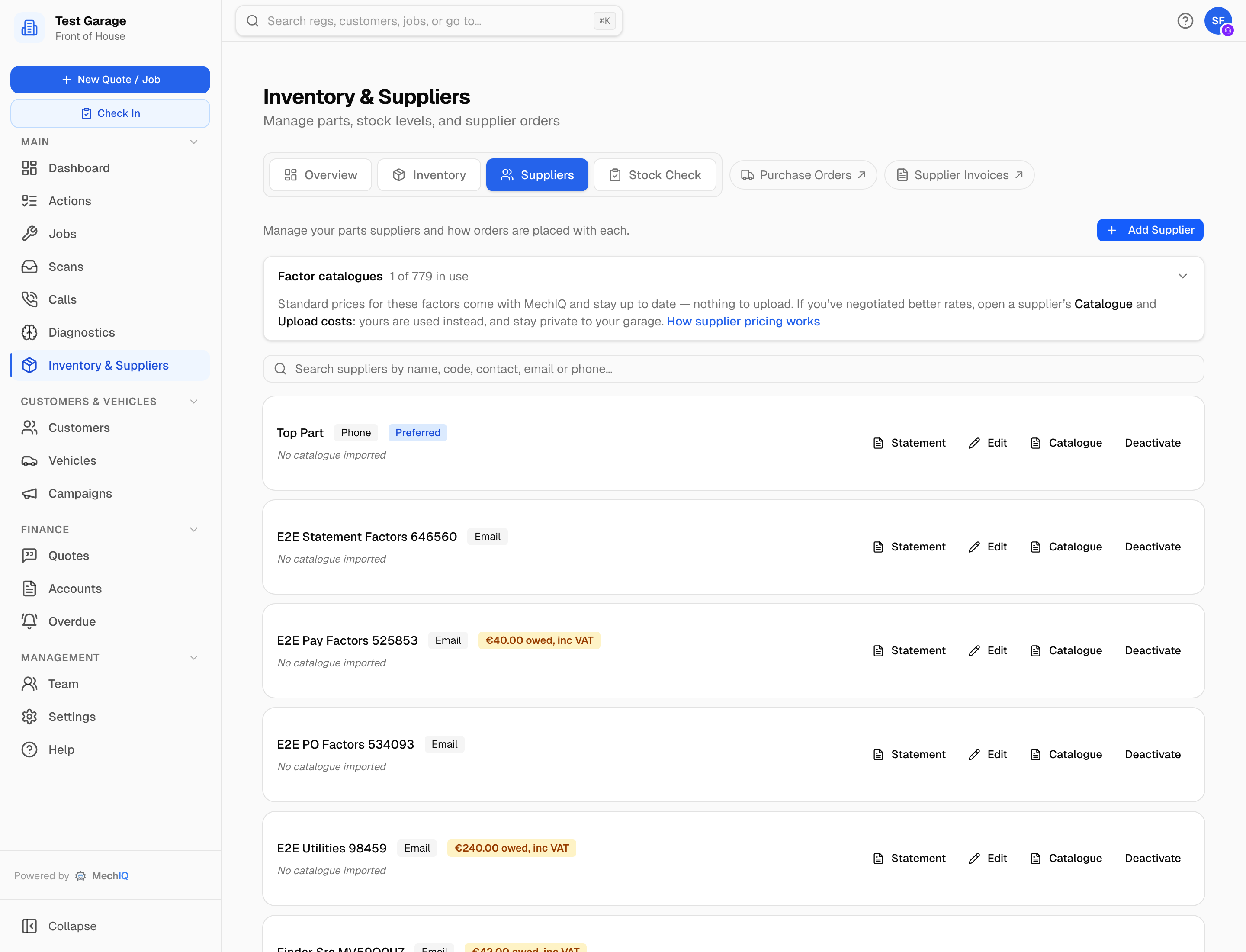
Each supplier card shows:
- The name, how their orders go out (Email, Phone or Online), a Usual supplier badge on your garage's usual supplier, and an amber €X owed, inc VAT badge when you owe them money.
- Contact name, phone and email.
- Their delivery schedule, if set (for example Delivers Tue/Thu · order by 12:00 · 1 day lead).
- Catalogue: N parts, or No catalogue imported. Catalogues arrive by import -- MechIQ does not yet sync one live from a supplier's own system.
Click the card to open the supplier's page. The buttons on the right:
- Statement -- what you owe them. See below.
- Edit -- the supplier form.
- Catalogue -- their parts and prices. See Supplier catalogues and your own pricing.
- Deactivate / Reactivate -- hide a supplier you no longer use. Their history stays. Tick Show inactive suppliers to see them again.
The search box matches name, contact, email, phone and the ledger code from your previous system, across all your suppliers -- however many you imported. The list shows suppliers you use most first and loads them in batches: the line under it says how many are showing (Showing 100 of 600 suppliers), with Show more for the next batch. Wherever you pick a supplier (a new order, a supplier document, splitting an order line), type a few letters to find them.
At the top, the Online suppliers button (beside Add Supplier) opens the list of suppliers MechIQ can order from online. See Online suppliers below. The Factor catalogues card lists every motor factor MechIQ already holds prices for, with a tick for the ones you buy from. Ticking a factor adds them as a supplier. See Supplier catalogues.
If an amber banner says €X owed (inc VAT) on N invoices not linked to a supplier, someone scanned an invoice and skipped the supplier step. Open the invoice from Review in Supplier Orders and say who it came from.
Online suppliers
Press Online suppliers (beside Add Supplier on the Suppliers tab). It lists every supplier MechIQ can order from online: Napa Auto Parts · Parts360 and partslink24. With one of these you find parts in their catalogue from the order box and send the order without a phone call.
Each card says what the supplier gives you and, under You need, what your garage needs first and where to get it. Its badge shows where you are:
- Not used -- your garage does not use it.
- Needs your account details -- your garage uses it, but the supplier's account details are not filled in yet.
- In use -- ready to order.
To use one:
- Press Use this supplier. Anyone at the desk or the garage admin can do this. It is then on for the whole garage.
- For Napa Auto Parts, MechIQ makes the supplier Napa Auto Parts and opens it on the Ordering tab. Fill in your Napa account details there (see Ordering below), then Save Changes. Add your account details on the card opens it again.
- For partslink24, MechIQ makes the supplier Genuine parts (partslink24). There is nothing to enter in MechIQ. See Genuine parts via partslink24.
A supplier whose login belongs to each person (Napa's Parts360) also says on its card whether you have added your own login, and how many people have added theirs. Each person adds their own under My profile → Supplier logins. See Napa Auto Parts · Parts360.
Stop using turns it off for the whole garage. MechIQ asks first. The supplier and its past orders stay. A Napa supplier's orders then go out by email until you use it again.
Adding or editing a supplier
Click Add Supplier, or Edit on a card or on the supplier's page. The form has two tabs: Details (who the supplier is) and Ordering (how their orders go out). Save Changes (or Add Supplier) saves both.
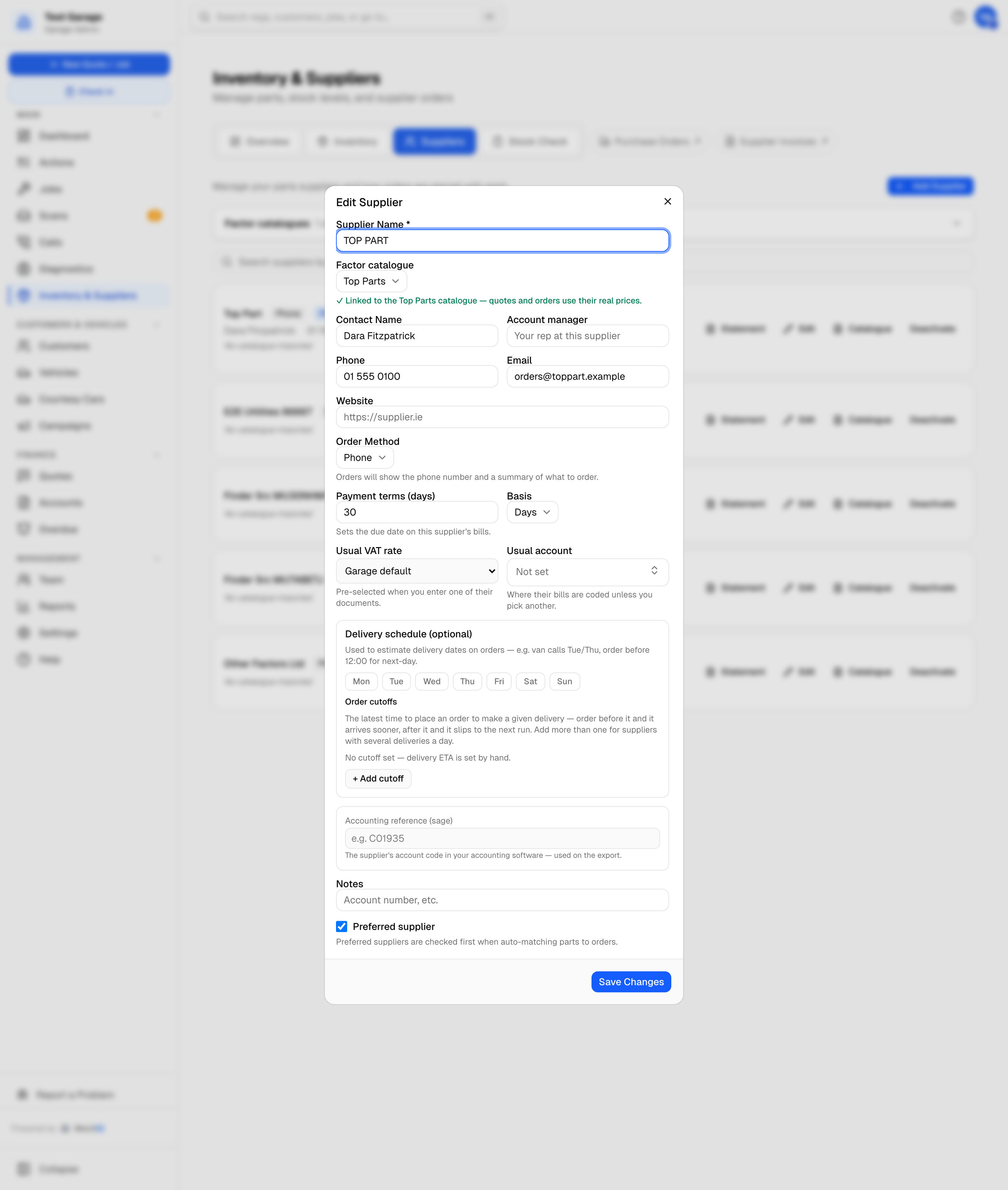
Details
| Field | What it does |
|---|---|
| Supplier Name | Required. |
| Contact Name, Account manager, Phone, Email, Website | Contact details. The email is where an emailed order goes. |
| VAT number | As printed on their invoices. A scanned invoice is recognised by it before anything else -- see Scanning a supplier invoice. Filled in for you the first time you receive one of their invoices. |
| Country | Where the supplier is. It starts on your own country. An EU or GB supplier: VAT on their bills is self-accounted, and MechIQ posts 0 VAT on the bill. Choose Northern Ireland for a supplier there. A supplier set up from a scanned invoice (or imported with no country) takes the country its VAT number starts with (IE, XI, GB or an EU country; EL is Greece). With no VAT number, it is your own country. A country you choose is never changed by a later invoice. |
| Payment terms (days) and Basis | Sets the due date on their bills. Days (e.g. 30) or End of month, optionally plus a number of months. 0 days means you pay at the counter. |
| Usual VAT rate | Pre-selected when you enter one of their documents. Leave on Garage default unless they always charge a different rate. |
| Usual account | The chart-of-accounts line their bills are coded to unless you pick another -- Parts for resale for a factor, Electricity for the ESB. See Accounting settings. |
| Delivery schedule (optional) | The days they deliver and their Order cutoffs (order by 12:00 for same-day, say). MechIQ uses this to fill in the expected delivery date on orders. |
| Accounting reference | Editing only. The supplier's account code in your accounting package, used on the export. MechIQ assigns one (S00001, S00002...) if you don't. |
| Notes | Account number and the like. |
| Usual supplier | Tick it to make this supplier your garage's usual supplier. Your garage has only one. New order lines start with it, and it is checked first when parts are matched. |
Ordering
Set up once. Anyone at the desk or the garage admin can change how orders go out. Only a garage admin can change the price list.
How orders go out. Every order is put together in the same Order parts box; this only decides how it leaves:
- Email / PDF -- the usual way. The purchase order goes to the supplier's Email on the Details tab (there is no second order address to keep up to date). Order parts sends it at once -- MechIQ emails it, or you send it from your own email (see Email orders in Workshop Options).
- Phone -- you ring the order in (or type it into the supplier's own website). The order box shows their number and the list to read out. Press Phoned in when you have rung it in.
- Online (Napa Auto Parts · Parts360) -- shown only on a supplier your garage uses from Online suppliers. Order parts places the order in their system for you. On any other supplier, the tab says to use the supplier from Online suppliers at the top of Inventory → Suppliers.
For a supplier used from Online suppliers, the tab also has:
- Find parts in the Napa Auto Parts · Parts360 catalogue from the order box -- adds Find in Parts360 to the order box.
- The garage's account details, each with a note saying where to get it. For Napa: Account code (your Napa account number -- on your Napa invoices and statements, or ask your Napa account manager) and Country (where your Napa account is: Ireland (IE) or the UK (GB)).
- A note that each person signs in with their own login, added under My profile → Supplier logins, and how many people have added theirs.
Price list. Shown only for a supplier MechIQ holds a published price list for -- today, Top Part. The supplier's name finds it ("Top Part", "Top Part Ltd" and "Yenom Ltd t/a Top Part" all do). Prices from Top Part's published price list is on by default: their prices are used in quotes, part options and the parts search. Untick it if you never buy from them at those prices. Ordering from them is not affected. See Supplier catalogues.
A new supplier's orders go out by email until someone changes it. A supplier created from a scanned invoice is set to Phone.
A supplier can also be created from an invoice you scan -- see Scanning a supplier invoice.
The supplier page
Click a supplier card, or a supplier name anywhere in MechIQ.
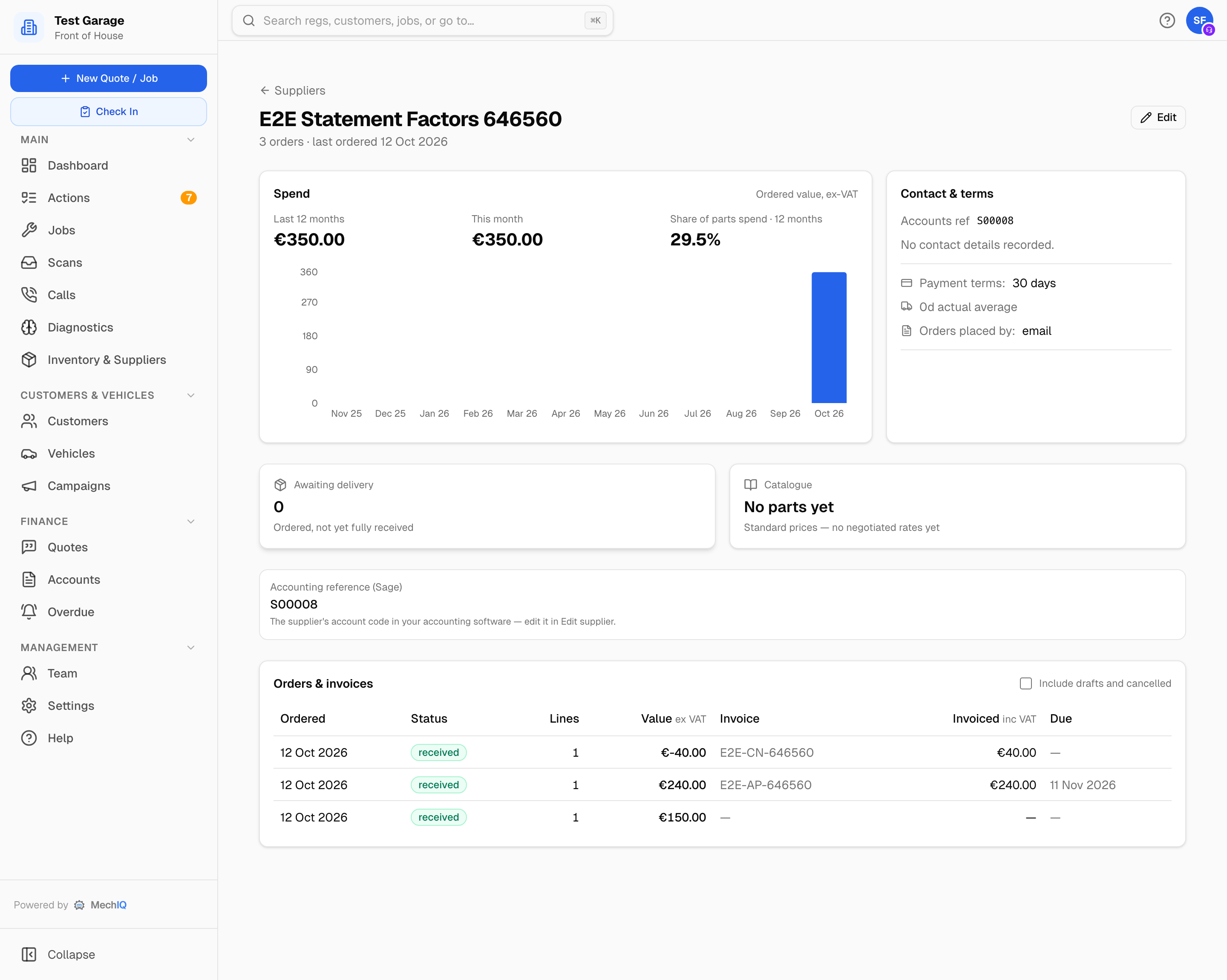
- Spend -- ordered value ex VAT for the last 12 months and this month, their share of your parts spend, and a monthly chart.
- Contact & terms -- contact details, Accounts ref, Payment terms, delivery schedule, actual average delivery time, and Orders go out (Email / PDF, Phone or Online -- set in Edit → Ordering), and Country with what it does to the VAT on their bills. You can change the country there; it says From their VAT number when it came from that.
- Awaiting delivery -- orders placed but not fully received. Click it to jump to the orders table.
- Catalogue -- how many parts they list and whether you have negotiated rates. Click it to open the catalogue.
- Accounting reference -- the account code used on the export. Change it in Edit.
- Orders & invoices -- every order and captured bill, newest first: Ordered date, Status, Lines, Value (what was ordered, ex VAT), the supplier's Invoice number, Invoiced (the bill's total, inc VAT) and the Due date. Overdue bills say so in red. Tick Include drafts and cancelled to see everything. Click a row to open the order.
When you owe this supplier money that's overdue or due within a week, a banner at the top says so. Click View statement to open the statement.
Edit (top right) opens the supplier form.
Your usual supplier
Your garage has one usual supplier. It is your garage's choice -- MechIQ never picks one for you. Set it in either place:
- On the Suppliers tab, Usual supplier at the top. None -- lines start blank means rows start blank. A garage admin sets it.
- The Usual supplier tick on the Details tab of Edit supplier.
Every new row of Order parts starts with the usual supplier, unless the part has its own supplier on the parts list. Anyone can still change a row. In the supplier list of the order box, the usual supplier is first.
There is no separate Preferred supplier any more. If your garage had a Preferred supplier, it is now your usual supplier.
The order box's supplier list shows each supplier's route: Online, Email, Phone, or No contact when there is no email address or phone number. You can add the missing email address or number in the order box.
The statement
Click Statement on the Suppliers tab, or View statement on the supplier's page.
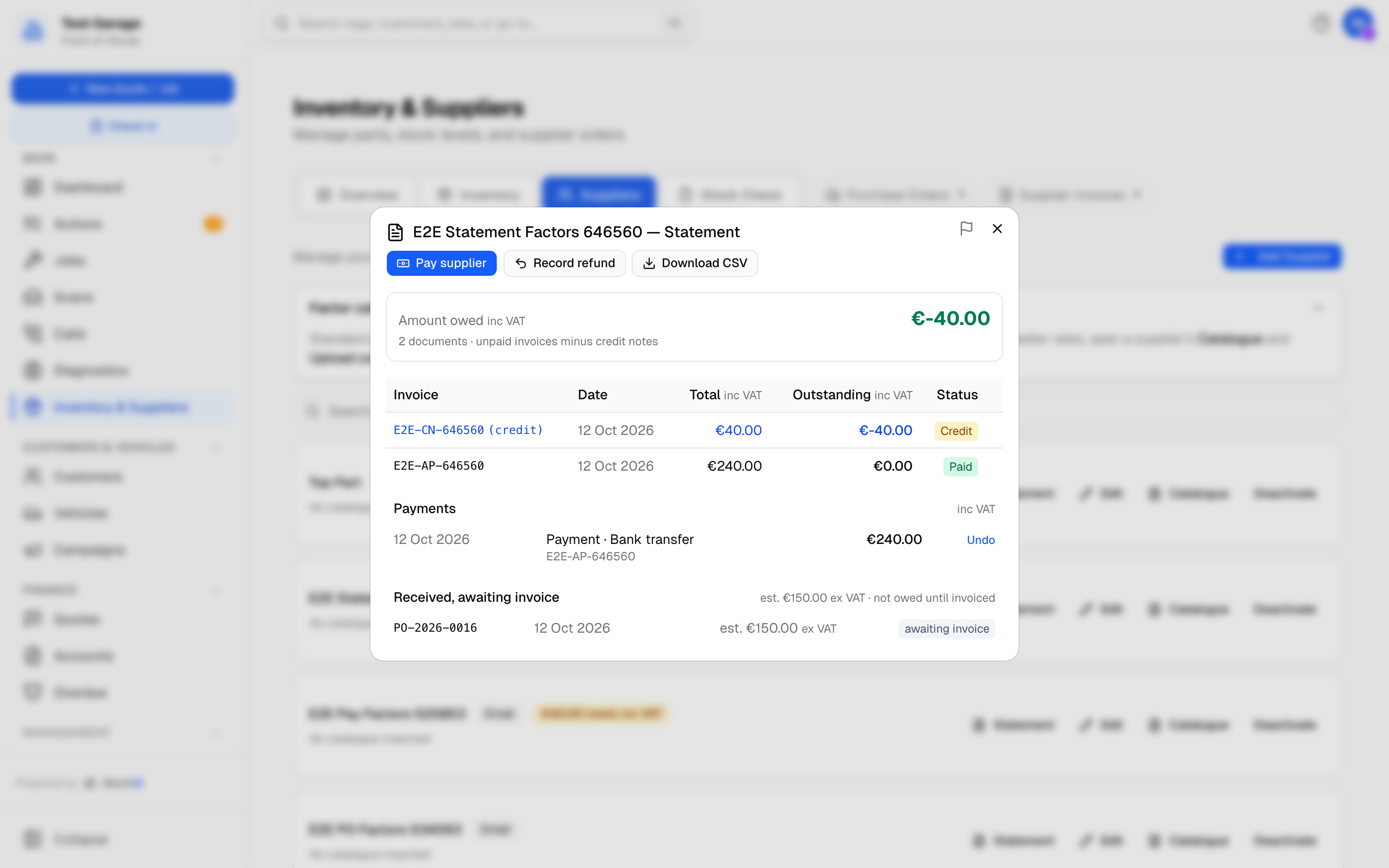
- Amount owed (inc VAT) -- unpaid invoices minus credit notes, minus any money you hold on account with the supplier.
- On account with supplier -- money you paid them that isn't against a bill yet (an overpayment). Shown only when there is some.
- Settlement discounts taken -- the total of discounts on their bills, when there are any.
- One row per document: Invoice, Date, Total and Outstanding (both inc VAT), Status (owed, part paid, paid, void). Credit notes are shown in blue with (credit) after the number and a negative outstanding amount. A bill settled partly by a discount shows €X discount under its outstanding amount.
- Pay on an unpaid invoice opens the payment screen with that bill ticked.
- Payments -- every payment, discount and refund for this supplier: the date, method, reference, which bills it paid, and anything it left on account. Undo reverses one entered in error. It stays listed, struck through, with the reason.
- Pay supplier and Record refund at the top. See Paying suppliers.
- Download CSV gives you the statement as a file with columns Document, Type, Date, Total, Paid, Of which discount, Outstanding, Status, Paid on -- handy for reconciling against the supplier's own statement.
Click a row to open the underlying order or bill.
Bills get onto the statement three ways: receiving an order and capturing its invoice, scanning an invoice, or adding a supplier document by hand. Payments you record here reach your accounting package in the next Export to accounts ZIP (Sage types PP, PA, PD and PR). See Paying suppliers.
Duplicate suppliers
An imported ledger often carries the same trader twice. When MechIQ spots rows that look like the same supplier, a possible duplicate suppliers card appears on the Suppliers tab for garage admins. Choose which row to keep. Everything from the other row moves across and its old name and code are kept as aliases, so a future invoice under the old name still matches. Only a garage admin can merge, and it can't be undone. See Supplier catalogues.