Inventory
Inventory & Suppliers in the sidebar is where your parts stock lives. Garage admins and front of house see it; technicians don't.
It has these tabs:
- Overview -- where you land. Is anything wrong? Low stock, deliveries due, stock held for jobs, what you spend and what you use.
- Inventory -- the catalogue and stock levels. This article covers the Overview and Inventory tabs.
- Charges -- the consumables charge and your charges & levies (CVRT test, tyre disposal levy). They are pricing, not stock, so they are never in the parts list. See Charges, Levies & the Consumables Charge.
- Deliveries -- book in a supplier's delivery when the van comes: one docket or invoice, whatever jobs it covers, in one go. See Purchase orders and receiving.
- On order -- every purchase order sent to a supplier that has not all come in. You receive deliveries here. See Purchase orders and receiving.
- Suppliers -- who you buy from. See Suppliers.
- Stock count -- the daily count. See Stock count.
Purchase orders and supplier invoices are on the Accounts page (its Purchase orders and Supplier invoices tabs), because they are money documents. See Purchase orders and receiving and Supplier invoices.
The Order basket button sits at the top right of every Inventory tab, with the number of parts in it. See The Order basket below.
The Overview tab
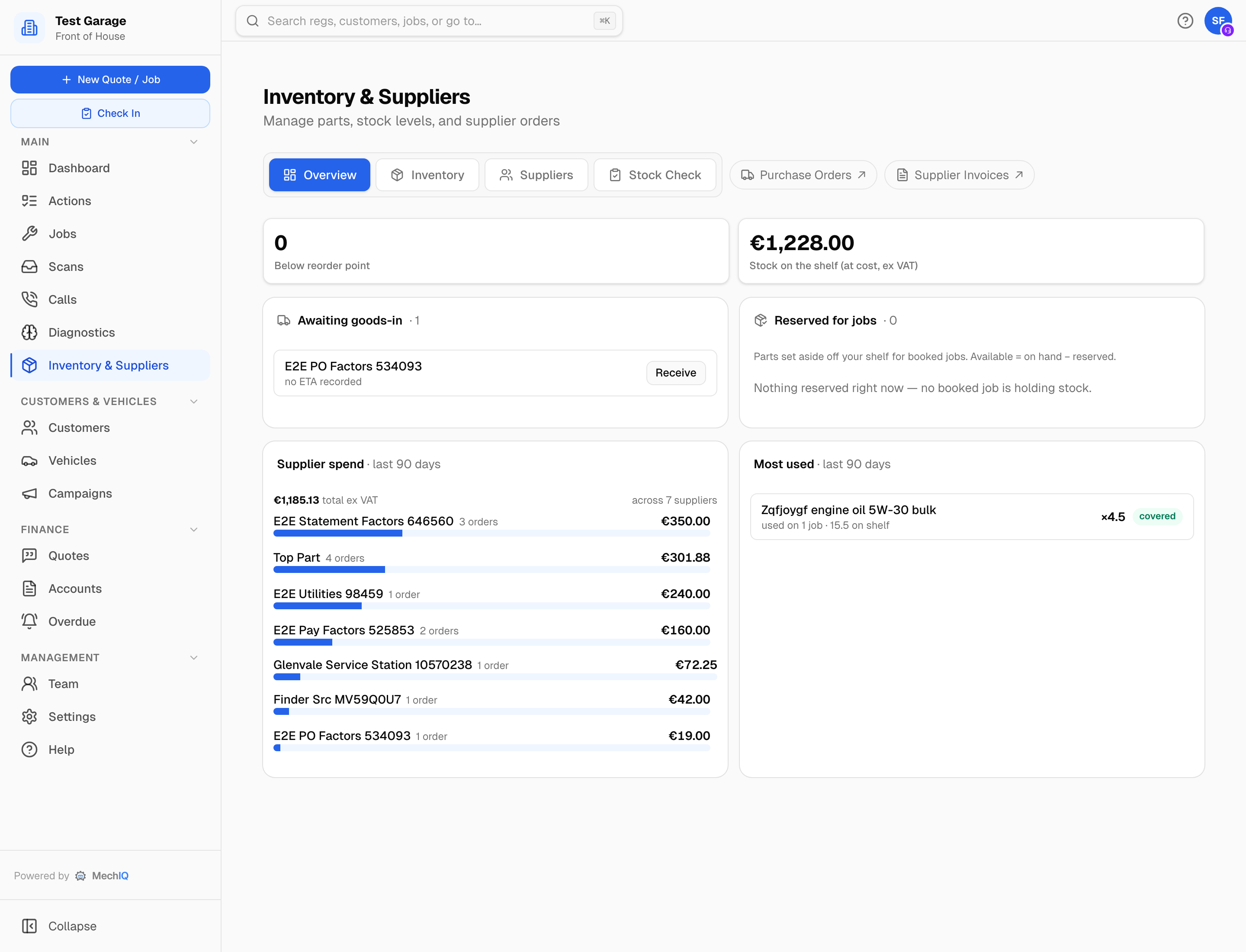
- Below reorder point -- how many parts have dropped under their reorder point. Amber when it's more than zero. Click it to open the Inventory tab filtered to those parts.
- Stock on the shelf (at cost, ex VAT) -- the value of what you hold, at cost. Click it to open the Inventory tab. A part with no cost set is not counted; the tile says how many there are.
- Awaiting goods-in -- orders that are Ordered, Shipped or Partially Received. Each shows its expected date (or "no ETA recorded") and an overdue badge when the date has passed. Receive opens the Deliveries tab for that supplier.
- Reserved for jobs -- parts set aside from your shelf for booked jobs. Available = on hand − reserved. Click a row to open the job.
- Supplier spend · last 90 days -- what you've spent (ex VAT), by supplier, with a share bar. Click a supplier to open their page.
- Most used · last 90 days -- the parts going out on jobs most often, each with a verdict: covered, reorder point looks low, or stock won't last the month. When anything is below its reorder point, an Order low stock (N) button appears here. It puts those parts in the Order basket and opens it, so you check the supplier, quantity and cost before anything is created.
The Inventory tab
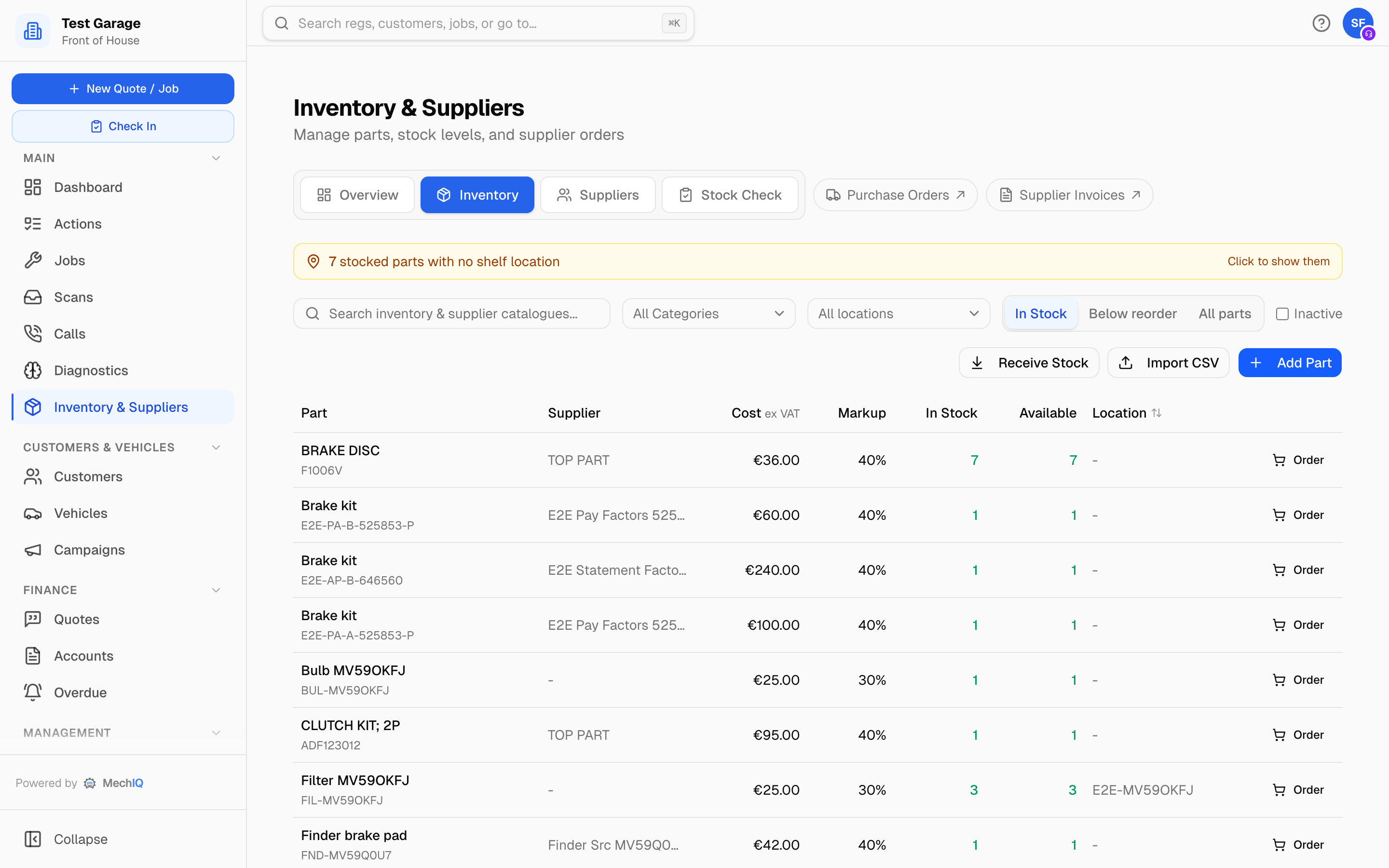
Finding a part
- Search parts, numbers, shelves… searches your parts by name, number or shelf. A part number can be typed with or without spaces or dashes. Once you've typed two characters a Where to get this part list appears under the table -- see below.
- All Categories -- the list is built from the categories your parts actually use.
- All locations -- every shelf with its part count, plus No location (N).
- In Stock / Below reorder point / All parts -- In Stock is the default. A part you have just added is shown at once (the list switches to All parts, searched to it), because a new part has no stock yet.
- Inactive -- tick to include parts you've deactivated.
Two banners appear when they apply. Below reorder point (N) lists each part below its reorder point with its count and shelf -- click it to filter the list. N stocked parts with no shelf location -- click it to list exactly those parts.
Reading the table
| Column | What it shows |
|---|---|
| Part | Name, part number and category. |
| Supplier | The part's usual supplier. (Hidden on a narrow screen.) |
| Cost | Your unit cost, ex VAT (every cost in Inventory is ex VAT). Cost not set when you don't know it yet. |
| Markup | The part's own markup, or the markup your garage's policy gives it (40% policy) when it has none of its own. (Hidden on a narrow screen.) |
| In Stock | On hand. |
| Available | On hand minus what's reserved for booked jobs. Red when it's at or below the reorder point. Never below 0: if jobs hold more than is on the shelf, the row says N short -- order that many. |
| Location | The shelf. Click the heading to sort by shelf instead of stock. |
Click anywhere on a row to edit the part. At the end of the row, Order adds the part to the Order basket and Adjust corrects its stock (see Adjusting stock below).
The list shows 200 parts at a time, with Showing N of M parts and Show more at the bottom. Search, category, stock and shelf filters all look through the whole catalogue, and the category list includes every category you have.
Adding a part
Click Add Part. Part Number and Name are required. Unit cost (ex VAT -- what you pay before VAT) is optional: leave it blank if you don't know it yet. The part then shows Cost not set -- it is never priced at €0. The first cost you type on an order, a delivery, or a supplier price list fills it in. You can also set Description, Category, Markup %, Usual supplier, VAT rate, Supplier Part No, Reorder Point (5), Reorder Quantity (10), Minimum Level (safety floor) and Location (shelf / bin).
- Markup % starts empty: the part then follows your garage's markup (Settings → Pricing -- the markup bands, else the default markup). The box shows which figure that is today, for example Garage policy (40%). When you change your garage's markup, every part with an empty box follows. Type a figure only for a part you price differently.
- Usual supplier is picked from your supplier records. Type to search. A supplier you have not set up yet: type its name and choose Add supplier "…" in the list -- the supplier form opens with that name, and the new supplier is chosen when you save it.
You don't have to add a part before you can receive it -- see Receiving a part that isn't in your catalogue below.
Editing a part
Click the row. The Edit part dialog has the same fields, a Price changes (N) list (who changed the cost, markup, VAT rate or reorder figures, when, and from what to what), and a Where to buy panel listing the suppliers who have supplied or list this part, with the last price you paid. Under Unit cost, Last paid shows the most recent supplier price for the part and where it came from (delivered, catalogue basket, price list, supplier's system, or typed on an order).
Markup % and VAT rate are used every time the part goes on a job or a quote:
- Markup % -- what is added to the cost. Empty = your garage's markup policy. Charges you pass on at cost (a CVRT test fee, a levy) are not parts -- set them in the Charges tab.
- VAT rate -- Garage default (23%) (the option shows the rate the part gets today: its category's default from Settings → Tax & VAT, else your standard rate) or one of your rates. Give the part its own rate when it needs a different rate from the rest of its category, for example a CVRT test or a levy at standard rate in a category you've zero-rated. FOH can still change the rate on a single line.
Counted in -- Units (the default) or Litres, for oil, coolant, brake fluid, AdBlue, gearbox oil and screenwash you buy in cans or drums. For a part counted in litres, set Litres in one container (can / drum) -- for a fluid whose name states a size ("Engine Oil 5W-30 (5L)") the box is filled from the name. Then:
- the stock, deliveries, jobs and stock counts are in litres. A 5 L can delivered is recorded as 5 L, not 1 can; a 5.2 L fill on a job takes 5.2 L off; a part-full drum is counted as the litres in it (12.5);
- the cost, the reorder point, the reorder quantity and the minimum level are per litre / in litres;
- an order to the supplier goes in whole containers: 40 L of a 20 L drum orders 2 drums at the drum's price;
- the list shows litres first, the containers in brackets: 42.5 L (8.5 × 5 L).
Switching an existing part to litres converts it once, and a confirm says how before anything changes: the count on the shelf × the container size (3 cans of 5 L = 15 L), the cost ÷ the container size (€44.80 a can = €8.96 a litre), and the reorder figures × the container size. The stock ledger keeps a line that says so. Parts left on Units work exactly as before.
Buttons along the bottom:
- Deactivate Part / Reactivate Part -- there is no delete. A deactivated part is hidden unless you tick Inactive.
- Add to Order -- puts it in the Order basket.
- Adjust stock -- corrects the count on the shelf (see Adjusting stock below).
- Assign to Job -- search active jobs and add one of this part to the job at its cost. A part with no cost set is refused: set its cost first.
Receiving stock
Receive opens the On order tab. Receive a delivery against its order there, scan the supplier invoice with Scan supplier invoice, or use Receive without an order for walk-in stock. See Purchase orders and receiving.
Receive without an order is for walk-in purchases or items not on an order. Choose the Part, the Quantity and the Location (shelf / bin), then Receive.
Receiving a part that isn't in your catalogue
In Receive without an order, open the Part dropdown and choose + New part — not in catalogue. Enter the Part Number and Name (category and unit cost, ex VAT, are optional), the quantity and the shelf, then Receive. The part is added to your catalogue and the stock booked in -- one step, not two.
The Order basket
There is one way to order parts, whatever the supplier. The Order basket opens the same order box you use for a job's missing parts -- see Job parts and ordering.
- Order on a row (or Add to Order in the edit dialog) adds the part to the basket at its reorder quantity. The Order basket button at the top of Inventory shows how many parts are in it.
- Click Order basket. Each part is a row: Part number, Qty, Supplier and Unit cost (ex VAT). The supplier starts at the part's own supplier, and the cost at the last price you paid (else the part's cost). Change any of them. A part with no cost set says so -- type its cost.
- Under the cost, the chosen supplier's own recorded price shows with where and when it was seen. Use puts it on the line.
- Choose the supplier with Supplier for all lines in the Supplier column heading, or on each line. The supplier list shows your usual supplier first, then the suppliers you ordered from recently. Show all suppliers shows the rest. Each supplier shows Online, Email, Phone or No contact.
- Remove from basket takes a row out. Empty basket clears it. A row with no supplier is not ordered. It stays in the basket.
- Press Order parts. MechIQ makes one purchase order for each supplier, linked to no job, and sends it at once -- online, by email or by phone. See Job parts and ordering. Save for later keeps the orders without sending them. They open again in the box.
If your garage uses Napa Auto Parts from Online suppliers (Inventory → Suppliers), its order is placed with Napa online. Once a row goes to Napa, Find in Parts360 in the box opens their catalogue (with no car) to add parts. See Napa Auto Parts · Parts360.
Parts you order leave the basket; the rest stay. The basket is held in this browser tab while you move between pages -- order the parts before you close the tab.
Adjusting stock
To correct one part's count without a full stock check, click Adjust on its row (or Adjust stock in the edit dialog).
- Type the New quantity on the shelf. The change shows under it.
- Choose Why: Counted, Damaged, Found, Used without a job or Other. Other needs a note.
- Click Save adjustment.
The change is recorded in the part's stock history with the reason, the note and who made it. If the stock went up, jobs waiting for this part are checked again, and a waiting part shows In stock when there is enough. Counted also records the count, like a stock check. Garage admins and front of house can adjust stock.
Where to get this part
Type at least two characters in the search box and a Where to get this part list appears. It searches every supplier's published range, your uploaded price lists and your order history, and shows the price with where it came from: last paid, ex VAT, your cost, ex VAT, or their RRP (as the supplier's file gives it). Chips show Ordered N× · last date, In your price list, or Their published range — you haven't costed this yet.
Click a row to put that part in the Order basket at that supplier and price. The order box opens on it.
Importing parts from a spreadsheet
Click Import CSV.
- Import Parts from CSV -- drop a
.csv,.tsvor.txtfile, or Browse Files. From Excel, save the sheet as CSV first (File → Save As → CSV). - Map Columns -- MechIQ matches your headings to its fields automatically. Part Number and Part Name are required. Optional: Unit cost (trade price, ex VAT) -- a blank cost imports as Cost not set, never €0 -- Description, Category, Markup % (blank = your garage's markup), Supplier (linked to your supplier record of that name when there is one), Supplier Part Number, Reorder Point, Reorder Quantity, Qty on Hand, Shelf / Bin Location. A column headed Location, Bin, Bay, Shelf or Rack is picked up as the shelf.
- Preview Import -- valid rows and skipped rows. Tick Update existing parts if part number already exists if you're refreshing prices rather than adding new parts.
- Import N Parts, then Done.
Shelf locations
Every stocked part can carry one shelf label (for example A3 or Rack 2 / Bin 12). Its value is in being consistent, so MechIQ helps:
- Wherever you type a location, the box offers every shelf already in use. Spaces are tidied and
a3becomesA3if that shelf exists. - Receiving against an order or an invoice shows each line's shelf. Confirm it or key a new one as you put the parts away.
- The Stock count lets you fix a wrong shelf while you're standing at it.
- The shelf shows on the parts list, low-stock alerts, the technician's suggested parts, the picking list and the job's parts panel.
A job's own Parts bin (where a job's boxed-up parts wait) is a different label from the stock location.
When stock moves
- Up when you receive an order, an invoice or a manual receive.
- Reserved when a part from your parts list goes onto a job, or when the parts check finds a job's part on the shelf. On hand does not change. Reserved stock just isn't available to anyone else (available = on hand − reserved).
- Down when the job is marked Collected -- what the job reserved comes off on hand then. Nothing is ever deducted twice, and a job never takes a part held for another car: if a line was still To order and the only one on the shelf is held for someone else, it is not taken off and the job's History says Stock not taken -- count the shelf.
- Corrected when a stock count is submitted (the ledger says Counted), or when you Adjust a part's stock.
So every part a job uses shows as reserved until the car goes out, whichever way it went onto the job.
Bulk oil and other fluids
Fluids are stocked by the litre (refrigerant by the kg), so stock can read 15.5. A job that uses 4.5 L of your bulk oil takes 4.5 off; a manual receive or a stock check can be keyed as 20.5. Other parts stay in whole units -- a stock check of 1.5 brake pads is refused.
Supplier orders are always whole packs. When a fluid is ordered as a pack that names its size (… 5L), receiving one can adds 5 L to the shelf and its price is recorded per litre (a €40 can is €8 a litre). A Garage Hive import keeps part-litre stock exactly as your file has it.
Sundries
Small items nobody bills individually -- seals, clips, washers, fluids -- are covered by the Consumables / Sundries Charge in Inventory → Charges: no charge, a percentage of the job total (with an optional cap), or a flat fee per job. Whichever you choose shows as a line on every quote and job and goes onto the invoice; the front desk can remove it from a particular quote or job (see Quoting).
Tips
- Keep part numbers consistent. The same part under two numbers shows as two parts.
- Set a reorder point on anything you'd hate to run out of. That's what drives the Overview tile and Order parts below reorder point.
- Give every stocked part a shelf. The picking list can't place a part that has none.
Charges are not stock
A CVRT test fee, the tyre disposal levy or a disposal fee is a charge, set in the Charges tab -- not a part. It is never in this list, the stock count, the reorder list or the value of your stock. A note above the list says where charges are, and how many are switched on with no price yet. See Charges, Levies & the Consumables Charge.