New job
A customer rings and asks "how much for front pads and discs on a 2021 Yaris?". New job -- the blue button at the top of the sidebar -- answers that. It is the single entry point for both quotes and jobs: price the work first, then decide whether to save it, book it, or bin it. Nothing is saved until you choose.
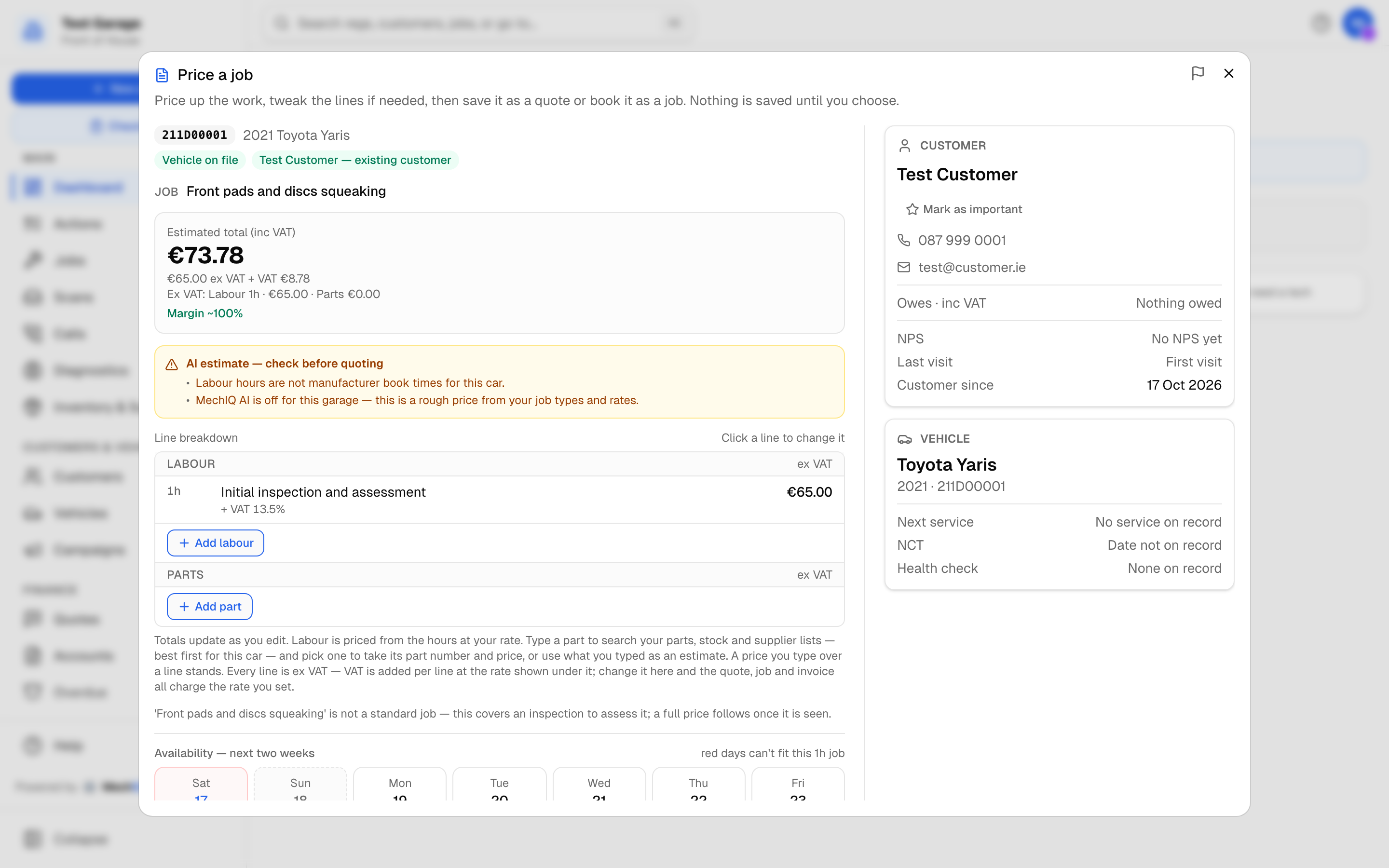 A priced enquiry for a car already on file. The total and margin, what to check, the lines with their part numbers, and the customer and car beside them.
Getting a price
- Click New job.
- Enter the Reg and press Enter (or the search button). MechIQ checks your own records first, then its registration lookup. A car it can identify fills in the make, model and, if you have seen it before, the owner. If the plate can't be placed, the Make, Model and Year fields open for you to fill in. Plate not found? Click Can't find the reg? Name the car instead -- you still need at least a make and model. No registration at all -- a counter sale, a trailer, a wheel brought in? See No registration below.
- Optionally pick a job type from your garage's list. One booking may hold several ("Full Service + Brake Check"): pick the first, then Add another job type. Each job type brings its own lines, hours and VHC rule. Remove a job type with the x on its chip; with none picked, the price comes from the description alone.
- Optionally enter the Mileage -- a cambelt at 140,000 km is a different job from the same words at 40,000 km.
- Describe the work in What does the customer need?. You need either a job type or a description.
- Click Get a Price. The estimate usually takes under a minute; the wait message tells you what MechIQ is doing (identifying the car, checking manufacturer repair times, pricing at your rates).
The price comes from MechIQ's AI using your own setup -- labour rate, parts catalogue, markup and past jobs -- so it reflects what you would actually charge.
No registration
Some work has no plate: a counter or parts sale, a trailer, an unregistered or imported car, a part or a wheel brought in off the car, a bike. Don't type a made-up reg such as NOREG -- MechIQ refuses those, because one shared "no reg" vehicle ends up being moved from customer to customer.
- Click No registration -- counter sale, trailer, wheel only under the Reg box.
- Optionally say what it is in No registration -- what is it? (for example Trailer or Wheel only). It has a reg after all takes you back to the Reg box.
- Describe the work and click Get a Price as usual. The result shows No reg and what it is; the price is from the description, so check the lines.
- Click Book. The New job dialog opens on Customer -- there is no car to identify. Pick or add the customer and click Next: it goes straight to Confirm. A no-reg booking is a counter sale, so it is booked for today, any time -- there is no day to pick and no drop-off window. To book it for another day, click Change beside the date on the Confirm step.
The job is booked for that customer against their own no-reg record (one per customer for each thing you name, so a customer's trailer keeps its own history). Everywhere a registration would show -- the job page, the jobs list, the board, the invoice -- it says No reg and what it is. Registration lookups, MOT/NCT and service reminders don't apply to it. Save as quote stays reg-only: a no-reg price is booked for a customer rather than saved for a ring-back. Search no reg on the jobs list to find these jobs.
If the item gets a registration later (an import that's now registered), edit the vehicle and add the reg -- from then on it is an ordinary vehicle.
Who the car belongs to, before you price it
On a computer or tablet the dialog opens wide, with a panel on the right. As soon as the reg matches a car on file -- before you click Get a Price -- it shows the owner (Important flag, phone and email, what they owe or have on account, NPS, last visit, customer since) and the car (what's due, advice from earlier visits not yet done, and any job already open on it). It is the same panel the New job dialog shows; see Creating a Job for what each line means. On a phone, tap Customer & vehicle on file to open it.
Reading the result
- The reg chip and car description, with pills for Vehicle on file or New vehicle -- not on file yet, and either the matched owner (Test Customer -- existing customer) or Likely a new customer.
- Job -- the job type and/or the request you typed, so you can see what the price is for.
- Estimated total (inc VAT) in large type, then the same total ex VAT plus the VAT, then the ex-VAT split -- labour hours and total, parts total and your garage's Consumables charge (if it charges one -- the same charge the invoice will carry) -- and a Margin ~N% line (parts profit plus labour, against your garage's target margin -- amber, with below your target, when it falls short). It is worked out from the lines as they stand, so your edits count.
- Pricing rationale (internal) -- the AI's staff-only reasoning, when it gives one. Never read this to a customer.
- A grounding badge: green when labour is on manufacturer book times and parts are catalogue-priced for this exact car; amber AI estimate -- check before quoting on an identified car, or Indicative only when MechIQ had to price from the make and model. The badge lists exactly what is not verified.
- Book times are checked by MechIQ, not left to the AI. A labour line that matches a manufacturer operation is charged at book time plus your garage's uplift, even when the AI splits it into steps. A line with no operation keeps the AI's hours and is marked no book time. If the manufacturer lists a part an operation needs and the AI left it off, MechIQ adds it with no price yet, and the badge says so. Fluids go on at the car's capacity from HaynesPro. Coolant is the total mixed fill, named with HaynesPro's spec; if the spec depends on a build date MechIQ can't see, both are named for you to confirm. A fluid with no known capacity shows Confirm where the quantity would be. It has no price until you set one, and the quote can't be sent or the part ordered until you type the quantity or change the line's name. When a car has no book times to check against, the badge says Not checked against book times and why.
- A per-car service with no parts of its own. When the job type is priced Per-car, from the manufacturer's schedule and has no menu parts, its parts come from HaynesPro's schedule for this car: the renewals due at its age and mileage (oil, filters, fluids), each priced from your catalogue and price lists, with fluids at the car's capacity. The AI never makes up a service's parts list. The schedule goes by mileage: with no mileage, the price says so and shows a Mileage box -- type it and click List the service parts. If HaynesPro can't identify the car, the badge says so and the parts are left for you to add. A renewal nothing could price shows Needs a price. Oil and other fluids are named with HaynesPro's spec (grade and approval). When the spec depends on something HaynesPro can't tell for the car (with or without a diesel particulate filter), the line names each one and says confirm which for this car. A catalogue part prices the line only when its grade or approval is one of HaynesPro's. Renewals the schedule lists as "if needed" (pollen filter, brake fluid, timing belt) are not added: the badge lists them as Also on the manufacturer's schedule if needed, and the job's check-in notes do the same. A job type of any other kind with no parts (wheel alignment) gets no parts. Online prices never look the car up for this: they use only what MechIQ already holds.
- A service named in words. Type "full service" with no job type picked and your Full Service job type's fuel parts still apply: on a petrol car its spark plugs, on a diesel its fuel filter. If the AI left that part off, MechIQ adds it with no quantity and no price, and the badge says so. A diesel or an electric car never gets spark plugs. If the car's fuel isn't known, the badge names the parts left off.
- The Line breakdown -- labour lines with their hours, parts lines with their quantity. Every part line shows its part number under the name, so you can check it against your supplier. A part with no number says no part number -- confirm with your supplier. Parts the AI priced itself carry an est. badge; a red check price badge means your catalogue and the estimate disagreed badly -- decide which is right.
- The AI's notes underneath (assumptions, what could add labour, related work worth mentioning).
AI part pricing is being rolled out garage by garage. The AI always identifies the car, builds the job and works out the labour at your rate -- that never changes. Until AI part pricing is switched on for your garage, a part line gets its part number and price only from your parts catalogue and your suppliers' published price lists -- never a guess. A part nothing can price yet shows Needs a price instead of an amount, and the grounding badge says AI built the parts list -- part numbers and prices come from your catalogue and price lists; lines without one are left for the desk. Price a Needs a price line yourself before quoting or booking it -- the same way you would any part with no number.
When the price didn't come from the AI the badge says why, not just that something went wrong:
- MechIQ AI is off for this garage -- this is a rough price from your job types and rates when AI is switched off.
- Practice garage -- today's AI calls are used. This is a rough price from your job types and rates until tomorrow when a practice garage's daily AI limit is used up.
- The AI estimate failed; this is a rough fallback price for a genuine runtime failure (a timeout or an upstream error).
Whichever reason it gives, the fallback prices what you asked for the same way: the job type you picked first -- its own default lines, or its hours as one labour line, with its own default parts (set them in Settings -> Job Types so a fallback price is complete) -- then only the work your text names, on the axle it names (front, rear or both). A symptom on a check job ("rear grinding noise" on a Brake Check) adds nothing: the check is what finds it. It never adds a "quote preparation" or diagnostic line to a service. The fallback stays flagged on the saved quote, the quote and the booked job, so you and MechIQ's reports can see which prices were not the AI's, and why.
Three amber or red panels can appear above the lines:
- These jobs overlap -- labour may be less -- two operations share access; trim the labour if you want to pass the saving on.
- Priced for what this car actually needs -- the caller asked for one thing and the car needs another. Read it out; the price above is for the corrected job.
- This job doesn't apply to this car (red) -- there is no price. Check the reg and what the caller is describing.
If the labour comes in under your garage's minimum charge, MechIQ asks: Charge N minimum (+€X) or Price as is. Charging the minimum adds a min charge line you can edit or remove later.
When the margin is below your target
Your parts markup is the default, and MechIQ never changes it on its own. When a price comes in below your garage's target margin, the margin line turns amber and a button offers to fix it for this quote: Raise parts markup to N% to reach target (+€X). The +€X is how much the customer's total (inc VAT) goes up, shown before you press it.
- It only ever raises. A part already marked up more than N% stays as it is.
- A part whose price you typed yourself stays at your price.
- It changes this quote only. Your garage's markup settings are untouched.
- Changed your mind? Undo -- back to your default markup puts every raised part back to its original price.
Raised parts show markup N% on the line. The raised markup goes with the quote into the job and the invoice, so the customer is charged what they were quoted. If the button doesn't appear while you're below target, a note says why. Usually the parts were all priced by hand or have no cost to mark up.
Changing the lines
Click any line to change it. For labour, change the hours and the money follows at the line's rate (a fixed-price line lets you type the total instead). For parts, change the quantity or the price. The X removes a line. Click Done when finished -- your edits are what gets saved or booked.
Every part line shows its quantity box, including while you search. Clicking it selects the number, so typing 4 gives 4 (not 14). Oil and other fluids take decimals -- 4.5 litres is quoted, booked and billed as 4.5.
+ Add labour (at the foot of the labour lines) adds an hour at your standard labour rate; change the hours and the price follows.
+ Add part (at the foot of the parts) opens a part line. Start typing a part name or a part number and a list of matching parts appears under the box. A number can be typed with or without spaces or dashes (ahc 405 finds AHC405) and a number match comes first. Matches are searched across your parts catalogue and stock, your suppliers' price files, the price lists of the factors you buy from, and parts you have fitted before. Each match shows:
- the part name and part number, with the brand and supplier
- how many you have in stock, and where they are
- the price, and where it comes from: your price, supplier price, list price (a factor's list price, so confirm your cost) or last paid + markup
- why it is near the top: fitted to this car before, fitted to a (make and model) before or listed for this car
The best match for this car comes first. A part the data says may not fit, such as one listed for a different make, is still shown, with an amber warning and lower down the list. Use the arrow keys and Enter, or click.
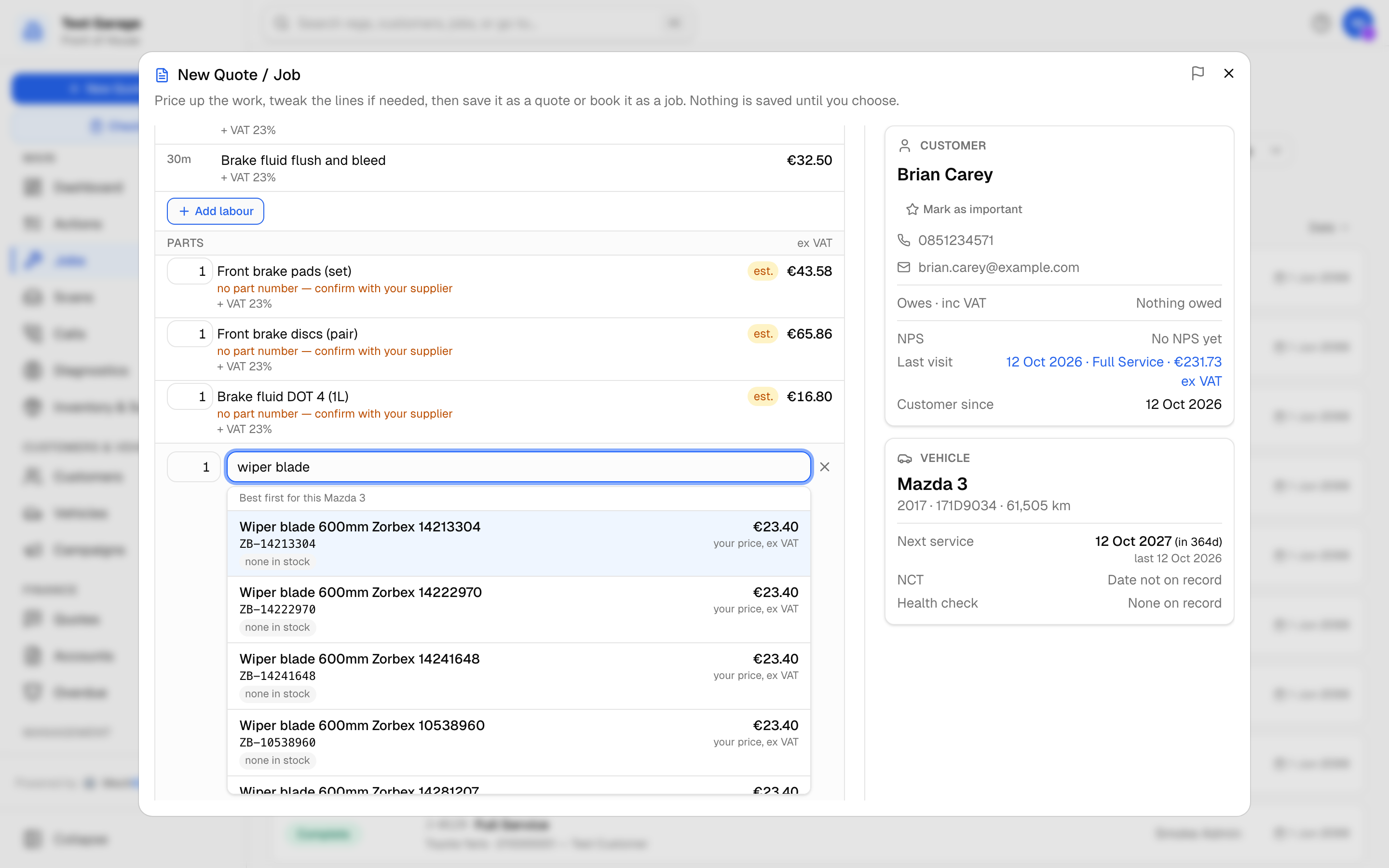 Matches for the car you're quoting, best first. Stock and shelf show for parts you hold.
Picking a match fills in the line straight away: name, part number, cost and price, with no Done needed. Set the quantity beside the search first and the part goes in at that quantity. The last option is always Use as typed -- estimate, which prices what you typed as an estimate with no part number (editing a saved quote, it reads Use as typed -- type its price instead). If you close the line without picking anything, it is priced as typed. Type a price over a part and yours stands.
Searching uses only your own data and your factors' price lists. It never runs a paid lookup while you type.
Totals update as you edit and exclude VAT until the headline.
The consumables charge
If your garage charges consumables (Inventory -> Charges -> Consumables / sundries charge), the line breakdown ends with a Consumables section laid out like the other lines: Workshop consumables & sundries with its VAT rate under it, and the amount (ex VAT) on the right. It is already in the total, worked out the way the invoice will work it out.
To leave it off for this customer, click the line, then Remove. The total drops by the charge and its VAT, and the line reads Removed. Add it back puts it back. Your choice goes with Save as quote and Book: the quote, the job and its invoice all leave the charge off. A garage with no consumables charge sees no Consumables section.
Prices: ex or inc VAT
Every money figure says which it is:
- Lines are ex VAT. Each section of the line breakdown (Labour, Parts, Consumables) has ex VAT over its amounts, and each line shows + VAT and its rate underneath -- that VAT is added on top, not included.
- Totals show both. The big figure is inc VAT -- what the customer pays -- with the same total ex VAT and the VAT beneath it.
- Typed prices are ex VAT. The Total box when you open a line is labelled ex VAT.
The same rule holds across MechIQ: line and unit prices (parts, labour, menu prices, catalogue sell prices) are ex VAT; money that changes hands (payments, what a customer owes, a supplier bill's total) is inc VAT. Customer-facing pages and PDFs show the customer the inc-VAT total. See Which money figure is which.
Availability -- "when can you fit me in?"
Under the price is a two-week strip showing how free each day is; days that can't fit a job this long are red. Tap one while the customer is on the phone and it carries through to the booking.
What you do next
Set Enquiry via (Phone, Email, Walk-in or Social media) so the quote is tagged with how it arrived, then choose:
- Book -- saves the priced lines as a quote and opens the New job dialog with everything filled in: reg, vehicle and owner if matched, the work and the price. The job's parts are the ones on the quote, with their part numbers and prices. If you picked a day the button reads Book Thu 1 Oct and books straight onto it. Without a reg, New job opens with what you know and identifies the car properly before anything is committed -- a car's job needs a plate even if a quote does not (work with no plate at all is booked as No registration).
- Save as quote -- keeps the quote for a ring-back without booking anything. Needs a reg. The car's make, model and year are kept with it, so Book does not ask for them again. It IS a quote: it is in the quote list (under New Quotes until you send it) and on the Quotes page under Quotes given -- not booked, gone from that list after a week if nobody books -- or as soon as the car is booked, by any route (New job, Book, or the online booking page). Saving the same reg again within a day re-prices that quote instead of making a second one. To change it later, open it and click Edit Quote -- nothing is re-priced with AI. See Editing a saved quote.
- New Price Check -- clear it and price a different enquiry.
Close the dialog without choosing and nothing is kept.
Tips
- Always take the reg if the caller has it -- an identified car gives a firmer price and is what lets you save the quote.
- Quote the total inc VAT and say it is an estimate whenever you see est. badges or an Indicative only badge.
- Save as quote is the right call for "let me think about it" -- the quote then sits on the Quotes page for the ring-back.
Related: Quoting · Creating a Job
Tyres and the tyre levy
When you add tyres from your parts list (or a job type brings them), each charge your garage adds with every tyre -- the tyre disposal levy -- appears by itself as one line with a Charge · with tyres chip, quantity = the number of tyres. Change the tyre quantity and the levy follows; remove the last tyre and it goes. To leave the levy off for this customer, click it and remove it (the x): it then stays off, however many tyres you add, and the quote and the job leave it off too. A job type's charges (the CVRT test fee on a CVRT job) are on the price the same way. Charges never take a markup and are never "to order". See Charges, Levies & the Consumables Charge.