Warranty and Insurance Invoices
When a job is covered by a warranty or an insurance claim, the customer usually pays only an excess and the warranty company or insurer pays the rest. MechIQ splits the bill into two linked invoices so each party is billed the right amount. The same tool covers any second payer -- a fleet or a lease company, for example.
Splitting the bill
The split is made on the Warranty / Insurance card on the job's Money tab (see below): Generate split bill creates the two invoices. Then click Check out in the panel on the right of the job page -- checkout opens on the payment step, with a section for each invoice.
On the payment step each invoice has its own section, with the same method list and buttons as any checkout: pick a method for the customer's invoice and for the second payer's (Pay later is usual for an insurer who settles on receipt), and press the button under each (Take €X -- Card, Leave €X to pay later…). Once both are dealt with, Hand over keys.
Recording the claim on the job
Capture the claim on the Warranty / Insurance card on the job's Money tab:
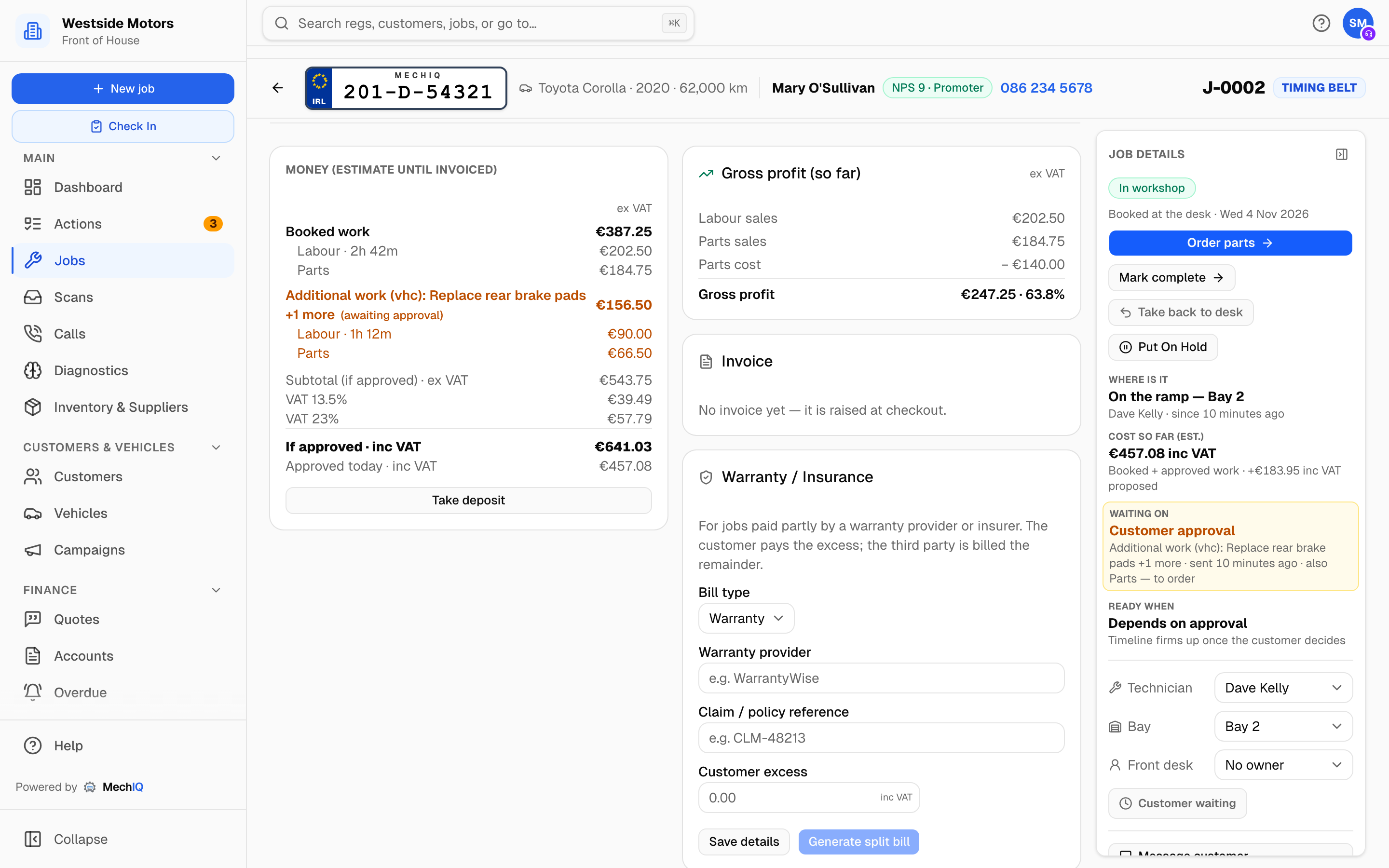 The Warranty / Insurance card. Save the claim details early; generate the split bill when the work is done.
- Bill type -- Warranty or Insurance.
- Warranty provider / Insurance provider -- the company's name.
- Claim / policy reference -- optional.
- Customer excess -- the amount the customer pays.
Save details keeps them on the job. Generate split bill creates the two invoices straight away: the customer's excess on one, the rest of the job total on the other. A Split bill generated dialog shows both, with their numbers, subtotals, VAT bands and totals. The two invoices always add back up to the job total.
Afterwards
On Accounts -> Invoices the pair shows with 1/2 and 2/2 badges; the second payer's name is in the Customer column. Each has its own status (Owed, Pay later, Paid…) and is paid, credited and exported on its own. Send each invoice to the right party -- the provider's invoice goes to the warranty company or insurer, not the customer.
Tips
- Confirm the excess with the customer and the claim authorisation with the provider before generating the split.
- If the excess changes after the split, raise a credit note against the wrong invoice rather than editing it. See Credit notes and refunds.
Related: Invoicing and Checkout · Group Accounts