Technical Data — Guides, Specs and Diagrams
MechIQ gives you HaynesPro's manufacturer data for the exact car on the ramp -- maintenance schedules, torque and adjustment figures, lubricants and capacities, book times, step-by-step repair procedures, recalls and TSBs, drawings, wiring diagrams and fuse layouts. It is built into the job; no separate login.
The technical data browser
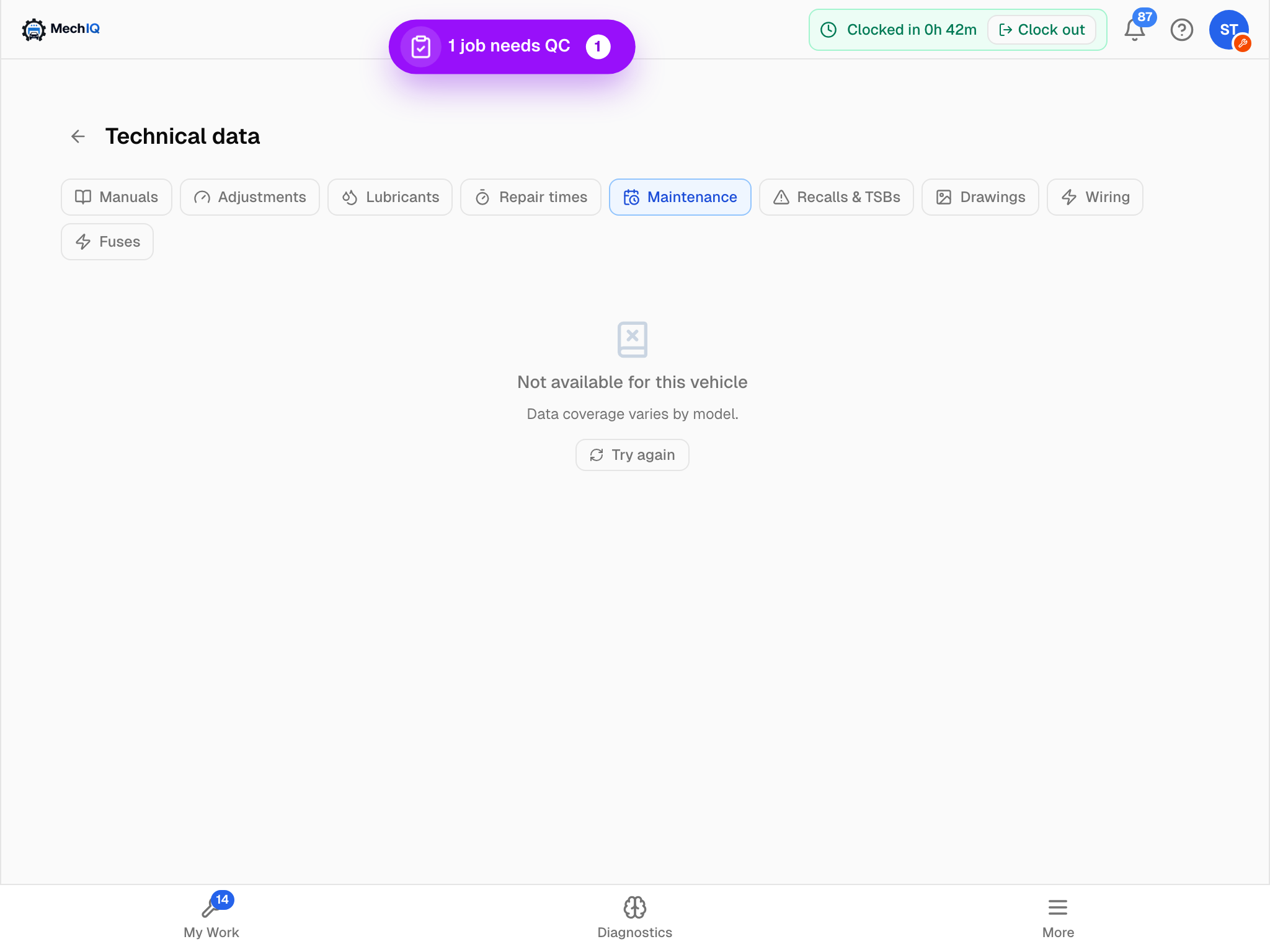 The technical data browser. The car's exact model line shows above the chips; coverage varies by model.
The browser is split into sections you switch with the chips at the top:
- Manuals -- step-by-step repair procedures. From a procedure you can jump to the adjustment tables or the book time for that job.
- Adjustments -- torque figures and settings tables.
- Lubricants -- fluid grades and capacities.
- Repair times -- the manufacturer's book times, browsable by system or searchable. Where HaynesPro hold the detail, What this time covers under an operation lists what the time includes and leaves out, any preliminary work and any follow-up work.
- Maintenance -- the service schedules.
- Recalls & TSBs -- open recalls and technical service bulletins, with their text.
- Drawings, Wiring and Fuses -- technical drawings, wiring diagrams and fuse layouts.
Only the section you open is fetched, so a tap on a chip is a real lookup of HaynesPro's data -- one MechIQ is charged for. Open what you need rather than clicking along the row to see what's there. The car's model line shows at the top so you always know which variant the data is for.
Three ways in
- The Technical data button in the job header (it carries the HaynesPro mark) -- from any tab. On a wide screen it opens beside the job so the work plan stays on view; on a narrow one it covers the page. The expand icon opens the full-page version; x closes it and the job is where you left it.
- The Powered by HaynesPro card at the top of the Workflow -- Torque & specs expands the tightening figures and capacities inline in the plan, and Technical data opens the browser at Manuals.
- The chips on tasks -- see Guide and Torque & Specs chips. They drop you on the section for that piece of work: a brake step lands on brakes, not the car's home page.
The desk have the same Technical data button on their job page, so the figures you are reading are the ones they are reading. On a vehicle's own page there is no such button: the way in there is Full spec (the vehicle registry dialog), which carries an Open guide button at the top.
Opening a drawing
A drawing or wiring diagram opens inside the panel, so the job stays beside it. Scroll to zoom, drag to pan, double-click to reset, and use the expand icon when a wiring schematic needs the whole screen.
On the native app
The same browser opens from the HaynesPro doors on the Work tab (Torque & specs, Technical data) and from the chips on tasks, with the same sections and the same recall and TSB cards. On a tablet it opens as the guide pane beside the work plan -- drag the divider to resize it -- and on a phone it pushes a full-screen page.
Searching and enlarging the torque & specs. The specs have a search box: type wheel nuts, oil or caliper and only the matching figures stay. On a tablet the specs open beside the work plan; tap the full-screen icon in their title bar to fill the screen, and tap it again (or press the Android Back button) to go back to the split with the specs still open. Turn the tablet sideways for the specs in two columns. On the web, Full size opens the specs in a large window with the same search.
Back on Android. Back steps out one level at a time — full screen, then the split, then the specs — before it leaves the app.
Tips
- Use the chips rather than browsing from scratch -- they land you on the section for the work in hand.
- Each section you open is a charged lookup, so open the ones the job needs; don't tour the chips out of curiosity.
- Check Recalls & TSBs before chasing a known-fault symptom -- the answer may already be a bulletin.
- Always confirm a torque figure against the car before torquing.
Related: Guide and Torque & Specs chips · When the data is uncertain or missing · Recalls and bulletins on a job